You can wrap SQL code in SSMS with one setting, so long lines fit the window. This is episode 38 of SQL in Sixty Seconds. The video shows the setting, and this post gives the exact menu path and what each option does.

Every developer has a formatting habit. Some write functions in upper case and some in lower case. Column lists come in many shapes. I respect those choices, and I don’t change another developer’s formatting. One thing I do change is how the code is displayed. Horizontal scrolling makes code hard to read.
My desktop has a wide screen. My 12 inch laptop does not, and the same file scrolls sideways there. No formatting choice fits every screen, but a display setting can. SSMS wraps the code to the width of the window, and it wraps again when you resize.
Watch the Original Video
Where the Setting Lives
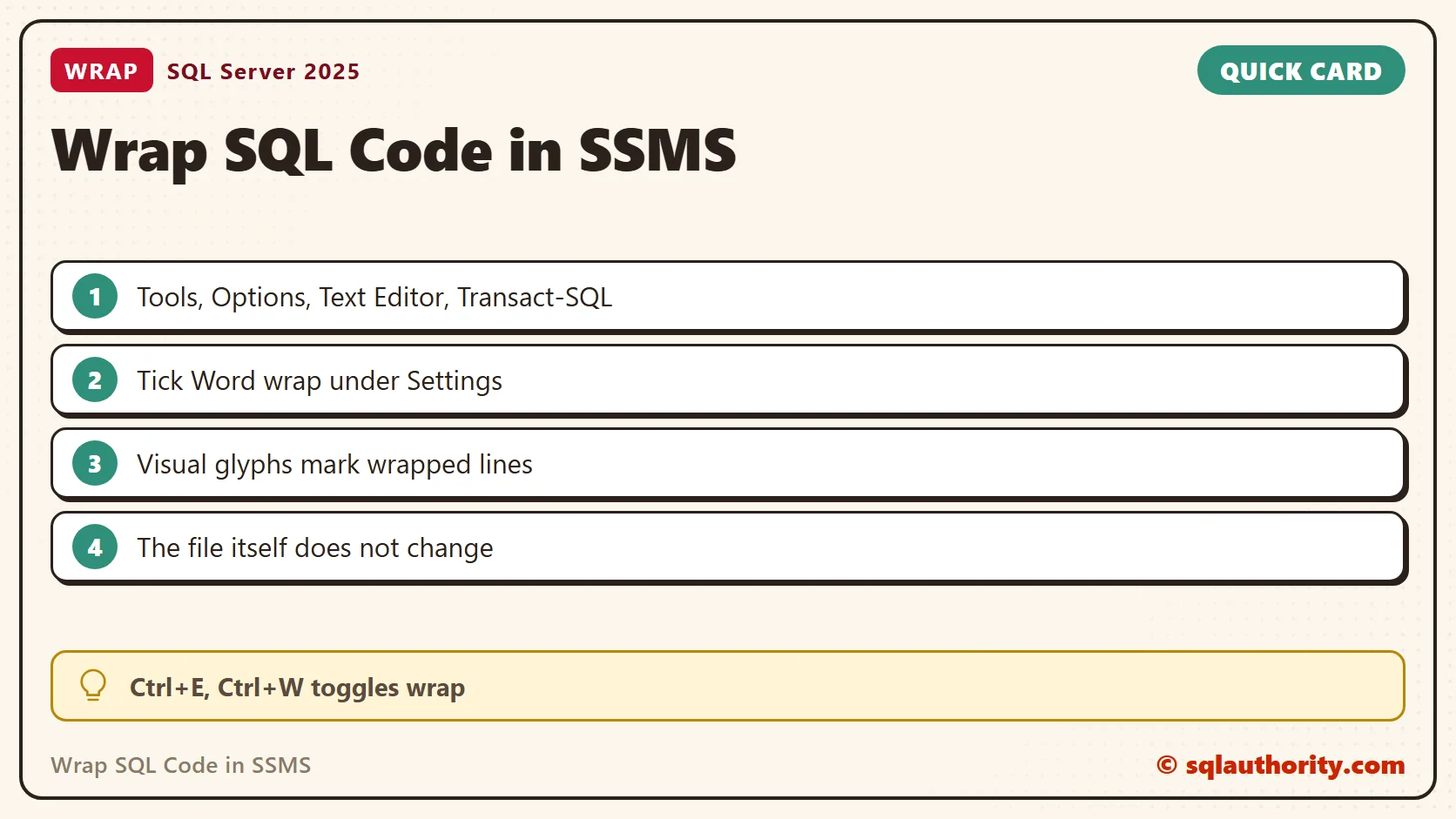
- In SSMS, open the Tools menu and choose Options.
- Expand Text Editor and select Transact-SQL.
- Under Settings, tick Word wrap.
- Click OK.

The screenshot comes from the SSMS of the video’s time. Newer releases keep the setting in the same branch of the Options tree. Look for Word wrap on the Transact-SQL pages.
The Options on That Page
| Option | What it does |
|---|---|
| Word wrap | A long line continues on the next screen line instead of scrolling to the right. |
| Show visual glyphs for word wrap | Draws a small mark where a line continues, so you can tell a wrapped line from a new one. |
| Line numbers (under Display) | Numbers each real line. A wrapped line keeps its one number. |
| Enable virtual space | Lets the cursor move past the end of a line. It is gray in the screenshot while Word wrap is ticked, so the two don’t combine. |
Each language has its own branch. The screenshot lists All Languages, Plain Text, Transact-SQL and XML. Wrap under Transact-SQL changes query windows. Set it under another branch when you want the same behavior elsewhere.
Try It on a Long Line
The query below is one line of 214 characters. With wrap off, it runs past the edge of a normal window. With wrap on, the editor folds it into several screen lines, and line number 1 stays on the first one. It lists the four system databases, so it runs on any instance.
SELECT name, database_id, create_date, compatibility_level, collation_name, recovery_model_desc, state_desc, user_access_desc, page_verify_option_desc FROM sys.databases WHERE database_id <= 4 ORDER BY database_id;
Wrap changes only how the editor draws the text. The file still holds one line. A copy of it pastes into an email or a ticket without added line breaks.
Check That It Worked
Open a new query window and paste the long query. The text should fold at the right edge, with a glyph showing each fold. Drag the window narrower and then wider. The lines wrap again each time, as in the video. If the query still runs off the screen, the Word wrap box is not ticked. Now tick Line numbers under Display. The folded query shows one number, 1, beside its first screen line and none beside the rest.
A Faster Switch
The Edit menu has the same toggle under Advanced, then Word Wrap. The shortcut is Ctrl+E, then Ctrl+W. I use it to turn wrapping off for a block of aligned columns, because wrapped lines break the alignment. Use the Options page when you want the choice to stay.
Reading Someone Else’s Code
Wrap is a reading tool, not a formatting rule. It leaves the file alone, so a colleague’s code stays exactly as they wrote it. In code I write myself, I still break a long query into lines by clause. Wrap helps most with a long line you can’t avoid, such as a list of values or a connection string.
Related Tips
- AutoRecover Settings in SSMS: Protect Your Unsaved Queries
- A Cool Trick – Restoring the Default SQL Server Management Studio – SSMS
- SSMS 2012 Reset Keyboard Shortcuts to Default
- Copy Column Headers From SSMS Results to Excel
- SELECT TOP Shortcut in SQL Server Management Studio (SSMS)
- Color Coding SQL Server Management Studio Status Bar – SQL in Sixty Seconds #023 – Video
- Clear Drop Down List of Recent Connection From SQL Server Management Studio
Word wrap is not a way to fix messy code, it is a way to read it without scrolling.
Published by Pinal Dave on SQLAuthority. More of my work at pinaldave.com.
Discover more from SQL Authority with Pinal Dave
Subscribe to get the latest posts sent to your email.