
As a technologist, I love my laptop very much and I do not lend it to anyone as I am usually worried that my settings would be messed up when I get it back from its borrower. Honestly, I love how I have set up my laptop and I enjoy the settings and programs I have placed on my computer. If someone changes things there – it will surely be annoying for me. So here is how to reset keyboard shortcuts in SSMS 2012 when someone changes them.
Recently at one of the conferences I was attending in, a small accident happened – one of the speaker’s hard drives failed. The owner immediately panicked due to this and had no clue what to do. I suggested that he may not be able to show the demos but can still show a few things with the product. He accepted my suggestion and finished the presentation. Good thing everybody looked satisfied. Little did I know that a small accident was waiting for me later that day.
When I opened my SQL Server Denali, all my shortcuts were totally out of order. When I hit F5, instead of executing query, it was opening up some debugging screen for me. I was very much annoyed so I decided to surf the Internet for me to know how I could reset it to SQL Server 2012 default shortcut. There were so many different advices which further confused me. After reading 4-5 different methods, I used the following method to reset my SQL Server 2012 keyboard shortcuts:
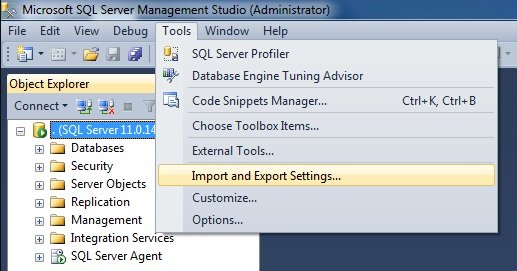
Go to SSMS > Tools >> Import and Export Settings…
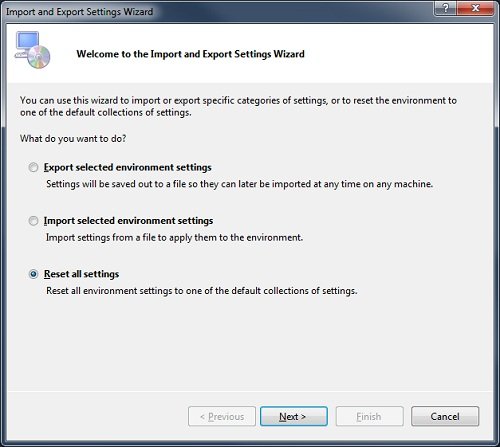
As I wanted to reset all the settings I selected the “Reset all settings” option, but you can select other options as per your need.
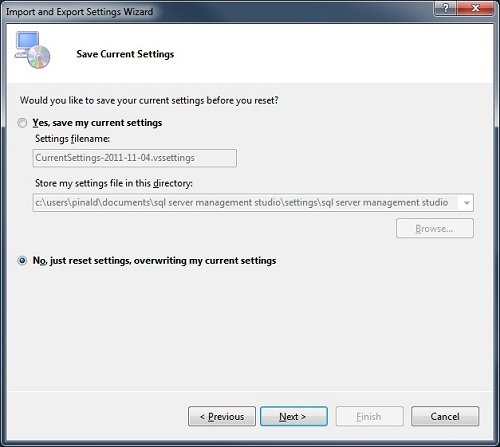
I suggest you save your current Settings; however, in my case, I did not like the current option so I just decided to overwrite my settings.
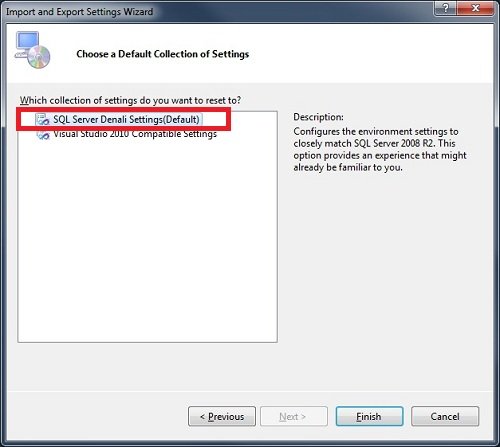
Here I have two options – I can either set my shortcut to SQL Server 2012 settings or Visual Studio 2010. I went ahead with the SQL Server 2012 option.
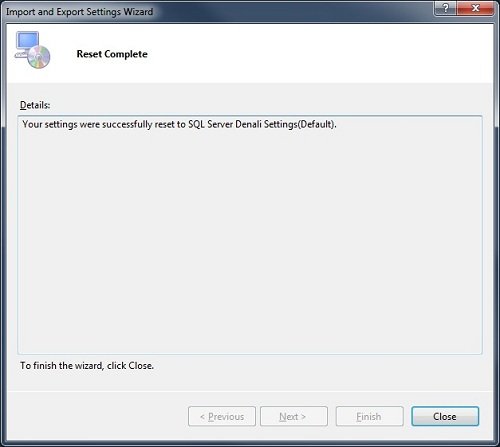
Success!
Published by Pinal Dave on SQLAuthority. More of my work at pinaldave.com.
Discover more from SQL Authority with Pinal Dave
Subscribe to get the latest posts sent to your email.




12 Comments. Leave new
Hi..
Thanks for sharing..Some times I also get annoyed from these setting.
Thanks a lot.
Nice post.
I agree these small things are sometimes very annoying and kill significant productive time.
My CNTL+E for execute wasn’t working in 2012… this fixed it! Thanks!!
Any idea how to easily pull over the settings for 2000? There’s no easy way to open a new connection (Used to be CTRL+O). 2008 let you do it.
Thank you Pinal…
It was very useful.
Nice, Thanks for sharing,..
Thanks a lot… Very much Relieved
gracias !!!!
ya funciona el Ctrl + R ….
y todo lo demas …. tanks ….
Thank you P. that works as mentioned…
Thanks.. It worked for me.
am already installed SSMS 2012 . now i need sql server agent 2012 . how i install properly … please send me any reference link … please guide me ji.
what is the edition of SQL Server you are using?