
The AutoRecover settings in SSMS decide how much work you lose when Management Studio crashes. Most developers lose an unsaved query at some point. A few seconds in the Options dialog changes a lost afternoon into a lost minute.

Where to Find the Two Options
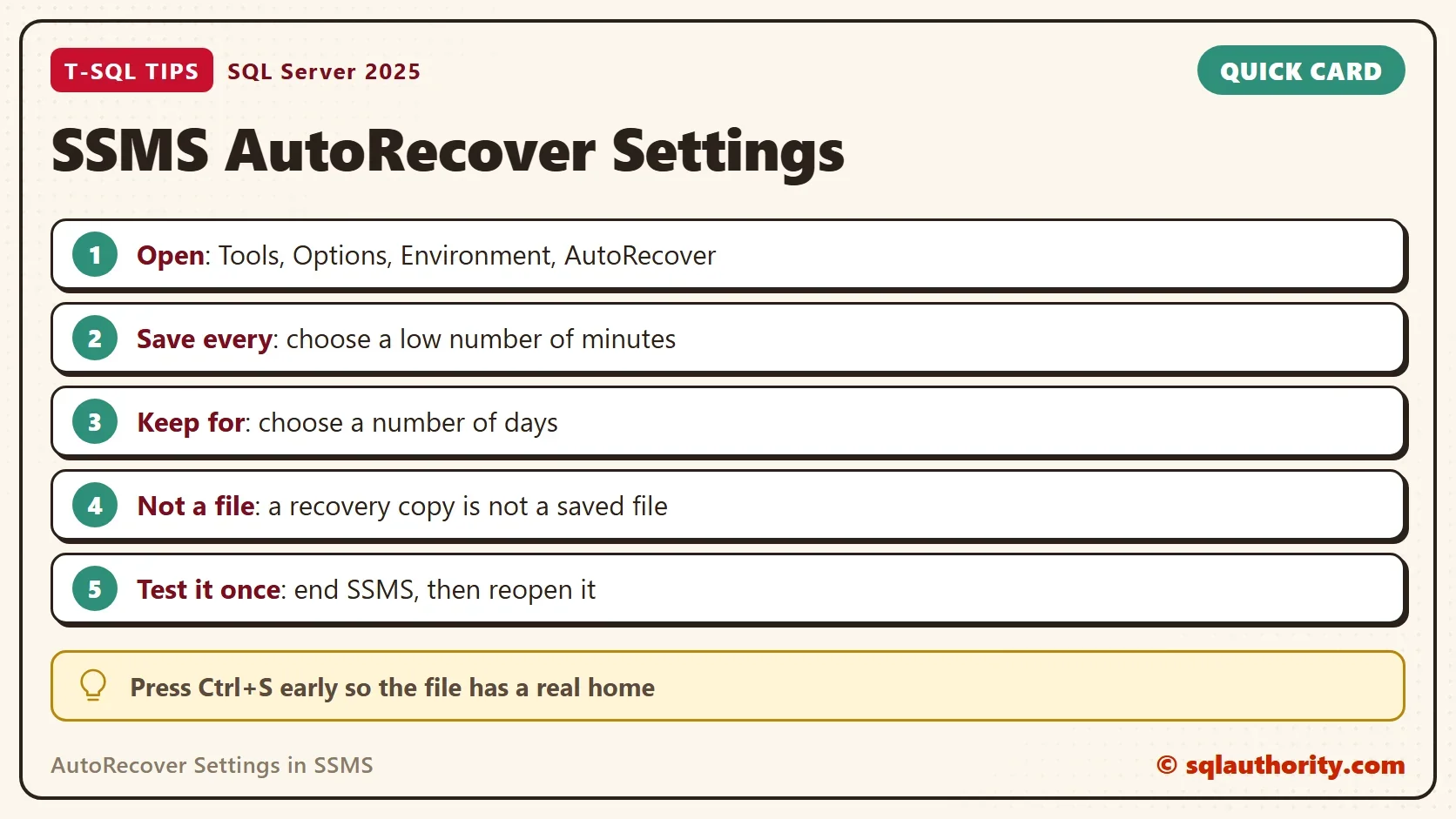
In SSMS 22, choose Tools, Options, Environment, AutoRecover. The AutoRecover settings page has two options, and each one has a number you can change.
The first is Save AutoRecover information every N minutes. It sets the gap between recovery copies of every open document that has unsaved changes. The second is Keep AutoRecover information for N days. It sets how long SSMS holds on to those copies before it deletes them.
Set the first number low. It also defines your worst case. If the interval is ten minutes, a crash right before the next save costs you ten minutes of typing. With a one minute interval, the worst case is a minute. For the second number, a week is plenty. The copies matter on the day of the crash, and they stop mattering soon after.
What AutoRecover Does and Doesn’t Do
AutoRecover is a recovery copy, not a saved file. SSMS writes the copy in the background while you work. A normal close, or a save, ends the copy’s job, and it goes away. When SSMS ends in an unexpected way, the copy stays. The next time SSMS starts, it offers to recover the documents it finds.
The setting protects you against the crash, the power cut and the frozen window you close from Task Manager. It doesn’t protect you from your own choices. If you close a tab and say you don’t want to save, SSMS believes you. It also doesn’t turn a new query window into a file. A window that has never been saved has no name and no folder, so you can’t search for it later.
Test It Once on Your Own Machine
Reports differ for windows that were never saved, so the test below matters. Don’t take the settings on faith. How much comes back for a window that was never saved is easy to find out and hard to promise. A two minute test tells you what your machine does.
Open a new query window and type a few lines. Wait longer than your interval. Open Task Manager and end the SSMS process, which simulates a crash. Start SSMS again and look for the recovery prompt. If your lines come back, you can trust AutoRecover for new windows. If they don’t, you know you must save files early, and you learned it at no cost.
Older releases kept the recovery copies in a folder named Backup Files under Documents. Search there first if you need to find them yourself. Open it only after a crash, and copy what you need out of it. The folder is a safety net, so treat it as read only.
The Habit That Beats Every Setting
You could argue that a short interval only hides a bad habit. The real fix is to save the file yourself. That’s true. Press Ctrl+S as soon as a query is worth keeping. The first save gives the window a name and a folder, and every later save is one keystroke. Ctrl+Shift+S saves every open window at once.
Choose the folder with care. A folder in your backup routine protects the file from a disk failure as well as a crash. A desktop folder that nothing copies protects it from neither. AutoRecover covers the minutes between saves, and your backup covers the days between them.
The two work well together. The setting costs nothing, and the day it saves you an hour pays for all the days it sat unused.
What to Remember
Open Tools, Options, Environment, AutoRecover and review the AutoRecover settings. Lower the interval. Keep the copies for a few days. Run the crash test once, so you know what your version recovers. Then build the habit that does the real work: save early with Ctrl+S, into a folder that gets backed up.
If you share a laptop, or you open production scripts on a jump box, apply the same setting there too. Options belong to the person and the machine. A setting you made on your own computer doesn’t follow you to another one.
AutoRecover is not a backup of your work, it is a net that catches the minutes you forgot to save.
Published by Pinal Dave on SQLAuthority. More of my work at pinaldave.com.
Discover more from SQL Authority with Pinal Dave
Subscribe to get the latest posts sent to your email.




7 Comments. Leave new
Thanks Pinal for sharing this piece of information.
You asked in video, has it happened to you, my response is “Yes it happened to me couple of times. I had to re-write all code again”.
This is a great feature. I wish they had this feature in SQL 2008/2005, but I see it is not available in SQL Server 2008, I guess Microsoft included this feature starting SQL Server 2012.
Very useful feature by Microsoft.
~ IM.
Hi,
This is great but it works only on SSMS 2012, on SSMS 2005+ I use SSMS Tools Pack from Mladen Prajdic http://www.ssmstoolspack.com it has a current windows history that show you all the changes done to the query and it as the ability to recover from crashes, and many more features.
Hi Pinal,
Thanks for this post, is there any way to do the same in SQL Server 2008?
It’s really very helpful for SQL professionals.
Hi,
We are Agree this is the gud feature but if the SSMS crashes where this Auot recover option saved the file..And how do we get back script
~~Venkat
But, this doesn’t work for SSMS 2012.
Unfortunately it only works for previously saved files and MS doesn’t care: https://docs.microsoft.com/en-us/collaborate/connect-redirect
It’s really useless post because recovery does not work on most versions of MS Management Studio for not saved files manually. But I’m saving the last ver. of important files, I do not need to recover it after crash. And files that you did not save manually always are lost.