
To copy column headers from SSMS results, right-click the result grid and choose Copy with Headers, or press Ctrl+Shift+C. A plain copy sends the rows and leaves the names behind. That surprises people the first time they paste a result into Excel and find no headings.

What a Plain Copy Leaves Out
Take a small result. This query reads three rows from the system catalog, so it works on any server and creates nothing.
SELECT TOP (3) database_id, name, compatibility_level FROM sys.databases ORDER BY database_id;
| database_id | name | compatibility_level |
|---|---|---|
| 1 | master | 170 |
| 2 | tempdb | 170 |
| 3 | model | 170 |
Select all three rows and press Ctrl+C. Excel receives three lines of text with tabs between the columns. The first pasted row is the master database, so nothing tells you which column is which. With three columns that’s a nuisance. With thirty columns from a performance query, it’s a real problem.
Method 1: Copy With Headers, One Time
Click the top left corner of the grid, the small empty box above the row numbers. That selects every cell. You can also select a few columns by clicking their heads, or press Ctrl+A. Then right-click inside the selection and choose Copy with Headers. The shortcut for the same command is Ctrl+Shift+C.
The clipboard now holds the column names on the first line, followed by the rows. Paste it into Excel and the first row becomes the heading row. This method works in every query window, and it works whatever the options say.
Method 2: Include Headers Every Time
If you paste into Excel all day, set the option once, and you copy column headers every time. In SSMS 22, choose Tools, Options, Query Results, SQL Server, Results to Grid. Check the box named Include column headers when copying or saving the results, and click OK.
From then on, a plain Ctrl+C includes the headers. The option also applies to Save Results As, so a CSV file gets its heading row too. That’s the setting you want for most exports. It’s the wrong one if you paste result rows into a text file that must not have headings.
Why the Option Seems to Do Nothing
This is the most common complaint, and the cause is simple. SSMS applies the change to query windows opened after you save it. A window that was already open keeps its old behavior. Open a new query window, run the query again, and the copy includes the headers.
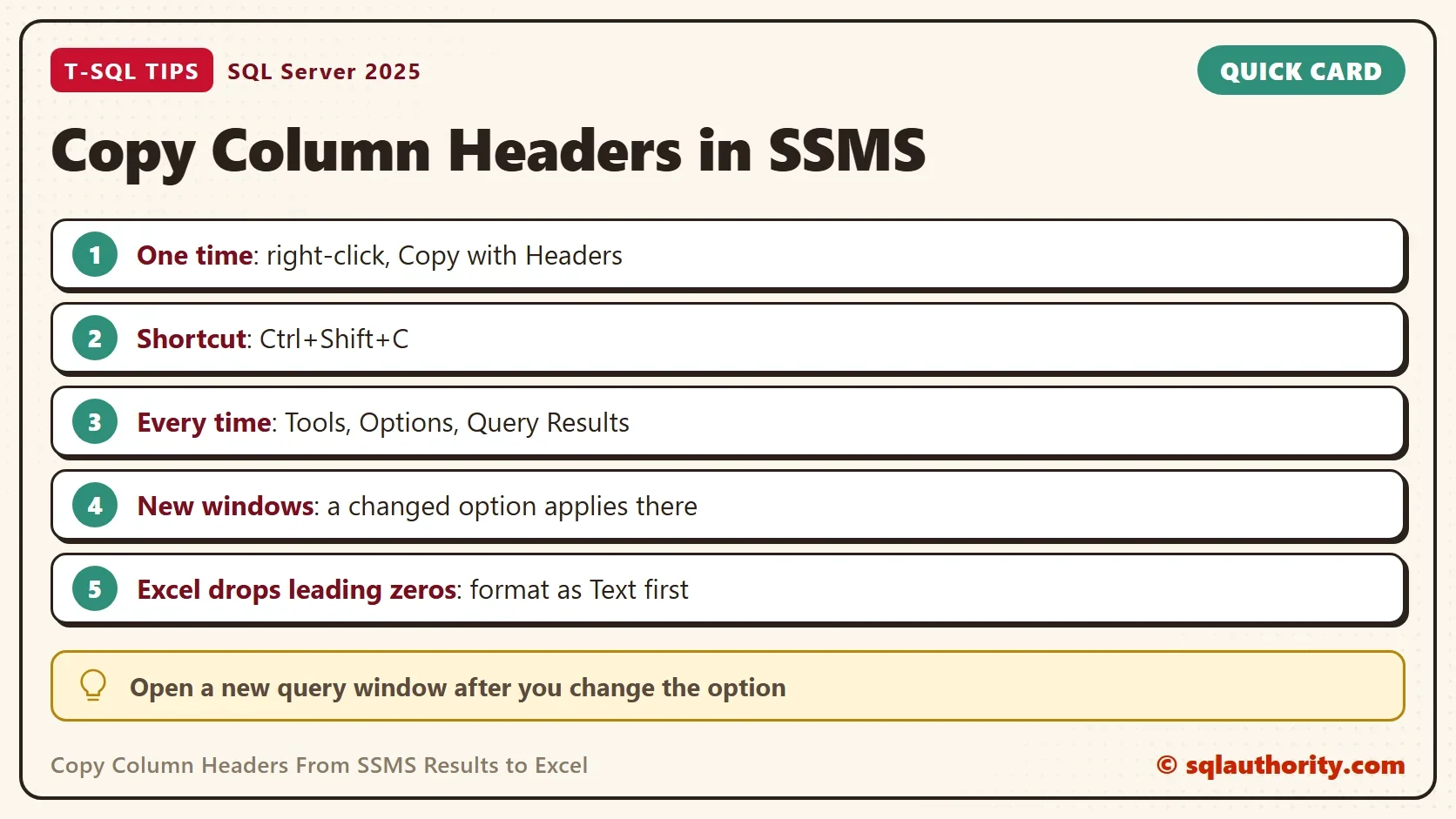
The same rule explains the opposite problem. Someone unchecks the box, copies in an old window, and still gets headers. Open a fresh window after you change the option, in either direction. To copy without headers, turn the option off and open a new window.
Other Ways to Get the Names
You have a few more choices. Results to Text, Ctrl+T, prints the column names above the rows every time. That’s handy for a quick look. Save Results As writes a CSV file from the grid. Results to File, Ctrl+Shift+F, writes a report file when you run the query. Pick the output that matches where the data goes next.
For a report you repeat, don’t paste at all. Excel can connect to SQL Server and keep its own copy of the query. Its Get Data command lists SQL Server Database as a source. The headings come from the query, and a refresh brings in new rows. You could argue that a paste is faster for a one-off check, and for a one-off it is.
Leading Zeros and Other Excel Surprises
After the headers, the next problem is Excel itself. SSMS sends text, and Excel decides what each value is. A value such as 002 becomes the number 2, and a value such as 1E3 becomes 1000. The leading zeros are lost before the data reaches a cell.
SSMS can’t fix that. Format the destination columns as Text in Excel before you paste, and the values stay as they were. Loading through Get Data works too, because you set the column type there.
What to Remember
Use Ctrl+Shift+C when you need to copy column headers once. Set the option in Tools, Options when you need them always. After you change the option, open a new query window. Check the first pasted row in Excel, because the headings are the cheapest thing to verify.
In my own work, I leave the option on. A heading row removes the guessing.
A result grid is not a finished report, it is raw material that needs its headers when it leaves SSMS.
Published by Pinal Dave on SQLAuthority. More of my work at pinaldave.com.
Discover more from SQL Authority with Pinal Dave
Subscribe to get the latest posts sent to your email.




6 Comments. Leave new
This is 2nd video numbered as #26
Thanks for note , I fixed it!
Any way to copy results where one column is character value such as 002 or 003 and paste to Excel without it dropping the lead zeroes?
Please Check – http://blog.sqlauthority.com/2012/09/24/sql-server-excel-losing-decimal-values-when-value-pasted-from-ssms-resultset/
I always get the header even when I have the setting unchecked….how do I copy without the header????
sql 2008 r2 i have changed both the options setting and tried copy with header, neither one works !!!