
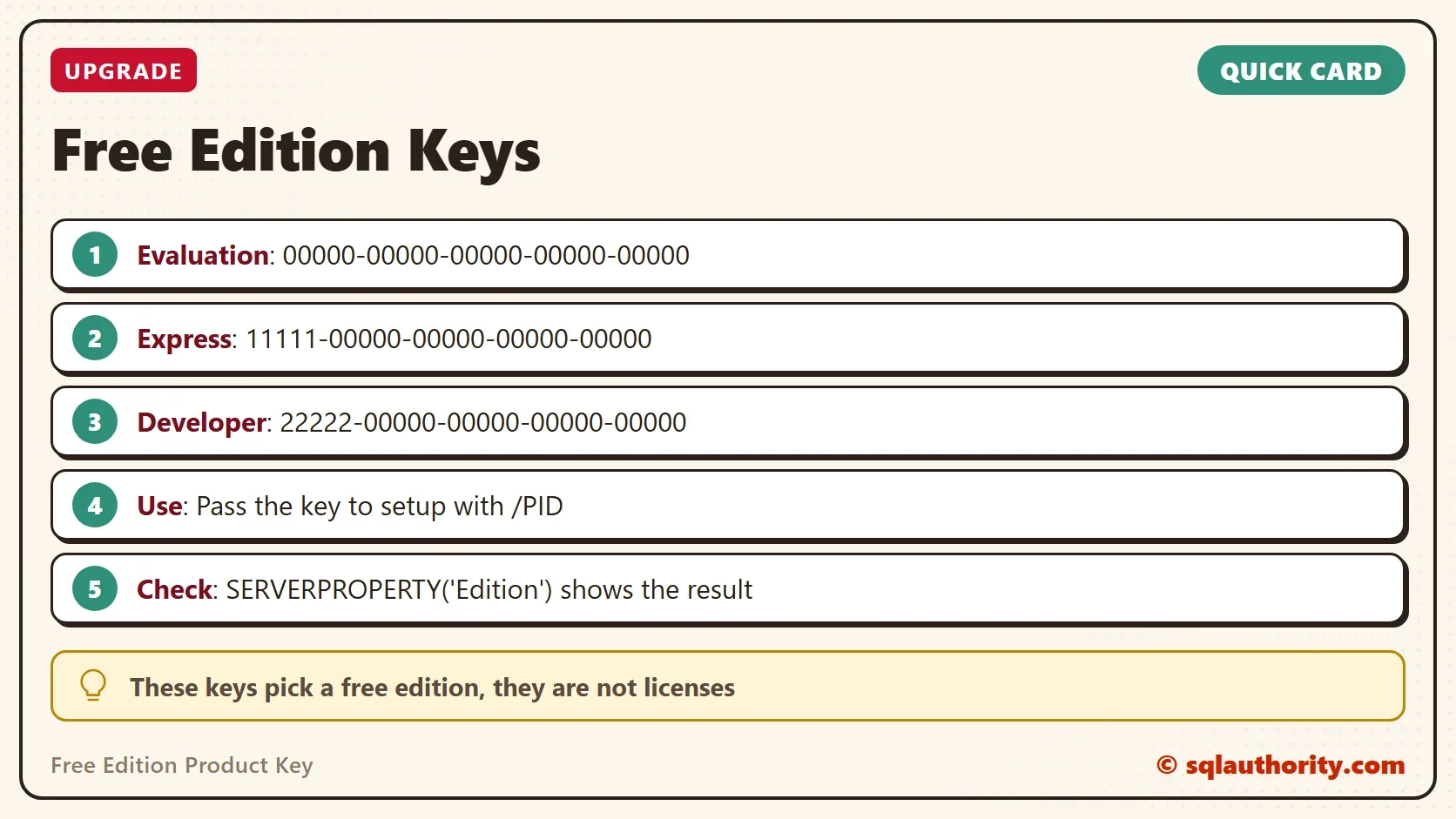
A free edition product key is a code, not a license. It tells SQL Server setup which free edition to install.

Three Free Editions, Three Codes
SQL Server has three editions you can install without paying. They are Evaluation, Developer and Express. In the setup wizard you pick one from a list. A script has no list to click, so it passes a code on the command line instead. A DBA at a client asked for these codes.
The codes below select the free edition and unlock nothing more. They were found by trial and error during that engagement, which ran on SQL Server 2017 and 2019. A reader confirmed the Developer code on 2019.
| Edition | Code | What you get | Production use |
|---|---|---|---|
| Evaluation | 00000-00000-00000-00000-00000 | Every Enterprise feature for 180 days | Trial only |
| Express | 11111-00000-00000-00000-00000 | The core engine with size, memory and CPU limits | Allowed |
| Developer | 22222-00000-00000-00000-00000 | Every Enterprise feature, no time limit | Not allowed |
Developer is for development and testing only. SQL Server 2025 names it by feature set. This test server reports Enterprise Developer Edition, and a Standard Developer edition exists for teams that run Standard in production. Pick the one that matches the edition you will run.
Pick the Right Free Edition
Choose Evaluation when you want to try Enterprise features before you buy. Choose Developer for daily work, because it has the same features as the edition you will run in production. Choose Express for a small application or for learning, and for production only when its limits fit. Each free edition product key leads to one of these three paths.
Switching later costs time, because an instance doesn’t change edition on its own. Decide early which free edition fits the work.
Use the Code in an Unattended Install
The code goes to setup through the /PID parameter. A quiet install needs a few more switches. Replace the instance name and the administrator account with your own. Run it in Command Prompt, because PowerShell uses a backtick instead of the caret.
setup.exe /Q /ACTION=Install /FEATURES=SQLEngine /INSTANCENAME=DEVDEMO ^
  /SQLSYSADMINACCOUNTS="MYPC\YourName" /IACCEPTSQLSERVERLICENSETERMS ^
  /PID=22222-00000-00000-00000-00000
The /Q switch runs setup without windows, and /IACCEPTSQLSERVERLICENSETERMS accepts the license terms for you. Read those terms before you use the switch. Try the command on a throwaway machine first, because the codes were found on SQL Server 2017 and 2019. If setup rejects a code on a newer version, choose the free edition in the wizard instead.
The wizard shows the same choice as a list on the product key page. For a single install, the list is faster than typing a code.
Check Which Edition You Got
Don’t trust the code you typed. Ask the server after setup finishes.
SELECT SERVERPROPERTY('Edition')        AS Edition,
       SERVERPROPERTY('EngineEdition')  AS EngineEdition,
       SERVERPROPERTY('ProductVersion') AS ProductVersion,
SERVERPROPERTY('ProductLevel') AS ProductLevel;| Edition | EngineEdition | ProductVersion | ProductLevel |
|---|---|---|---|
| Enterprise Developer Edition (64-bit) | 3 | 17.0.5005.3 | RTM |
The Edition column carries the name. An Evaluation instance reports Enterprise Evaluation Edition. The engine edition number groups editions by feature set. It reads 3 for Enterprise, Evaluation and Developer, 2 for Standard and 4 for Express. Your version and level will differ.
When the Evaluation Ends
An Evaluation instance runs for 180 days from its installation. After that, the SQL Server services don’t start. The error log and the event viewer explain that the evaluation period has expired. Plan the end date at install time.
The installation date is easy to read. The login NT AUTHORITY\SYSTEM is created by setup, so its creation date is the install date. The second column adds 180 days. Only an Evaluation instance has an end date, so on a Developer instance that column means nothing. Find SQL Server Installation Date and Time with T-SQL covers other ways to read it.
SELECT create_date                    AS InstalledOn,
       DATEADD(DAY, 180, create_date) AS EvaluationEnds
FROM sys.server_principals
WHERE sid = 0x010100000000000512000000;| InstalledOn | EvaluationEnds |
|---|---|
| 2026-03-06 19:38:17.260 | 2026-09-02 19:38:17.260 |
This is a Developer instance, so that end date is only arithmetic. An Evaluation instance installed on the same day would stop on it.
Moving to a Licensed Edition
A Developer instance can’t run production under any code. To move an instance to a licensed edition, use the Edition Upgrade option of setup. Enter a real product key, and try it on a copy of the server first. Licenses for a cluster, or for core-based licensing, come from Microsoft or a reseller. Ask them which licenses cover your setup.
Edition Upgrade replaces Developer with a licensed edition of the same version in place. On a cluster, run it on every node as the cluster upgrade steps describe (documented, not tested).
You could argue that nobody needs these codes, because the wizard has a list. For one install that is true. The codes matter when a script installs the same edition ten times, for a build server or a training room. A script can’t click a list.
What to Remember
A free edition product key selects Evaluation, Developer or Express during setup. The codes start with 00000 for Evaluation, 11111 for Express and 22222 for Developer, followed by four groups of zeros. Check the edition with SERVERPROPERTY('Edition') after the install.
Keep Developer in development and track the 180 days of Evaluation. Plan the move to a licensed edition before production starts.
A free edition key is not a license, it is a menu choice typed on a command line.
Published by Pinal Dave on SQLAuthority. More of my work at pinaldave.com.
Discover more from SQL Authority with Pinal Dave
Subscribe to get the latest posts sent to your email.



4 Comments. Leave new
I currently have SQL 2014 SP2 Developer Edition installed on a 2 node SQL cluster. The server needed to have Enterprise Core-based Licensing installed. Any chance this is supported by MS? Are there any good options to upgrade this?
Thank you, this information helped me prove a script with dbatools.io to install a database instance using the 2019 Developer edition
Thank You so much! You are a STAR!!!
Wonderful information, thank you very much. I didn’t have the developer key but needed it for the installation app my sysadmin gave me.