
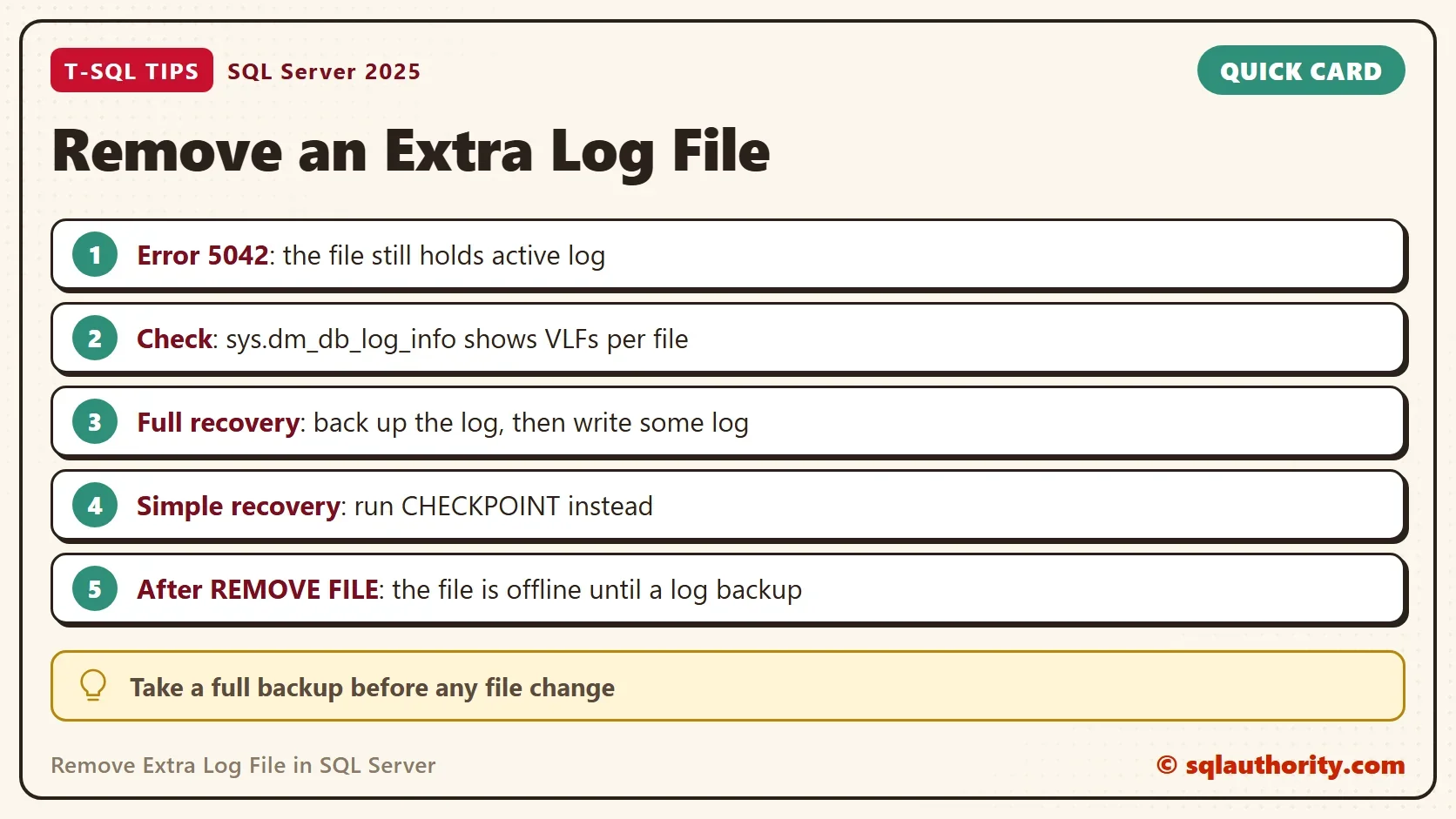
To remove extra log file members from a database, each file must hold no active log. Until then, ALTER DATABASE REMOVE FILE fails with Msg 5042. The fix is not a trick with the statement. It is a matter of moving the active part of the log out of the file first.

Why an Extra Log File Appears and Why It Won’t Go
A DBA added a second log file to the busiest server as a test. Two hours under heavy load showed no gain. SQL Server writes its log one file after another, so a second file adds space and not speed. Removing the file then failed with the message that the file is not empty.
The message is accurate. A log file is empty only when none of its virtual log files holds log that SQL Server still needs.
A virtual log file is also called a VLF. The demo shows how to remove extra log file members on a small database named ExtraLogDemo. It has two log files of 4 MB each with growth turned off. The log has to spill into the second file. The database uses full recovery. The first backup goes to NUL, which discards it, because this database holds nothing worth keeping. Never send a real backup to NUL.
DECLARE @dataDir nvarchar(260) = CAST(SERVERPROPERTY('InstanceDefaultDataPath') AS nvarchar(260));
DECLARE @logDir nvarchar(260) = CAST(SERVERPROPERTY('InstanceDefaultLogPath') AS nvarchar(260));
DECLARE @create nvarchar(max) = N'CREATE DATABASE ExtraLogDemo
    ON PRIMARY (NAME = ExtraLogDemo_data, FILENAME = N''' + @dataDir + N'ExtraLogDemo.mdf'', SIZE = 8MB)
    LOG ON (NAME = ExtraLogDemo_log, FILENAME = N''' + @logDir + N'ExtraLogDemo_log.ldf'', SIZE = 4MB, FILEGROWTH = 0),
           (NAME = ExtraLogDemo_log2, FILENAME = N''' + @logDir + N'ExtraLogDemo_log2.ldf'', SIZE = 4MB, FILEGROWTH = 0);';
IF DB_ID(N'ExtraLogDemo') IS NULL EXEC (@create);
ALTER DATABASE ExtraLogDemo SET RECOVERY FULL;
BACKUP DATABASE ExtraLogDemo TO DISK = N'NUL';
Remove Extra Log File: Reproduce Msg 5042
Now write enough log to fill the first file. The next script fills a table with 14,000 rows and then counts the VLFs of each log file. File number 2 is the original log and file number 3 is the extra one.
USE ExtraLogDemo;
GO
CREATE TABLE dbo.Fill (FillID int IDENTITY(1,1) PRIMARY KEY, Padding char(200) NOT NULL);
INSERT INTO dbo.Fill (Padding) SELECT TOP (14000) 'x' FROM sys.all_objects AS a CROSS JOIN sys.all_objects AS b;
SELECT file_id AS FileId, COUNT(*) AS Vlfs, SUM(CASE WHEN vlf_active = 1 THEN 1 ELSE 0 END) AS ActiveVlfs
FROM sys.dm_db_log_info(DB_ID(N'ExtraLogDemo'))
GROUP BY file_id
ORDER BY file_id;
| FileId | Vlfs | ActiveVlfs |
|---|---|---|
| 2 | 4 | 4 |
| 3 | 4 | 1 |
All four VLFs of the first file are active. The log has moved on into the extra file, where one VLF is active. Try to remove the extra file.
ALTER DATABASE ExtraLogDemo REMOVE FILE ExtraLogDemo_log2;
Msg 5042, Level 16, State 2, Line 1
The file 'ExtraLogDemo_log2' cannot be removed because it is not empty.
First Fix: Back Up the Log
In full recovery, the log keeps every VLF until a log backup has copied it. A full backup followed by a log backup is a safe order. On a real server, the full backup gives you a restore point before any file change. The log backup is the step that matters here, because it frees the VLFs. The demo sends it to NUL, as before. In simple recovery, run CHECKPOINT in place of the log backup, and let the log wrap the same way.
BACKUP LOG ExtraLogDemo TO DISK = N'NUL';
SELECT file_id AS FileId, COUNT(*) AS Vlfs, SUM(CASE WHEN vlf_active = 1 THEN 1 ELSE 0 END) AS ActiveVlfs
FROM sys.dm_db_log_info(DB_ID(N'ExtraLogDemo'))
GROUP BY file_id
ORDER BY file_id;
ALTER DATABASE ExtraLogDemo REMOVE FILE ExtraLogDemo_log2;
| FileId | Vlfs | ActiveVlfs |
|---|---|---|
| 2 | 4 | 0 |
| 3 | 2 | 1 |
Msg 5042, Level 16, State 2, Line 6
The file 'ExtraLogDemo_log2' cannot be removed because it is not empty.
The backup freed the original file, but the same error returns. The line number depends on where the statement sits in your script. One VLF in the extra file is still active, because it is the place where SQL Server writes right now. A log backup can’t free the current VLF. The log has to move on to the other file.
Second Fix: Let the Log Wrap Around
The log is a circle. New records go into the next free VLF. When the end of the last file is full, the log wraps back to the start of the first file. A little more activity, followed by a log backup, moves the write position out of the extra file. The loop below does that. It adds rows, backs up the log, and stops as soon as the extra file holds no active VLF. It stops after ten rounds at most.
DECLARE @i int = 0;
WHILE @i < 10 AND EXISTS (SELECT 1 FROM sys.dm_db_log_info(DB_ID(N'ExtraLogDemo')) WHERE file_id = 3 AND vlf_active = 1)
BEGIN
    INSERT INTO ExtraLogDemo.dbo.Fill (Padding) SELECT TOP (3000) 'y' FROM sys.all_objects AS a CROSS JOIN sys.all_objects AS b;
    BACKUP LOG ExtraLogDemo TO DISK = N'NUL';
    SET @i += 1;
END;
SELECT @i AS Rounds;
ALTER DATABASE ExtraLogDemo REMOVE FILE ExtraLogDemo_log2;| Rounds |
|---|
| 1 |
One round was enough here, and that is the step that lets you remove extra log file members for good. The statement printed that the file has been removed. The number of rounds depends on how much log your server writes. The loop checks the VLFs instead of guessing.
The File Stays Offline Until the Next Log Backup
The removal is not final yet. SQL Server deletes the file from disk when the removal runs, and an empty file goes the same way. The row stays in sys.database_files with the state OFFLINE until the next log backup finishes. After that backup the row disappears. Nothing is left to delete by hand.
SELECT name, type_desc, state_desc FROM sys.database_files ORDER BY file_id;
BACKUP LOG ExtraLogDemo TO DISK = N'NUL';
SELECT name, type_desc, state_desc FROM sys.database_files ORDER BY file_id;
| name | type_desc | state_desc |
|---|---|---|
| ExtraLogDemo_data | ROWS | ONLINE |
| ExtraLogDemo_log | LOG | ONLINE |
| ExtraLogDemo_log2 | LOG | OFFLINE |
| name | type_desc | state_desc |
|---|---|---|
| ExtraLogDemo_data | ROWS | ONLINE |
| ExtraLogDemo_log | LOG | ONLINE |
When the File Still Won’t Go
You could argue that the loop is too much work for one file. A plain statement should work. SQL Server refuses on purpose, because dropping a file with active log would lose log records. An open transaction can also block the removal, because it keeps its VLFs active. Check the log reuse wait in sys.databases. Read the VLF counts with Active and Inactive VLFs: List Them for Every Database.
What to Remember
To remove extra log file members, free their VLFs first. Back up the log in full recovery, or run a checkpoint in simple recovery. Let the log wrap back to the first file, and then run REMOVE FILE. Expect the file to stay offline until the next log backup. Take a full backup before any file change on a real server.
When you finish with the demo, drop the example database and its backup history. The last statement removes only the history rows that this demo’s own backups created in msdb.
USE master;
GO
DROP DATABASE IF EXISTS ExtraLogDemo;
EXEC msdb.dbo.sp_delete_database_backuphistory @database_name = N'ExtraLogDemo';
An extra log file is not hard to remove, it is a file that still has something to say.
Published by Pinal Dave on SQLAuthority. More of my work at pinaldave.com.
Discover more from SQL Authority with Pinal Dave
Subscribe to get the latest posts sent to your email.



1 Comment. Leave new
Try running checkpoint a couple of times. doing this will cause the active VLF to cycle to the start of the log file, as long as there isn’t an active transaction blocking it from doing so.
Did you try running checkpoint twice? Back-to-back? One right after the other?
Did you check for open transactions?