
You can enable SQLCMD mode in SSMS and run sqlcmd commands, such as :connect, inside an ordinary query window. This is episode 48 of SQL in Sixty Seconds. I tested the commands below on SQL Server 2025 with sqlcmd.exe.

The sqlcmd utility runs Transact-SQL statements and scripts, either interactively or as part of automation. Many developers think it works only at a command prompt. It also works inside SQL Server Management Studio, and one switch turns it on.
Watch the Original Video
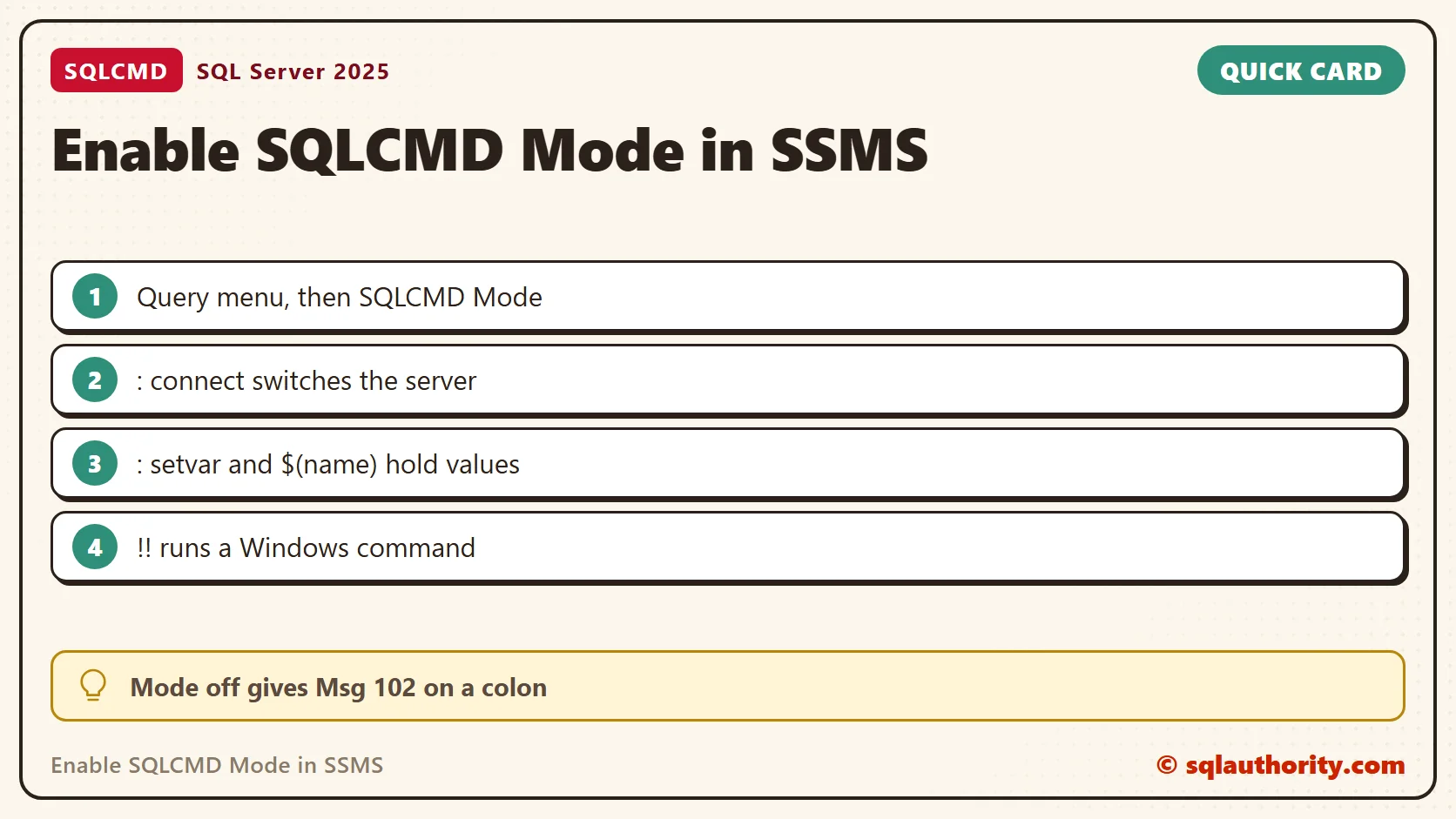
Turn It On
| Scope | Where to click |
|---|---|
| One query window | Query menu, then SQLCMD Mode. A toolbar button with the same name does the same. |
| Every new query window | Tools, Options, Query Execution, SQL Server, General. Tick By default, open new queries in SQLCMD mode. |
When the mode is on, lines that start with a colon or with !! get a gray background. When it is off, SSMS sends those lines to the server as T-SQL, and the server rejects them. I sent :connect, :setvar and a !! line through a plain connection. Each one returned Msg 102, Incorrect syntax near ‘:’ or near ‘!’. That error is the sign that the mode is off.
Switch Servers With :connect
I use :connect to work on several instances from one window. I don’t have to disconnect and reconnect in the prompt, and there is less to distract me. The command opens a new connection, so the session state starts over. In my test, the database was tempdb before :connect and master after it. A new connection starts in the login’s default database.
USE tempdb;
GO
SELECT DB_NAME() AS CurrentDatabase;
GO
:connect .\SQLDEV
SELECT DB_NAME() AS CurrentDatabase;
GO
Use variables for the server names when a script visits more than one. The :setvar command stores a value. Then $(name) replaces it before the batch is sent. My lab has one instance, so both names returned the same server. With two servers, you see two names.
:setvar FirstServer ".\SQLDEV"
:setvar SecondServer "localhost\SQLDEV"
:connect $(FirstServer)
SELECT '$(FirstServer)' AS Asked, @@SERVERNAME AS ServerName;
GO
:connect $(SecondServer)
SELECT '$(SecondServer)' AS Asked, @@SERVERNAME AS ServerName;
GO
Run a Saved Script With :r
Keep a check you repeat in a file, and call it from any window with :r. Save this as C:\Scripts\ServerCheck.sql:
SELECT @@SERVERNAME AS ServerName, SUSER_SNAME() AS LoginName, DB_NAME() AS DatabaseName;
GO
Then include it. SQLCMD mode reads the file and runs it at that point, on the server you are connected to. Change the path to match your folder.
:r C:\Scripts\ServerCheck.sql
Run a Windows Command With !!
The video lists a Windows folder from the query window. The command output appears in the Messages tab of the result pane. This one lists the folder that holds the hosts file. On my PC it returned six names, from hosts to services.
!!dir "%SystemRoot%\System32\drivers\etc" /b
GO
A !! line runs on the PC that runs SSMS, with your Windows account. Read a script from someone else before you run it.
Stop the Script on an Error
By default, sqlcmd goes on to the next batch after an error. Add :on error exit at the top to stop instead. In my test, the divide by zero raised Msg 8134, and the second batch never ran.
:on error exit
SELECT 1/0 AS Boom;
GO
SELECT 'The next batch ran' AS NextBatch;
GO
One Script for Any Database
Deployment scripts name the same database many times. Put the name in one variable, and change one line when the target changes. The value is inserted as plain text before the batch is sent. This script switched to tempdb.
:setvar DatabaseName tempdb
USE $(DatabaseName);
GO
SELECT DB_NAME() AS CurrentDatabase;
GO
The Same Commands at a Command Prompt
Everything above works in sqlcmd.exe too. The -i option runs a file, and -v sets a variable from the command line. A scheduled job can pass the database name that way. I ran a one line script with -v Pick=Red, and $(Pick) became Red.
Related Tips
- 2005 – Introduction and Explanation to sqlcmd
- Backup and Restore Database Using Command Prompt – SQLCMD
- Exporting Query Results to CSV using SQLCMD
- sqlcmd vs osql – Basic Comparison
- Connecting to Server Using Windows Authentication by SQLCMD
- Interesting Observation – Using sqlcmd From SSMS Query Editor
- sqlcmd – Using a Dedicated Administrator Connection to Kill Currently Running Query
SQLCMD mode is not a second tool, it is the command line you know, running inside your query window.
Published by Pinal Dave on SQLAuthority. More of my work at pinaldave.com.
Discover more from SQL Authority with Pinal Dave
Subscribe to get the latest posts sent to your email.




2 Comments. Leave new
This is really cool…..
you rocks dude!