
Remove a cached connection from the SSMS Connect dialog when its server name is wrong or no longer useful. An old entry can clutter the list and make it easier to select the wrong destination. This video shows how to remove an individual entry.

Remove the Entry, Not the Server Login
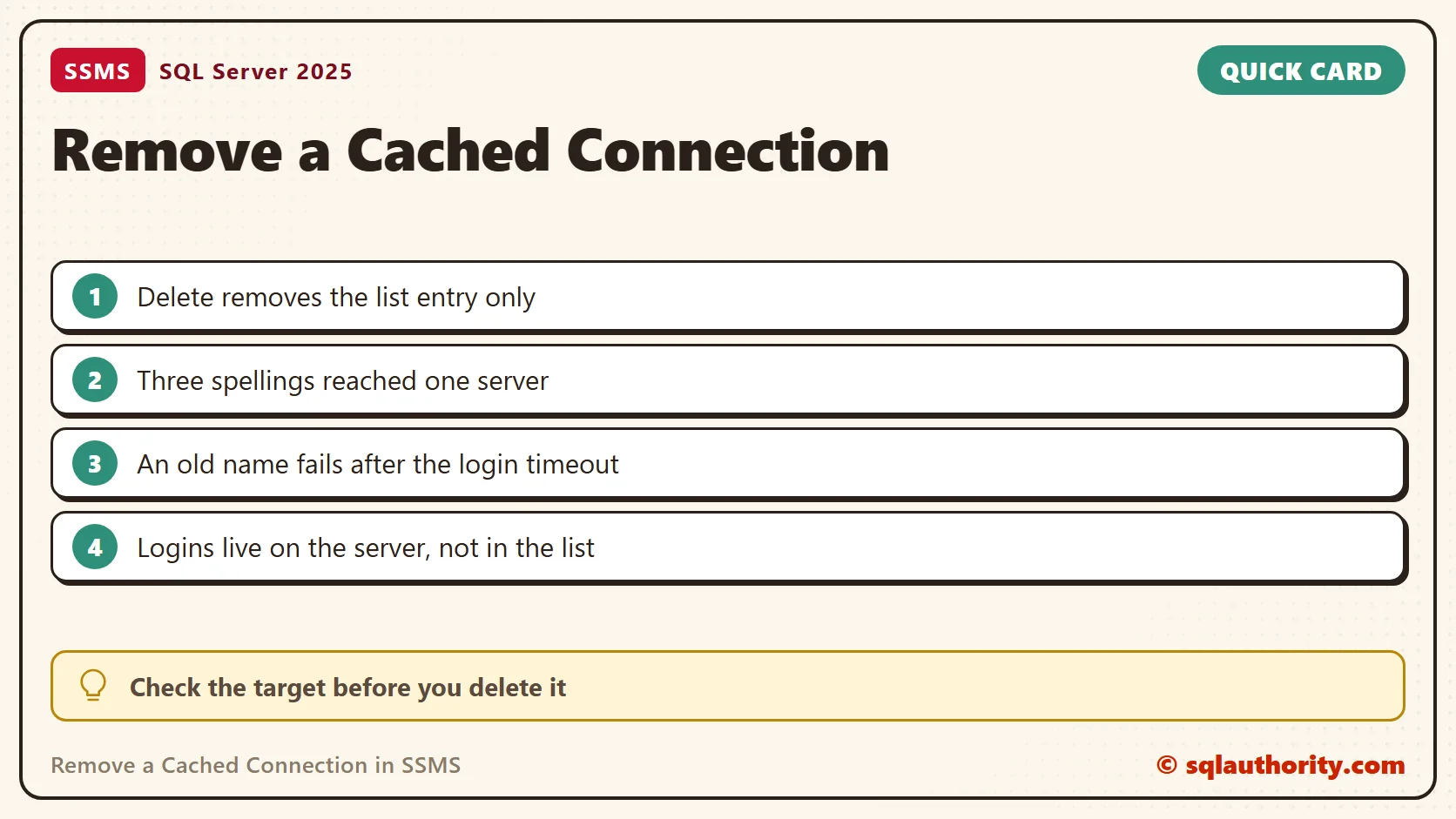
The video shows the classic Connect to Server dialog from the SQL Server 2012 era. Open the Server name dropdown, highlight the unwanted server entry and press Delete. This removes a local connection-history entry. It does not drop a SQL Server login, reset its password or remove the database server.
SSMS 21 introduced a Modern connection dialog alongside the Classic experience, so the screen can differ from the recording. The classic dropdown procedure remains documented. Do not apply it blindly to a different dialog. Do not delete an entire settings folder to remove one recent connection.
Watch the Original Video
Keep Older Cleanup Advice in Context
My SQL Server 2008-era article discussed clearing the older connection list through a settings file. That was a broader reset. It is not the first choice when the current interface can remove a single entry. Preserve settings before any version-specific repair, and do not confuse history cleanup with revoking access.
The List Lives on Your Computer
The Server name list belongs to the tool, not to SQL Server. I checked what the server can see. For my current session it reported the login, the host name and the program that connected. It holds nothing about earlier entries, so deleting one cannot change anything on the server.
SELECT login_name, host_name, program_name, client_interface_name
FROM sys.dm_exec_sessions WHERE session_id = @@SPID;
My test connection came from sqlcmd, so the program name read SQLCMD. A connection from Management Studio reports its own program name in the same column.
Check Where an Entry Points
Before you delete an entry, find out what it reaches. A list can hold several spellings of one server. I connected to my instance three ways: by instance name, by IP address and port, and by machine and instance. All three returned the same server name.
SELECT @@SERVERNAME AS ServerName, SERVERPROPERTY('MachineName') AS MachineName,
       SERVERPROPERTY('InstanceName') AS InstanceName, @@SERVICENAME AS ServiceName;
sqlcmd -S .\SQLDEV -E -C -Q "SELECT @@SERVERNAME"
sqlcmd -S tcp:localhost,1455 -E -C -Q "SELECT @@SERVERNAME"
sqlcmd -S focus\SQLDEV -E -C -Q "SELECT @@SERVERNAME"
Use your own instance name and port in these commands. When two entries return the same name, keep the spelling you trust and delete the other.
A Retired Server Fails Slowly
An entry for a server that no longer exists is the reason most people clean the list. Selecting it does not fail at once. The client waits for the login timeout first. I tested a name that does not exist with a 3 second timeout. It returned Error Locating Server/Instance Specified after 3.8 seconds.
sqlcmd -S .\RetiredServer -E -C -l 3 -Q "SELECT 1"
A dead entry costs you that wait every time you pick it by mistake. The test also gives you a quick way to check a name without opening Management Studio.
Logins Are Server Objects
Cleaning the list does not revoke access. A login lives in the server, and anyone who knows the name can type it again. To block a login, disable it. In a separate test, a disabled login failed with Login failed and the reason The account is disabled. This query lists the logins on an instance, with their state.
SELECT name, type_desc, is_disabled FROM sys.server_principals
WHERE type IN ('S', 'U', 'G') AND name NOT LIKE N'##%' ORDER BY name;
My instance returned nine logins, and none of them was disabled. Compare that list with what you intended before you decide that an entry is safe to remove.
Skip the List Entirely
Management Studio also accepts a server name on its command line, so a shortcut can connect without the dropdown. My post on SSMS command line parameters covers the switches. I did not run it for this episode.
Related Tips
- Clear Drop Down List of Recent Connection From SQL Server Management Studio
- Template Browser in SSMS
- SSMS Feature – Multi-server Queries
- AutoRecover Settings in SSMS: Protect Your Unsaved Queries
- Management Studio New Features
- Using SSMS Command Line Parameters
Removing connection history is not removing database access, it is keeping the local connection list useful.
Published by Pinal Dave on SQLAuthority. More of my work at pinaldave.com.
Discover more from SQL Authority with Pinal Dave
Subscribe to get the latest posts sent to your email.




3 Comments. Leave new
You can also use this Tool, works with SSMS 2008:
What if for a server i need to remove unused logins?
The server is being used, but i no longer connect using a login which was used earlier and now i want to remove it!
Is there a easy way to do this?
Oops.. didn’t read ErikEJ’s post!