
Standard Reports in SSMS put useful information a few clicks away. This SQL in Sixty Seconds episode introduced the feature in SSMS 2012. The original recording remains below, with current context and T-SQL for the same questions.

Open Standard Reports
Connect to the Database Engine in Object Explorer. Right-click the server instance, select Reports, then Standard Reports. Choose the report that answers the question you are investigating.
Database nodes also offer reports for their own scope. Check which node you selected before you read a result. Report availability depends on the connected engine and your SSMS version.
Watch the Original Episode #016
Start With a Specific Question
I find a report more useful when I know what I’m looking for. Start with a question about activity, space or performance. Do not open every report and assume the largest number names the problem.
SSMS 17.2 and later include Performance Dashboard under the server’s Standard Reports menu. That addition came after this 2012 video. It helps with expensive queries, waits and blocking.
The Same Questions in T-SQL
A report is a stored question. You can ask the same questions in a query window, and the query shows exactly what it reads. I built a table of 100,000 orders with one index and ran each query below on SQL Server 2025. These queries answer the same questions as the reports. They are not copies of them.
CREATE TABLE dbo.Orders (OrderId int IDENTITY(1,1) PRIMARY KEY, CustomerId int NOT NULL, Amount decimal(10,2) NOT NULL);
INSERT dbo.Orders (CustomerId, Amount)
SELECT n % 500 + 1, CAST(5 + n % 97 AS decimal(10,2))
FROM (SELECT TOP (100000) ROW_NUMBER() OVER (ORDER BY (SELECT NULL)) AS n
      FROM sys.all_objects AS a CROSS JOIN sys.all_objects AS b) AS t;
CREATE INDEX IX_Orders_Customer ON dbo.Orders (CustomerId);
GO
SELECT df.name AS FileName, df.type_desc AS FileType,
       CAST(df.size * 8 / 1024.0 AS decimal(10,2)) AS SizeMB,
       CAST(FILEPROPERTY(df.name, 'SpaceUsed') * 8 / 1024.0 AS decimal(10,2)) AS UsedMB
FROM sys.database_files AS df;
That is the disk usage question: how big are the files, and how much is used? My data file showed 72.00 MB with 7.81 MB used. The table question is next. This query returned 100,000 rows and 4.14 MB reserved for dbo.Orders.
SELECT OBJECT_SCHEMA_NAME(ps.object_id) + N'.' + OBJECT_NAME(ps.object_id) AS TableName,
       SUM(CASE WHEN ps.index_id IN (0, 1) THEN ps.row_count ELSE 0 END) AS Rows,
       CAST(SUM(ps.reserved_page_count) * 8 / 1024.0 AS decimal(10,2)) AS ReservedMB
FROM sys.dm_db_partition_stats AS ps
WHERE OBJECTPROPERTY(ps.object_id, 'IsUserTable') = 1
GROUP BY ps.object_id;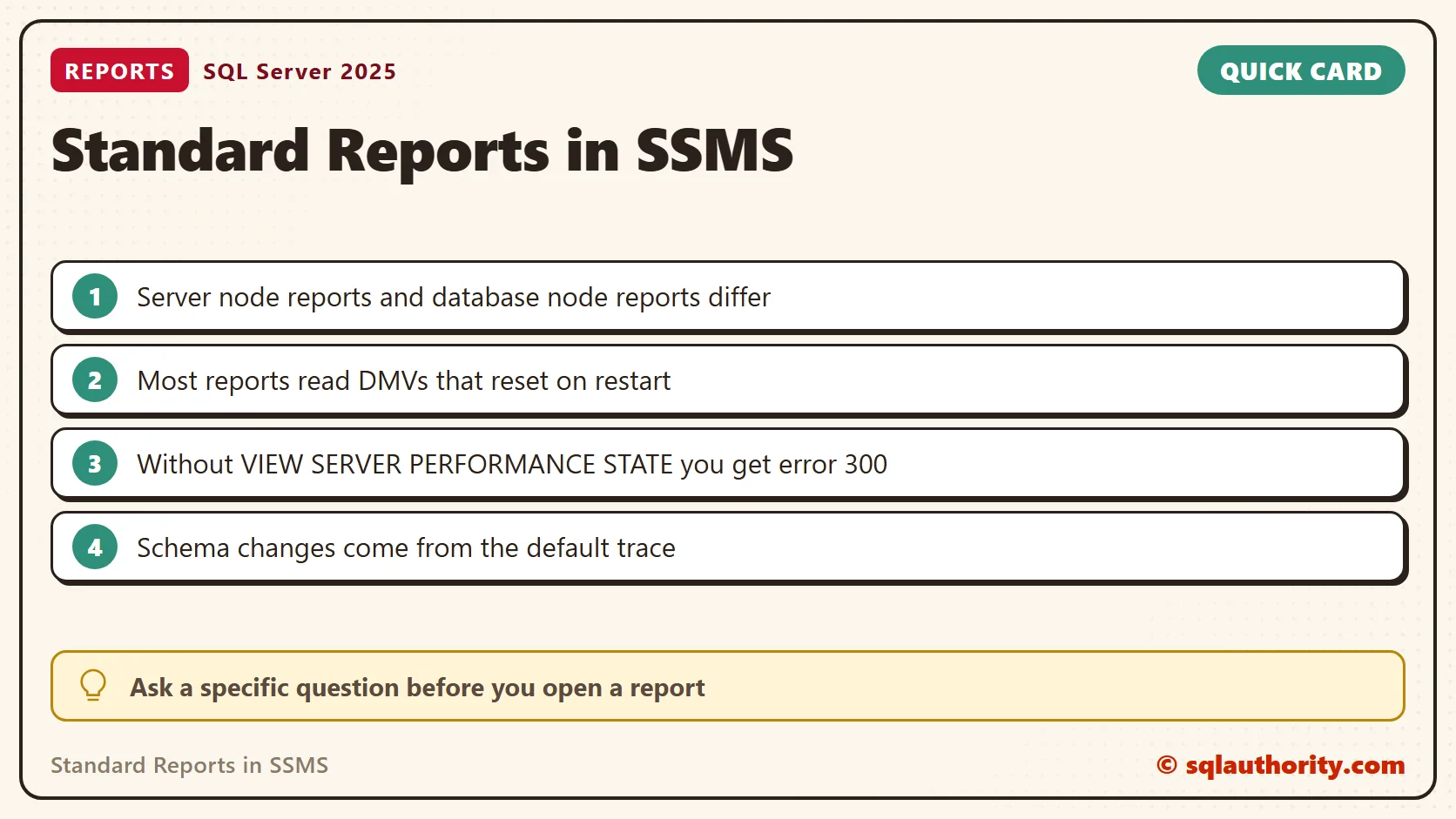
Index Use and Expensive Queries
Two reports deal with index usage and query cost. I ran one query that can use the new index and one that cannot. The usage view then showed a seek on the index and a scan of the clustered key. The cost view lists the heaviest cached statements.
SELECT COUNT(*) AS CustomerRows FROM dbo.Orders WHERE CustomerId = 7;
SELECT COUNT(*) AS AmountRows FROM dbo.Orders WHERE Amount = 50;
GO
SELECT i.name AS IndexName, us.user_seeks, us.user_scans, us.user_lookups, us.user_updates
FROM sys.indexes AS i
LEFT JOIN sys.dm_db_index_usage_stats AS us
       ON us.object_id = i.object_id AND us.index_id = i.index_id AND us.database_id = DB_ID()
WHERE i.object_id = OBJECT_ID(N'dbo.Orders')
ORDER BY i.index_id;
GO
SELECT TOP (3) qs.execution_count, qs.total_worker_time / 1000 AS total_cpu_ms,
       qs.total_logical_reads, LEFT(st.text, 60) AS query_start
FROM sys.dm_exec_query_stats AS qs
CROSS APPLY sys.dm_exec_sql_text(qs.sql_handle) AS st
CROSS APPLY sys.dm_exec_plan_attributes(qs.plan_handle) AS pa
WHERE pa.attribute = N'dbid' AND pa.value = DB_ID()
ORDER BY qs.total_worker_time DESC;
The index IX_Orders_Customer showed 1 seek. The primary key showed 1 scan and 1 update, from the load. The heaviest batch in this database was the setup, at a few hundred milliseconds of CPU. Everything in these views is cumulative since the instance started, or since the plan left the cache.
Schema Changes Come From the Default Trace
The Schema Changes History report reads the default trace, a small trace that SQL Server runs on its own. It was enabled on my instance. I created a table, dropped it, and read both events from the trace file. Microsoft has marked the default trace as deprecated, so check the report in your version.
SELECT value_in_use AS DefaultTraceEnabled FROM sys.configurations WHERE name = N'default trace enabled';
GO
CREATE TABLE dbo.SchemaProbe (Id int);
DROP TABLE dbo.SchemaProbe;
GO
DECLARE @path nvarchar(260) = (SELECT path FROM sys.traces WHERE is_default = 1);
SELECT TOP (4) te.name AS EventName, t.ObjectName, t.DatabaseName
FROM sys.fn_trace_gettable(@path, DEFAULT) AS t
JOIN sys.trace_events AS te ON te.trace_event_id = t.EventClass
WHERE t.DatabaseName = DB_NAME() AND t.ObjectName = N'SchemaProbe'
ORDER BY t.StartTime;
Check Permissions When a Report Fails
Required permissions depend on the report and the engine version. I tested a login with only the right to connect. It received error 300 from the query-statistics view. After I granted VIEW SERVER PERFORMANCE STATE, the same query worked. Ask for the access that report needs, not for broad administrator rights.
USE master;
GO
EXECUTE AS LOGIN = N'ReportReader';
BEGIN TRY
    SELECT TOP (1) execution_count FROM sys.dm_exec_query_stats;
END TRY
BEGIN CATCH
    SELECT ERROR_NUMBER() AS ErrorNumber, ERROR_MESSAGE() AS ErrorMessage;
END CATCH;
REVERT;
GO
GRANT VIEW SERVER PERFORMANCE STATE TO ReportReader;
GO
EXECUTE AS LOGIN = N'ReportReader';
SELECT TOP (1) execution_count FROM sys.dm_exec_query_stats;
REVERT;
Missing-index suggestions need review against your existing indexes and workload. Creating every suggested index adds storage and write cost. Some reports also generate heavy I/O, so check an unfamiliar report before you refresh it during an incident. A quiet report does not prove the server had no earlier problem. Use longer-term monitoring when you need a reliable history.
Why I Still Reach for the Reports
A report is good for a first look. A query is better when you need to repeat the check, save the output or run it on many servers. I use the report to find the question, and I use the query to keep the answer. Record when you collected the numbers, because these views reset when SQL Server restarts.
Related Reading
- Out of the Box: Activity and Performance Reports from SSMS
- Generate Report for Index Physical Statistics in SSMS
- Configure Management Data Collection in Quick Steps
A standard report is not a diagnosis, it is evidence for the next question.
Published by Pinal Dave on SQLAuthority. More of my work at pinaldave.com.
Discover more from SQL Authority with Pinal Dave
Subscribe to get the latest posts sent to your email.




3 Comments. Leave new
Hi Pinal,
Can you please specify 1 line use of each of these standard reports?
We know we can generate report using standard reports option on sql server
but it would be good if you could eloborate on each and every report in detail
Thanks
how does one edit the standard reports? I am wanting to look at “Shema Changes History” for more than 3 months