
The Windows power plan decides how fast your processors run. A plan that saves energy can slow SQL Server with no error. A query that ran in one second can take eight, and nothing in SQL Server has changed.

What a Power Plan Changes
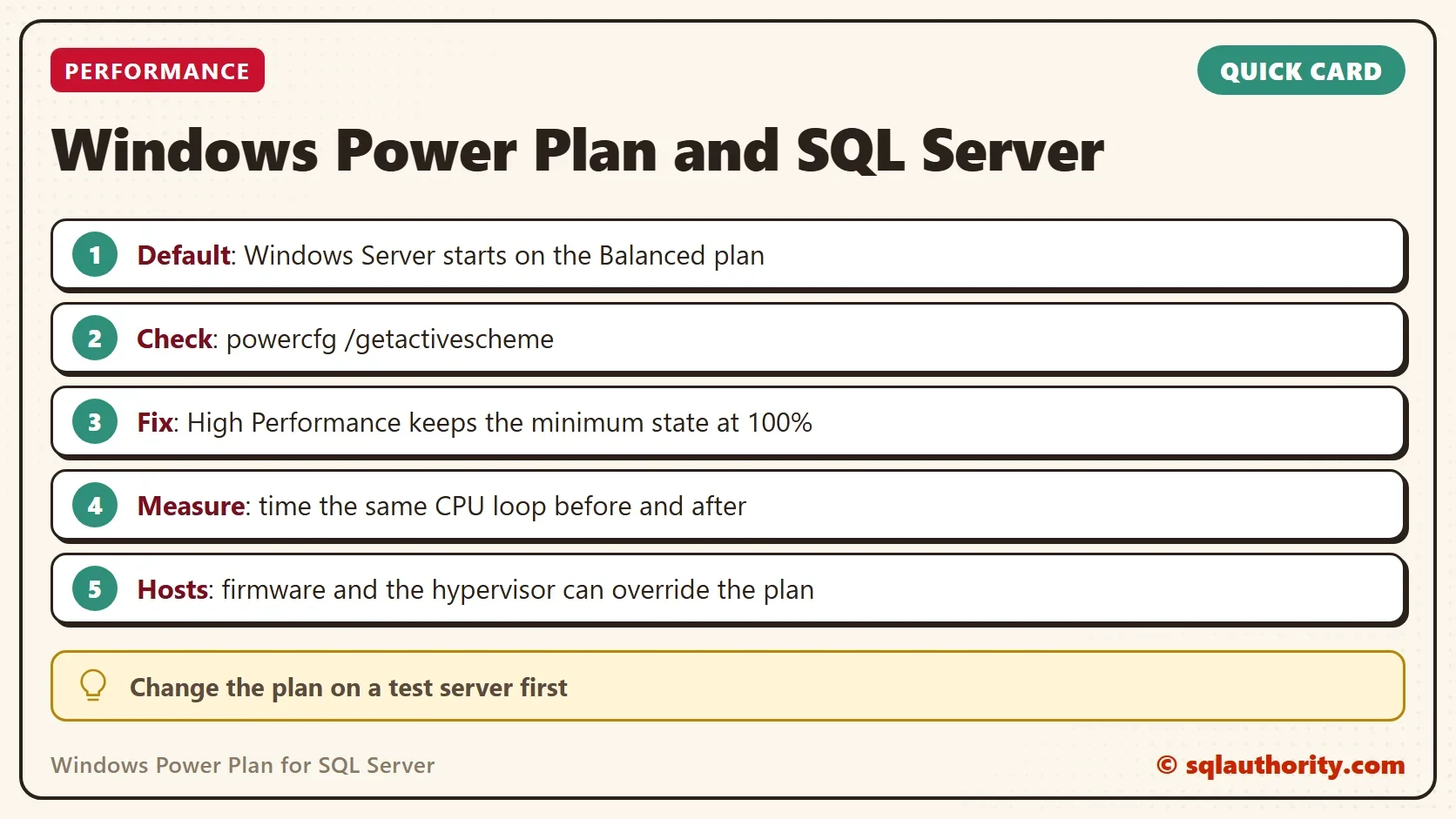
A power plan tells Windows how to trade speed for energy. The Balanced plan lowers the processor speed when the load is light and raises it when the load grows. That is a good deal for a laptop. Windows Server starts on the Balanced plan too.
Each plan is a bundle of settings. The one that matters here is the minimum processor state. The High Performance plan sets it to 100 percent, so the processors never drop to a lower speed.
A database server answers short queries all day. Each query is a small burst of work. A processor that must speed up first can add its delay to every burst.
The symptom is odd. In one client case, a query that ran in one second took over eight. Ten other queries slowed down as well. CPU, disk, memory and the maintenance jobs all looked clean. The plan had been switched from High Performance to Balanced, and switching it back brought the old speed back.
Check and Change the Plan
You can read and change the Windows power plan from a Command Prompt. Open one as an administrator on the server. The first command shows the active plan. The second lists every plan on the machine.
powercfg /getactivescheme
powercfg /list
These commands are not T-SQL. They only read. On the test PC the first one returned the Balanced plan, and the list held that plan alone. A server shows more plans, and the active one carries a star.
To change the plan, run the next command with the GUID of High Performance. It changes the machine, so test on a non-production server first. Write down the GUID that powercfg /getactivescheme printed first, because the undo needs it.
powercfg /setactive 8c5e7fda-e8bf-4a96-9a85-a6e23a8c635c
The undo is a separate command. It sets the plan that was active before. On a server that started on Balanced, that is the GUID below. Use the GUID you wrote down if it differs.
powercfg /setactive 381b4222-f694-41f0-9685-ff5bb260df2e
Some Windows editions also offer an Ultimate Performance plan that stays hidden until you create it with powercfg -duplicatescheme. Test it before you choose it.
The processor speed is visible too. Run this PowerShell line on the server while it is busy. It prints the current clock and the maximum clock of each processor, in MHz.
Get-CimInstance Win32_Processor | Select-Object Name, CurrentClockSpeed, MaxClockSpeed
A current speed far below the maximum under load is a sign that the plan holds the processors back. The command only reads, so it is safe on a production server. On a virtual server it shows the speed the guest sees.
Measure Before and After
Don’t trust a feeling. Time a loop that needs the CPU and nothing else. The loop below runs on one thread, so it measures the speed of one core. A power plan changes that speed.
DECLARE @i int = 0, @x bigint = 0, @start datetime2(3) = SYSDATETIME();
WHILE @i < 2000000
BEGIN
    SET @x += @i % 7;
    SET @i += 1;
END;
SELECT DATEDIFF(MILLISECOND, @start, SYSDATETIME()) AS LoopMs, @x AS Checksum;| LoopMs | Checksum |
|---|---|
| 2094 | 5999995 |
Run it three times on a quiet server and keep the median. On the Balanced plan of the test PC, three runs took 2,193, 2,185 and 2,232 ms. The run shown above took 2,094 ms on a shared server. Switch the plan, run it three times again, and compare the medians. The checksum must stay the same. A gain clearly larger than the spread between your three runs tells you the plan matters on that machine.
When the Plan Isn’t the Whole Story
A virtual server has a second layer. The host decides the real processor speed of its guests. A High Performance plan inside the guest can’t override a power saving setting on the host. Ask whoever runs the host to check it.
Server firmware has its own power profile as well. Some profiles let the operating system manage power, and others fix the speed in the firmware. How much the plan matters depends on the processor generation and on that profile. The cost of a speed change differs between processor generations. That is another reason to measure.
You could argue that High Performance wastes energy, and it does. The processors stay at full speed when the server is idle, which means more heat and a higher power bill. For a laptop or a test machine, Balanced is fine. For a production database server, I accept that cost, because a slow system costs more.
What to Remember
Check the Windows power plan whenever a server slows down and the usual suspects look clean. Write the active plan into your health check, so a change shows up in the next review.
Use powercfg to read and to change the plan, and keep the undo command next to it. Time the same CPU loop before and after. If the gain is zero, put the old plan back and look elsewhere.
A power plan is not a tuning trick, it is a condition your server runs under.
Published by Pinal Dave on SQLAuthority. More of my work at pinaldave.com.
Discover more from SQL Authority with Pinal Dave
Subscribe to get the latest posts sent to your email.




2 Comments. Leave new
Hi Pinal, With new WinOS we have now Ultimate performance option which is hidden by default can be enabled using Powershell script. This might help to boost performance much more when required.
On Intel processors up to a certain point, I vaguely recall Xeon E5/7 v3 (Haswell), it is not the operation at lower frequency that impacts SQL performance. Rather it the process of changing frequency that causes many hidden operations (flushing cache?). Supposedly this was fixed in Xeon E5/7 v4 and later, this was fixed so that changing frequency in balanced power mode does not have high overhead, but I did not verify this for myself.
In case any one is curious, in database transaction processing – queries using an index to find few rows (not executed from a pre-planned pattern) is memory round-trip intensive, and hence insensitive to processor frequency. Hence, dialing down processor frequency to a very low value should not substantially impact performance – test this to be sure though.