
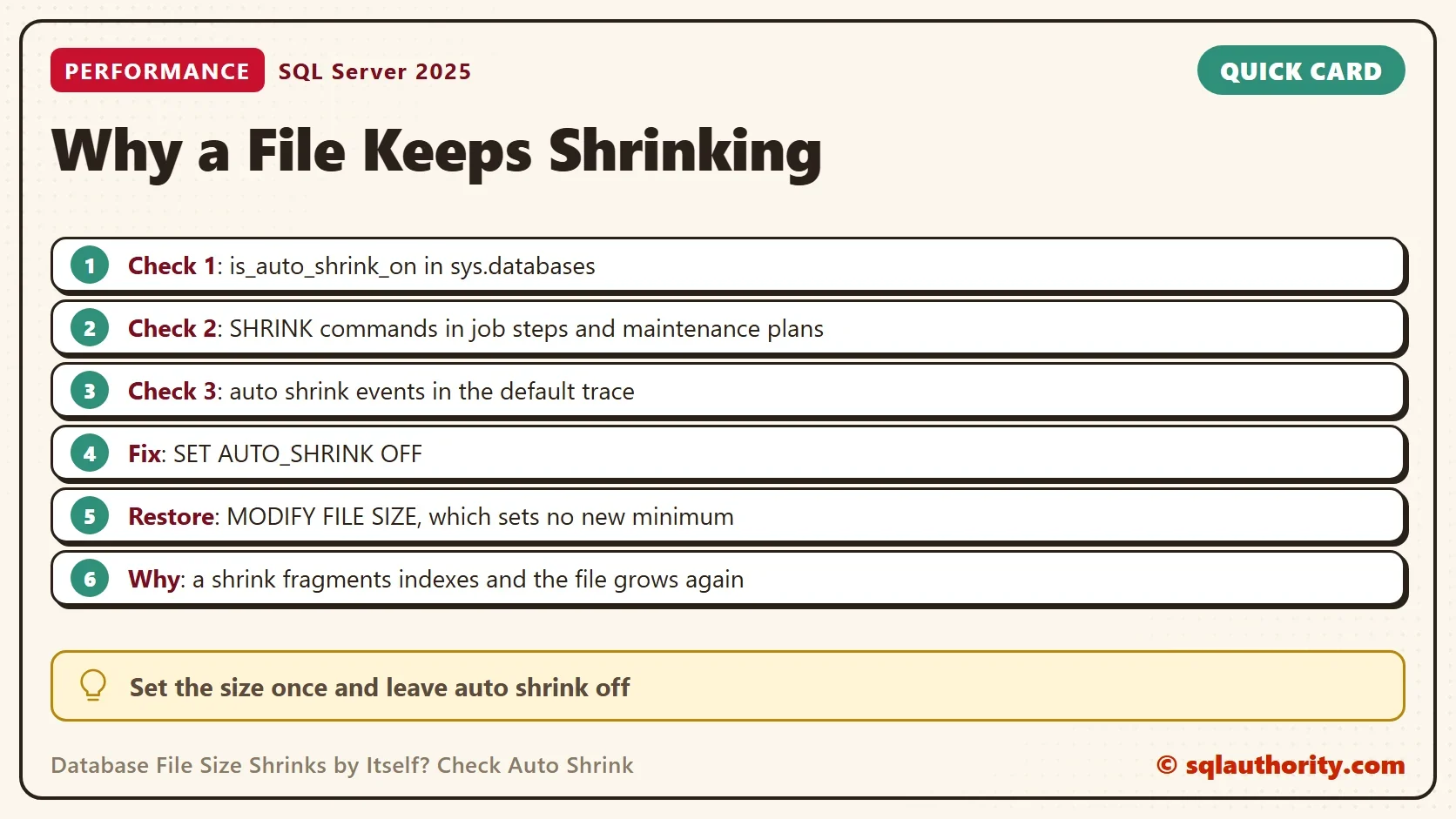
When a database file keeps getting smaller after you set its size, check Auto Shrink first. You sized the file for a year of growth, and by morning it’s small again. SQL Server protects only a minimum size, and a size you set later isn’t one.

The Size You Set Is Only the Current Size
SQL Server remembers a minimum size for each file. It’s the size in CREATE DATABASE, or the target of the last DBCC SHRINKFILE. DBCC SHRINKDATABASE and auto shrink stop there. A size you set later with ALTER DATABASE … MODIFY FILE, or in the Properties window, isn’t a minimum. Auto shrink takes that file back down to the old minimum, however big you made it. The demo creates a database with the default size, raises its data file to 200 MB, and reads the sizes.
IF DB_ID(N'AutoShrinkDemo') IS NULL CREATE DATABASE AutoShrinkDemo;
GO
ALTER DATABASE AutoShrinkDemo MODIFY FILE (NAME = AutoShrinkDemo, SIZE = 200MB);
GO
SELECT name, is_auto_shrink_on, is_auto_close_on FROM sys.databases WHERE name IN (N'model', N'AutoShrinkDemo');
SELECT name, type_desc, size * 8 / 1024 AS SizeMB FROM sys.master_files WHERE database_id = DB_ID(N'AutoShrinkDemo');
| name | is_auto_shrink_on | is_auto_close_on |
|---|---|---|
| model | 0 | 0 |
| AutoShrinkDemo | 0 | 0 |
| name | type_desc | SizeMB |
|---|---|---|
| AutoShrinkDemo | ROWS | 200 |
| AutoShrinkDemo_log | LOG | 8 |
The option is off, and the data file is 200 MB. Now shrink the database by hand with DBCC SHRINKDATABASE, which works the way auto shrink does. The target is 10 percent free space. The script fills two tables, drops the large one, and shrinks. It reads the fragmentation of the table that stays, before and after.
USE AutoShrinkDemo;
GO
SET NOCOUNT ON;
CREATE TABLE dbo.Archive (Id int NOT NULL PRIMARY KEY, Filler char(1000) NOT NULL DEFAULT 'x');
CREATE TABLE dbo.Orders (Id int NOT NULL PRIMARY KEY, Filler char(1000) NOT NULL DEFAULT 'x');
INSERT INTO dbo.Archive (Id) SELECT TOP (60000) ROW_NUMBER() OVER (ORDER BY (SELECT NULL)) FROM sys.all_columns a CROSS JOIN sys.all_columns b;
INSERT INTO dbo.Orders (Id) SELECT TOP (20000) ROW_NUMBER() OVER (ORDER BY (SELECT NULL)) FROM sys.all_columns a CROSS JOIN sys.all_columns b;
DROP TABLE dbo.Archive;
GO
SET NOCOUNT ON;
DECLARE @r TABLE (Stage varchar(10), FragmentationPct decimal(5,1), FileSizeMB int);
INSERT INTO @r
SELECT 'Before', CAST(avg_fragmentation_in_percent AS decimal(5,1)), (SELECT size * 8 / 1024 FROM sys.database_files WHERE type_desc = N'ROWS')
FROM sys.dm_db_index_physical_stats(DB_ID(), OBJECT_ID(N'dbo.Orders'), 1, NULL, 'LIMITED');
DBCC SHRINKDATABASE (AutoShrinkDemo, 10) WITH NO_INFOMSGS;
INSERT INTO @r
SELECT 'After', CAST(avg_fragmentation_in_percent AS decimal(5,1)), (SELECT size * 8 / 1024 FROM sys.database_files WHERE type_desc = N'ROWS')
FROM sys.dm_db_index_physical_stats(DB_ID(), OBJECT_ID(N'dbo.Orders'), 1, NULL, 'LIMITED');
SELECT Stage, FragmentationPct, FileSizeMB FROM @r;
| Stage | FragmentationPct | FileSizeMB |
|---|---|---|
| Before | 0.0 | 200 |
| After | 100.0 | 29 |
The file went from 200 MB to 29 MB, about as small as the data allows. The file was created at the 8 MB default, so nothing held it at 200 MB. The index paid for it. A shrink empties the end of the file by moving pages toward the front. It doesn’t care about index order. Reading the table in order now jumps around the file.
The exact fragmentation can differ on your server, but it rises. The next page split also needs space that the shrink gave back. To put the size back, set it again. That sets no new minimum.
USE master;
GO
ALTER DATABASE AutoShrinkDemo MODIFY FILE (NAME = AutoShrinkDemo, SIZE = 200MB);
SELECT name, type_desc, size * 8 / 1024 AS SizeMB FROM sys.master_files WHERE database_id = DB_ID(N'AutoShrinkDemo') AND type_desc = N'ROWS';
| name | type_desc | SizeMB |
|---|---|---|
| AutoShrinkDemo | ROWS | 200 |
Check 1: The Auto Shrink Flag
Every database has an AUTO_SHRINK option. When it is on, a background task wakes about every 30 minutes. It shrinks files that hold more than 25 percent free space. The model database has it off. So a database that has it on was changed, or restored from a source that had it on. The next script turns it on for the demo database and lists every database that has it. Then it turns the option off again.
ALTER DATABASE AutoShrinkDemo SET AUTO_SHRINK ON;
SELECT name, is_auto_shrink_on FROM sys.databases WHERE is_auto_shrink_on = 1 ORDER BY name;
ALTER DATABASE AutoShrinkDemo SET AUTO_SHRINK OFF;
| name | is_auto_shrink_on |
|---|---|
| AutoShrinkDemo | 1 |
Run only the SELECT on a production server. Any row it returns is a database that loses file size on its own. The fix is the last line: SET AUTO_SHRINK OFF.
Check 2: A Job or a Maintenance Plan
If the flag is off and the file still shrinks every night, something is shrinking it on a schedule. SQL Server Agent jobs with a T-SQL step are easy to search. A maintenance plan is not. Its Shrink Database Task runs as a package, so the step text doesn’t contain the word SHRINK. Open Management > Maintenance Plans in Management Studio and look at the tasks.
SELECT j.name AS JobName, s.step_id, s.step_name
FROM msdb.dbo.sysjobsteps s JOIN msdb.dbo.sysjobs j ON j.job_id = s.job_id
WHERE s.command LIKE N'%SHRINK%';
This test instance has no such job, so the query returns no rows. On a server with the problem, it lists the job and the step.
Check 3: The Default Trace
The default trace records every automatic shrink. Event 94 is a data file shrink, and event 95 is a log file shrink. The query reads the trace files and shows when each shrink happened, in which database and for which file.
DECLARE @path nvarchar(260) = (SELECT path FROM sys.traces WHERE is_default = 1);
SELECT t.StartTime, t.DatabaseName, e.name AS EventName, t.FileName
FROM sys.fn_trace_gettable(@path, DEFAULT) t JOIN sys.trace_events e ON e.trace_event_id = t.EventClass
WHERE t.EventClass IN (94, 95) ORDER BY t.StartTime DESC;
No automatic shrink has run on the test instance, so this query returns no rows here. The default trace keeps only the most recent files, so the history is short. If the times line up with the nightly change, you have found the cause. A shrink run by a job or a person doesn’t appear here, only the automatic task does.
Fix It and Keep It Fixed
Turn the option off. Then set each file back to the size you want with ALTER DATABASE ... MODIFY FILE, as in the demo. If a job or a plan shrinks the files, remove that step.
If you must shrink once, after deleting a large archive, rebuild the fragmented indexes afterwards. Otherwise leave the file size alone. To protect a size, create the file at that size. Or run DBCC SHRINKFILE once with that target, which becomes the new minimum. Setting the size with MODIFY FILE doesn’t. When the file has to grow, let it grow by a fixed amount, not by a small percentage.
You could argue that auto shrink saves disk space. On a server that is short of space it can look that way. A shrink moves pages around and leaves the indexes fragmented. The file then grows again when the data comes back, and every growth takes time.
What to Remember
Look at is_auto_shrink_on first, then at jobs and maintenance plans, then at the default trace. Set the file size once, and don’t let anything shrink it. Check the flag again after every restore. When you finish with the demo, drop the test database.
USE master;
GO
ALTER DATABASE AutoShrinkDemo SET SINGLE_USER WITH ROLLBACK IMMEDIATE;
DROP DATABASE AutoShrinkDemo;
A file size is not a setting, it is a state that anything can change.
Published by Pinal Dave on SQLAuthority. More of my work at pinaldave.com.
Discover more from SQL Authority with Pinal Dave
Subscribe to get the latest posts sent to your email.



2 Comments. Leave new
what is recommended – auto shrink true or false ?
Auto Shrink is very bad… the recommended setting is FALSE!