
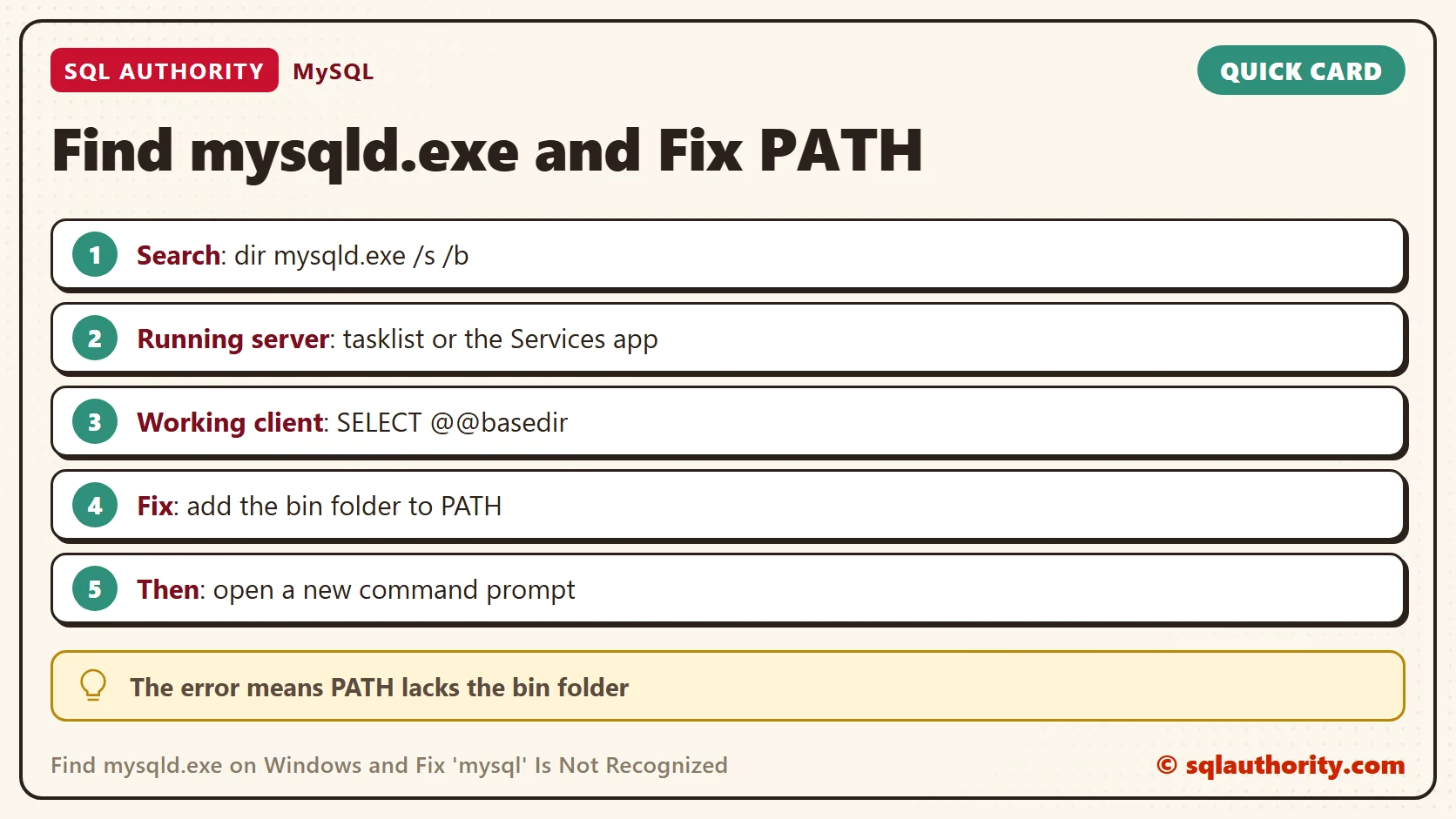
To find mysqld.exe on Windows, search the drive with the dir command or ask the running server where it lives. The error “‘mysql’ is not recognized” does not mean MySQL is missing. It means Windows does not know which folder to look in.

What the Error Means
Windows runs a program by name in two steps. It looks in the current folder first. Then it walks through the folders listed in the PATH variable, separated by semicolons. If the name is in none of them, you get this message.
mysql --version
'mysql' is not recognized as an internal or external command,
operable program or batch file.
I typed that on a Windows 11 computer with no MySQL on it, so the message is the real one. Two files matter here. The mysql.exe file is the client, the program you type commands into. The mysqld.exe file is the server. The d stands for daemon, a program that runs in the background.
I tested everything below on MariaDB 12.3.3 for Windows. Its bin folder holds mysql.exe and mysqld.exe next to the newer mariadb.exe and mariadbd.exe. MySQL ships the first pair, so the commands carry over. The folder names in my output belong to my test machine.
New users type mysqld when they want to run queries. The server program is not the place to type SQL. To run queries, start the client with mysql. Both names fail the same way when PATH lacks the folder, so one fix covers both.
Search the Drive With dir
The classic way to find mysqld.exe is the dir command. The /s switch searches every subfolder, and /b prints only the full path. On your computer, start at the top of the drive with cd \ and then run the dir line. I started in my test folder.
cd /d D:\tools\SQLAuthorityMariaDB12.3.3
dir mysqld.exe /s /b
D:\tools\SQLAuthorityMariaDB12.3.3\mariadb-12.3.3-winx64\bin\mysqld.exe
That path is the answer. The bin folder holds the server and the client together. The same search for mysql.exe returned a path in the same bin folder. Without /b, dir adds a header and the file size, 13,312 bytes for mysqld.exe here.
The cd /d part changes the drive and the folder in one step. Without /d, cd stays on the current drive. A folder name with spaces needs quotes, for example “C:\Program Files\MySQL”. A typical MySQL installer puts its files under that folder. Search there first.
When nothing matches, dir prints File Not Found. Without /b it prints two volume lines first and then File Not Found. That short output means the file is not under the folder you started in. Start higher, or try another drive. If Windows blocks a folder, open the command prompt as administrator.
The where Command
The where command also searches. With no options it searches only the folders in PATH. With /r it searches a folder and everything below it.
where /r D:\tools\SQLAuthorityMariaDB12.3.3 mysqld.exe

where mysql
D:\tools\SQLAuthorityMariaDB12.3.3\mariadb-12.3.3-winx64\bin\mysqld.exe
INFO: Could not find files for the given pattern(s).
The first command found the file. The second searched PATH only and found nothing. That line says the same thing as the error: PATH does not contain the bin folder.
Ask the Running Server
When the server already runs, you do not need to search at all. Ask Windows which file started it. The tasklist command lists running programs, and PowerShell prints the file path of one.
tasklist /fi "imagename eq mariadbd.exe"

powershell -NoProfile -Command "(Get-Process mariadbd).Path"
D:\tools\SQLAuthorityMariaDB12.3.3\mariadb-12.3.3-winx64\bin\mariadbd.exe
The tasklist command listed one mariadbd.exe process, and PowerShell printed its path. For MySQL the process name is mysqld.exe. The Services app shows the same path. Open services.msc, right-click the MySQL service, choose Properties, and read Path to executable.
Reading the path from a running process is the safest way. The process is the exact file in use. A computer can hold several old copies of MySQL, and a search lists every one of them.
Once a client connects, the server knows its own folder. The basedir setting holds the install folder, and the bin folder sits inside it. My test server listens on port 3317, while a standard install uses 3306.
cd /d D:\tools\SQLAuthorityMariaDB12.3.3\mariadb-12.3.3-winx64\bin

mysql -h localhost -P 3317 -u root --table -e "SELECT @@basedir AS basedir"
+-----------------------------------------------------------+
| basedir                                                   |
+-----------------------------------------------------------+
| D:\tools\SQLAuthorityMariaDB12.3.3\mariadb-12.3.3-winx64\ |
+-----------------------------------------------------------+
Fix the Error With PATH
Running from the bin folder works, but you must change to it every time. The lasting fix puts that folder on PATH. Try it for one window first. The set command below adds the folder, and the next three commands prove it worked.
set PATH=%PATH%;D:\tools\SQLAuthorityMariaDB12.3.3\mariadb-12.3.3-winx64\bin

where mysql

mysql --version

mysqld --version
D:\tools\SQLAuthorityMariaDB12.3.3\mariadb-12.3.3-winx64\bin\mysql.exe
mysql from 12.3.3-MariaDB, client 15.2 for Win64 (AMD64), source revision 83e909fc2a0dbc394b4b683fb3fa2d7dcf26cc5e
mysqld  Ver 12.3.3-MariaDB for Win64 on AMD64 (MariaDB Server)
The first line is the client’s location. The second is the client version. The third is the server version, and mysqld –version only prints it. It does not start the server.
Do not start mysqld by hand on a computer where the MySQL service runs. The service starts the server with the right settings and data folder. Use the Services app to start or stop it. The mysql client is the program you run from the command line.
The set command changes the current window only. A second command prompt without the entry printed the INFO line again for where mysql. PowerShell uses a different syntax: $env:Path += “;folder” changes the current PowerShell window only.
For a lasting change, open Start and search for “Edit the system environment variables”. Choose Environment Variables, select Path, click Edit, then New, and paste the bin folder. Click OK on every dialog. Close all command prompts and open a new one, because a running window keeps its old PATH.
Is Explorer Search Easier?
You could say File Explorer search is easier than a command. Fair point. Explorer works well when you know the drive. The command prompt gives you a path you can paste straight into cd and into the PATH dialog. That saves one round of typing and one chance for a typo.
A Short Checklist
Use these steps whenever Windows cannot find a MySQL program.
- Run dir mysqld.exe /s /b from the drive root to find mysqld.exe.
- If dir prints File Not Found, search the other drives.
- With a running server, use tasklist or the Services app.
- With a working client, run SELECT @@basedir.
- Add the bin folder to PATH, then open a new command prompt.
Closing the window ends the temporary PATH change, so nothing needs cleanup.
The error “‘mysql’ is not recognized” is not a missing install, it is a folder Windows was never told about.
Published by Pinal Dave on SQLAuthority. More of my work at pinaldave.com.
Discover more from SQL Authority with Pinal Dave
Subscribe to get the latest posts sent to your email.



12 Comments. Leave new
I thing this is better option
that suppose that someone knows where mysql is.. here is trying to help people who do not know where is mysql on their machine…
Hi Pinal, I think we can also set the full bin path in PATH system variables. So that everytime we open the command prompt it will be set and mysqld will be available.
Thanks
Many thanks Pinal,
I can’t live without you.
you are for me dable
This is really awesome !! You have done a pukka job !! May God Bless You !!
Thank you so so much .Its been 2 hour i have this headache to find the solution..
A better way (on Windows): as Administrator user
Control Panel > Administrative Tools > Services (or just execute services.msc): select the service (MySQL), right click, select Properties, General tab: see “Path to executable” (“C:\Program Files\MySQL\MySQL Server 5.5\bin\mysqld” …)
Thanks .. I like you name :)
Access denied message is coming.
When I did as you instructed it only shows the first two lines, without the the Directory of C. Why?
Thanks a lot , it worked for me too.
thank you, it worked