
This article was written as a response to T-SQL Tuesday #005 – Reporting. My answer is a visual guide to configure Management Data Collection in a few quick steps.
The three most important components of any computer and server are the CPU, Memory, and Hard disk specification. This post talks about how to get more details about these three most important components using the Management Data Collection. Management Data Collection generates the reports for the three said components by default. Configuring Data Collection is a very easy task and can be done very quickly.
Please note:
There are many different ways to get reports generated for CPU, Memory and IO. You can use DMVs, Extended Events as well Perfmon to trace the data.
Keeping the T-SQL Tuesday subject of reporting this post is created to give visual tutorial to quickly configure Data Collection and generate Reports.
From Book On-Line:
The data collector is a core component of the Data Collection platform for SQL Server 2008 and the tools that are provided by SQL Server. The data collector provides one central point for data collection across your database servers and applications. This collection point can obtain data from a variety of sources and is not limited to performance data, unlike SQL Trace.
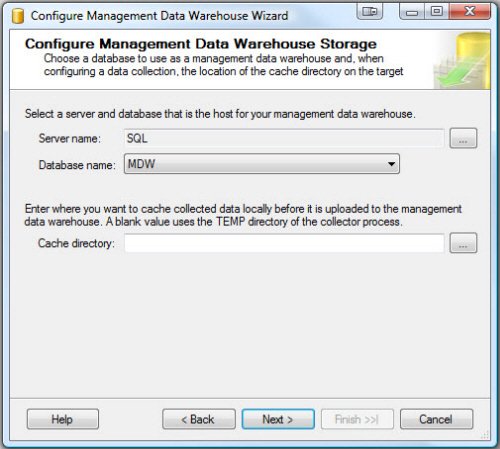
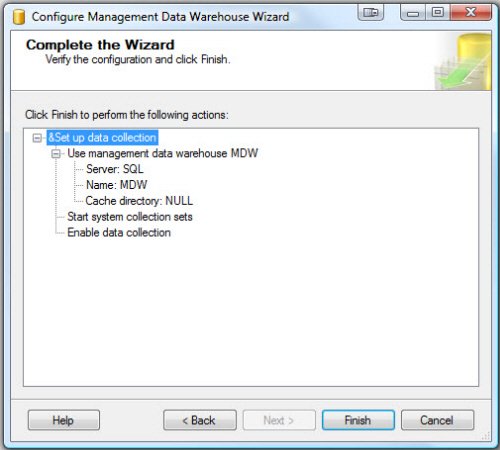
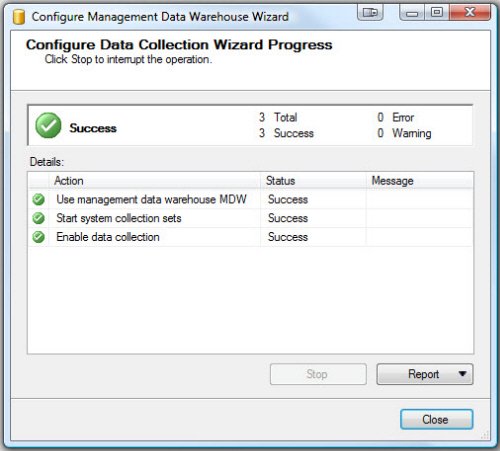
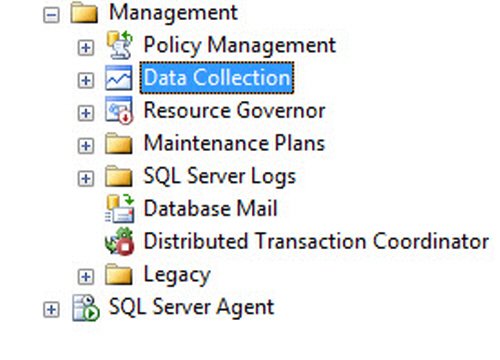
Let us go over the visual tutorial on how quickly Data Collection can be configured. Expand the management node under the main server node and follow the direction in the pictures.
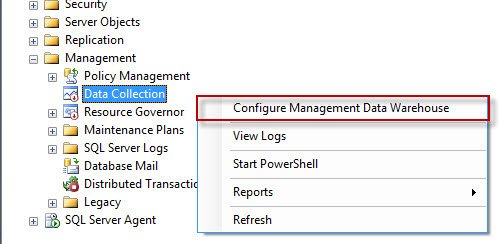
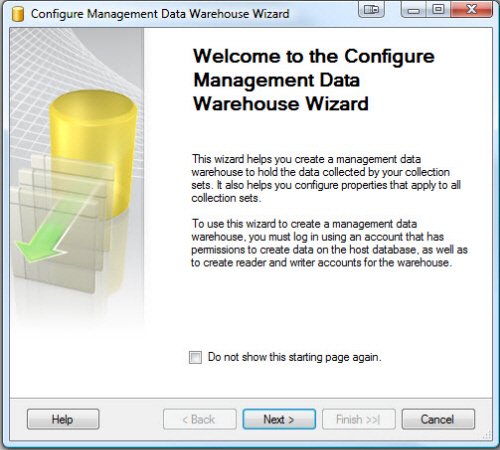
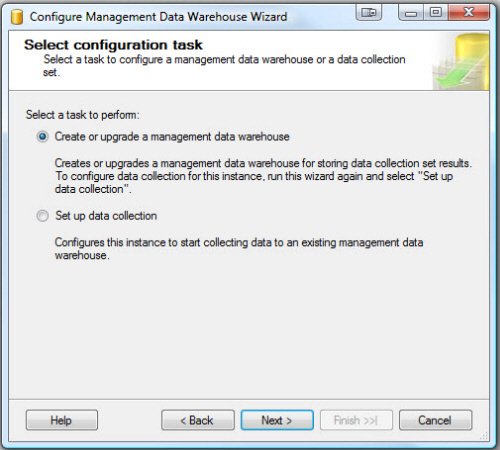
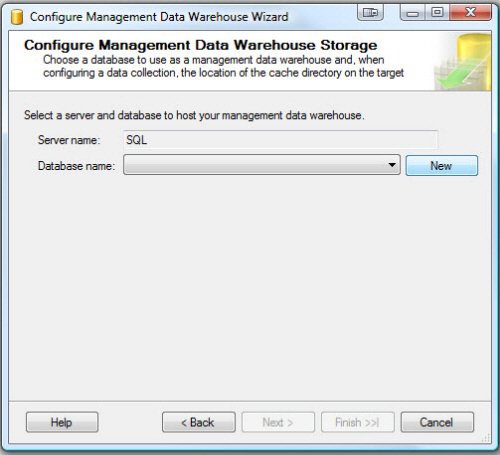
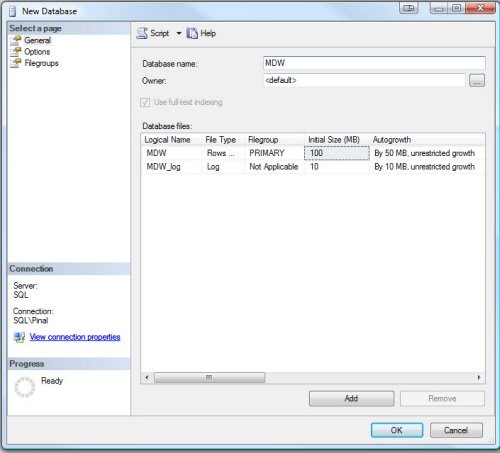
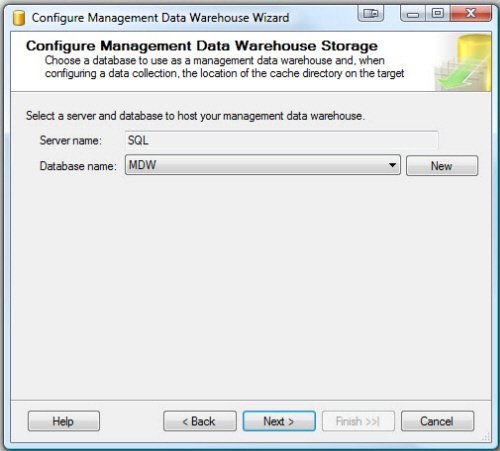
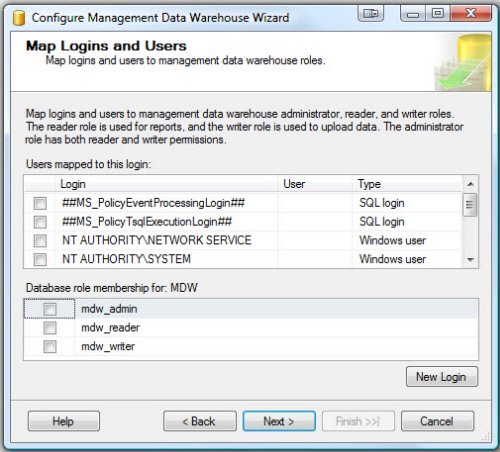
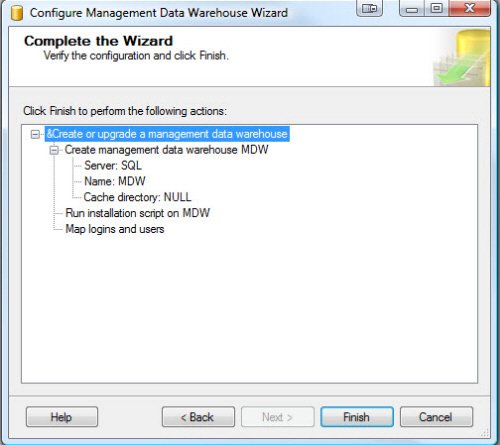
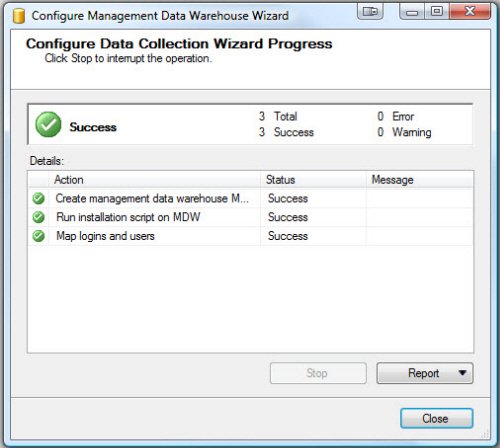
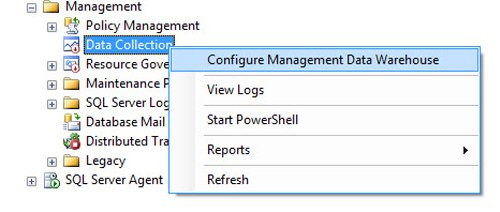
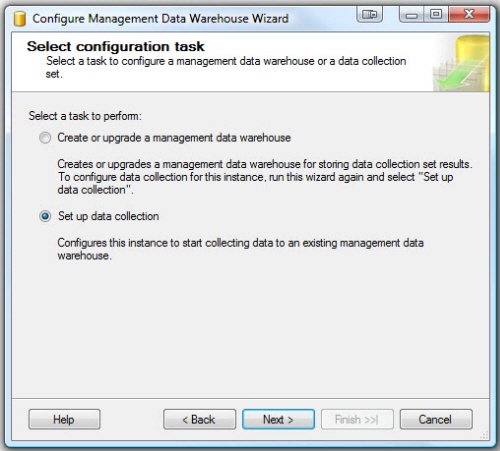
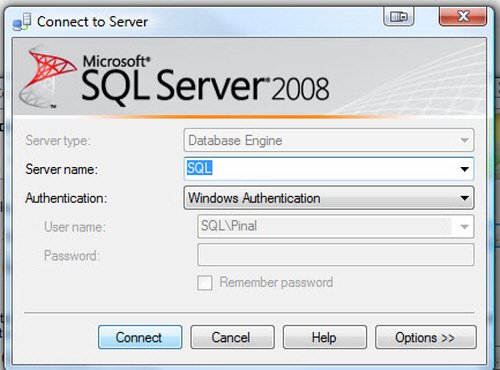
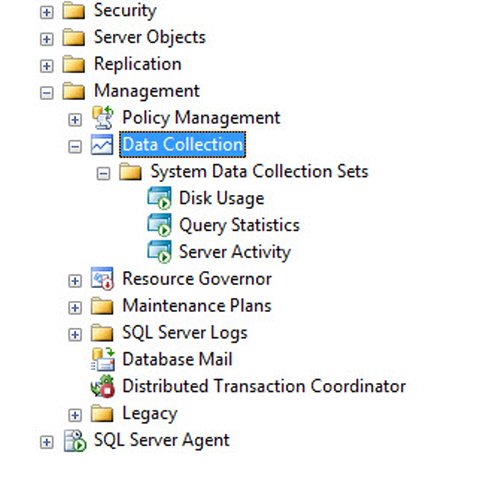
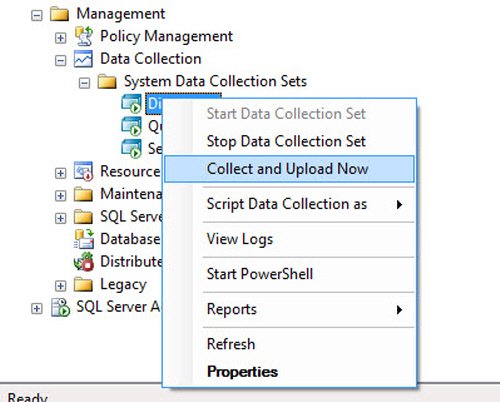
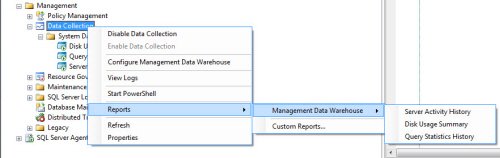
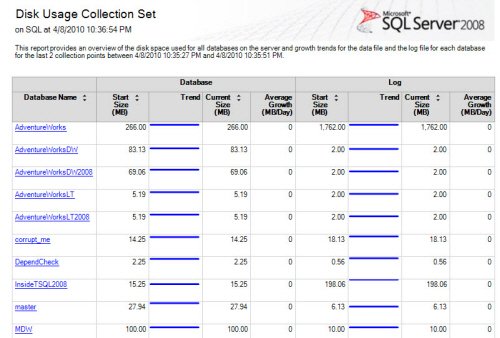
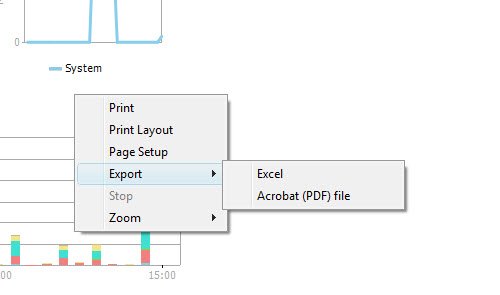
This reports can be exported to PDF as well Excel by writing clicking on reports.
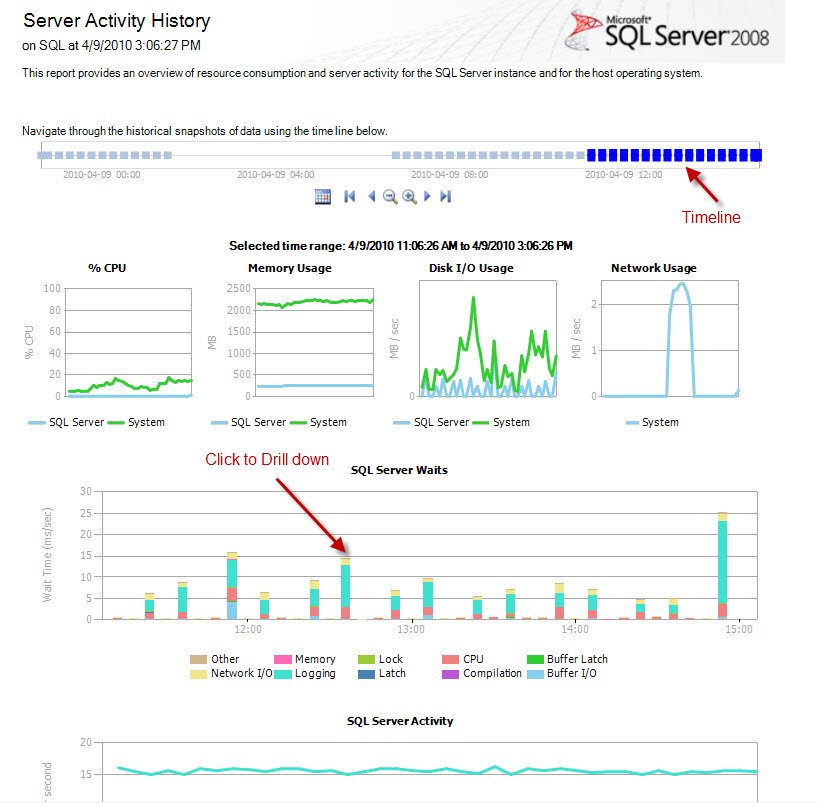
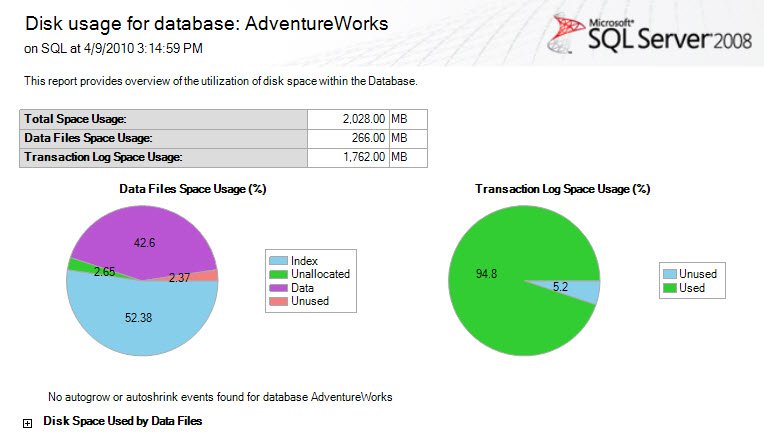
Now let us see more additional screenshots of the reports. The reports are very self-explanatory but can be drilled down to get further details. Click on the image to make it larger.
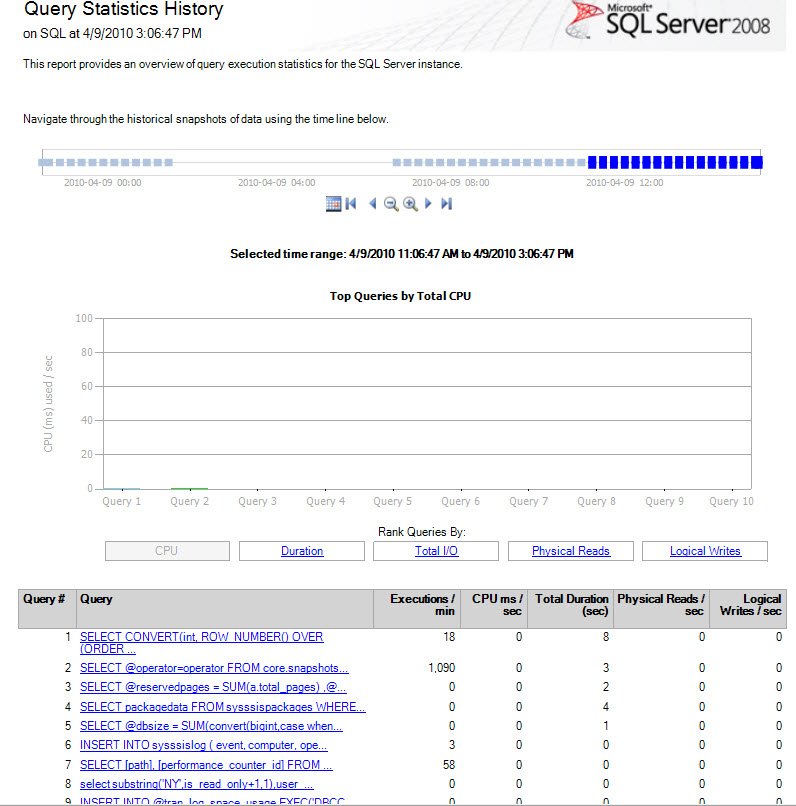
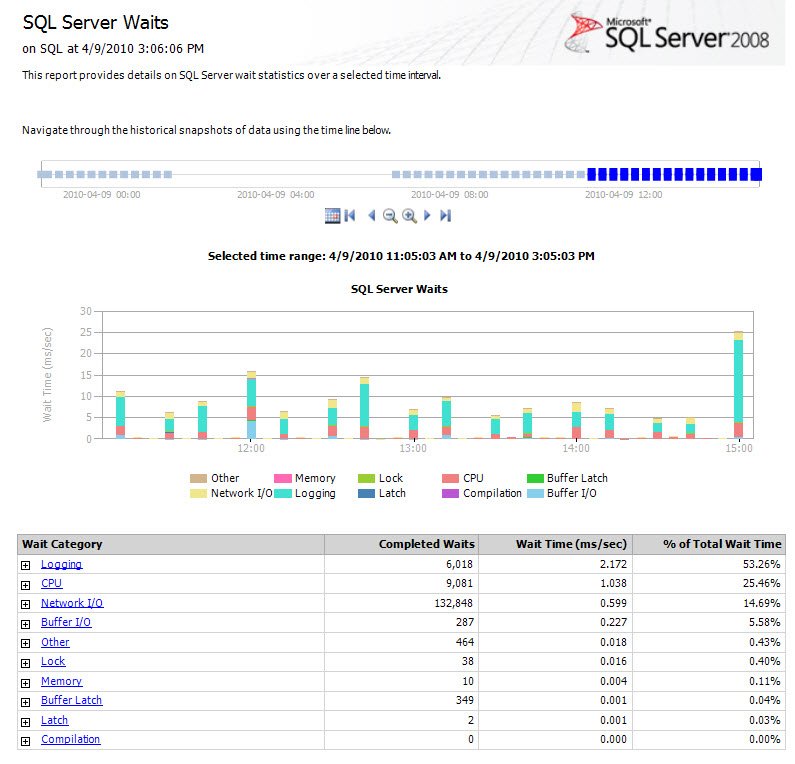
Well, as we can see, it is very easy to configure and utilize this tool. Do you use this tool in your organization?
Published by Pinal Dave on SQLAuthority. More of my work at pinaldave.com.
Discover more from SQL Authority with Pinal Dave
Subscribe to get the latest posts sent to your email.



15 Comments. Leave new
Simple and nice explanation!
Thank you for the tutorial. Never used this feature before, will check it out.
Gr8 Boss…
Thanks a lot,
Thanks for the short and sweet tutorial. Good stuff as always!
Thanks a lot for the tutorial, simple but elaborative. It would be more helpful, if you can add any tutorial for “Change Data Capture”.
Thank you very much for this tutorial! I should have came here first. All other wensites I went to, were pure garbage.
Hi!
I have a question… May I rename the name of Data Collection job?
Or it referenced somewhere by name?
Thx
Eugene
Great article,simple and step by step.
Thanks a lot.
My MDW kept growing at the pace of 4GB per week. Now the whole Data Collection DB is over 99 GB. I tried to shrink it and it did not work. Any suggestions?
Can we filter the top 10 queries by database becuase it seems that top 10 queries are system generated and we cannot do performance tuning on them.
Very Cool! Thanks for posting Pinal
GOOD one ….
I struggle to find any good reviews on this feature. Is anyone really using it? With the feature collecting data from DMVswait statsperf counters that we commonly use for you automatically, and the SSRS drill down reports it uses, it seems crazy that I can’t find much on it.
Hi,
Thanks for posting step by step and BTW how can we send these reports through emails?
I can not see the menu under management in SQL Server Management studio 2012. Is there any process to install it or I have missed out somewhere…need help…thanks