
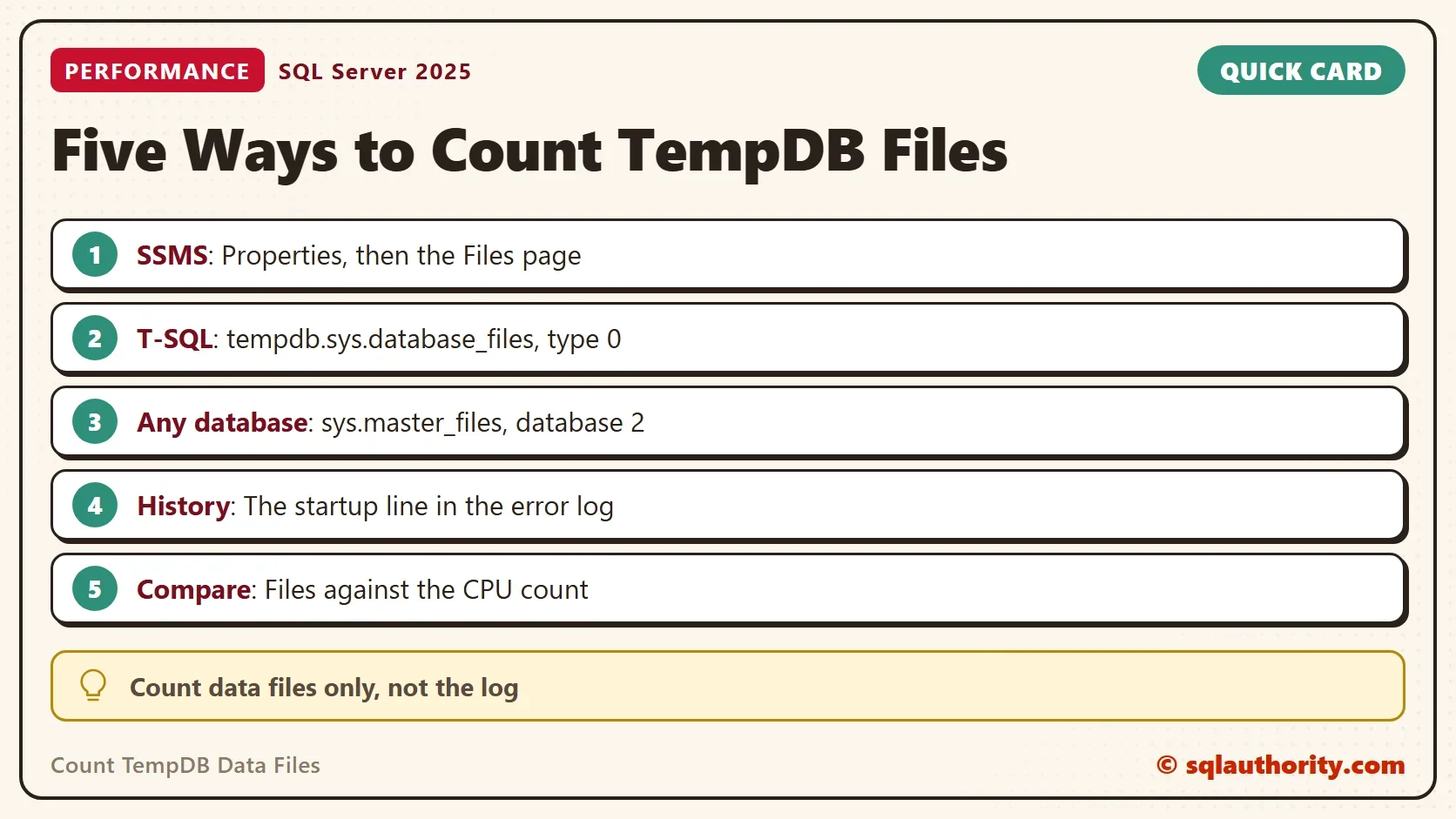
You can count tempdb data files in five ways, and three of them are a single query. The Properties window shows the files. Two catalog views list them. The error log records the number at every startup, and one call reads it. A file statistics function counts them with their IO.

Why You Count Them
The number of tempdb data files is one of the first numbers to read in a tempdb health check. Too few files can let sessions queue up for the same allocation pages. The right number depends on the CPUs, and the check takes seconds.
During one health check, the Properties window of tempdb crashed every time it was opened. The file count had to come from T-SQL. That is one reason to keep more than one method in your pocket. A second reason is scripting: a script needs a query, not a dialog.
Method 1: Management Studio
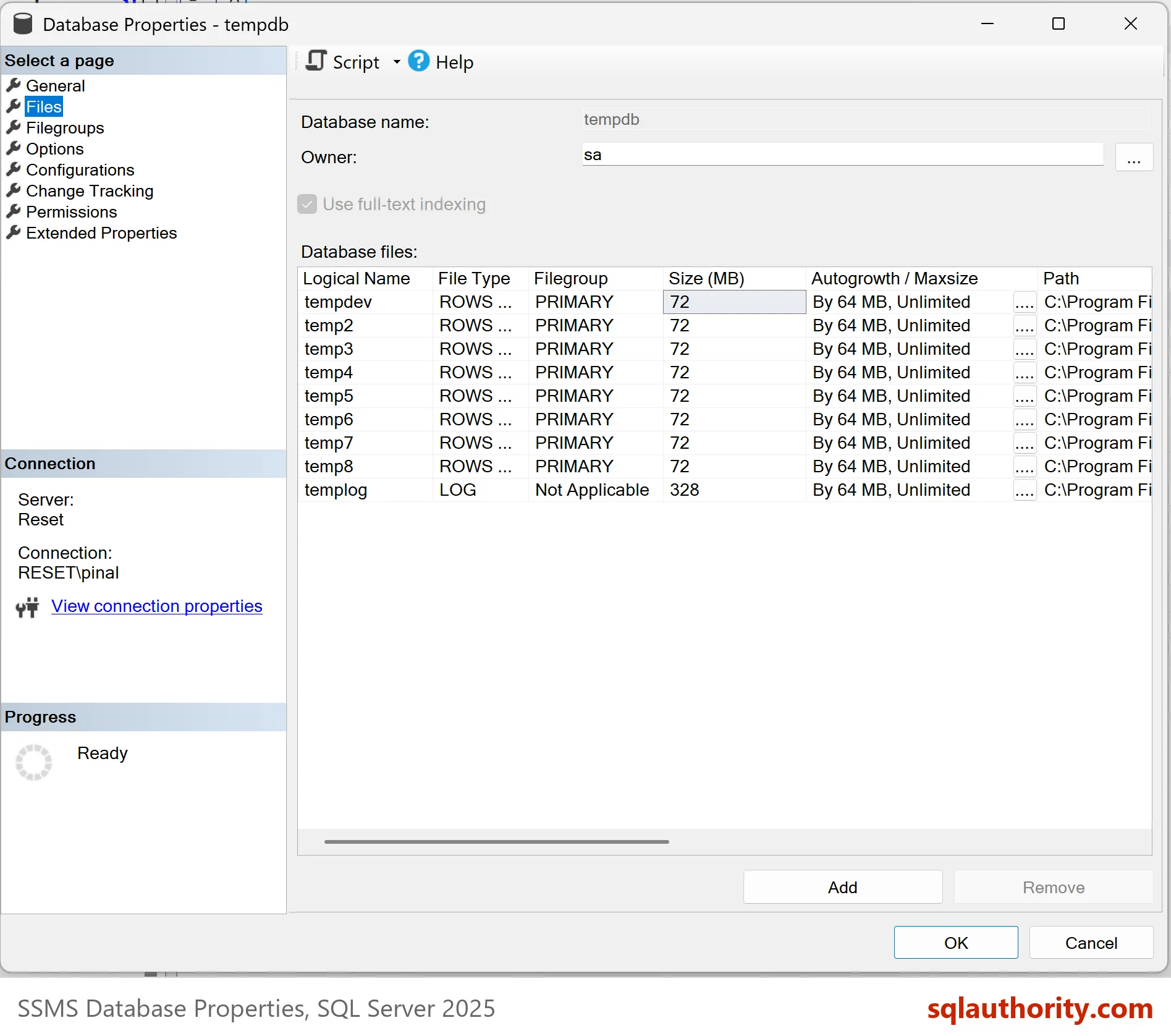
Open Object Explorer and expand Databases, then System Databases. Right-click tempdb and choose Properties. Open the Files page. Every data file is a row of type Rows data, and the log file is a row of type Log. Count the Rows data lines. These steps follow the SSMS 22 menus. The picture comes from a second server with eight data files.
Method 2: tempdb.sys.database_files
Each database has its own view of its files. For tempdb, the three part name reaches it from any database. The column type is 0 for data files and 1 for log files, so filter on 0.
SELECT COUNT(*) AS TempDbFiles
FROM tempdb.sys.database_files
WHERE type = 0;
| TempDbFiles |
|---|
| 8 |
Drop the filter and the view returns nine rows on the test server. Tempdb has one log file besides the eight data files.
Method 3: sys.master_files
The view sys.master_files lists the files of every database, so one query answers for tempdb and for any other database. Database ID 2 is tempdb.
SELECT COUNT(*) AS TempDbFiles
FROM sys.master_files
WHERE database_id = 2 AND type = 0;
| TempDbFiles |
|---|
| 8 |
The count is right. The sizes are not current, because for tempdb this view shows the size at startup. Use tempdb.sys.database_files when you need the size now.
Method 4: The Error Log
At every startup, SQL Server writes one line to the error log with the number of tempdb data files. It reads the error log and no user table, and the old post preferred it for that reason. The call needs the sysadmin or securityadmin role.
EXEC sys.xp_readerrorlog 0, 1, N'The tempdb database has';
| LogDate | ProcessInfo | Text |
|---|---|---|
| 2026-10-07 06:41:06.470 | spid47s | The tempdb database has 8 data file(s). |
The first argument is the log number. 0 is the current log. A log that was recycled after the startup no longer holds the line. Then try 1, 2 and so on. Archive 1 on the test server returned an older line from an earlier startup with the same count. The log keeps a history of the count at each start, and it shows nothing about changes made since.
Method 5: File Statistics
The function sys.dm_io_virtual_file_stats lists each file with its IO counters. Pass database ID 2 and NULL for all files, and join to sys.master_files to filter the data files.
SELECT COUNT(*) AS TempDbFiles
FROM sys.dm_io_virtual_file_stats(2, NULL) AS f
JOIN sys.master_files AS m ON m.database_id = f.database_id AND m.file_id = f.file_id
WHERE m.type = 0;
| TempDbFiles |
|---|
| 8 |
Pick this method when you want the count, and the reads and writes of each file, in one result.
Read the Files Themselves
The count is a start. The names, sizes and growth settings come from the same view. The query below lists the data files with their size and growth in megabytes. The conversion is right when is_percent_growth is 0.
SELECT file_id, name, size * 8 / 1024 AS SizeMB, growth * 8 / 1024 AS GrowthMB, is_percent_growth
FROM tempdb.sys.database_files
WHERE type = 0
ORDER BY file_id;
| file_id | name | SizeMB | GrowthMB | is_percent_growth |
|---|---|---|---|---|
| 1 | tempdev | 136 | 64 | 0 |
| 3 | temp2 | 136 | 64 | 0 |
| 4 | temp3 | 136 | 64 | 0 |
| 5 | temp4 | 136 | 64 | 0 |
| 6 | temp5 | 136 | 64 | 0 |
| 7 | temp6 | 136 | 64 | 0 |
| 8 | temp7 | 136 | 64 | 0 |
| 9 | temp8 | 136 | 64 | 0 |
The file IDs skip 2, because the log file has that ID. Every data file has the same size and the same growth step. Your sizes depend on how long the server has run and what it did.
Compare the Count With the CPUs
A count alone doesn’t say whether it is right. A common guideline is one data file per logical CPU, up to eight, all of the same size. The query below puts the three facts side by side.
SELECT (SELECT COUNT(*) FROM tempdb.sys.database_files WHERE type = 0) AS DataFiles,
       (SELECT cpu_count FROM sys.dm_os_sys_info) AS Cpus,
(SELECT COUNT(DISTINCT size) FROM tempdb.sys.database_files WHERE type = 0) AS DistinctSizes;| DataFiles | Cpus | DistinctSizes |
|---|---|---|
| 8 | 16 | 1 |
The test server has 16 CPUs and eight files of one size, which matches the guideline. A DistinctSizes value above 1 means the files differ in size, and SQL Server then fills the larger ones faster. For the settings behind the guideline, read TempDB Performance: Five Settings to Check in SQL Server.
Which Method to Use
You could argue that five ways to count tempdb data files are four too many. Each has a job. Management Studio is the quickest look. The catalog views suit scripts, and sys.master_files works for every database. The error log gives the history. The file statistics function adds IO.
What to Remember
Count tempdb data files with type 0 and leave the log out. Use tempdb.sys.database_files for the current size and sys.master_files for a count across databases. Compare the count with the CPU count and check that every file has the same size. All five checks only read, so nothing needs cleaning up.
A file count is not a verdict, it is the first number in a tempdb review.
Published by Pinal Dave on SQLAuthority. More of my work at pinaldave.com.
Discover more from SQL Authority with Pinal Dave
Subscribe to get the latest posts sent to your email.




1 Comment. Leave new
That is quite interesting and this is a good resource to use if you want to further study SQL. Thank you.