The background job queue holds work that SQL Server runs outside your queries. A long job there can slow a busy server. One entry you can reproduce is an asynchronous statistics update. One view lists the active jobs, and one command stops a statistics job that arrives at a bad moment.

What Runs in the Queue
When a database has AUTO_UPDATE_STATISTICS_ASYNC switched on, a query that finds a stale statistic doesn’t wait for the update. It runs with the old statistic and queues a background job that refreshes the statistic. The job runs on its own worker, so it appears in no session list of yours.
A client’s server slowed down one day because of such a job. The usual diagnostics showed nothing, yet the server used heavy resources. The queue held a long asynchronous statistics update for the client’s API database, which was updated constantly. The time was busy, so the team killed the job and let it finish when the load was lower.
List the Active Jobs
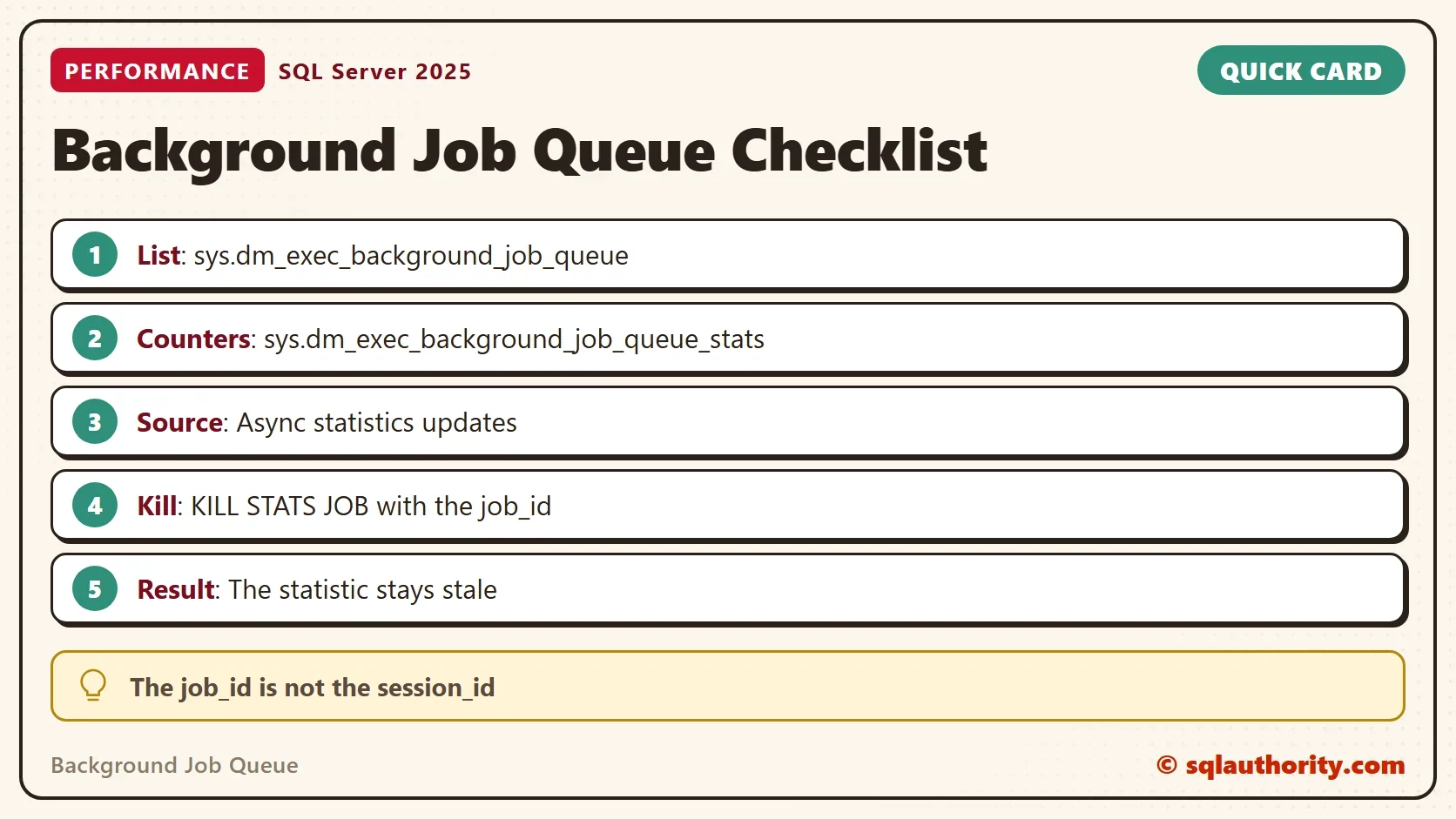
The view sys.dm_exec_background_job_queue has one row for each job that is queued or running. The query below adds the database name and the seconds since the job was queued.
SELECT j.job_id, DB_NAME(j.database_id) AS DatabaseName, j.request_type, j.in_progress,
       j.session_id, j.time_queued,
       DATEDIFF(SECOND, j.time_queued, GETDATE()) AS SecondsQueued
FROM sys.dm_exec_background_job_queue AS j
ORDER BY j.time_queued;
On a quiet server the background job queue is empty, and so is the result. A row with in_progress 1 is running now, and a row with 0 is waiting for its turn. The time_queued column uses the server’s local time.
The companion view keeps counters for the background job queue since the instance started. Read it before and after a suspect period. The difference tells you how many jobs ran and how many failed.
SELECT enqueued_count, started_count, ended_count, failed_other_count, elapsed_avg_ms, elapsed_max_ms
FROM sys.dm_exec_background_job_queue_stats;
Catch a Real Job
The demo needs two query windows, and a table large enough to keep the update busy for a second. The database is BackgroundJobDemo. It switches on the asynchronous option and loads four million rows. The first query creates a statistic on the Note column. Run the counters query from the section above first and note its row, so you can read the difference afterwards.
IF DB_ID(N'BackgroundJobDemo') IS NULL CREATE DATABASE BackgroundJobDemo;
GO
USE BackgroundJobDemo;
GO
ALTER DATABASE BackgroundJobDemo SET AUTO_UPDATE_STATISTICS_ASYNC ON;
DROP TABLE IF EXISTS dbo.Events;
CREATE TABLE dbo.Events (EventID int NOT NULL CONSTRAINT PK_Events PRIMARY KEY, Note varchar(200) NOT NULL);
INSERT INTO dbo.Events (EventID, Note)
SELECT TOP (4000000) n, REPLICATE(CHAR(65 + n % 26), 30) + CONVERT(varchar(12), n)
FROM (SELECT ROW_NUMBER() OVER (ORDER BY (SELECT NULL)) AS n
      FROM sys.all_objects AS a CROSS JOIN sys.all_objects AS b CROSS JOIN sys.all_objects AS c) AS x;
GO
SELECT COUNT(*) AS Matches FROM dbo.Events WHERE Note LIKE 'AAA%';
Now change a third of the rows, so the statistic is stale, and read its modification counter.
UPDATE dbo.Events SET Note = REPLICATE('Z', 30) + CONVERT(varchar(12), EventID) WHERE EventID % 3 = 0;
GO
SELECT s.name, sp.rows_sampled, sp.modification_counter
FROM sys.stats AS s
CROSS APPLY sys.dm_db_stats_properties(s.object_id, s.stats_id) AS sp
WHERE s.object_id = OBJECT_ID(N'dbo.Events') AND sp.rows IS NOT NULL;
The watcher goes in window 2, and you start it first. It checks the queue every 10 milliseconds for up to 20 seconds. When it sees a job in progress, it prints the row and stops the job with KILL STATS JOB. The command takes the job_id from the queue, not a session ID. The watcher only looks at jobs of the demo database, so it can’t stop another database’s job. KILL needs the ALTER ANY CONNECTION permission, which the sysadmin and processadmin roles hold.
USE BackgroundJobDemo;
DECLARE @Job int, @Until datetime2 = DATEADD(SECOND, 20, SYSDATETIME());
WHILE @Job IS NULL AND SYSDATETIME() < @Until
BEGIN
    SELECT TOP (1) @Job = job_id FROM sys.dm_exec_background_job_queue WHERE in_progress = 1 AND database_id = DB_ID(N'BackgroundJobDemo') ORDER BY time_queued;
    IF @Job IS NULL WAITFOR DELAY '00:00:00.010';
END;
SELECT job_id, DB_NAME(database_id) AS DatabaseName, request_type, in_progress, session_id
FROM sys.dm_exec_background_job_queue WHERE job_id = @Job;
IF @Job IS NOT NULL
BEGIN
    DECLARE @Command nvarchar(40) = N'KILL STATS JOB ' + CONVERT(nvarchar(12), @Job);
    PRINT @Command;
    EXEC (@Command);
END;
In window 1, run a query that needs the statistic. The hint forces a compile, and a compile is when SQL Server checks whether a statistic is stale. The query itself returns at once with the old statistic, and the update goes to the queue.
USE BackgroundJobDemo;
SELECT COUNT(*) AS Matches FROM dbo.Events WHERE Note LIKE 'ZZZ%' OPTION (RECOMPILE);
Window 2 reports the job it caught and the command it ran. The job number and the session number differ on your server.
| job_id | DatabaseName | request_type | in_progress | session_id |
|---|---|---|---|---|
| 29 | BackgroundJobDemo | 0 | 1 | 11 |
KILL STATS JOB 29
The row shows a statistics job in progress for the demo database. Its job_id is 29, and its session_id is 11. The two numbers have nothing to do with each other.
Check What the Kill Did
The kill stops the update, so the statistic keeps its old state. Read the statistic and the counters again.
SELECT s.name, sp.rows_sampled, sp.modification_counter
FROM sys.stats AS s
CROSS APPLY sys.dm_db_stats_properties(s.object_id, s.stats_id) AS sp
WHERE s.object_id = OBJECT_ID(N'dbo.Events') AND sp.rows IS NOT NULL;
GO
SELECT enqueued_count, started_count, ended_count, failed_other_count, elapsed_avg_ms, elapsed_max_ms
FROM sys.dm_exec_background_job_queue_stats;
| name | rows_sampled | modification_counter |
|---|---|---|
| _WA_Sys_00000002_48CFD27E | 217107 | 1333333 |
| enqueued_count | started_count | ended_count | failed_other_count | elapsed_avg_ms | elapsed_max_ms |
|---|---|---|---|---|---|
| 11 | 12 | 12 | 2 | 88 | 951 |
The statistic still has 1,333,333 modifications. Nothing refreshed it. Its name is generated, so yours differs. The counter failed_other_count rose from 1 to 2, which is the killed job. These counters are instance wide, so other databases add to them. Read the difference, not the total.
Why the Job ID Matters for the Background Job Queue
A job ID and a session ID are different numbers. In the row above, the session ID belongs to the background worker. The job ID is the number that KILL STATS JOB needs. If you pass a session ID, the command looks for a job with that number. It finds none, or worse, it finds a different job. A job ID that does not exist returns no error. So check the result in the statistic, as above, and not in the command.
The Argument Against
You could argue that killing the job is a poor trade. The statistic stays stale, so every plan that depends on it keeps using old numbers. You have only moved the work to a quieter time. That is the whole point of the kill, as long as you run the update yourself when the load drops. Without that step, the next query that needs the statistic can queue the same job again.
What to Remember
Look at the background job queue when a server is busy and your sessions explain nothing. A long statistics job points to a table that changes fast. Kill it by job_id, then update the statistic in a quiet period. When you finish testing, drop the example database.
USE master;
GO
ALTER DATABASE BackgroundJobDemo SET SINGLE_USER WITH ROLLBACK IMMEDIATE;
DROP DATABASE BackgroundJobDemo;
A busy server is not always a busy workload, it is sometimes a job nobody queued by hand.
Published by Pinal Dave on SQLAuthority. More of my work at pinaldave.com.
Discover more from SQL Authority with Pinal Dave
Subscribe to get the latest posts sent to your email.