
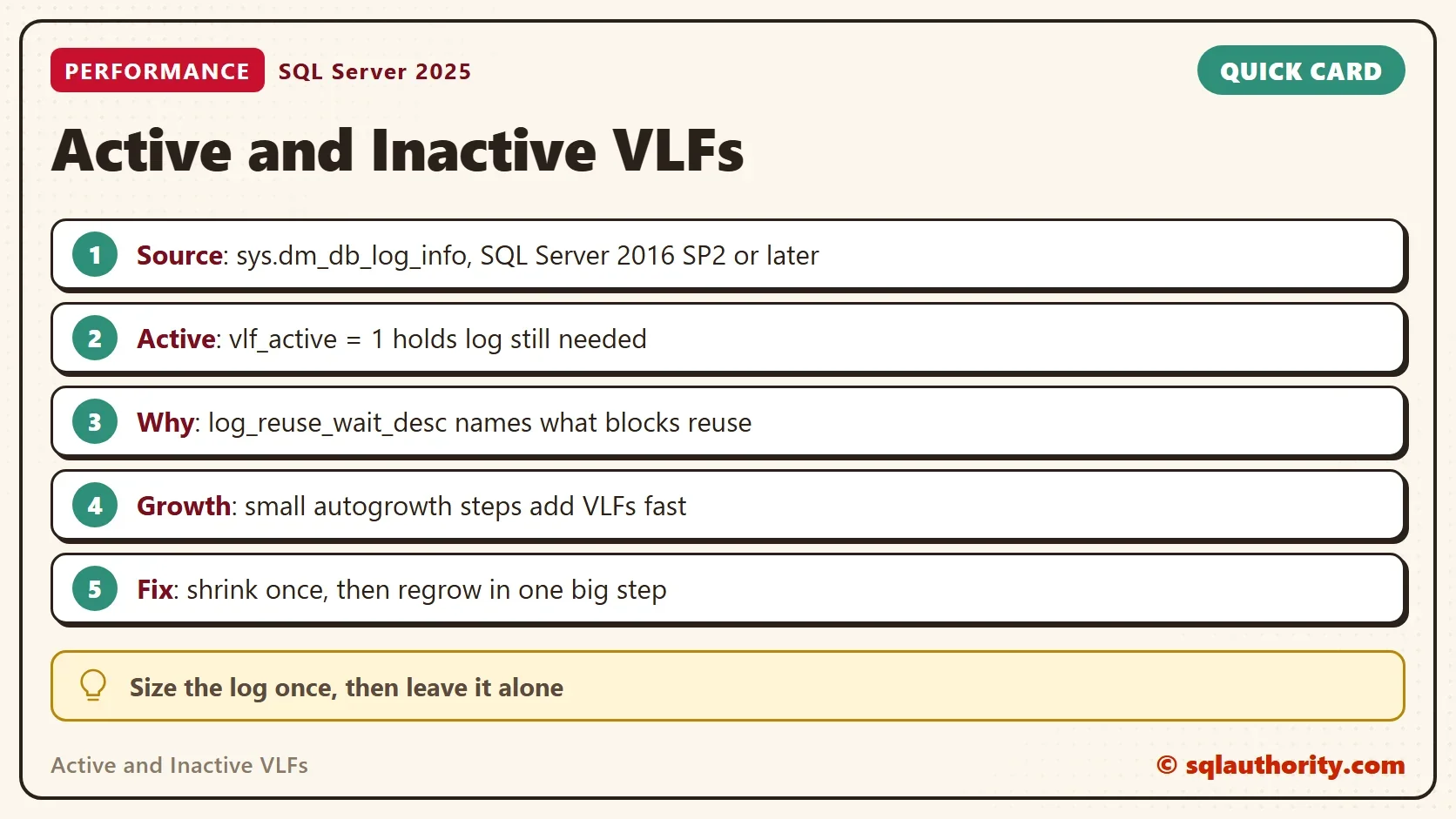
To list active and inactive VLFs for every database, count the rows of sys.dm_db_log_info by vlf_active. Read the log reuse wait next to them. A transaction log is split into virtual log files, or VLFs. An active VLF holds log that SQL Server still needs, and an inactive one can be reused.

What Active and Inactive VLFs Tell You
SQL Server cuts the log file into VLFs when the file is created or grows. Each growth adds new VLFs. The log is written one VLF after another. A VLF turns inactive when nothing in it is needed any more. Too many VLFs slow down log backups, restores and database startup. A handful of active VLFs is normal. A long list that stays active means something holds the log.
The view sys.dm_db_log_info returns one row per VLF for a database. It needs SQL Server 2016 SP2 or later and the VIEW SERVER STATE permission. The procedure below returns one row for each log file, with its active and inactive VLFs. It joins sys.databases to add the log reuse wait, the reason SQL Server can’t reuse the log. Pass a database name for one database, or leave the parameter empty for all of them.
Build a Log With Many VLFs
The demo creates a database named VlfDemo with a 4 MB log in the default folders of the instance. A loop then grows the log in twenty steps of 2 MB. Every step adds a VLF. The database uses simple recovery, so a checkpoint is enough to free the log. The loop is bounded, and the cleanup at the end drops the database.
DECLARE @dataDir nvarchar(260) = CAST(SERVERPROPERTY('InstanceDefaultDataPath') AS nvarchar(260));
DECLARE @logDir nvarchar(260) = CAST(SERVERPROPERTY('InstanceDefaultLogPath') AS nvarchar(260));
DECLARE @create nvarchar(max) = N'CREATE DATABASE VlfDemo
    ON PRIMARY (NAME = VlfDemo_data, FILENAME = N''' + @dataDir + N'VlfDemo.mdf'', SIZE = 8MB)
    LOG ON (NAME = VlfDemo_log, FILENAME = N''' + @logDir + N'VlfDemo_log.ldf'', SIZE = 4MB, FILEGROWTH = 1MB);';
IF DB_ID(N'VlfDemo') IS NULL EXEC (@create);
ALTER DATABASE VlfDemo SET RECOVERY SIMPLE;
GO
DECLARE @size int = 4, @sql nvarchar(400);
WHILE @size < 44
BEGIN
    SET @size += 2;
    SET @sql = N'ALTER DATABASE VlfDemo MODIFY FILE (NAME = VlfDemo_log, SIZE = ' + CAST(@size AS nvarchar(10)) + N'MB);';
    EXEC (@sql);
END;
GO
USE VlfDemo;
GO
CREATE OR ALTER PROCEDURE dbo.ListVlfs @OnlyDatabase sysname = NULL AS
BEGIN
    SET NOCOUNT ON;
    SELECT d.name AS DatabaseName,
           li.file_id AS FileId,
           COUNT(*) AS VlfCount,
           SUM(CASE WHEN li.vlf_active = 1 THEN 1 ELSE 0 END) AS ActiveVlfs,
           SUM(CASE WHEN li.vlf_active = 0 THEN 1 ELSE 0 END) AS InactiveVlfs,
           CAST(SUM(li.vlf_size_mb) AS decimal(12,1)) AS LogMb,
           CAST(SUM(CASE WHEN li.vlf_active = 1 THEN li.vlf_size_mb ELSE 0 END) AS decimal(12,1)) AS ActiveMb,
           d.log_reuse_wait_desc AS ReuseWait
    FROM sys.databases AS d
    CROSS APPLY sys.dm_db_log_info(d.database_id) AS li
    WHERE d.state = 0 AND (@OnlyDatabase IS NULL OR d.name = @OnlyDatabase)
    GROUP BY d.name, li.file_id, d.log_reuse_wait_desc
    ORDER BY VlfCount DESC, d.name;
END;
GO
EXEC dbo.ListVlfs @OnlyDatabase = N'VlfDemo';| DatabaseName | FileId | VlfCount | ActiveVlfs | InactiveVlfs | LogMb | ActiveMb | ReuseWait |
|---|---|---|---|---|---|---|---|
| VlfDemo | 2 | 24 | 1 | 23 | 44.0 | 0.9 | NOTHING |
The log has 24 VLFs, and the list of active and inactive VLFs shows how they split. One is active, because SQL Server always keeps the VLF it is writing to. The other 23 are inactive, and nothing blocks the log. The four VLFs of the first 4 MB plus twenty VLFs of the growth steps make the total.
Watch Active VLFs Grow With an Open Transaction
Now fill a table inside a transaction and read the summary before the commit. The transaction can’t free its log, so the active VLFs pile up. A one second wait after the checkpoint gives SQL Server time to refresh the reuse wait. The 1 MB autogrowth setting makes the log grow during the insert, and each growth adds a VLF.
DROP TABLE IF EXISTS dbo.Fill;
CREATE TABLE dbo.Fill (FillID int IDENTITY(1,1) PRIMARY KEY, Padding char(200) NOT NULL);
BEGIN TRANSACTION;
INSERT INTO dbo.Fill (Padding) SELECT TOP (60000) 'x' FROM sys.all_objects AS a CROSS JOIN sys.all_objects AS b;
EXEC dbo.ListVlfs @OnlyDatabase = N'VlfDemo';
COMMIT TRANSACTION;
CHECKPOINT;
WAITFOR DELAY '00:00:01';
EXEC dbo.ListVlfs @OnlyDatabase = N'VlfDemo';
| Step | VlfCount | ActiveVlfs | LogMb | ReuseWait |
|---|---|---|---|---|
| Before the commit | 37 | 2 | 57.0 | ACTIVE_TRANSACTION |
| After commit and checkpoint | 37 | 1 | 57.0 | NOTHING |
One insert grew the log by 13 MB and added 13 VLFs. The ReuseWait column named the cause while the transaction was open. After the commit and the checkpoint, only one VLF stays active. The VLFs that growth added remain in the file until you shrink it.
Why the Log Keeps Many VLFs Active
When a log shows hundreds of active VLFs, read ReuseWait first. ACTIVE_TRANSACTION means a transaction is still open. LOG_BACKUP means the database waits for a log backup in full recovery. Replication, availability groups and a mirror also hold the log, and each shows its own name. Shrinking can’t help while one of them holds the log. Fix the reason, and the VLFs turn inactive on their own.
A reader asked about a log that stayed 99 percent full after log backups on a database with memory-optimized tables. A log that stays full after a log backup shows its reason in log_reuse_wait_desc. With memory-optimized tables, a checkpoint of that data can be the reason. This comes from the documentation and was not tested here.
Fix a High VLF Count: Shrink Once, Regrow Once
A log that grew in many small steps has more VLFs than it needs. The repair has two steps. Shrink the log while its VLFs are inactive, which removes the inactive VLFs at the end of the file. In full recovery, take a log backup first, or the shrink stops at the active VLFs. Then grow it back to the size it needs in a single step. A growth of 256 MB creates only eight new VLFs.
DBCC SHRINKFILE (VlfDemo_log, 1) WITH NO_INFOMSGS;
EXEC dbo.ListVlfs @OnlyDatabase = N'VlfDemo';
ALTER DATABASE VlfDemo MODIFY FILE (NAME = VlfDemo_log, SIZE = 256MB);
EXEC dbo.ListVlfs @OnlyDatabase = N'VlfDemo';
| Step | VlfCount | ActiveVlfs | LogMb |
|---|---|---|---|
| After the shrink | 2 | 1 | 1.9 |
| After one growth to 256 MB | 10 | 1 | 256.0 |
The count falls from 37 to 2 and settles at 10 once the log has its working size. I don’t like shrinking databases, and a scheduled shrink only makes the log grow again in small steps. Treat this as a one-time repair, and then set a growth step that is large enough for the workload.
What to Remember
You could argue that a count of 24 VLFs doesn’t matter, and for a small log that is right. The trouble starts when a log has hundreds or thousands of them. List active and inactive VLFs on every server once, and look at the biggest counts first. Read ReuseWait before you shrink anything. To remove a second log file, read Remove Extra Log File in SQL Server: Fix Error 5042. For a log that keeps growing, read Huge Transaction Log File in SQL Server: Find the Cause.
When you finish with the demo, drop the example database.
USE master;
GO
DROP DATABASE IF EXISTS VlfDemo;
A VLF count is not a verdict on the log, it is a record of how the log grew.
Published by Pinal Dave on SQLAuthority. More of my work at pinaldave.com.
Discover more from SQL Authority with Pinal Dave
Subscribe to get the latest posts sent to your email.




5 Comments. Leave new
I wrote a view using your query. I enriched it with a field to auto create the DBCC command. The user can copy paste and run the string for any desired db.
CREATE VIEW v_virtual_log_files AS
SELECT TOP 7777777
s.[name] AS ‘Database Name’
,COUNT(li.database_id) AS ‘VLF Count’
,SUM(li.vlf_size_mb) AS ‘VLF Size (MB)’
,SUM(CAST(li.vlf_active AS INT)) AS ‘Active VLF’
,SUM(li.vlf_active * li.vlf_size_mb) AS ‘Active VLF Size (MB)’
,COUNT(li.database_id) – SUM(CAST(li.vlf_active AS INT)) AS ‘Inactive VLF’
,SUM(li.vlf_size_mb) – SUM(li.vlf_active*li.vlf_size_mb) AS ‘Inactive VLF Size (MB)’
,’DBCC SHRINKFILE (N’ + ”” + f.[name] + ”” + ‘ , 10)’ AS ‘DBCC Shrink Command’
FROM sys.databases s
CROSS APPLY sys.dm_db_log_info(s.database_id) li
JOIN sys.master_files f
ON s.database_id = f.database_id
WHERE
f.type = 1
GROUP BY
s.[name]
,f.[name]
ORDER BY 2 DESC
Thanks for sharing this. I just don’t like shrinking the database.
Hi Pinal, I appreciate so much your usefull hints. They are really helpful. I’m trying for a while without success to find out all user on database level, from howm the CONNECT is revoked (I don’t mean idisabled server logins). Maybe you have a hint.
Thank you
Fattah Mortazavi
For peoples information, only works with SQL Server 2016 SP 2 and later, that DMV is not available in earlier versions.
This blog always has a lot of good info for me, thank you.
I have a SQLExpress 2017 db with Filestream and Memory Optimized Tables. Log is always 99% used and grows daily by 16MB although full backup done daily and log backups done hourly and only few updates/inserts. Tried your scripts but log keeps growing. db is 550MB, log now 1700MB. Right after log backup Active VLF=133(1684MB), Inactive VLF=1(16MB). Any idea what is happening?
Thanks,
Brian