Provisioning computer object failed with error 5 is another cause of Always On listener creation failure. I’ve written about a few other causes before. In this case, the cluster log showed which account was denied.

The Error
I trimmed the cluster log and kept only the interesting messages:
[RES] Network Name : AccountAD: PopulateNetnameADState - DCFlags 1073745937 LdapReferralAllowed 0
[RES] Network Name: [NNLIB] FindSuitableDCNew - objectName ProdListener, username - WinCluster$, firstChoiceDCName - \\DC01.domain.com
[RES] Network Name: [NNLIB] Found first choice DC that has the object ProdListener DCName - \\DC01.domain.com.
[RES] Network Name: [NNLIB] GetOUForVCOCreation - OU name of CNO is OU=IN,DC=Domain,DC=Com
[RES] Network Name: [NNLIB] GetOUForVCOCreation - CNO SID is S-1-5-21-2987268983-2468375096-37832846-293957
[RES] Network Name : AccountAD: Object ProdListener already exists, using DC: \\DC01.domain.com
[RES] Network Name: [NNLIB] Changing Password for object ProdListener on DC: \\DC01.domain.com result: 5
[RES] Network Name: [NN] IdentityLocal End Impersonating
[RES] Network Name : AccountAD: Provisioning computer object failed with error 5
[RES] Network Name : AccountAD: OnInitializeEnd: 5
[RES] Network Name : Configuration: InitializeReplyCreation of NetName (type Singleton), result: 5, IsCanceled: false
What the Client Saw
My client already had the listener, ProdListener, provisioned in the domain controller. The names in this example are:
- Listener name: ProdListener
- Windows cluster name: WinCluster
When a cluster resource has trouble, I always look at the cluster log. If you aren’t sure how to generate one, read my steps to generate a Windows cluster log.
Why It Happens
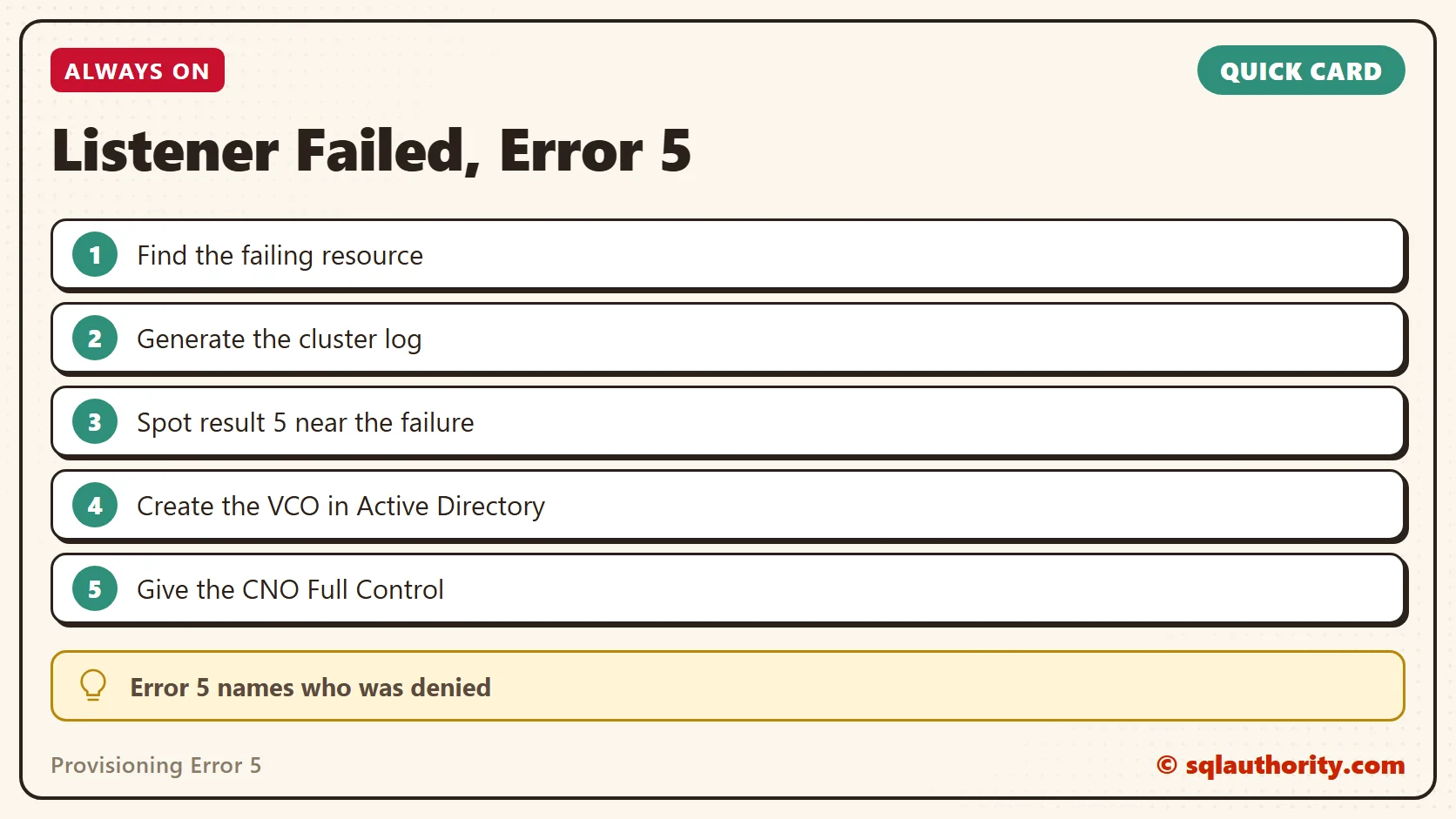
The most relevant line is the one about changing the password of ProdListener, with result 5. Error 5 means access denied. So the cluster tried to change the password of the object and was refused.
The key detail is who did it: username WinCluster$. That isn’t a domain user. It’s the cluster computer object, also called the CNO.
Access denied has other causes that make a network name or client access point resource fail. In my experience, one of the most common causes is a missing permission. The domain administrator hasn’t given the CNO the Read All Properties and Create Computer Objects permissions. You can also see Access is denied in the event log.

How to Check
Generate the cluster log and read the lines before the failure. The user name in them tells you which account was denied.
The Fix
The log made it clear that a domain admin has to give the CNO access to the VCO. The VCO is a virtual computer object, and in an Always On setup it’s the listener. The CNO is the computer object for the Windows cluster network name in Active Directory.
- Open the Active Directory Users and Computers snap-in (dsa.msc) on a domain controller.
- In the View menu, check Advanced Features. Without it, you won’t see the options in the later steps.
- Right-click the OU or container where the VCO should be created (ProdListener in this example), then click New and Computer.
- Enter the name of the object, which will be the listener name for the availability group, and click OK.
- Right-click the VCO that you created and select Properties. Click the Security tab, then click Add.
- Enter the CNO and click OK. Select the Computers option under Object Types first. The CNO is the Windows cluster name, not the listener or FCI name.
- Give the CNO Full Control over the VCO.
Confirm It Worked
After this, the listener should come online in the cluster manager.
How to Prevent It
Talk to your domain admin before you create the listener. Check that the CNO has the two permissions named above. Or create the VCO ahead of time with the steps in this post.
For related cases, read about the enabling object failure with error 5 and the listener that would not come online.
Error 5 is not a broken listener, it is a computer account waiting for permission.
Published by Pinal Dave on SQLAuthority. More of my work at pinaldave.com.
Discover more from SQL Authority with Pinal Dave
Subscribe to get the latest posts sent to your email.