Priority boost sounds like a speed setting, but it can make a server slower. The option raises the priority of SQL Server’s threads over everything else on the machine. That includes the parts of Windows that SQL Server needs.

What Priority Boost Does
Windows decides which thread runs next by priority. With priority boost on, SQL Server asks Windows to run its threads before most other threads. That sounds good. The problem is that the network driver, the storage driver and the cluster service share the same processors. When SQL Server wins every race, those parts wait, and SQL Server waits for them in turn. Microsoft lists the option as deprecated and does not recommend it.
The result is the kind of performance that people describe as erratic. A system answers fast, then stalls for a few seconds, then answers fast again. Hardware upgrades don’t fix it, because the setting moves with the server. On one client’s server, the problem survived an upgrade from SQL Server 2012 to 2014 and then to 2017. The checks of memory, CPU, IO and network showed nothing unusual. The option was on.
Check the Setting With T-SQL
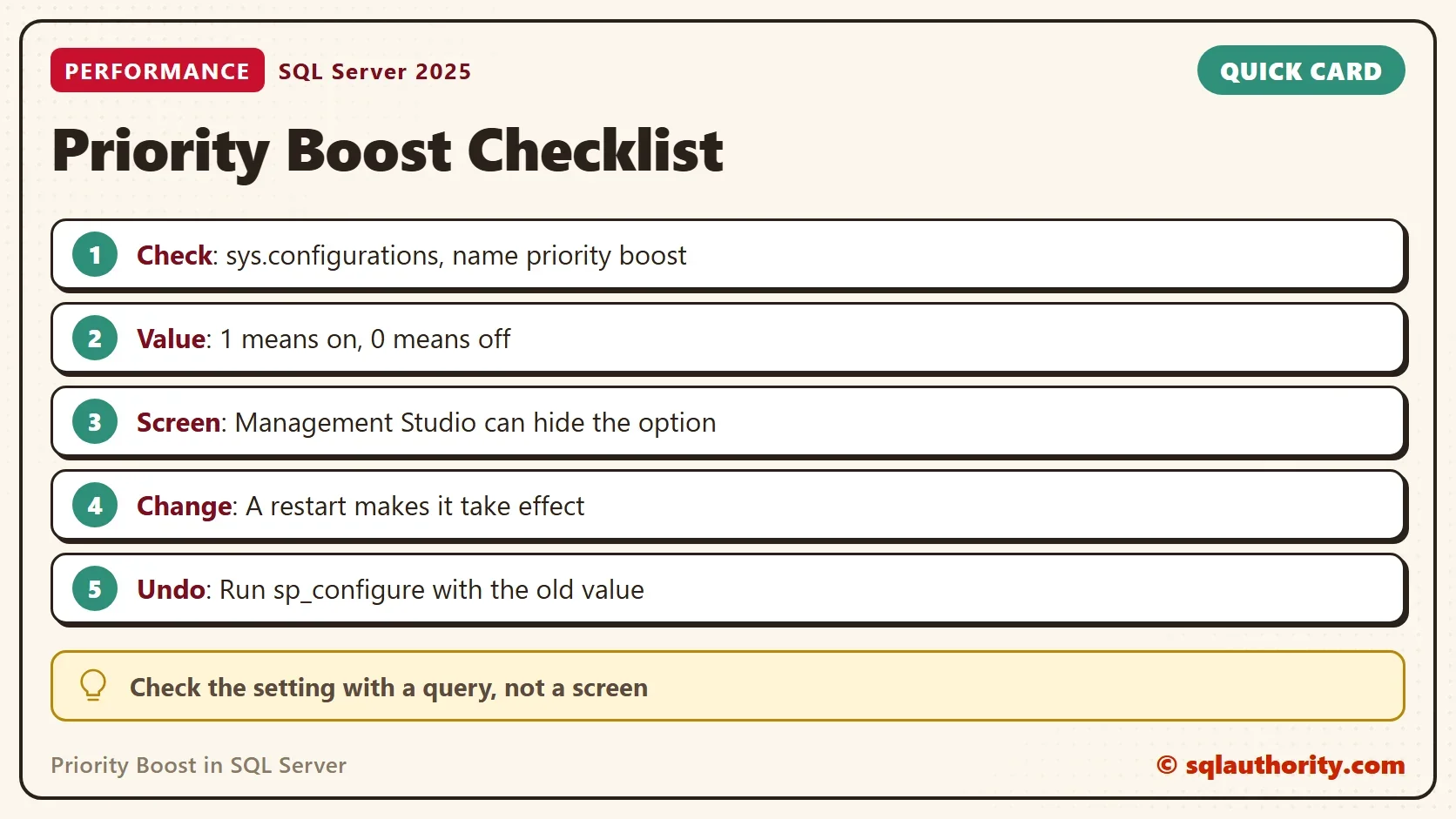
Don’t rely on a screen to find this setting. On that client’s server, Management Studio 18.2 didn’t show the option at all. A visual check would have found nothing. A query always works. The view sys.configurations lists every option, advanced ones included. The column value holds the setting, and value_in_use holds the setting that is running now.
SELECT name, value, value_in_use, is_dynamic, is_advanced
FROM sys.configurations
WHERE name = N'priority boost';
| name | value | value_in_use | is_dynamic | is_advanced |
|---|---|---|---|---|
| priority boost | 0 | 0 | 0 | 1 |
On the test server the option is off, so both values are 0. A value_in_use of 1 means priority boost is running. The column is_dynamic is 0, which means a change doesn’t take effect until the service restarts. After a change, value and value_in_use differ until the restart. The next query turns the two columns into a plain answer.
SELECT CASE WHEN value_in_use = 1 THEN N'On: turn it off and restart'
            WHEN value <> value_in_use THEN N'Changed, waiting for a restart'
            ELSE N'Off' END AS PriorityBoostStatus
FROM sys.configurations
WHERE name = N'priority boost';| PriorityBoostStatus |
|---|
| Off |
SQL Server also keeps a counter for the option, because the option is deprecated. It is listed with the other deprecated features, and it reads 0 on the test server.
SELECT instance_name, cntr_value
FROM sys.dm_os_performance_counters
WHERE object_name LIKE N'%Deprecated Features%'
  AND instance_name LIKE N'%priority boost%';
| instance_name | cntr_value |
|---|---|
| sp_configure ‘priority boost’ | 0 |
Turn It Off
If the status says On, turn it off with sp_configure. The option is an advanced one, so the first statement makes it visible. These statements change a server setting, so run them on a test server first. The comments hold the undo. Note the value of show advanced options before you change it, and put it back afterward.
-- Make advanced options visible (undo: run again with 0, or with the value you had before)
EXEC sys.sp_configure N'show advanced options', 1;
RECONFIGURE;
-- Turn priority boost off (undo: run again with 1, which no server should need)
EXEC sys.sp_configure N'priority boost', 0;
RECONFIGURE;
RECONFIGURE saves the change, but the running instance keeps the old value. Restart the SQL Server service in a quiet window. Tell the server’s owners first, because a restart ends every connection. Then run the status query again. It should say Off. On the client’s server, the service was restarted in the evening. Eight days later, the client reported no performance issue.
What to Watch After the Restart
Give the server a normal busy day, then compare it with the days before. Watch the response time that users feel, the wait statistics and the CPU. Turning off priority boost removes one cause. It doesn’t repair a missing index or a poor query. If the stalls stay, check the other settings in the same view. Start with max server memory, max degree of parallelism and cost threshold for parallelism.
Isn’t a Dedicated Server Different?
You could argue that a server that runs nothing but SQL Server loses nothing by boosting it. The machine still runs Windows, its drivers and its monitoring. Those parts need processor time to move network packets and finish disk requests, and SQL Server depends on both. The boost starves the parts that SQL Server waits for. It can slow the server it was meant to speed up.
What to Remember
Check priority boost with sys.configurations, and don’t count on Management Studio to show it. A value_in_use of 1 is worth fixing. Set it to 0 with sp_configure, restart the service, and run the status query again. Keep the undo statements next to the change.
A slow or erratic server has many causes. Check this setting on every server you inherit. It takes one query, and an unnoticed setting costs a lot. Nothing was created, so there is nothing to clean up.
A setting that sounds like speed is not a tuning plan, it is a risk with a friendly name.
Published by Pinal Dave on SQLAuthority. More of my work at pinaldave.com.
Discover more from SQL Authority with Pinal Dave
Subscribe to get the latest posts sent to your email.