
A Docker volume keeps SQL Server data outside the container, so you can replace the container and keep every database. That makes patching and upgrading a short job. You start a newer image on the same volume. SQL Server upgrades the databases for you.

Why a Container Loses Its Data
A container is disposable by design. When you remove it, everything written inside it goes too, including the databases you restored. That is fine for a throwaway test and a problem the first time you want a newer SQL Server.
The fix is to store the data folder somewhere Docker keeps separate from the container. That place is a volume. The container reads and writes it like a normal folder, and the volume stays when the container goes.
Create a Docker Volume and Start SQL Server
The commands here follow the documented steps for the SQL Server container image, mcr.microsoft.com/mssql/server:2025-latest. They are single-line commands for PowerShell on a machine with Docker, not T-SQL. Replace the placeholder with your own strong password, and never save a real one in a script you share.
docker volume create sqlvolume

docker run -e "ACCEPT_EULA=Y" -e "MSSQL_SA_PASSWORD=<your strong password>" -p 1433:1433 --name sql1 --hostname sql1 -v sqlvolume:/var/opt/mssql -d mcr.microsoft.com/mssql/server:2025-latest
If another program listens on port 1433, change the first number. For example, use -p 14333:1433 and connect to that port. The option -v sqlvolume:/var/opt/mssql mounts the volume at the folder where SQL Server keeps its files. From now on, the master database and every user database live in the volume. List your volumes with docker volume ls. The command docker volume inspect sqlvolume shows where Docker stores it.
What Lives in the Volume
SQL Server for Linux keeps its files under /var/opt/mssql. The data folder holds the system databases, including master, and every user database. The log folder holds the error log. Mount the volume at the top of that tree, and one volume carries all of it.
A cumulative update works the same way as an upgrade. It is a newer image tag, started on the same volume. You never patch inside the container.
Restore a Database Into the Volume
Copy a backup file into the container, and Docker writes it to the volume. Then restore it with T-SQL from Management Studio or sqlcmd. The container uses Linux paths, so the file names look different from a Windows restore. The SQL Server process must be able to read the copied file. If you need a backup to practice on, my guide to installing AdventureWorks and WideWorldImporters has them.
docker cp .\SampleShop.bak sql1:/var/opt/mssql/data/
The next T-SQL runs inside the container. Read the logical file names first, then name each one in a MOVE clause. SampleShop is a placeholder for your own database.
RESTORE FILELISTONLY FROM DISK = N'/var/opt/mssql/data/SampleShop.bak';

RESTORE DATABASE SampleShop
FROM DISK = N'/var/opt/mssql/data/SampleShop.bak'
WITH MOVE N'SampleShop' TO N'/var/opt/mssql/data/SampleShop.mdf',
     MOVE N'SampleShop_log' TO N'/var/opt/mssql/data/SampleShop_log.ldf',
     STATS = 10;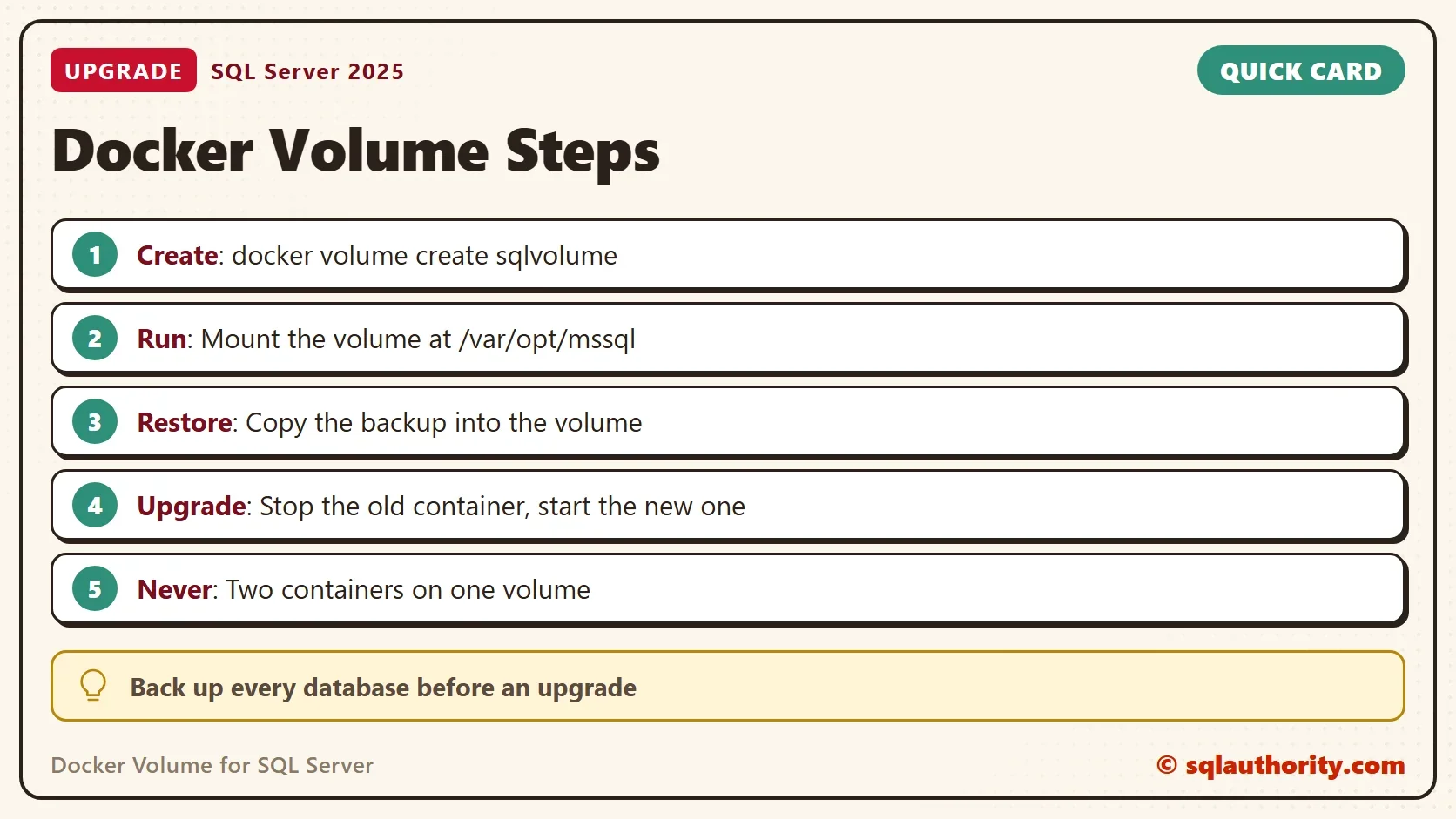
Upgrade by Starting a Newer Image
Stop the old container first. Two containers must never run on one volume, because two SQL Server instances cannot share one set of data files. Then start the newer image with the same volume. The new container needs a new name, and the old one stays stopped. It keeps the host name sql1, so the server name stored in master still matches.
docker stop sql1

docker run -e "ACCEPT_EULA=Y" -e "MSSQL_SA_PASSWORD=<your strong password>" -p 1433:1433 --name sql2 --hostname sql1 -v sqlvolume:/var/opt/mssql -d mcr.microsoft.com/mssql/server:2025-latest
Wait a minute, then connect again. The new instance reads master from the volume. That is how it knows every database you restored, and it upgrades them while it starts. Check the result with this query.
SELECT SERVERPROPERTY('ProductVersion') AS ProductVersion,
       name AS DatabaseName,
       compatibility_level
FROM sys.databases
ORDER BY name;
The ProductVersion column shows the new version. Your restored database is in the list. The compatibility level stays where it was until you change it, so test your queries before you raise it.
Cautions Before You Upgrade
An upgrade is a one-way step. A database touched by a newer version cannot go back to an older one. Take a full backup of every database, and keep the backup outside the volume. If the upgrade fails, you restore on the old version.
These steps cover Linux containers, which is what the SQL Server images use. Sign-in with Active Directory needs extra setup in a container, which this article does not cover. The old container stays on the machine until you remove it. Remove it only after the new one works and your backups are safe.
You could argue that a folder on the host is simpler than a named volume, because you can browse it. That is true. A named volume is managed by Docker. It moves between containers without extra steps and does not depend on host folder permissions.
What to Remember
Mount a Docker volume at /var/opt/mssql, and the databases survive the container. Upgrade by stopping the old container and starting a newer image on the same volume. One volume belongs to one running container at a time.
Back up before every upgrade, and use a placeholder instead of a real password in anything you save. Check the image tag on a test machine first. The newest tag changes, so write down which one you ran.
A container is not a home for your data, it is a visitor that borrows a volume.
Published by Pinal Dave on SQLAuthority. More of my work at pinaldave.com.
Discover more from SQL Authority with Pinal Dave
Subscribe to get the latest posts sent to your email.



3 Comments. Leave new
RESTORE DATABASE [AdventureWorks2014]
should be
RESTORE DATABASE [AdventureWorks2017]
if you want to have no ambiguity if you restore other AdventureWorks databases in the same container
How does the new 2.4 image , which is where SQL is installed, know to start the databases on the volume? Even if you put the system databases on the external volume, how does the SQL configuration on the system know where they are?
I had high hopes for using Docker containers to make the process of doing CU updates easier. But in my testing I have discovered that Linux containers are not Active Directory aware which is a deal breaker. And Windows containers cannot map a host volume to the default data/log/backup path that comes with the images you download from MS’s repository. Which means I cannot persist the system databases and all their critical information. Unless I have missed something…