
MAXDOP guidelines are easier to follow when the CPU and memory facts sit on one screen. The right setting depends on how many CPUs the server has and how they are grouped. Three read-only queries collect those facts, so you can compare them with the guideline before you change anything.

Read the CPU and MAXDOP Facts
SQL Server groups CPUs into NUMA nodes, and a parallel query should stay inside one node when it can. The first query counts the CPUs that SQL Server uses, which are its visible online schedulers, and the nodes. It also reads the current MAXDOP and cost threshold. It then applies the MAXDOP guidelines from the table further down. Nothing is created, and nothing changes.
WITH Cpu AS (
    SELECT (SELECT COUNT(*) FROM sys.dm_os_schedulers WHERE status = N'VISIBLE ONLINE') AS LogicalCpus,
           i.softnuma_configuration_desc AS SoftNuma,
           (SELECT COUNT(*) FROM sys.dm_os_nodes WHERE node_state_desc NOT LIKE N'%DAC%') AS NumaNodes,
           (SELECT CONVERT(int, value_in_use) FROM sys.configurations WHERE name = N'max degree of parallelism') AS MaxdopSet,
           (SELECT CONVERT(int, value_in_use) FROM sys.configurations WHERE name = N'cost threshold for parallelism') AS CostThreshold
    FROM sys.dm_os_sys_info AS i
), Node AS (
    SELECT *, LogicalCpus / NULLIF(NumaNodes, 0) AS CpusPerNode FROM Cpu
), Pick AS (
    SELECT *,
           CASE WHEN NumaNodes = 1 THEN IIF(LogicalCpus > 8, 8, LogicalCpus)
                WHEN CpusPerNode <= 16 THEN CpusPerNode
                ELSE IIF(CpusPerNode / 2 > 16, 16, CpusPerNode / 2) END AS GuidelineMaxdop
    FROM Node
)
SELECT LogicalCpus, SoftNuma, NumaNodes, CpusPerNode, MaxdopSet, GuidelineMaxdop,
       CASE WHEN MaxdopSet = 0 THEN N'0 allows every CPU'
            WHEN MaxdopSet = GuidelineMaxdop THEN N'Matches the guideline'
            WHEN MaxdopSet < GuidelineMaxdop THEN N'Below the guideline'
            ELSE N'Above the guideline' END AS Reading,
       CostThreshold
FROM Pick;
This is the result from one development PC. Yours will differ.
| LogicalCpus | SoftNuma | NumaNodes | CpusPerNode | MaxdopSet | GuidelineMaxdop | Reading | CostThreshold |
|---|---|---|---|---|---|---|---|
| 16 | ON | 2 | 8 | 2 | 8 | Below the guideline | 50 |
SoftNuma ON means SQL Server split the 16 CPUs into two nodes by itself. Each node holds 8 CPUs, so the guideline for this PC is 8. The server runs with MAXDOP 2, which is below it. That is a valid choice, because the guideline is a ceiling and not a target.
The MAXDOP Guidelines Behind the Number
The query follows the starting points that Microsoft documents. They are short, and they are the part of this script that you should read twice.
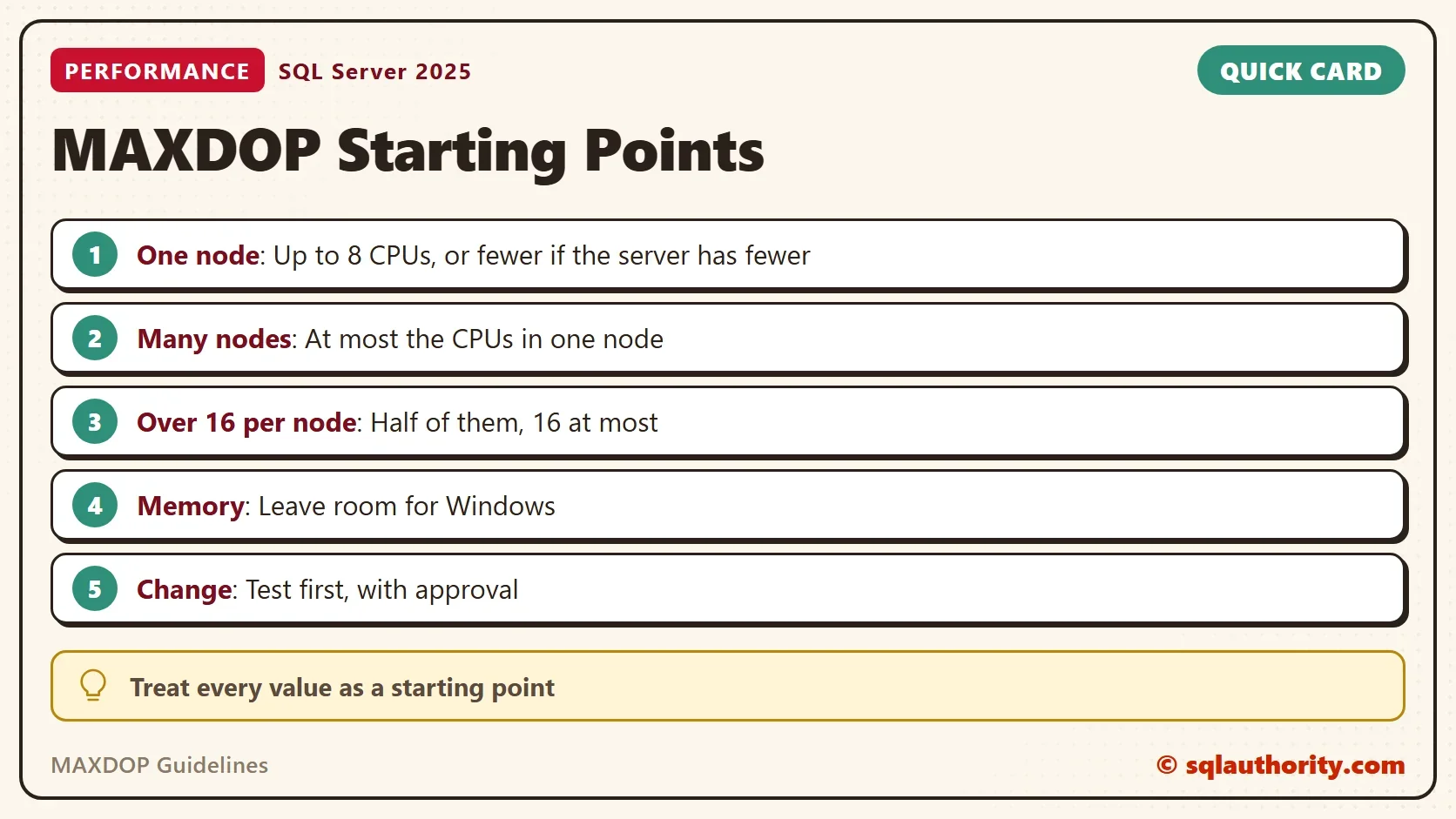
| Server shape | MAXDOP starting point |
|---|---|
| One node, 8 or fewer logical CPUs | Up to the number of CPUs |
| One node, more than 8 logical CPUs | 8 |
| Several nodes, 16 or fewer CPUs per node | At most the CPUs in one node |
| Several nodes, more than 16 CPUs per node | Half the CPUs in one node, 16 at most |
A MAXDOP of 0 lets one query use every CPU, up to 64. The setting is a server default. A query hint or a database scoped setting can override it for one query or one database.
The cost threshold decides which queries go parallel at all. A query below the threshold runs on one CPU, whatever MAXDOP says. The default of 5 is low for current hardware. A common starting point is 50. I test it and watch the waits afterward.
When the Guideline Misses
The MAXDOP guidelines cannot see your workload. A reporting server can want a higher value, so large queries finish sooner. A busy transaction server can want a lower one, so no single query takes every CPU. Wait statistics show which case you have. Many CXPACKET waits alone do not prove a problem, because parallel queries wait on each other by design.
You can override the server value where it matters. The hint OPTION (MAXDOP 1) limits one query. The database scoped setting, ALTER DATABASE SCOPED CONFIGURATION SET MAXDOP, limits one database on SQL Server 2016 and later. Both leave the server default alone, so they are the safer first move.
Read the Memory Settings
MAXDOP is half of the audit. The second query puts the memory settings next to the physical memory. It shows how much memory sits outside the cap when max server memory is set. Windows and other programs use it, and so do the thread stacks of SQL Server itself.
SELECT i.physical_memory_kb / 1024 AS PhysicalMB,
       CONVERT(bigint, mx.value_in_use) AS MaxServerMB,
       CASE WHEN mx.value_in_use = 2147483647 THEN NULL
            ELSE i.physical_memory_kb / 1024 - CONVERT(bigint, mx.value_in_use) END AS NotCappedMB,
       i.committed_kb / 1024 AS CommittedMB,
       i.committed_target_kb / 1024 AS TargetMB,
       i.sql_memory_model_desc AS MemoryModel
FROM sys.dm_os_sys_info AS i
CROSS JOIN sys.configurations AS mx
WHERE mx.name = N'max server memory (MB)';| PhysicalMB | MaxServerMB | NotCappedMB | CommittedMB | TargetMB | MemoryModel |
|---|---|---|---|---|---|
| 32212 | 2147483647 | NULL | 1454 | 5723 | CONVENTIONAL |
The max server memory value of 2147483647 is the default. It means nobody set a limit, so NotCappedMB is NULL. CommittedMB and TargetMB move while the server runs. On a shared server, set a limit and leave a margin of several gigabytes for Windows and other programs. Treat that margin as a starting point and watch the available memory afterward.
SQL Server takes memory as it needs it and returns it only when Windows asks. A server that sits at its limit after a few days is normal. To see what the process holds right now, read one more view.
SELECT p.physical_memory_in_use_kb / 1024 AS SqlServerPhysicalMB,
       p.large_page_allocations_kb / 1024 AS LargePagesMB,
       p.process_physical_memory_low AS PhysicalMemoryLow,
       p.process_virtual_memory_low AS VirtualMemoryLow
FROM sys.dm_os_process_memory AS p;
The two flags are the ones to watch. A 1 in either column means SQL Server found itself short of memory. Memory in use, set against the limit, answers how much SQL Server uses.
You could argue that a guideline script is a crutch, because every workload is different. That is true, and it is why the output is a reading, not an instruction. The script tells you where the server stands. Your own tests tell you where it should stand.
What to Remember
Run the three queries first, and write down the numbers before you touch a setting. Compare MAXDOP with the MAXDOP guidelines for your node size. Compare max server memory with the physical memory. Then test one change at a time on a copy of the workload.
Never change MAXDOP or memory because a script told you to. Get approval from the people who own the server, and note the old values so you can undo the change. If nobody can approve it, leave the setting alone and send the audit to the owner.
A MAXDOP guideline is not a setting to apply, it is a number to test.
Published by Pinal Dave on SQLAuthority. More of my work at pinaldave.com.
Discover more from SQL Authority with Pinal Dave
Subscribe to get the latest posts sent to your email.



2 Comments. Leave new
Very useful Audit query and a must have in DBA’s tool box. Thanks for both Dominic & Paul…
Very useful. I assigned 15 GB as Max Memory to SQL server. After restart, SQL server slowly reaches to 15 GB and doesn’t release it until next restart. How can I check how much actually SQL server using. Is there any way that I can find SQL server utilizing certain amount than 15GB