
SQL Server connection errors can stop you before your first query runs. This episode covers checks for a new installation. Start with the exact error message and the instance you intended to reach.

I created this video to accompany my connection error troubleshooting article. It walks through common connection problems. The recording uses older tools, but checking the failing connection step still matters.
Start with the Failed Connection
- Confirm the server and instance name, then check that the intended SQL Server service is running.
- Check the protocol and listening port. Compare a local connection with the failing remote connection.
- For a network failure, inspect the required firewall rule and address resolution.
- For a named instance, check whether the client uses SQL Server Browser or an explicit port.
- If the client uses an alias, verify its destination before changing it.
- For a login or certificate error, investigate that error separately from network reachability.
These are checks, not instructions to change every setting. Keep firewall access limited to the required port and trusted clients. Keep encryption enabled while correcting certificate problems.
What Each Failure Looks Like
I triggered seven failures against a local SQL Server 2025 instance with sqlcmd and a 5 second login timeout. Each cause produced a different message. The table lists what the client printed.
| What I did | What the client said |
|---|---|
| Named an instance that does not exist | Error Locating Server/Instance Specified, then login timeout expired |
| Used a port with no listener | TCP Provider: The wait operation timed out, then login timeout expired |
| Asked for a database that does not exist | Cannot open database requested by the login (error 4060) |
| Connected without trusting the certificate | The certificate chain was issued by an authority that is not trusted |
| Used a wrong password | Login failed for user |
| Used a login whose default database it cannot open | Cannot open user default database (error 4064) |
| Used a disabled login | Login failed, Reason: The account is disabled (error 18470) |
| Used the right instance and port | It connected |
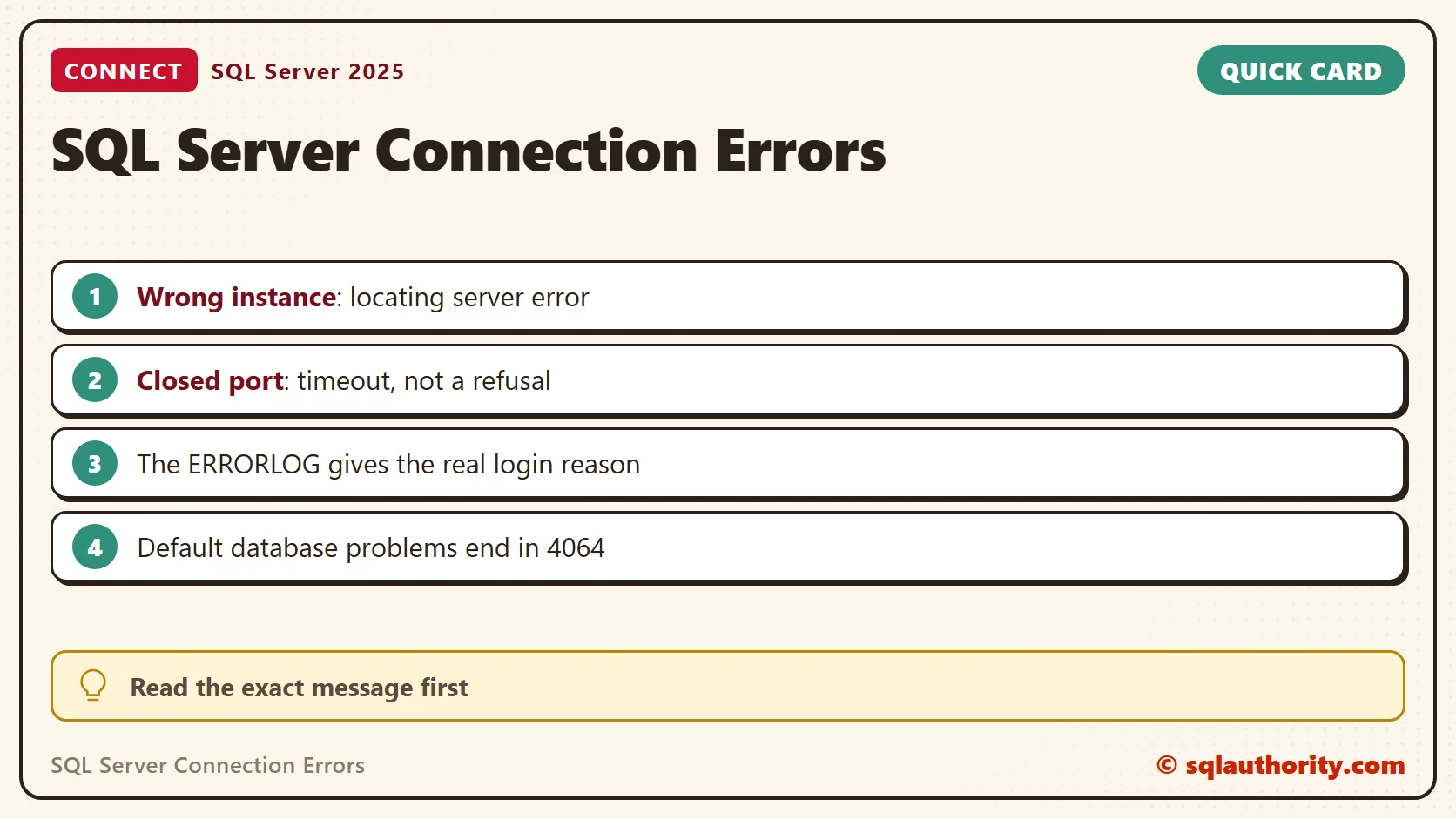
The first two failures look alike. Both took about six seconds, because of the login timeout. A closed port did not return a quick refusal on my PC. It timed out. So a long wait that ends in a timeout points at the name or the port, not at the login.
The Login Messages Say Little on Purpose
The client message for a bad password is only Login failed for user. The server knows the real reason and keeps it in the ERRORLOG. After my tests it listed three different reasons, one for each login failure. Read it from a working session.
EXEC master.dbo.xp_readerrorlog 0, 1, N'Login failed';
The entries said Password did not match that for the login provided. They also said Failed to open the database specified in the login properties and The account is disabled. Each ended with the client address. That one query turns three identical-looking failures into three fixes.
Find the Port and the Name
When you can connect locally, ask the instance where it listens. My instance listens on port 1455 on every address. A second port on the loopback address belongs to the dedicated administrator connection, and a third serves Service Broker. The server name comes back in the form machine and instance.
SELECT @@SERVERNAME AS ServerName, SERVERPROPERTY('InstanceName') AS InstanceName;
SELECT ip_address, port, type_desc, state_desc FROM sys.dm_tcp_listener_states ORDER BY port;
Then test both spellings from the command line. The instance name and the explicit port both returned the same server. If the name fails and the port works, check three things. Is the SQL Browser service running? Does a firewall rule block its port? Is the instance name spelled correctly?
sqlcmd -S .\SQLDEV -E -C -Q "SELECT @@SERVERNAME"
sqlcmd -S tcp:localhost,1455 -E -C -Q "SELECT @@SERVERNAME"
The -C switch trusts the server certificate, which my lab instance needs. Without it, the connection failed with the untrusted certificate message. Use the switch on a lab machine, and install a trusted certificate on a real server.
Repair a Default Database Error
Error 4064 means the login’s default database is gone or off limits. The login itself is fine. Connecting with -d master worked, and so did a normal connection after I changed the default.
ALTER LOGIN AppLogin WITH DEFAULT_DATABASE = master;
Find the Matching Error
The first two articles below cover network connection failures. The SQLCMD and default-database articles address different parts of a connection. The dedicated administrator connection article covers a narrower scenario.
Related Reading
- Named Pipes error 40: could not open a connection
- TCP error 10061: connection refused
- Connect with Windows Authentication using SQLCMD
- Dedicated administrator connection for SQL Server Express
- Error 4064: cannot open the default database
A connection error is not a verdict on the server, it is a message that names the step that failed.
Published by Pinal Dave on SQLAuthority. More of my work at pinaldave.com.
Discover more from SQL Authority with Pinal Dave
Subscribe to get the latest posts sent to your email.




7 Comments. Leave new
Very helpful post. When I was starting my carrer, sometimes I had problems needing resolve like in this video. Shame there wasn’t video like this then :).
Anyway, have you ever encountered problem with debugging alone? One day, I wanted debug same cursor on local serwer instance and I encountered error message: “Unable to start T-SQL Debugging. Could not connect to computer ‘(local)’. […]”
I was using Windows authentication and ‘(local)’ as server name. It turn out that debugging is only available, when server name contains computer name explicitly.
Hi, i am getting this type of erroe when i am adding new column in table and storedprocdure .
Msg 206, Level 16, State 2, Procedure usp_Testimonial_Insert, Line 26
Operand type clash: text is incompatible with datetime.
Please help me on this problem
TITLE: Connect to Server
——————————
Cannot connect to localhost.
——————————
ADDITIONAL INFORMATION:
A network-related or instance-specific error occurred while establishing a connection to SQL Server. The server was not found or was not accessible. Verify that the instance name is correct and that SQL Server is configured to allow remote connections. (provider: Named Pipes Provider, error: 40 – Could not open a connection to SQL Server) (Microsoft SQL Server, Error: 2)
For help, click:
——————————
BUTTONS:
OK
——————————
thank you very much :*
you helped me a lot… :D
I wished u provided for me a step by step written solution of solving the sql error not in video
Wow. Thank you.
to the next guy.
I was having this problem while trying to connect to a SQL AlwaysOn listener.
My issue was that when the listener was configured they changed the default port number from 1433 to something else
in order to sucessfully connect to it use: listener,port