
Additional logging for SQL Server Agent means a higher log level. The Agent then writes more lines about its own work. Three methods exist, and all three change the same value.

Where the Agent Writes
Many articles on this topic cover the output of a job step. This post is about the Agent itself. It keeps its own log files, next to the error log of the engine. The current file is named SQLAGENT.OUT, and the archived ones end in a number. Like the engine log, it cycles into numbered archives. On the test server, the list holds the current file and nine archives.
You can read the current Agent log with T-SQL. The procedure sp_readerrorlog takes a log number, a log type and a search text. Type 2 means the Agent log, and log number 0 is the current one. The query below asks for the line that names the startup account.
EXEC sp_readerrorlog 0, 2, N'startup service account';
| LogDate | ErrorLevel | Text |
|---|---|---|
| 2026-10-04 13:06:30.000 | 3 | [495] The SQL Server Agent startup service account is NT Service\SQLAgent$SQLDEV. |
Your date and account will differ. The text starts with a message number in brackets. A higher logging level adds informational lines of this kind.
Read the Current Level
The level is one number in the registry. The view sys.dm_server_registry shows registry values that belong to the instance, so you can read it without opening the registry. The value is called ErrorLoggingLevel.
SELECT value_name, value_data
FROM sys.dm_server_registry
WHERE value_name = N'ErrorLoggingLevel';
| value_name | value_data |
|---|---|
| ErrorLoggingLevel | 3 |
The test server runs at level 3. The level is a bit mask. Value 1 is errors, 2 is warnings and 4 is informational messages. So 3 means errors and warnings, and 7 adds the informational lines. Write down your own value before you change anything. It is your undo.
Method One: T-SQL
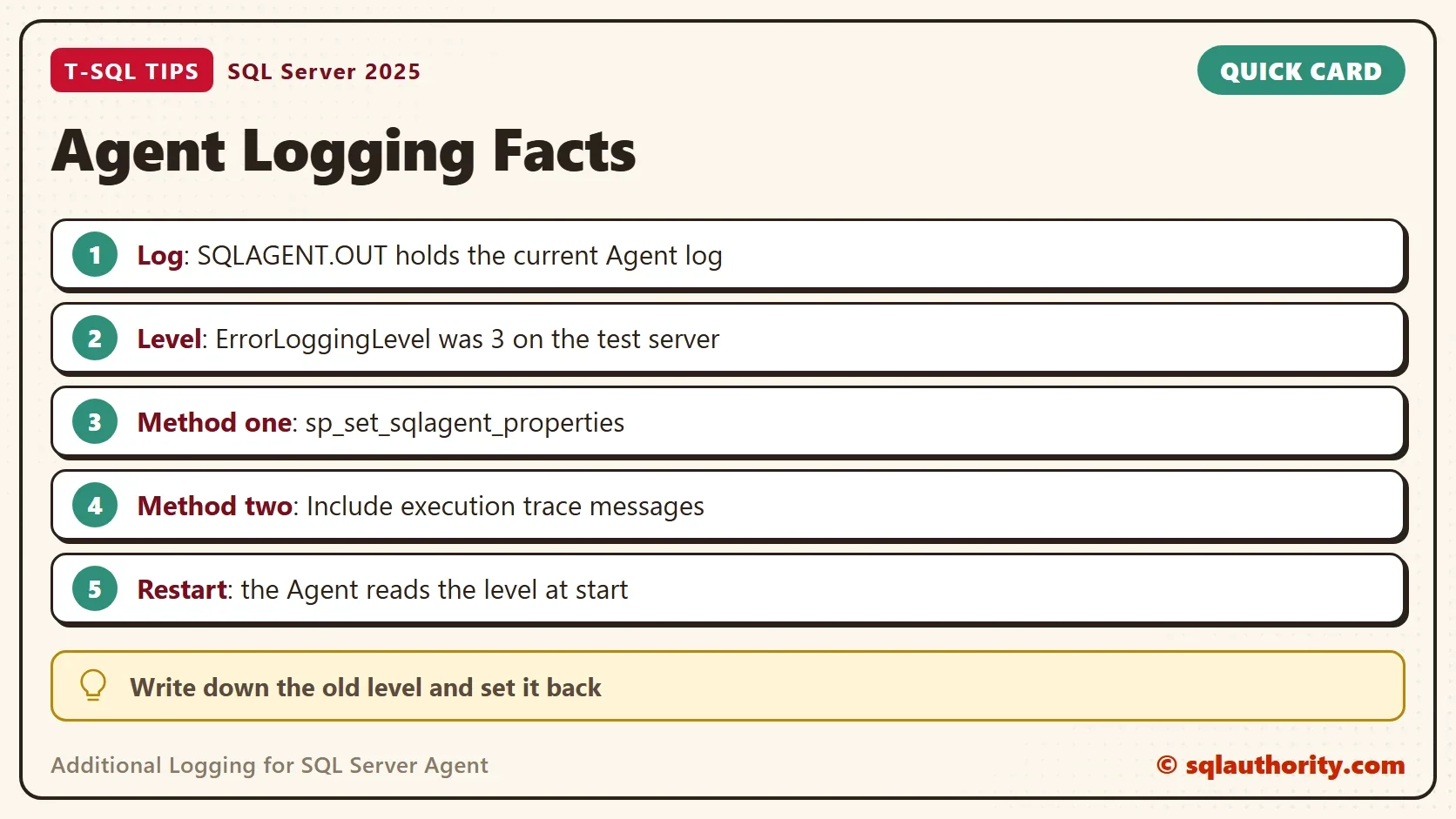
Additional logging for SQL Server Agent starts with msdb.dbo.sp_set_sqlagent_properties. Its parameter @errorlogging_level sets the level. The script below follows the safe order. It saves the old value, sets level 7, reads the result, and puts the old value back. Run it on a test server first. The change takes effect when the Agent starts, so a running Agent keeps its old level until you restart it.
DECLARE @old int = (SELECT CAST(value_data AS int) FROM sys.dm_server_registry WHERE value_name = N'ErrorLoggingLevel');
SELECT @old AS LevelBefore;
EXEC msdb.dbo.sp_set_sqlagent_properties @errorlogging_level = 7;
SELECT value_data AS LevelAfterChange FROM sys.dm_server_registry WHERE value_name = N'ErrorLoggingLevel';
EXEC msdb.dbo.sp_set_sqlagent_properties @errorlogging_level = @old;
SELECT value_data AS LevelRestored FROM sys.dm_server_registry WHERE value_name = N'ErrorLoggingLevel';
| LevelBefore |
|---|
| 3 |
| LevelAfterChange |
|---|
| 7 |
| LevelRestored |
|---|
| 3 |
The registry value moved from 3 to 7 and back to 3. The other Agent properties stayed as they were. The demo changes the setting only and does not start the Agent, so it shows no extra lines. In a real session, leave out the last two lines until the work is done. Then run the restore line, and restart the Agent again.
Method Two: Management Studio
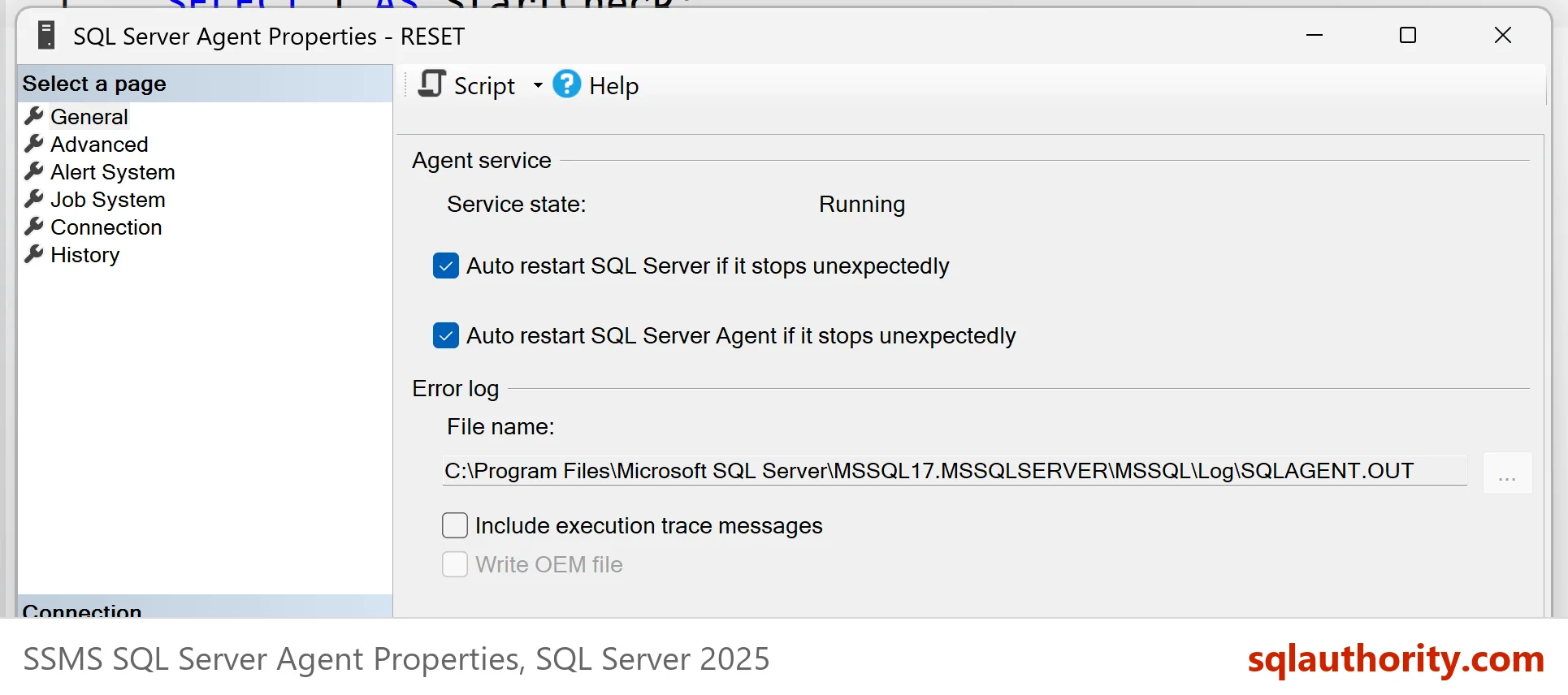
You can raise the level from Management Studio as well. Right-click SQL Server Agent in Object Explorer and choose Properties. On the page that opens, tick the box named Include execution trace messages. The box writes the same registry value. Restart the Agent for the change to apply.
Method Three: The Registry
Both methods end in one registry value. You can edit it directly. The key is HKEY_LOCAL_MACHINE\SOFTWARE\Microsoft\Microsoft SQL Server, then a folder for your instance, then SQLServerAgent. The value is ErrorLoggingLevel. Export the key before you change it, and keep the export until you have restored the old level. The command below does it for the test server. Use your own instance folder, and run reg import AgentKey.reg to go back.
reg export "HKLM\SOFTWARE\Microsoft\Microsoft SQL Server\MSSQL17.SQLDEV\SQLServerAgent" AgentKey.reg
The instance folder has two parts, and both change with your setup. The first part is MSSQL followed by the major version of the engine. The numbers are 11 for SQL Server 2012, 12 for 2014 and 13 for 2016. They continue with 14 for 2017, 15 for 2019, 16 for 2022 and 17 for 2025. The second part is the instance name, which is MSSQLSERVER for a default instance. On the test server the folder is MSSQL17.SQLDEV. For a SQL Server 2016 instance named PROD, it would be MSSQL13.PROD.
When to Use It
Turn on additional logging for SQL Server Agent in three cases. A job does not start on its schedule. The Agent service stops without a clear reason. Alerts do not fire. In each case the Agent log is the first place to look. The extra lines show what the Agent tried to do. Keep a note of the old level beside the server documentation, so that anyone can put it back.
Is More Logging Always Better?
You could argue that more logging can only help. It also adds volume. A higher level can fill the Agent log faster, and it can push older lines out when the log cycles. Raise the level to chase a problem in the Agent itself. Examples are a service that will not start or a job that never fires. Then set it back to the value you wrote down. Check the size of the Agent log files afterward.
What to Remember
Additional logging for SQL Server Agent is one registry value, ErrorLoggingLevel. Turning on additional logging is a change you can undo. Read the value with sys.dm_server_registry, change it with sp_set_sqlagent_properties, and restart the Agent. Management Studio and the registry reach the same value.
Save the old level before you raise it. The script above restores it in the same run, so there is nothing to clean up.
More log lines are not more answers, they are a tool you switch on for one problem and off again.
Published by Pinal Dave on SQLAuthority. More of my work at pinaldave.com.
Discover more from SQL Authority with Pinal Dave
Subscribe to get the latest posts sent to your email.


1 Comment. Leave new
Logs are so important. Today at work I kept getting a error when executing any query that my connection was lost to the server. So I went to the log and found that there was a brute force attack currently happening trying to login using the SA account(lucky we disabled the SA account so it was a pointless attempt) I called up our network admin and he found the hole and shut it down.