Custom query shortcuts in SSMS run a stored procedure of your own on the text you have selected. Select a name or a number, press one key, and the result appears in the same window. The feature has been in SSMS for years. I believe few people use it.
How a Query Shortcut Works
A shortcut is a key bound to a procedure name. When you press the key, SSMS builds a command from the procedure name and your selected text. It runs that command in the current window. The built-in keys do exactly this, and custom query shortcuts work the same way. Select a table name, press Alt+F1, and SSMS runs sp_help for it.
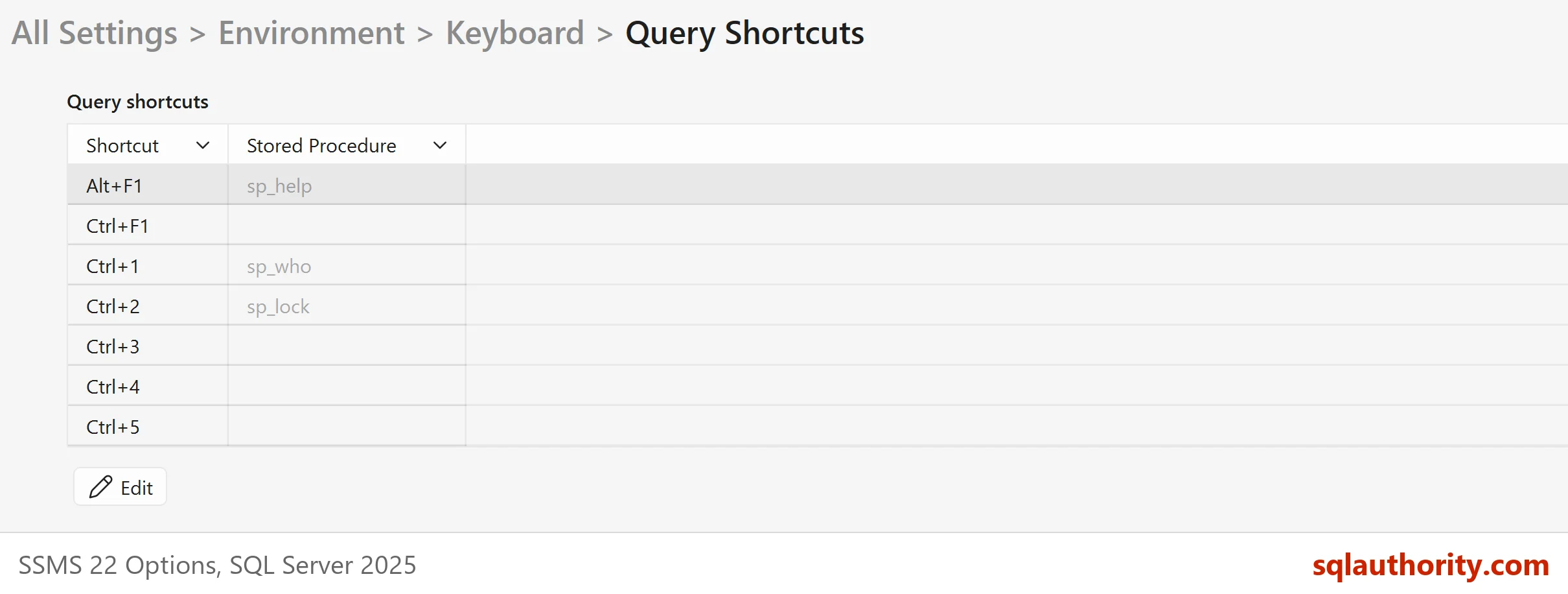
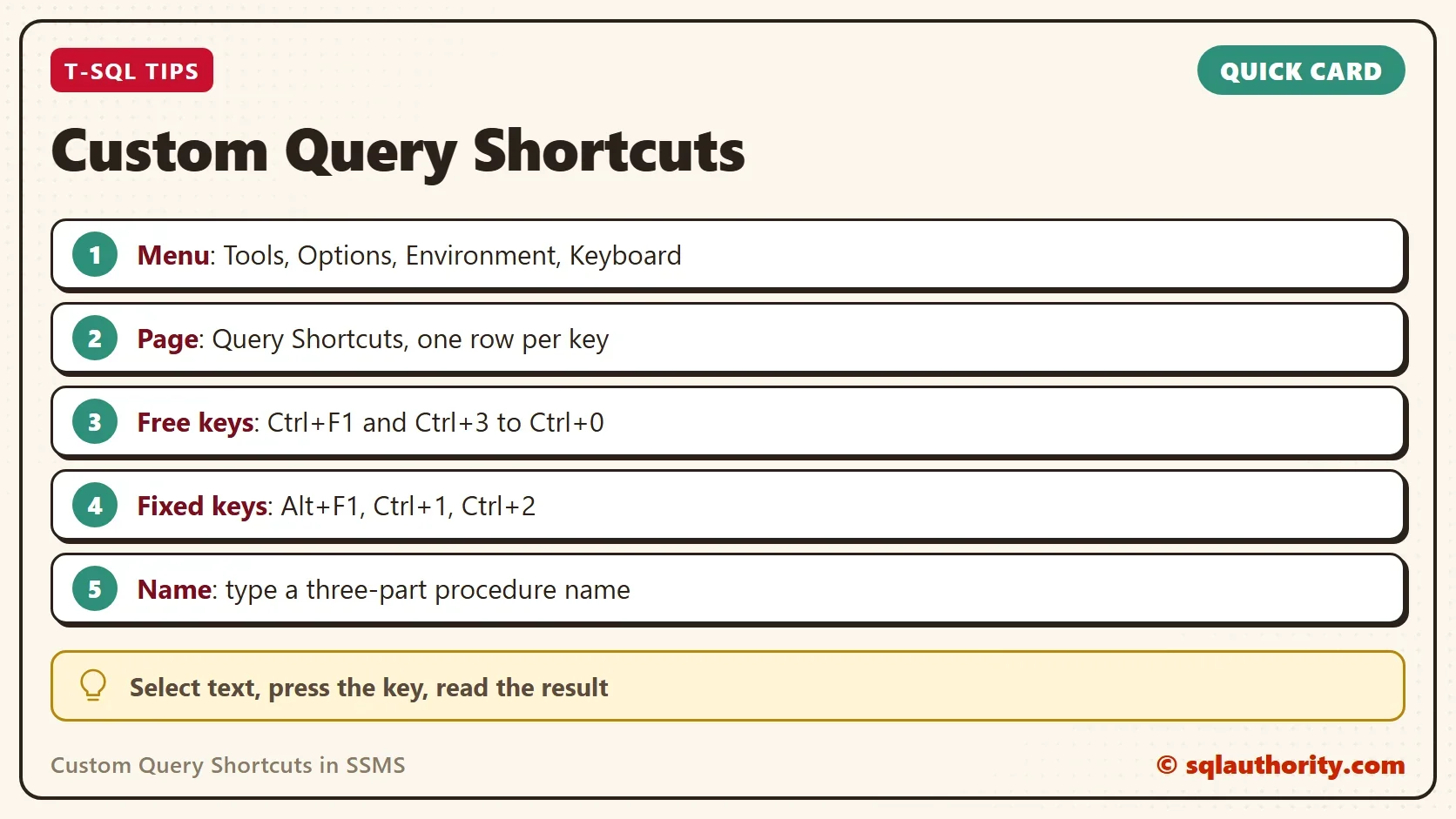
The page lives under Tools, Options, Environment, Keyboard, Query Shortcuts. SSMS 22 lists twelve keys there. Three of them are fixed. Alt+F1, Ctrl+1 and Ctrl+2 keep their default procedures, and the procedure box is disabled for them. The other nine are empty and yours: Ctrl+F1, and Ctrl+3 through Ctrl+0. The default shortcuts have their own post: Default Query Shortcuts in SSMS: Alt+F1, Ctrl+1 and Ctrl+2.
A Procedure Worth a Key
A good shortcut procedure takes one small input and answers a question you ask all day. This demo takes a session id and says what that session is doing. It reads only server-wide views, so it works no matter which database your window uses. The demo database is ShortcutDemo, and it stands for the utility database you would keep your own tools in. Run both scripts on a test server.
IF DB_ID(N'ShortcutDemo') IS NULL CREATE DATABASE ShortcutDemo;
GO
USE ShortcutDemo;
GO
DROP PROCEDURE IF EXISTS dbo.usp_SessionInfo;
The procedure joins the session to its running request and cuts the current statement out of the batch text. It returns nothing when the session id does not exist.
CREATE PROCEDURE dbo.usp_SessionInfo @SessionId int
AS
BEGIN
    SET NOCOUNT ON;
    SELECT s.session_id,
           s.status AS SessionStatus,
           r.command,
           r.blocking_session_id,
           r.wait_type,
           SUBSTRING(t.text, r.statement_start_offset / 2 + 1,
                     (CASE WHEN r.statement_end_offset = -1 THEN DATALENGTH(t.text) ELSE r.statement_end_offset END
                      - r.statement_start_offset) / 2 + 1) AS CurrentStatement
    FROM sys.dm_exec_sessions AS s
    LEFT JOIN sys.dm_exec_requests AS r ON r.session_id = s.session_id
    OUTER APPLY sys.dm_exec_sql_text(r.sql_handle) AS t
    WHERE s.session_id = @SessionId;
END;
Test It the Way the Shortcut Calls It
Always test the call before you assign the key. The shortcut will send the procedure name and the selected text, so the test below does the same. It runs from the master database with the three-part name, which is how the key must be set up. It passes the id of the current session.
USE master;
GO
DECLARE @me int = @@SPID;
EXEC ShortcutDemo.dbo.usp_SessionInfo @me;
SELECT DB_NAME() AS CurrentDatabase;
The first result has one row. Your own session shows as running, with the command SELECT, no blocker and no wait. The session id in the first column is yours and differs on every run. The second result shows that the current database is still master. The three-part name did not change it.
Assign the Key
The steps for custom query shortcuts are short. Open Tools, Options, Environment, Keyboard, Query Shortcuts. Select the row for Ctrl+3 and press Edit under the list. In the Edit item dialog, type the procedure name in the Stored Procedure box: ShortcutDemo.dbo.usp_SessionInfo. Click Save. Open a new query window, because the change applies to windows opened afterwards.
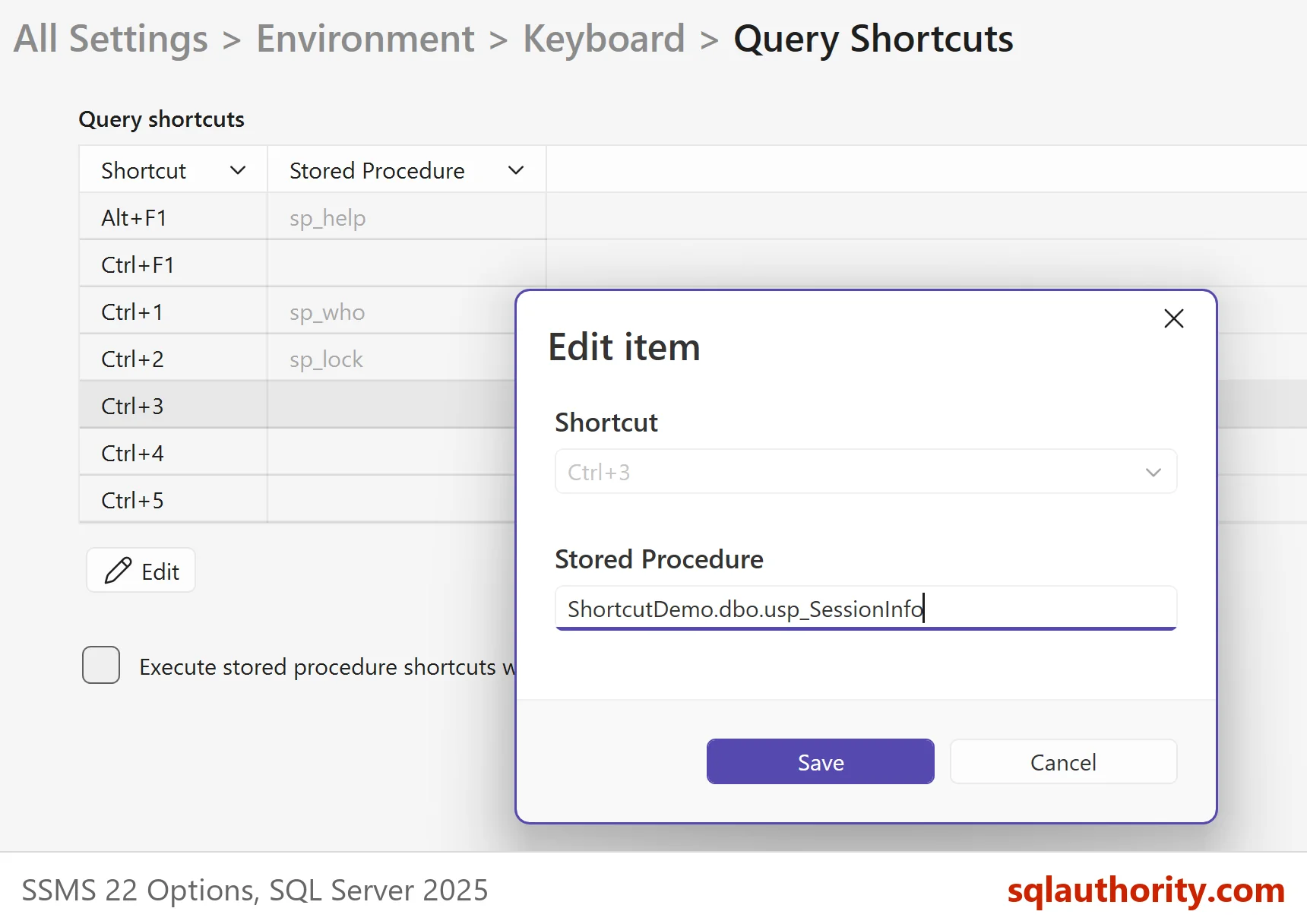
Now run sp_who in the new window to find a session id. Type that number in the editor and select it. Press Ctrl+3. SSMS runs the procedure with that number, and the answer lands in the results grid.
The Query Shortcuts page has one more setting. Below the list sits a check box named Execute stored procedure shortcuts without additional execution options. It controls whether SSMS adds execution options to the call. Leave it off for these shortcuts.
What You Will See
To see a busy session, open a second window and run WAITFOR DELAY '00:00:12';. Ask the first window about that session while the wait runs. The procedure shows the session as running with the command WAITFOR and no blocker. It also shows the wait type WAITFOR and the statement text itself. A blocked session would show the blocker’s id in the same row.
Reading other sessions needs the VIEW SERVER STATE permission. Without it, you see only your own session. On SQL Server 2022 and later the permission is VIEW SERVER PERFORMANCE STATE.
Why Snippets Are Not the Same
You could argue that snippets do this job. Custom query shortcuts and snippets differ, though. A snippet pastes text that you then edit. A shortcut runs a tested procedure on your selection, with no editing and no mistakes in a pasted line. A snippet suits a template. A shortcut suits a question.
What to Remember
Custom query shortcuts pay off when they answer a question you ask every day. Turn that question into a procedure with a single input. Keep it in a utility database and call it by its three-part name, so that it works from every window. Test the call from master first, then assign a free key. Do not pick Alt+F1, Ctrl+1 or Ctrl+2, because those keys are fixed.
When you finish the demo, drop the database. Then clear the shortcut row, so that the key does not point to a missing procedure.
USE master;
GO
DROP DATABASE ShortcutDemo;
A shortcut is not a trick for speed, it is a habit that you only have to build once.
Published by Pinal Dave on SQLAuthority. More of my work at pinaldave.com.
Discover more from SQL Authority with Pinal Dave
Subscribe to get the latest posts sent to your email.