The tempdb metadata tables record every temp table, and SQL Server 2019 can keep them in memory. The feature is off by default, and a restart changes it. Four answers cover it. Is it on? How do you turn it on? How many tables move? How do you turn it off?

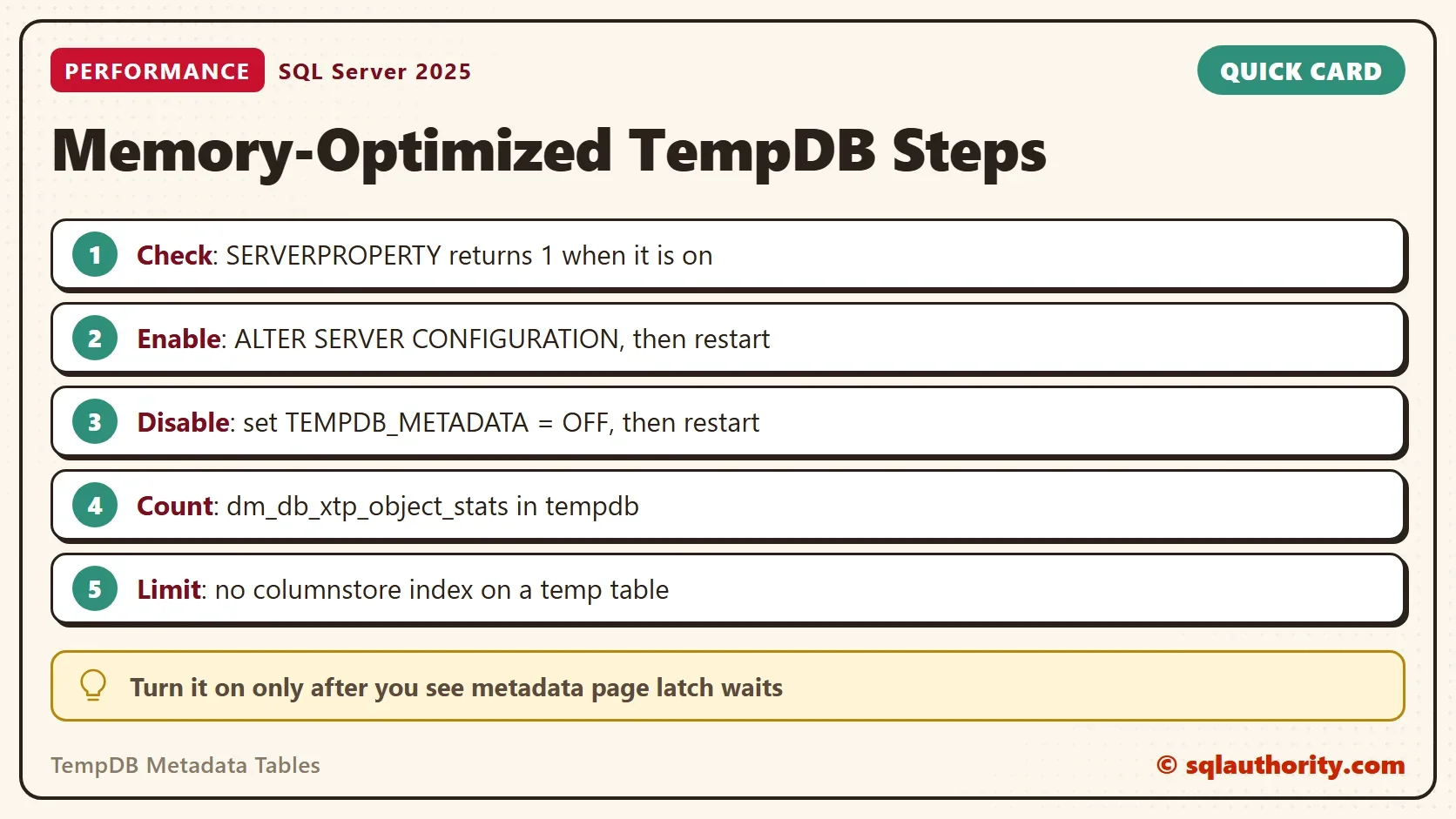
Check Whether It Is On
Every temp table you create adds rows to system tables inside tempdb. When hundreds of sessions create and drop temp tables at once, they queue on the pages of those system tables. The memory-optimized feature removes that queue by storing the tempdb metadata tables in memory-optimized tables, which take no page latches.
Two sources report the setting. SERVERPROPERTY tells you what the running instance does. sys.configurations tells you what is saved for the next start. Read both in one query, because they differ between the change and the restart.
SELECT SERVERPROPERTY('IsTempdbMetadataMemoryOptimized') AS RunningNow,
       c.value AS SavedValue,
       c.value_in_use AS ValueInUse
FROM sys.configurations AS c
WHERE c.name = N'tempdb metadata memory-optimized';| RunningNow | SavedValue | ValueInUse |
|---|---|---|
| 0 | 0 | 0 |
A zero in the first column means the instance runs the classic tempdb. A one means the feature is active. A saved value of 1 beside a running value of 0 can mean the service never restarted after the change. The option is advanced and isn’t dynamic, so RECONFIGURE doesn’t apply it.
Turn It On, Then Turn It Off
The feature needs SQL Server 2019 or later. The statement below changes a server setting, and it takes effect at the next restart. It wasn’t run on the shared test server. This block is plain text to copy, with the undo on the line after it. The setting can also be saved with sp_configure, shown on the comment lines.
ALTER SERVER CONFIGURATION SET MEMORY_OPTIMIZED TEMPDB_METADATA = ON;
-- Undo: ALTER SERVER CONFIGURATION SET MEMORY_OPTIMIZED TEMPDB_METADATA = OFF;
-- Alternative: EXEC sys.sp_configure N'show advanced options', 1; RECONFIGURE;
-- Alternative: EXEC sys.sp_configure N'tempdb metadata memory-optimized', 1; RECONFIGURE;
-- Undo: EXEC sys.sp_configure N'tempdb metadata memory-optimized', 0; RECONFIGURE;
After the restart, run the check query again. The first column now returns 1. The error log also gets a line that says tempdb started with memory-optimized metadata. A second line names the in-memory engine for database 2, which is tempdb.
The disable path is the same statement with OFF, plus a restart. Plan the restart before you change the setting. A server that serves a business application needs a window, and a window is the real price of this feature.
Count the TempDB Metadata Tables That Moved
Not every system table moves. The in-memory engine counts the work each moved table does, and a dynamic management view exposes those counters. The query below lists the tables in tempdb with their insert, update and delete attempts.
SELECT OBJECT_NAME(object_id) AS TableName,
       row_insert_attempts, row_update_attempts, row_delete_attempts
FROM tempdb.sys.dm_db_xtp_object_stats
ORDER BY TableName;
On the test server this returns no rows, because the feature is off there. With the feature on, the same query lists about ten metadata tables. The attempt counters climb as sessions create, change and drop temp objects. Counters that stay at zero on a busy server mean nothing moved. Ten is a count from one server where the feature is on, not a promise for every build.
When It Is Worth a Restart
Turn the feature on for one reason: metadata contention. Its sign is a pile of PAGELATCH_EX or PAGELATCH_UP waits on tempdb system table pages. The workload creates and drops temp tables all day. To find the hot page, read PAGELATCH_UP Waits and Suspended Sessions: Find the Hot Page. More data files fix allocation page waits and don’t fix metadata waits. For the page evidence and the restart plan, read Memory-Optimized tempdb Metadata: Turning It On and Checking It.
Look at the code before the restart, too. A stored procedure can reuse a cached temp table on the next call, so the metadata isn’t rewritten each time. Fewer created and dropped temp tables means less metadata contention, with no restart at all.
The feature has limits. A columnstore index can’t be created on a temporary table while it is on. Queries that touch the in-memory metadata tables ignore locking and isolation level hints. Code that builds columnstore indexes on temp tables needs a test first. Watch memory, because long open transactions that create temp objects can hold metadata in memory.
You could argue that a faster feature should be on everywhere. It isn’t free, though. The restart is a cost, the limits are real, and a server without metadata waits gains nothing. For the other tempdb settings, start with TempDB Performance: Five Settings to Check in SQL Server.
What to Remember
Read SERVERPROPERTY for what runs now and sys.configurations for what is saved. Change the setting with ALTER SERVER CONFIGURATION, restart, and read the first column again. Write down the OFF statement before you start.
Check for metadata page latch waits first, and move the tempdb metadata tables into memory only when they show up. A server with healthy tempdb waits keeps the classic behavior. Nothing here creates objects, so there is no cleanup.
Memory-optimized tempdb metadata is not a speed switch, it is a fix for one named kind of wait.
Published by Pinal Dave on SQLAuthority. More of my work at pinaldave.com.
Discover more from SQL Authority with Pinal Dave
Subscribe to get the latest posts sent to your email.