
The No Custom Security Extensions rule failure stopped a SQL Server upgrade for one of my clients. Reporting Services was installed on the server, and its upgrade rule checks were failing. A few days earlier, I wrote about another upgrade failure caused by a bad Reporting Services install: Setup Error 1060.

The Error
As soon as I posted that, a client contacted me the same day with a different issue. SSRS was installed, and the rule checks failed. These are the errors we saw:
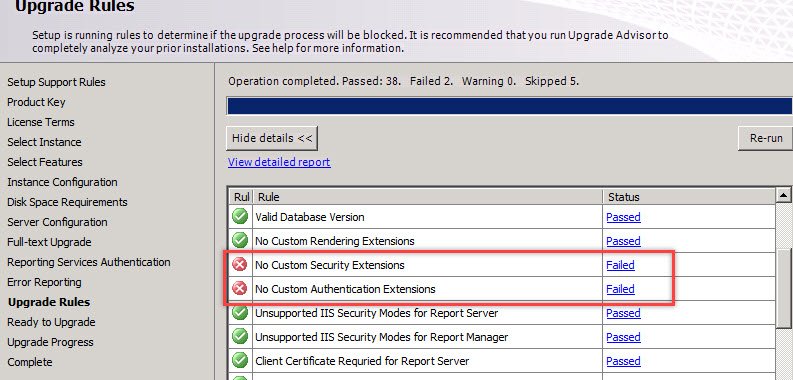
There was also an HTML report, which had these details:
No Custom Security Extensions.
The Report Server has some custom security extensions configured.
No Custom Authentication Extensions.
The Report Server has some custom authentication extensions configured.
Why It Happens
The Report Server had custom security and authentication extensions configured in its RSReportServer.config file. The upgrade rules don’t allow that, so setup stops until the extensions are out of the way.
The Fix
I’m not an expert in SQL Server Reporting Services, so I searched the internet and found many solutions. The one that worked for my client was to change the security extension to the default in RSReportServer.config. Then we performed the upgrade.
If you aren’t using SSRS, you can uninstall it and then upgrade. As I always say, take a backup before you make any changes. Here, that means a backup of the ReportServer database, the ReportServerTempDB database, the encryption keys and the Reporting Services folder. Once you have it, follow these steps:
- Locate the RSReportServer.config file and make a copy for reference.
- Search for the <Authentication> tag where the extensions are located.
- Remove the content within the tag. It will look like the sample below.
- Restart the SSRS service.
- Perform the in-place upgrade.
- Reconfigure the extensions by putting the tags back.
After the upgrade, the new RSReportServer.config file is in a new location. If supporting DLLs are needed, copy them as well.
<Security>
</Security>
<Authentication>
</Authentication>
Confirm It Worked
My client knew the steps to enable the extension again, so I didn’t pay much attention to the post-upgrade steps.
How to Prevent It
Before an upgrade, find out whether Reporting Services has custom extensions. Keep a note of the steps to enable them again afterward. If you find more details, please share them in the comments.
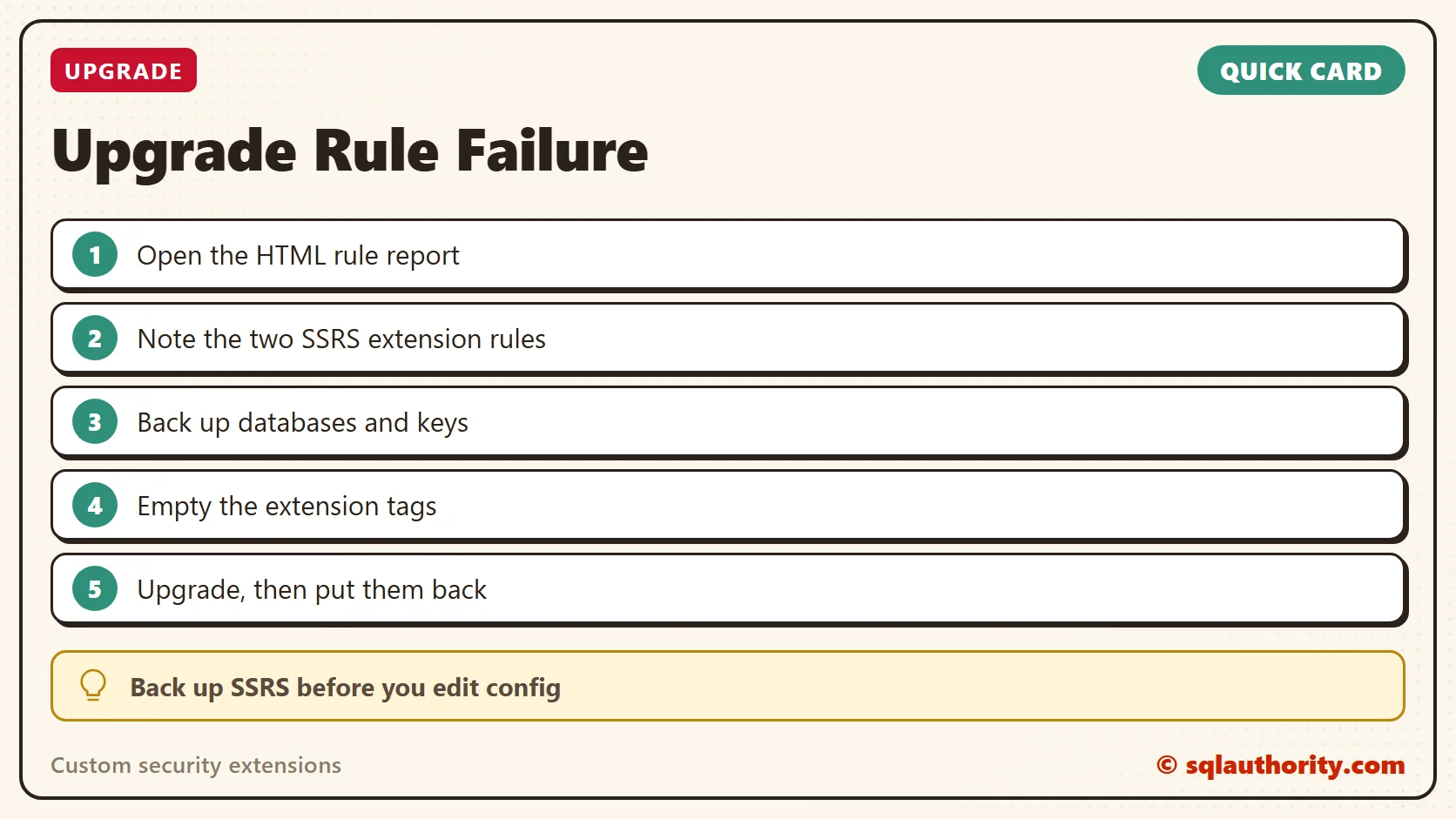
A failed upgrade rule is not a dead end, it is a list of what to set aside first.
Published by Pinal Dave on SQLAuthority. More of my work at pinaldave.com.
Discover more from SQL Authority with Pinal Dave
Subscribe to get the latest posts sent to your email.




1 Comment. Leave new
Hi , I would like to know post-upgrade steps. Can you share to me or is it any post i can refer?