
To select vertical text in SSMS, hold Alt and drag with the mouse. You can also hold Alt and Shift and press the arrow keys. The selection is a rectangle, and anything you type goes onto every line of it.

What a Vertical Selection Does
A normal selection runs along lines. It starts at one point and ends at another, and it takes everything between them. A vertical selection takes a rectangle instead. It picks the same columns on many lines. It is also called a box selection or a column selection.
The tip came from Nicklas Bågvinge, a SQL Server expert I met at a training in Gothenburg. Many people select vertical text by hand, one line at a time. A box makes it a single step. The same keys work in Visual Studio, Notepad++, Word and other editors.
Three Ways to Make the Selection
- Mouse. Hold Alt, press the left button at one corner and drag to the opposite corner. For the mouse drag and four more edits, read Box Selection in SSMS: Four Edits With the ALT Key.
- Keyboard. Put the caret where the box starts. Hold Alt and Shift, and press the arrow keys. Your hands never leave the keyboard.
- Zero width. Place the caret, hold Alt and Shift, and press Down. The box has no width, so it acts as an insertion point on every line it covers.
The zero-width box is the version that saves the most time. You place one caret, extend it down, and type once.
Pick the way that suits the job. The mouse is quick when the whole box is visible on the screen. The keyboard is better for a precise box, such as one column on forty lines. Each arrow key moves one step. Release the keys when the box looks right, and begin to type.
Edit Many Lines at Once
With a box selected, the usual editing keys act on all lines together. Type, and the text appears in the same column of every line. Press Delete, and the selected columns disappear from every line. Copy, and you take the rectangle alone, without the text to its left and right.
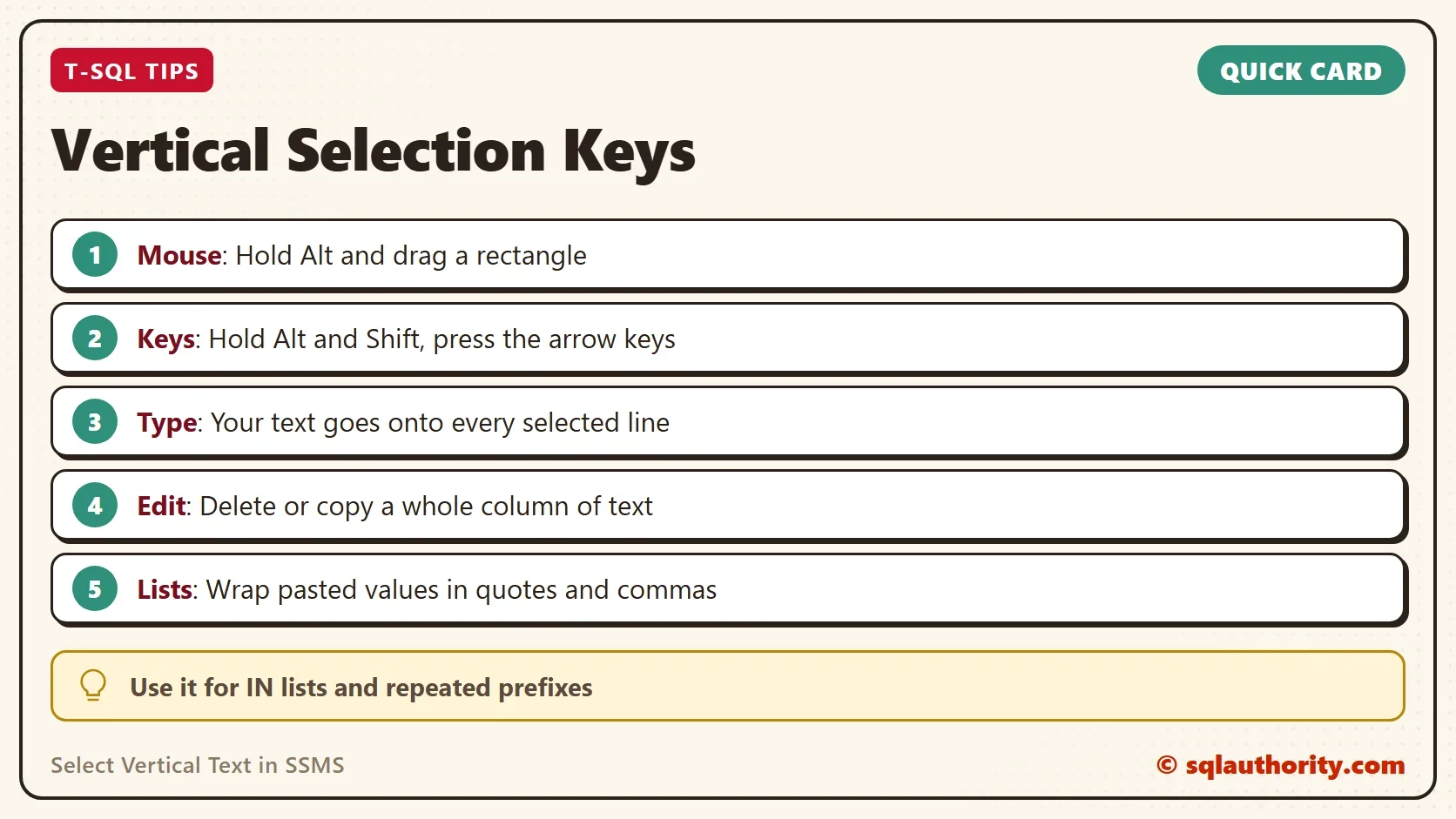
This fits the jobs that people repeat all day. You can add a schema name before every table name in a list. You can add a comma at the end of every line. You can delete a leading number column from a pasted report.
Turn a Pasted Column Into an IN List
Suppose a spreadsheet gives you three cities, one per line. You need them as text values inside an IN list. The pasted column looks like this.
Austin
Denver
Chicago
Place a zero-width box before the first letter and extend it down three lines. Type the opening of each value, which is N and a quote. Do the same at the end of the lines, and type a quote and a comma. Remove the last comma and add the rest of the statement. The next query is the finished result. The four-row table in it stands in for a real table of stores.
SELECT s.StoreName, s.City
FROM (VALUES (N'Main Street', N'Austin'), (N'Oak Avenue', N'Denver'), (N'Pine Road', N'Boston'), (N'Elm Court', N'Chicago')) AS s (StoreName, City)
WHERE s.City IN (
    N'Austin',
    N'Denver',
    N'Chicago'
);| StoreName | City |
|---|---|
| Main Street | Austin |
| Oak Avenue | Denver |
| Elm Court | Chicago |
Three of the four stores match. The box replaces the retyping of every line.
When T-SQL Does It Better
You could argue that a long list needs no editing at all. Paste the whole block into one string, and let STRING_SPLIT cut it into lines. The script needs SQL Server 2016 for STRING_SPLIT and 2017 for TRIM. Pasted text on Windows has a carriage return before each line feed, so the query removes it.
DECLARE @Pasted nvarchar(max) = N'Austin
Denver
Chicago';
SELECT s.StoreName, s.City
FROM (VALUES (N'Main Street', N'Austin'), (N'Oak Avenue', N'Denver'), (N'Pine Road', N'Boston'), (N'Elm Court', N'Chicago')) AS s (StoreName, City)
WHERE s.City IN (SELECT TRIM(REPLACE(value, CHAR(13), N'')) FROM STRING_SPLIT(@Pasted, CHAR(10)));
It returns the same three rows. The T-SQL version wins for long lists that change every day. The box wins when you edit code, such as a column list or a set of statements. The result has to stay readable text.
What to Remember
To select vertical text, hold Alt and drag, or hold Alt and Shift and use the arrow keys. A box with no width puts one insertion point on many lines. Use it for quotes, commas, schema names and deleted columns. Check where the box starts before you type, so the text lands in the right column. If the list is long and changes daily, let STRING_SPLIT do the work.
A vertical selection is not a trick for selecting, it is a way to edit many lines in one move.
Published by Pinal Dave on SQLAuthority. More of my work at pinaldave.com.
Discover more from SQL Authority with Pinal Dave
Subscribe to get the latest posts sent to your email.




7 Comments. Leave new
Or just press the ALT key and drag the rectangle with your mouse.
Nice shortcut. Another way to do that is to press and then click and drag with your mouse. It will select the rectangle. When testing your shortcut, I discovered another shortcut. Just pressing only, and then pressing the up or down button will move the line that your cursor is on up or down.
Other way:
keep pressing ALT key
using mouse, click and drag towards right down(or any) direction as per requirement to select vertical text.
Other use:
This is very easy when we want to append same characters(like schema name, [, ] etc…) in all lines at same time.
You can just do it by holding the ALT button..
This was a great discovery after having worked on a mainframe for so long & being used to block selection. And I like it here b/c you can do it w/o using the mouse so your hands never have to leave the keyboard.
The other way I use this trick is if I’m creating a decent-sized “IN” clause of a bunch of string values that I copied over from a spreadsheet or other file. I can ALT-SHIFT down the left-hand column to effectively create a large insertion point & add in a comma and starting tick mark & then do the same on the right side of the values. The right side can be a little less slick if the values are different lengths, but since I often work w/ fixed-width account numbers it’s not a big deal.
Works in many applications, MS Word, visual studio, notepad++…
Can be done by holding alt, then click and drag with mouse.
Great for inserting the same text on multiple rows too…
Have been using this trick on VS2010 for quite a while now.