
To remove completion time from the Messages tab in SSMS, clear one check box in the options. The setting takes a minute to find, and it works for every new query window.

What the Line Is
After every batch, the Messages tab of SQL Server Management Studio ends with a line that starts with Completion time. It has a date, a time and an offset. SSMS added the line in a version 18 release. For some people it is useful. For others it clutters every result they copy into a ticket or a chat.
The line is not a message from the server. The server sends results, row counts, errors and PRINT output. SSMS writes the completion time itself, after the batch ends. A script run with sqlcmd prints the rows affected lines and no completion time, which shows the difference. This is why no T-SQL setting can remove the line. The answer is in the options of the tool. It is a setting of SSMS, not of the server, so it changes nothing for other users.
The Steps in SSMS 22
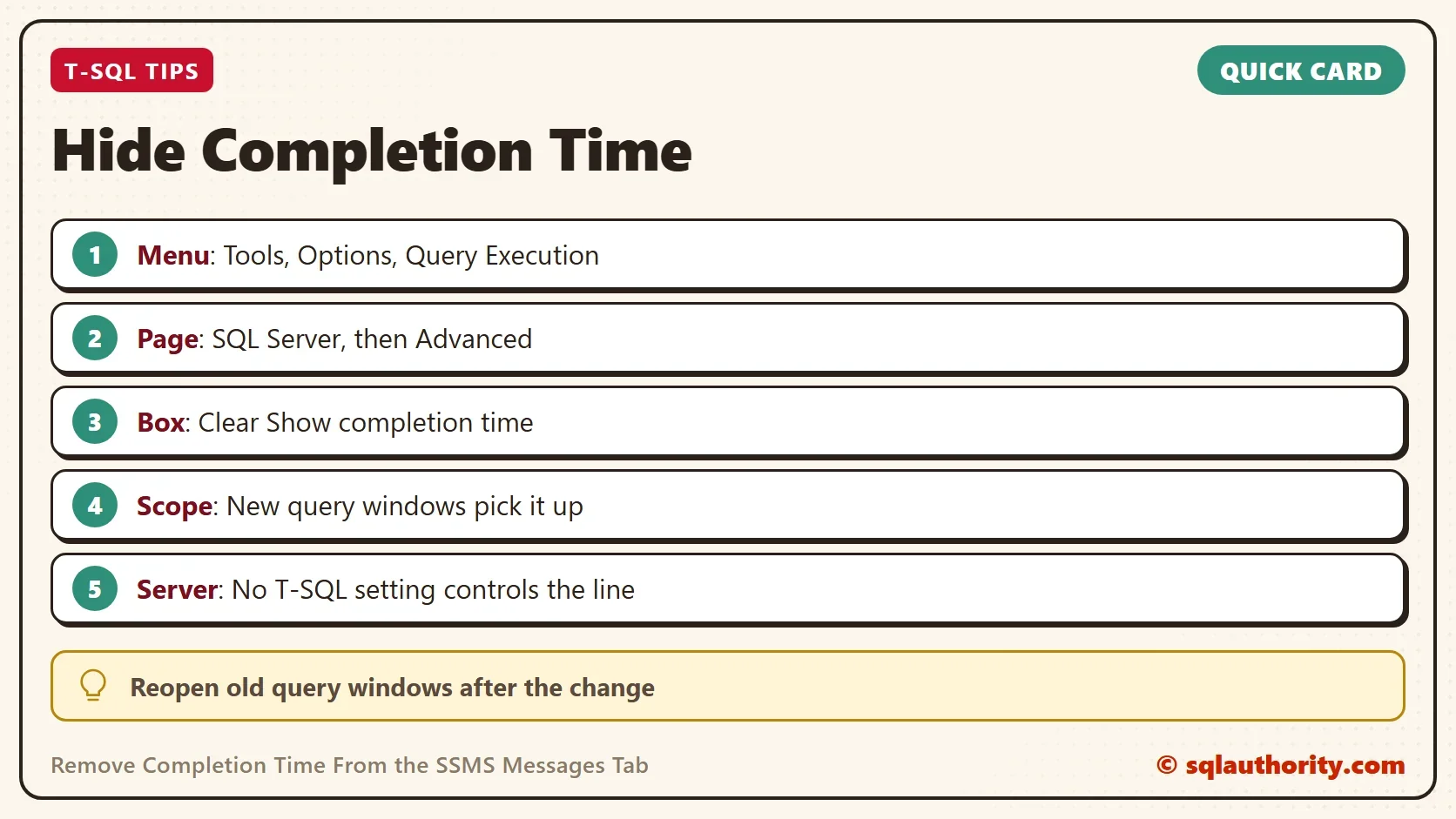
SSMS 22 keeps the setting under the same name and the same menu as the earlier versions. Its settings file lists a setting called showCompletionTime, and it is on by default. Follow these steps.
- Open Tools, then Options.
- Expand Query Execution, then SQL Server, and select Advanced.
- Clear the check box named Show completion time. Take care to pick this one, because the page lists many similar options.
- Choose OK.
The same page lists many SET options, such as NOCOUNT, STATISTICS TIME and STATISTICS IO. Read each label before you clear a box.
Check the Result
Open a new query window and run a query that returns one row.
SELECT 1 AS Test;
The Messages tab keeps the rows affected count. It no longer ends with the completion time. The elapsed time in the status bar of the query window stays, because it is a separate display. After the change, the Messages tab shows only this line:
(1 row affected)
Why Old Windows Still Show It
A query window takes its execution settings when it opens, according to a reader of the old post. A window that was open before the change keeps the old value. Close it and open a new one, and the line is gone.
If you want the line back, select the box again. The change affects only the windows that you open afterward, in the same way.
Keep a Time When a Script Needs One
Turning the line off removes a convenience. A long script sometimes needs to say when each step finished, and a log of that is useful. T-SQL can print the time at the exact points you choose. The statement uses the server clock, at the full precision of SYSDATETIME.
PRINT CONCAT(N'Finished at ', CONVERT(nvarchar(30), SYSDATETIME(), 121));
It prints one line, in the form Finished at 2026-10-06 22:41:09.1234567. The time is the time of your run. Put the statement after each long step, and the Messages tab becomes a log. For the duration of a statement, add SET STATISTICS TIME ON, which prints the elapsed time without a clock.
Should You Turn It Off?
You could argue that the line is worth keeping. When you run a script and walk away, the completion time tells you when it ended. That’s true, and it is the reason the option exists. If you keep it, remove completion time only from the copies. Paste the text, and delete the line before you send it.
Turn it off for demos and screenshots, where every line on screen should carry meaning. Leave it on for long maintenance runs.
What to Remember
Use Tools, Options, Query Execution, SQL Server, Advanced, and clear Show completion time. Open new query windows to see the change. No T-SQL statement can remove completion time, because SSMS writes the line and the server doesn’t. Print your own time when a script needs one.
A completion time is not a server message, it is a note that SSMS adds after the server has finished.
Published by Pinal Dave on SQLAuthority. More of my work at pinaldave.com.
Discover more from SQL Authority with Pinal Dave
Subscribe to get the latest posts sent to your email.




4 Comments. Leave new
Thanks! Looks like your screenshot has the wrong checkbox highlighted though. ;)
Thanks for pointing that out. I have fixed my image.
You might also need to close and re-open any query windows before this change kicks in
is there any T-sql for this?