
Box selection in SSMS selects vertical text: hold the ALT key and drag the mouse across the text. The selection is a rectangle, so it covers the same columns on every line.

Hold ALT and Drag
A box runs down columns, not along lines. For a box selection in SSMS, hold ALT and press the left mouse button where the box should start. Then drag to where it should end. The box can be one character wide, and it can span any number of lines. The block of text inside the rectangle is highlighted, and the lines can have different lengths. The same drag works in Notepad++ and many other Windows editors.
For a selection that never leaves the keyboard, read Select Vertical Text in SSMS: Alt Shift and Arrow Keys.
Once the box exists, the usual keys apply. Ctrl+C copies it, and DELETE removes it. Try each of the four edits below on a scratch query window first. The behavior comes from the editor that SSMS 22 shares with Visual Studio.
Type on Many Lines at Once
You need an alias in front of every name in a column list. The names are below, one per line, as plain text.
OrderID
OrderDate
Total
Hold ALT and drag from the start of the first name down to the start of the third. The box is only a thin caret wide. Type o. and the letters appear at the start of all three lines at once. Finish the statement around the names, and the result is a query that runs.
SELECT o.OrderID,
       o.OrderDate,
       o.Total
FROM (VALUES (1, '2026-01-02', 9.50)) AS o (OrderID, OrderDate, Total);
Delete a Column of Text
Code copied from a web page or a document can carry line numbers in the first columns. Selecting them one line at a time is slow. A box takes them out in one move. Make a box selection over the numbers and the space after them, and press DELETE. This is the pasted text, again plain text.
1  SELECT name
2  FROM sys.databases
3  ORDER BY name;
After the delete, only the query remains. It lists the database names, and it works on every server.
SELECT name
FROM sys.databases
ORDER BY name;
Paste a Column Into a Column
Box selection in SSMS also works for copy and paste. A block copied with a box fills a box of the same height line by line when you paste it. That builds several statements from a list of names. Start with three statements that all read sys.tables, and a list of the object names you want.
SELECT COUNT(*) AS Total FROM sys.tables;
SELECT COUNT(*) AS Total FROM sys.tables;
SELECT COUNT(*) AS Total FROM sys.tables;
tables
columns
indexes
Copy the three names with a box. Then select the word tables on the three statements with a box, and paste. Each line receives its own name. The first line keeps tables, and the other two change. The finished statements run.
SELECT COUNT(*) AS Total FROM sys.tables;
SELECT COUNT(*) AS Total FROM sys.columns;
SELECT COUNT(*) AS Total FROM sys.indexes;
Move Lines With ALT and the Arrow Keys
A related shortcut doesn’t use the mouse. Hold ALT and press the Up arrow, and the current line swaps places with the line above it. The Down arrow swaps it with the line below. It’s handy for reordering a column list or the steps of a script.
Keep the Mouse or Use the Keyboard
The ALT drag needs the mouse. Some people prefer to keep their hands on the keys. The sibling post covers the keyboard version, which builds the same box with ALT, SHIFT and the arrow keys. Both versions end in the same box, so every edit above works with either one. Pick the one that fits your hands.
Isn’t Find and Replace Better?
You could argue that find and replace, or a regular expression, does these edits better. For a pattern that repeats across a whole file, it does. A box is faster for a one-off edit of five to fifty lines. You also see the result as you type, and Ctrl+Z undoes it in one step. A box is the quick choice when the lines are few and the change is plain.
What to Remember
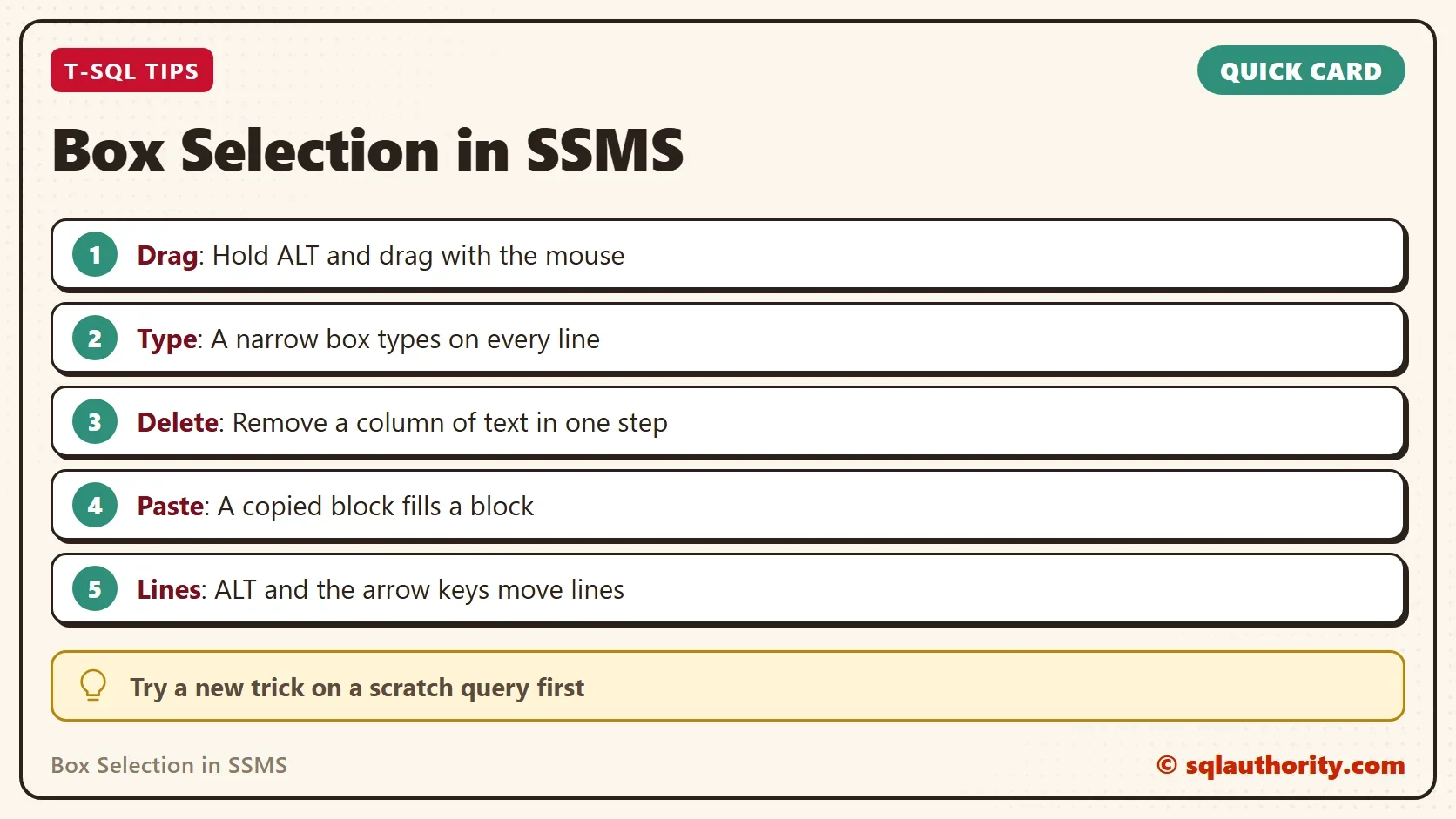
Box selection in SSMS starts with ALT and a drag. Type into a thin box to edit many lines at once. Delete a box to remove a column. Copy a box and paste it onto a box of the same height to fill it line by line. ALT with the Up and Down arrows moves lines.
Try each trick on a scratch query first. Nothing here touches a database, so there is nothing to clean up.
A vertical selection is not a different kind of text, it is the same text read in columns.
Published by Pinal Dave on SQLAuthority. More of my work at pinaldave.com.
Discover more from SQL Authority with Pinal Dave
Subscribe to get the latest posts sent to your email.




2 Comments. Leave new
Hi,
The above trick works when you hold the ALT key and then highlight the text with the mouse cursor.
However by trying this trick I found one more interesting thing:
If you hold the ALT key and press the Up arrow key then the current line will be swapped with the upper line.
Similarly if you hold the ALT key and press the Down arrow key then the current line will be swapped with the line which is below the current line.
Give it a try on SSMS.
Thanks.
Believe it or not block selections with Alt drag has been available in Word since Word 1 in the 90s. I don’t know for sure when it was adopted in Windows in such a way that it becomes available in most windows editors. But I’m so glad to see it has made it into SSMS and many other Windows editors. You should also know that in SSMS you can block select copy and block select paste to do some interesting and very powerful things, One that I end up using almost daily goes like this:
Block select:
x
y
z
Copy
Block select the table names from the lines below
SELECT * FROM a ORDER BY 1
SELECT * FROM b ORDER BY 1
SELECT * FROM c ORDER BY 1
Paste and you get
SELECT * FROM x ORDER BY 1
SELECT * FROM y ORDER BY 1
SELECT * FROM z ORDER BY 1
Now a great frustration for me involves the comment before mine. Previously you could use shift alt up/down arrows to make a block selection with keyboard alone. In the most recent version of SSMS I can no longer do that. Now it moves lines as he suggests. I’ve gone to Tools/Options/Keyboard to reassign those shortcuts but nothing I’ve tried has returned the Shift-Alt arrowkey method of creating a block selection.