Quick fix: If a Bluetooth speaker plays at one loudness for every Windows volume setting from 1 to 100, but mutes at 0, first check the selected output device and its own volume. If those are correct, the device may not handle Windows Bluetooth Absolute Volume correctly. The reversible registry workaround below can help with that specific symptom.

Recognize the exact problem
My original case was unusual: audio played normally, the volume indicator moved, and zero muted it, but every nonzero setting sounded the same. The speaker’s own control still changed the loudness. That pattern differs from no sound, the wrong playback device, poor Bluetooth signal, or an individual app set too low in Volume Mixer.
Absolute Volume is meant to let Windows control the volume of a compatible Bluetooth speaker or headset through the Bluetooth audio control protocol. When an accessory responds incorrectly, the Windows slider and the actual speaker level can get out of sync. Microsoft has documented this compatibility problem for some devices, along with a way to disable the feature. The workaround is device dependent, so test the symptom before changing the registry.
Check the simple causes first
- In Settings > System > Sound, select the Bluetooth speaker or headphones as the output device. Play a known audio file, then move the Windows volume slider from low to high. Do not test only mute.
- Check the volume control on the Bluetooth device itself and the app’s level in Windows Volume Mixer. A quiet app or the wrong output device is a different problem.
- Disconnect and reconnect the device. If the problem began after an update, check Windows Update and the device maker’s firmware or driver guidance before applying a registry workaround.
Use the registry step only when the slider moves but does not change the audible level.
Disable Absolute Volume for the affected Windows installation
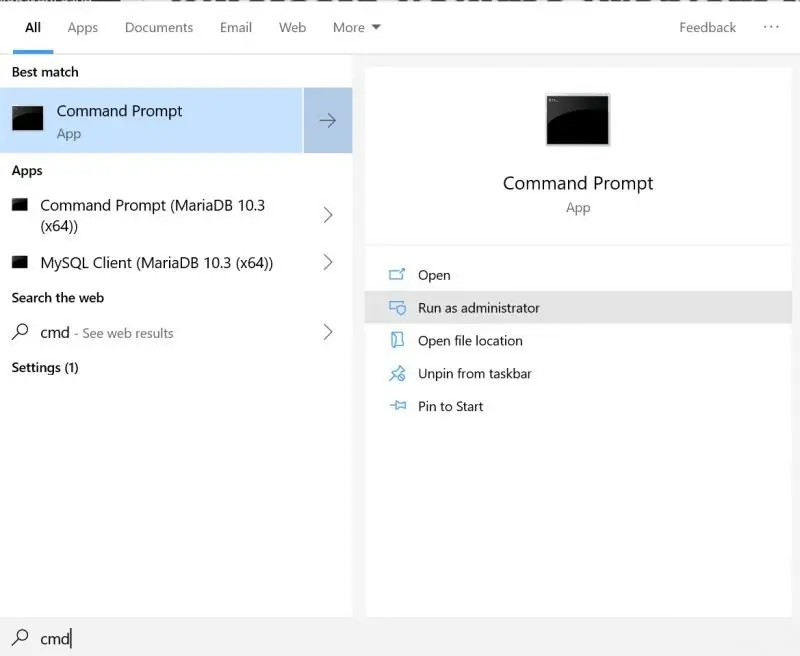
Open Command Prompt as administrator. Before changing the value, check whether it already exists. Record the current result, so you can restore it later:
reg query "HKLM\SYSTEM\CurrentControlSet\Control\Bluetooth\Audio\AVRCP\CT" /v DisableAbsoluteVolumeIf the key exists, export it as a backup to a location you control. Replace the example backup path with your preferred folder:
reg export "HKLM\SYSTEM\CurrentControlSet\Control\Bluetooth\Audio\AVRCP\CT" "%USERPROFILE%\Desktop\Bluetooth-AVRCP-CT-backup.reg" /yThen set DisableAbsoluteVolume to 1:
reg add "HKLM\SYSTEM\CurrentControlSet\Control\Bluetooth\Audio\AVRCP\CT" /v DisableAbsoluteVolume /t REG_DWORD /d 1 /fRestart Windows if the change is not effective immediately, reconnect the speaker, and test several nonzero volume levels again. CurrentControlSet addresses the active control set; the older version of this article used ControlSet001, which is not necessarily the active one on every installation. This setting does not repair a silent device, driver failure, or an app-specific mixer setting.
Undo the change if it does not help
If the value was 0 before the test, set it back to 0. If the value did not exist before the test, remove only this value. If you exported the existing key, you can also restore that saved registry file. Restart or reconnect before comparing again.
reg add "HKLM\SYSTEM\CurrentControlSet\Control\Bluetooth\Audio\AVRCP\CT" /v DisableAbsoluteVolume /t REG_DWORD /d 0 /f

REM Use this instead only if the value was absent before your test:
reg delete "HKLM\SYSTEM\CurrentControlSet\Control\Bluetooth\Audio\AVRCP\CT" /v DisableAbsoluteVolume /f
Do not run both rollback commands. Choose the one that matches the state you recorded before the change. If the registry key did not exist at all beforehand, export any new key you need for evidence, then remove only what this test created. Make registry changes carefully and only on the affected PC.
Original 2019 Command Prompt screenshot
This screenshot shows the older article’s Command Prompt step. Windows screens and paths can differ today; use the copyable command above as the current reference.
The goal is to restore useful volume control, not to turn off a Windows feature that already works with your device.
Published by Pinal Dave on SQLAuthority. More of my work at pinaldave.com.
Discover more from SQL Authority with Pinal Dave
Subscribe to get the latest posts sent to your email.