
Moving a WordPress site from HTTP to HTTPS is seven steps, and a backup first makes each of them recoverable. HTTPS encrypts the traffic between your visitors and your site. Browsers warn about pages without it, so the move matters for any public site.

Why Move from HTTP to HTTPS
Moving from HTTP to HTTPS gives three things. Visitors see a padlock and no warning, which builds trust. Search engines treat HTTPS as a small ranking signal. And browsers only use the HTTP/2 protocol over HTTPS, so pages can load faster.
The steps below follow the order that keeps the site working at every point. When I moved this blog, my host installed a free Let's Encrypt certificate in about five minutes.
Step 1: Back Up Everything
Copy the site files and export the database before you change anything. A backup you can't restore is not a backup, so know where the restore option lives. Most hosts offer a backup page in their control panel, and a backup plugin works too.
Step 2: Get a Certificate
A certificate proves that your domain is yours and enables the encryption. Most hosts install a free one with a single click or on request. The encryption of a free certificate from Let's Encrypt is the same strength as a paid certificate. This is the only step where you depend on your host. Free certificates last a few months and renew automatically on most hosts, so confirm that renewal is switched on.
Check the result before you go on. Open https://example.com in a private window, using your own domain. The page should load with a padlock and no warning. Try the www version too. If either name shows an error, the certificate does not cover it, and you ask the host to add it.
Step 3: Change the Two WordPress Addresses
Open Settings, then General. Change both the WordPress Address and the Site Address from http to https, and save. WordPress logs you out, so sign in again. If the fields are grayed out, the addresses are set in wp-config.php instead, and you change them there.
define( 'WP_HOME', 'https://example.com' );
define( 'WP_SITEURL', 'https://example.com' );
Edit this file with care. A typo in either address locks you out of the admin screen. Fix it through the host's file manager.
Step 4: Update the Links in Your Content
Your posts, widgets and settings still contain addresses that start with http. Replace them in the database. Use a tool made for the job. WordPress stores some data in a format that a plain text replacement corrupts. WP-CLI does this safely, and so does the Better Search Replace plugin.
Run it as a dry run first, and read the count of changes. The first command below only reports. The second makes the change. The third covers the www version. The guid column stays as it is, because WordPress treats it as a permanent identifier.
wp search-replace "http://example.com" "https://example.com" --skip-columns=guid --dry-run
wp search-replace "http://example.com" "https://example.com" --skip-columns=guid
wp search-replace "http://www.example.com" "https://www.example.com" --skip-columns=guid
Step 5: Fix Mixed Content
Mixed content means an HTTPS page that still loads an image, script or stylesheet over HTTP. The browser blocks it or removes the padlock. Open a few pages, press F12 and read the Console tab. Each warning names the file.
Most come from the places the database tool missed: theme files, custom CSS, a hard-coded widget or a plugin setting. Change each address to https. Also check any CDN you use, since it needs its own switch to HTTPS.
Step 6: Redirect HTTP to HTTPS
Now send every old address to its HTTPS twin with a permanent 301 redirect. Visitors and search engines then follow the old links without a break. Many hosts have a Force HTTPS switch in the control panel, which is the easiest route.
Without a switch, add these lines to the .htaccess file in the site root, above the WordPress block. This works on Apache and LiteSpeed servers.
RewriteEngine On
RewriteCond %{HTTPS} off
RewriteRule ^(.*)$ https://%{HTTP_HOST}%{REQUEST_URI} [L,R=301]
Behind a proxy or a CDN, the server can see plain HTTP even when the visitor used HTTPS. The redirect then loops. In that case use the next version instead of the first. It also tests the forwarded protocol header.
RewriteEngine On
RewriteCond %{HTTP:X-Forwarded-Proto} !https
RewriteCond %{HTTPS} off
RewriteRule ^(.*)$ https://%{HTTP_HOST}%{REQUEST_URI} [L,R=301]
On an Nginx server, the same job is a return 301 line in the server block for port 80.
Step 7: Follow-Up Work
Add the HTTPS version of the site to Google Search Console, and submit the sitemap again. Change the address in your Google Analytics property. Check robots.txt for hard-coded http links, and update the links in your email signature and social profiles. Redirects cover old links, but fresh links should be correct.
Finally, test. Open the home page, a post, a page with images, a form and the admin screen. Request an old http address and confirm that it lands on the https page in one hop. Fix anything that still shows a warning.
Is HTTPS Needed Without Logins or Payments?
You could argue that a blog with no logins or payments doesn’t need to move from HTTP to HTTPS. The visitors still benefit. Browsers label HTTP pages as not secure, and a network in the middle can change what a visitor sees. That is reason enough.
What to Remember
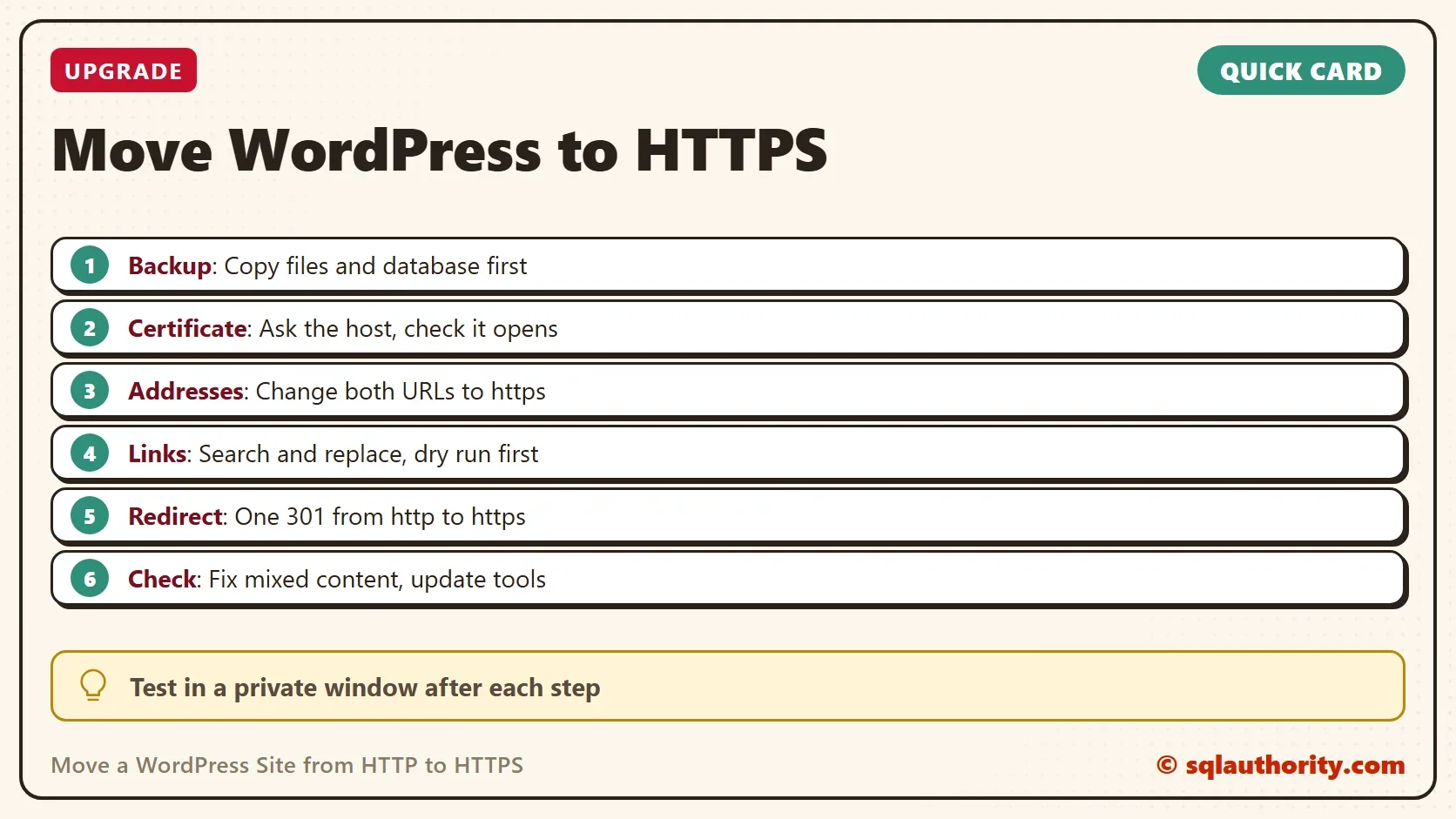
Back up, get the certificate, change both addresses, replace the old links, fix mixed content and add one 301 redirect. Test in a private window after each step. Then update Search Console and Analytics.
Don't rush the HSTS header, which tells browsers to use only HTTPS for your domain. Browsers remember it for the period you set, so switch it on only after everything works. Start with a short period.
HTTPS is not an upgrade for your site, it is a promise to your visitors.
Published by Pinal Dave on SQLAuthority. More of my work at pinaldave.com.
Discover more from SQL Authority with Pinal Dave
Subscribe to get the latest posts sent to your email.




2 Comments. Leave new
Thank you Pinal, I will also buy https for my blog (dbrnd.com). If possible, would you please share name of host provider and yearly cost of your https. I hosted my wordpress.org blog in bluehost.com
Avnesh,
You can read everything about my host and other details over here:
http://blog.sqlauthority.com/2016/03/23/sql-authority-news-behind-scene-story-new-look/
Thank you!