
Earlier I wrote a blog on the same topic and today I found another way to do the same thing. In this blog, we would discuss the steps you can take to open SQL Server Configuration Manager when its missing from Start Menu in the Windows operating system.
Before I begin, here is my earlier blog on the same topic with one solution. How to Find Missing SQL Server Configuration Manager? – Interview Question of the Week #089
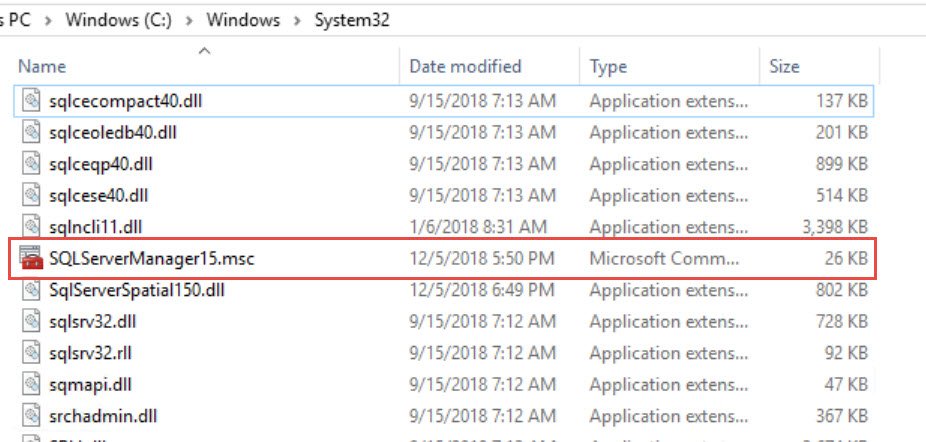
Instead of searching, you can also get the file in C:\Windows\System32 folder.
| SQL Server 2008 | SQLServerManager10.msc |
| SQL Server 2012 | SQLServerManager11.msc |
| SQL Server 2014 | SQLServerManager12.msc |
| SQL Server 2016 | SQLServerManager13.msc |
| SQL Server 2017 | SQLServerManager14.msc |
| SQL Server 2019 | SQLServerManager15.msc |
Here is the folder and the file from my latest lab server of SQL Server 2019.
If you hate to open this file manually then you can create a shortcut using below steps.
- Open MMC.exe by going to Start > Run > mmc.exe
- In the menu bar, go to “File” and choose “Add/Remove Snap-in”

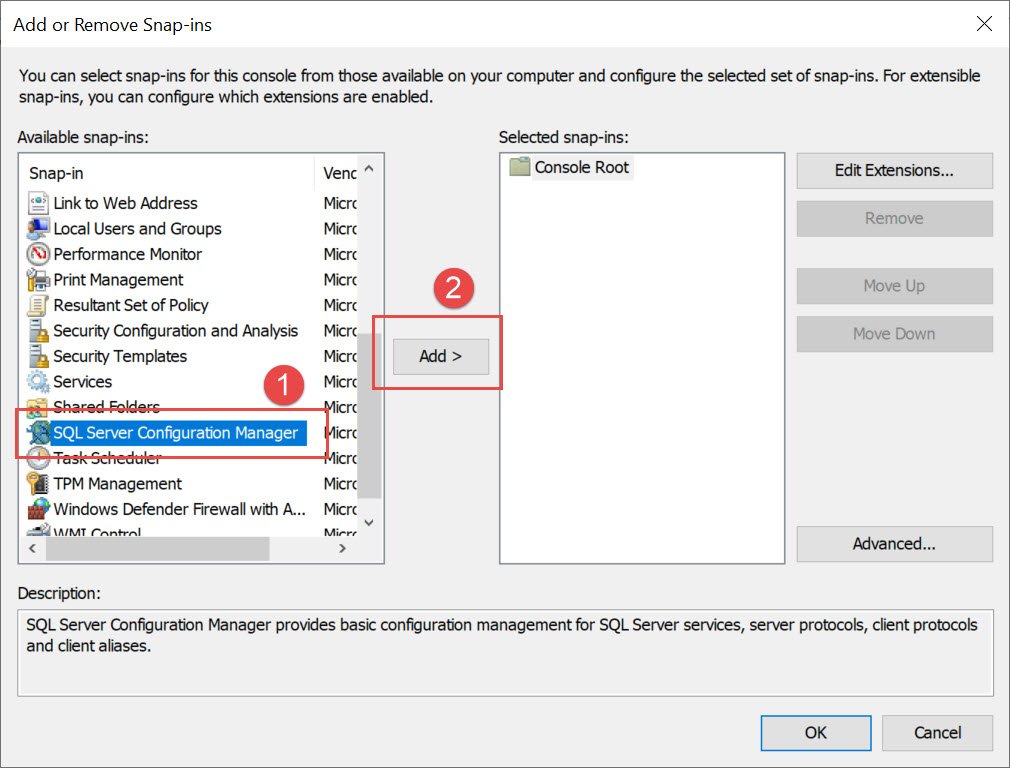
- That would open a new window and we need to look for “SQL Server Configuration Manager”. Highlight that and hit “Add”

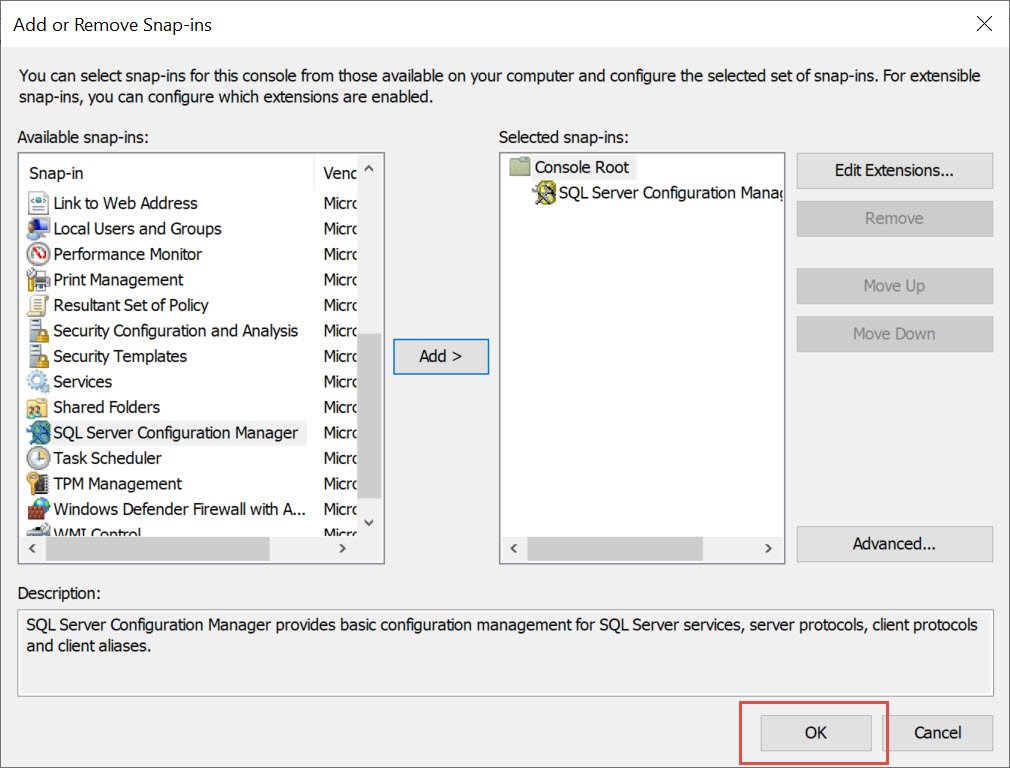
- And then hit OK.

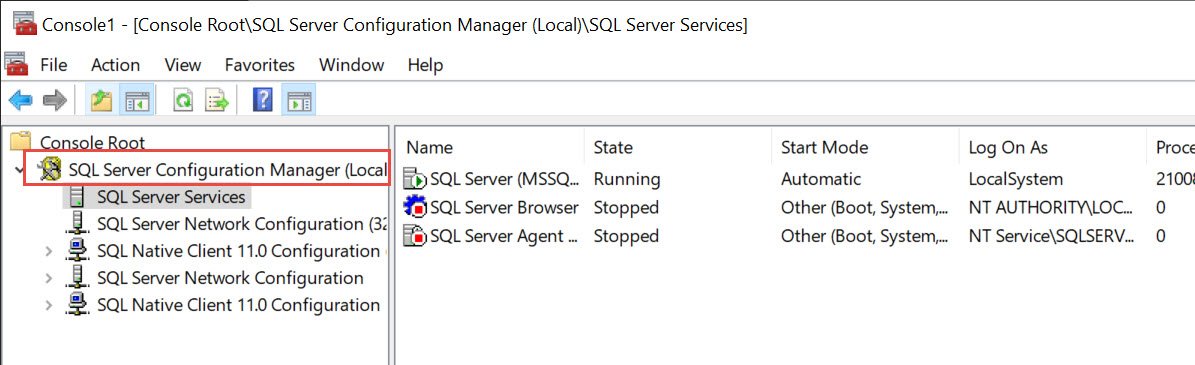
This would open the SQL Server Configuration Manager.
Another method would be to create a shortcut for the below program.
C:\Windows\SysWOW64\mmc.exe /32 C:\windows\SysWOW64\SQLServerManager15.msc
You need to change the highlighted name based on the version of SQL Server.
Published by Pinal Dave on SQLAuthority. More of my work at pinaldave.com.
Discover more from SQL Authority with Pinal Dave
Subscribe to get the latest posts sent to your email.



13 Comments. Leave new
Thank you! Really helped.
Thanks a million
Excellent…
i need help . my SQL Server Configuration is missing and this steps you show still cant find it . is there anyway to solve my problem?
by the way . in my personal computer in the hardware store SQL SERVER MANAGEMENT STUDIO work perfect . that why i try it to use here in shop . then after a successful installment i cant find the SQL SERVER configuration . i badly need help . thank you
Thanks! really work fine
Just happened to need this when I had to swap out service user passwords. Thanks much, Pinal.
Great its worked
voundebar!!!!!! thanks a lot
hello – I tried your method above but there’s no SQL Server Config Manager in #3 above. I’ve also tried looking at windows explorer under the folder system 32, and there’s also no SQLservermanager15.msc file. I installed the express version and not sure if that’s the reason?
found any solution? sql server not listed under services, configuration manager also not found anywhere
You are hands down the best reference for SQL. Period.
FYI, if you don’t have sql server installed locally, you will not see it. in my case, i have sql server installed elsewhere on the network. all i have installed is management studio and i was not able to find it anywhere.