
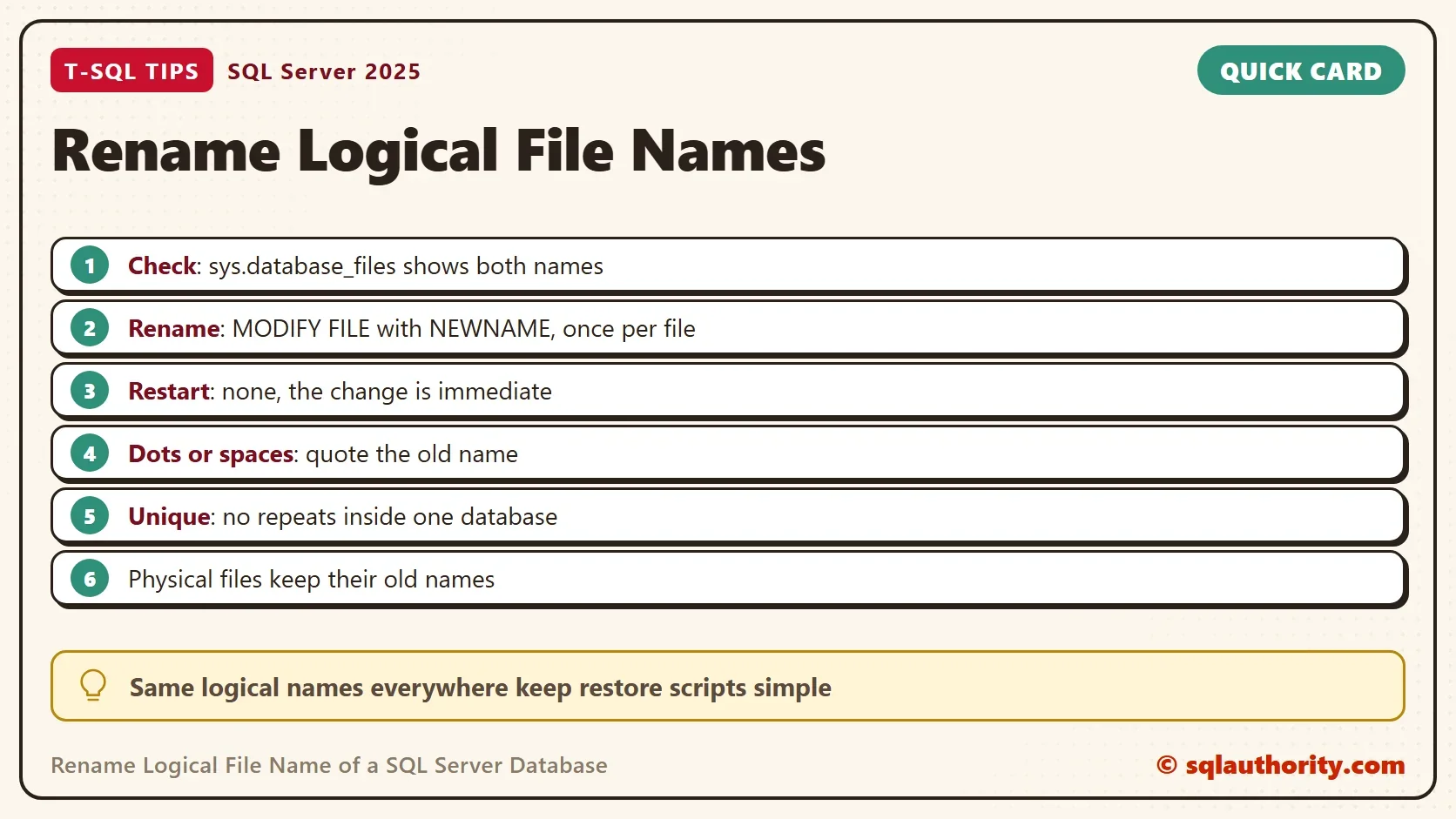
Use ALTER DATABASE with MODIFY FILE and NEWNAME to rename logical file name entries one file at a time. The change takes effect at once, with no restart and no downtime. The files on disk keep their names.

Two Names for Every File
Every database file has two names. The physical name is the path and file name on disk, such as a data file ending in .mdf. The logical name is a label stored inside the database. T-SQL commands use the logical name, because a path can change while the label stays the same.
A restored database brings along the logical names of the server it came from. Those names don’t always match your naming rule. You can rename logical file name entries without touching the files, so the fix is quick and safe. A common rule is the database name plus _Data for data files and _Logs for log files. Pick one rule for every server, and write it down.
Build a Demo Database
The first script creates LogicalNameDemo with default file names. The second query lists each file with its logical name and the name of the physical file. The path is cut off to keep the output short.
IF DB_ID(N'LogicalNameDemo') IS NULL CREATE DATABASE LogicalNameDemo;
SELECT file_id, type_desc, name AS logical_name,
       RIGHT(physical_name, CHARINDEX(N'\', REVERSE(physical_name)) - 1) AS physical_file
FROM LogicalNameDemo.sys.database_files
ORDER BY file_id;| file_id | type_desc | logical_name | physical_file |
|---|---|---|---|
| 1 | ROWS | LogicalNameDemo | LogicalNameDemo.mdf |
| 2 | LOG | LogicalNameDemo_log | LogicalNameDemo_log.ldf |
Before you rename anything, find the files that break your rule. The next query lists data files that don’t end in _Data and log files that don’t end in _Logs. Remove the database filter to scan the whole instance.
SELECT DB_NAME(database_id) AS DatabaseName, name AS LogicalName, type_desc
FROM sys.master_files
WHERE database_id = DB_ID(N'LogicalNameDemo')
  AND ((type_desc = N'ROWS' AND name NOT LIKE N'%[_]Data')
OR (type_desc = N'LOG' AND name NOT LIKE N'%[_]Logs'));| DatabaseName | LogicalName | type_desc |
|---|---|---|
| LogicalNameDemo | LogicalNameDemo | ROWS |
| LogicalNameDemo | LogicalNameDemo_log | LOG |
Both files break the rule. After the rename in the next section, the same query returns no rows. That makes it a good check for a whole fleet of servers, because one query shows every offender.
Rename Logical File Name Entries
Suppose the naming rule says data files end in _Data and log files end in _Logs. To rename logical file name entries for both files, use the script below. Run it from any database. Here it runs from master, which keeps your own query window out of the database you are changing.
USE master;
GO
ALTER DATABASE LogicalNameDemo MODIFY FILE (NAME = LogicalNameDemo, NEWNAME = LogicalNameDemo_Data);
ALTER DATABASE LogicalNameDemo MODIFY FILE (NAME = LogicalNameDemo_log, NEWNAME = LogicalNameDemo_Logs);
Each statement answers with a message that the file name has been set. Check the result with the first query, or with sys.master_files, which shows every database on the instance.
SELECT mf.name AS logical_name,
       RIGHT(mf.physical_name, CHARINDEX(N'\', REVERSE(mf.physical_name)) - 1) AS physical_file
FROM sys.master_files AS mf
WHERE mf.database_id = DB_ID(N'LogicalNameDemo');| logical_name | physical_file |
|---|---|
| LogicalNameDemo_Data | LogicalNameDemo.mdf |
| LogicalNameDemo_Logs | LogicalNameDemo_log.ldf |
The logical names changed. Run the audit query again, and it returns no rows. The physical files did not change. Nothing was restarted, and the database stayed online during the change. A rename of the physical file is a different job, because the file must be closed first. I cover it in Rename Physical File Name of a SQL Server Database.
Names With a Dot or a Space
Some restored databases carry logical names that look like file names, such as Shop.mdf. The first statement gives the data file such a name. The second tries to rename it back and writes the old name without quotes.
ALTER DATABASE LogicalNameDemo MODIFY FILE (NAME = LogicalNameDemo_Data, NEWNAME = N'Shop.mdf');
ALTER DATABASE LogicalNameDemo MODIFY FILE (NAME = Shop.mdf, NEWNAME = LogicalNameDemo_Data);
Msg 102, Level 15, State 1, Line 1
Incorrect syntax near '.'.
The dot breaks the syntax. Put the old name in single quotes, and the statement works. A name with a space needs the same treatment.
ALTER DATABASE LogicalNameDemo MODIFY FILE (NAME = N'Shop.mdf', NEWNAME = LogicalNameDemo_Data);
Two Errors to Know
A logical name must be unique inside its database. Giving the log file the name of the data file fails with Msg 1828. A name that does not exist fails with Msg 5041. Both leave everything unchanged.
ALTER DATABASE LogicalNameDemo MODIFY FILE (NAME = LogicalNameDemo_Logs, NEWNAME = LogicalNameDemo_Data);
ALTER DATABASE LogicalNameDemo MODIFY FILE (NAME = NoSuchFile, NEWNAME = LogicalNameDemo_Spare);
Msg 1828, Level 16, State 3, Line 1
The logical file name "LogicalNameDemo_Data" is already in use. Choose a different name.
Msg 5041, Level 16, State 1, Line 1
MODIFY FILE failed. File 'NoSuchFile' does not exist.
Why Consistent Names Pay Off
Logical names appear in more places than people expect. RESTORE ... WITH MOVE needs them to place each file, and DBCC SHRINKFILE and ALTER DATABASE ... MODIFY FILE use them too. When every server follows the same rule, one restore script works everywhere. Backups taken before the rename keep the old names, and backups taken afterward carry the new ones.
You could argue that logical names don’t matter, since no query ever mentions them. That holds until the day a restore script needs a MOVE clause for each file. The Database Properties dialog in Management Studio also lets you edit the logical name on its Files page. The script wins for a whole fleet of servers, because you can review it and run it again.
What to Remember
To rename logical file name entries, check the names with sys.database_files, use NEWNAME on each file, and check again. Put the old name in quotes when it contains a dot or a space. Keep the new names unique inside the database.
When you finish with the demo, run the cleanup script.
USE master;
GO
IF DB_ID(N'LogicalNameDemo') IS NOT NULL
BEGIN
    ALTER DATABASE LogicalNameDemo SET SINGLE_USER WITH ROLLBACK IMMEDIATE;
    DROP DATABASE LogicalNameDemo;
END;
A logical name is not a file name, it is the label every script uses to find the file.
Published by Pinal Dave on SQLAuthority. More of my work at pinaldave.com.
Discover more from SQL Authority with Pinal Dave
Subscribe to get the latest posts sent to your email.



2 Comments. Leave new
Good job
How to change the physical name ?
There are cases when the NAME value will need to be enclosed in quotes. For example, if the original logical name was SQLAuthority.mdf, the ALTER DATABASE line will look like this:
ALTER DATABASE [SQLAuthority] MODIFY FILE ( NAME = ‘SQLAuthority.mdf’, NEWNAME = SQLAuthority_Data);