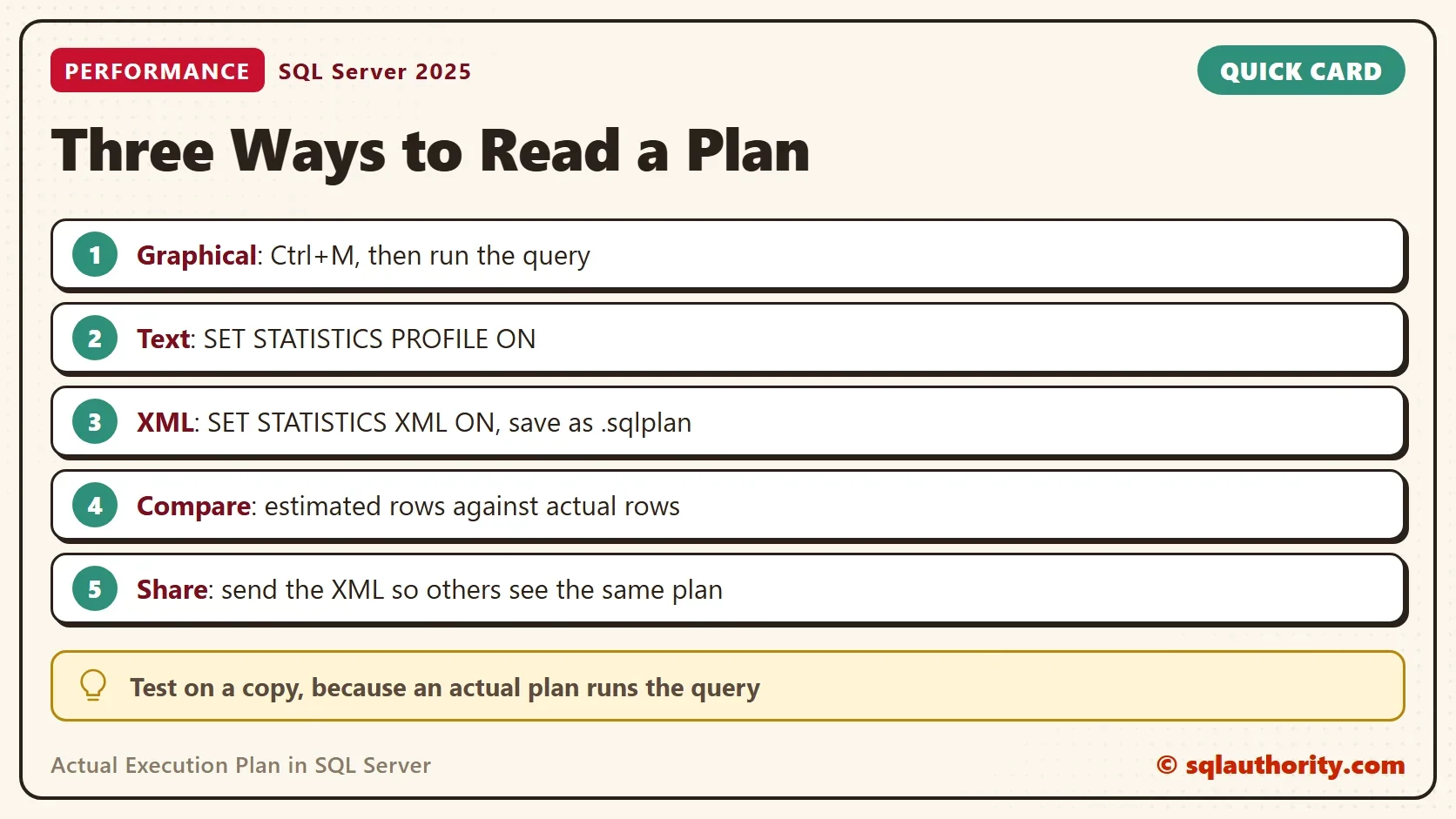
An actual execution plan shows how SQL Server ran a query, with the true row counts beside its estimates. You can get one in three forms in Management Studio: graphical, text and XML.

Estimated Plan or Actual Plan
An estimated plan is built without running the query. It shows what SQL Server expects to do. In SSMS, Ctrl+L shows the estimated plan, and Ctrl+M shows the actual one. An actual execution plan is the same plan after the query has run, with real numbers added. Each step shows its rows and how many times it ran. The XML form adds the page reads. The gap between expected and real is where tuning starts.
The demo uses a database named ExecPlanDemo. Its Orders table holds 20,000 rows, and one customer owns half of them. That skew makes the estimates interesting. Run the script on a test server.
IF DB_ID(N'ExecPlanDemo') IS NULL CREATE DATABASE ExecPlanDemo;
GO
USE ExecPlanDemo;
GO
DROP TABLE IF EXISTS dbo.Orders;
CREATE TABLE dbo.Orders (OrderID int IDENTITY(1,1) PRIMARY KEY, CustomerID int NOT NULL, Amount decimal(10,2) NOT NULL);
INSERT INTO dbo.Orders (CustomerID, Amount)
SELECT CASE WHEN n.n <= 10000 THEN 1 ELSE 2 + (n.n % 200) END, 10 + n.n % 90
FROM (SELECT TOP (20000) ROW_NUMBER() OVER (ORDER BY (SELECT NULL)) AS n FROM sys.all_objects AS a CROSS JOIN sys.all_objects AS b) AS n;
CREATE INDEX IX_Orders_CustomerID ON dbo.Orders (CustomerID) INCLUDE (Amount);
Method 1: The Graphical Plan
In SSMS 22, press Ctrl+M in the query window. The menu path is Query, then Include Actual Execution Plan. The same switch sits on the toolbar. Nothing changes until you run a query. Then a new Execution plan tab opens next to the results.
DECLARE @CustomerID int = 1;
SELECT SUM(Amount) AS Total FROM dbo.Orders WHERE CustomerID = @CustomerID;
Hover over the Index Seek to see two numbers: the estimated and the actual number of rows. Press F4 on an operator for its full property list. Press Ctrl+M again to switch the plan off. The setting belongs to the query window, so it doesn’t follow you to a new one.
Method 2: The Text Plan
Wrap the query in SET STATISTICS PROFILE ON and SET STATISTICS PROFILE OFF. The query runs, and a second grid follows the result with one row per operator. The grid has 20 columns. It also has a row for the statement and one for a Compute Scalar. The table keeps the two operators that matter and the columns to read.
SET STATISTICS PROFILE ON;
DECLARE @CustomerID int = 1;
SELECT SUM(Amount) AS Total FROM dbo.Orders WHERE CustomerID = @CustomerID;
SET STATISTICS PROFILE OFF;
| Rows | Executes | PhysicalOp | EstimateRows |
|---|---|---|---|
| 1 | 1 | Stream Aggregate | 1.0 |
| 10000 | 1 | Index Seek | 99.502487 |
The Rows column is the actual count, and EstimateRows is the guess. The seek returned 10,000 rows, and SQL Server expected about 100. The text form is the oldest of the three. It pastes into an email and compares well with a second run.
Method 3: The XML Plan
SET STATISTICS XML ON returns the plan as a link in the results grid. Click it, and SSMS opens the graphical plan. Right click the plan and save it as a file with the extension sqlplan. Anyone can open that file and see the same operators, because it holds the plan and not a picture.
SET STATISTICS XML ON;
DECLARE @CustomerID int = 1;
SELECT SUM(Amount) AS Total FROM dbo.Orders WHERE CustomerID = @CustomerID;
SET STATISTICS XML OFF;
The XML carries more detail than the text, and the page reads need a recent version of SQL Server. For the Index Seek it holds EstimateRows of 99.5025, ActualRows of 10000 and ActualLogicalReads of 31. Those 31 page reads for 10,000 rows come from the covering index. The XML also keeps one counter set for every thread of a parallel plan.
Why the Estimate Missed
The local variable explains the gap. SQL Server builds the plan before it knows the value in the variable, so it uses the average. Twenty thousand rows over 201 customers give about 99.5 rows per customer. Customer 1 has 10,000. Add OPTION (RECOMPILE), and the plan is built with the value known.
SET STATISTICS PROFILE ON;
DECLARE @CustomerID int = 1;
SELECT SUM(Amount) AS Total FROM dbo.Orders WHERE CustomerID = @CustomerID OPTION (RECOMPILE);
SET STATISTICS PROFILE OFF;
| Rows | Executes | PhysicalOp | EstimateRows |
|---|---|---|---|
| 1 | 1 | Stream Aggregate | 1.0 |
| 10000 | 1 | Index Seek | 10000.0 |
Now the estimate and the actual number agree. Both plans here are cheap, so the miss costs nothing. On a bigger query, a wrong estimate can pick the wrong join or an oversized memory grant. The actual execution plan is how you see it.
Which Form to Use
Use the graphical plan to explore and the XML plan to share. Use the text plan when you need the numbers in a grid or in a mail. All three actual-plan forms give the same operators, and they all run the query.
You could argue that an actual plan is a poor fit for a slow production query. It runs the query again. That’s true, and it adds collection cost. On the busy server, capture the estimated plan with SET SHOWPLAN_XML ON. Capture the actual execution plan on a test copy with the same data.
What to Remember
Switch on the actual execution plan, run the query once, and compare estimated rows with actual rows at each operator. A large gap points to the statistics, to a local variable or to a parameter. Save the XML when you ask for help.
Rehearse on a test server. When you finish with the demo, drop the demo database.
USE master;
GO
IF DB_ID(N'ExecPlanDemo') IS NOT NULL
BEGIN
    ALTER DATABASE ExecPlanDemo SET SINGLE_USER WITH ROLLBACK IMMEDIATE;
    DROP DATABASE ExecPlanDemo;
END;
A plan is not a promise, it is a record of what SQL Server did.
Published by Pinal Dave on SQLAuthority. More of my work at pinaldave.com.
Discover more from SQL Authority with Pinal Dave
Subscribe to get the latest posts sent to your email.