
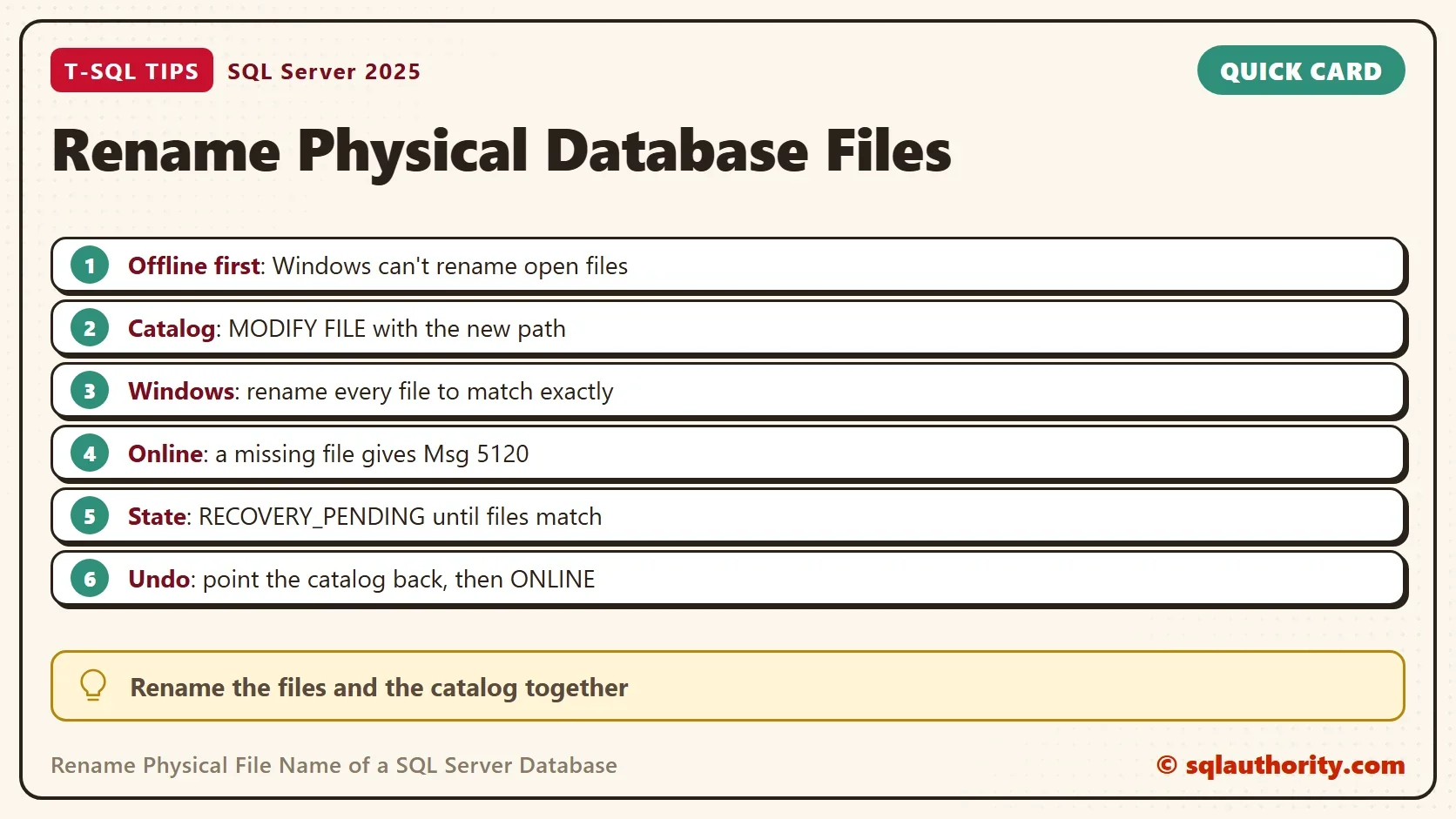
To rename physical file name entries for a SQL Server database, work in four steps. Go offline, point the catalog at the new names, rename the files, and bring the database online. A mistake in the middle leaves the database unable to start, so know the way back before you begin.

Why the Database Must Go Offline
While a database is online, SQL Server holds its files open, and Windows refuses to rename an open file. Taking the database offline closes them. The WITH ROLLBACK IMMEDIATE option disconnects every session first. The offline step then never waits for a forgotten connection.
People rename files for ordinary reasons. A restored copy brings the file names of another server. A naming rule changes. A project moves from a code name to its final name. In each case the files should carry the expected name. File names show up in monitoring tools and in disk alerts.
The physical name is the path and file name on disk. The logical name is a separate label inside the database, and renaming it is a much lighter job. I cover it in Rename Logical File Name of a SQL Server Database.
Build a Demo Database
The demo database lives in C:\SQLDemo. Create that folder first, and make sure the SQL Server service account can write to it. The first script creates the database. Two queries follow, one for the service account and one for the files.
IF DB_ID(N'PhysicalNameDemo') IS NULL
    CREATE DATABASE PhysicalNameDemo
    ON (NAME = PhysicalNameDemo_Data, FILENAME = N'C:\SQLDemo\PhysicalNameDemo.mdf')
    LOG ON (NAME = PhysicalNameDemo_Log, FILENAME = N'C:\SQLDemo\PhysicalNameDemo_log.ldf');
SQL Server must be able to open the files after the rename. The next query shows the account that runs the database engine. That account needs access to the folder that holds the renamed files. The query returns one row for each engine service on the machine.
SELECT servicename, service_account
FROM sys.dm_server_services
WHERE servicename LIKE N'SQL Server (%';
SELECT file_id, name AS logical_name, physical_name
FROM PhysicalNameDemo.sys.database_files
ORDER BY file_id;
| file_id | logical_name | physical_name |
|---|---|---|
| 1 | PhysicalNameDemo_Data | C:\SQLDemo\PhysicalNameDemo.mdf |
| 2 | PhysicalNameDemo_Log | C:\SQLDemo\PhysicalNameDemo_log.ldf |
Take the Database Offline
Run this from master, not from the database you are about to close.
USE master;
GO
ALTER DATABASE PhysicalNameDemo SET OFFLINE WITH ROLLBACK IMMEDIATE;
Point the Catalog at the New Names
Now tell SQL Server where the files will be. The new names add _Data and _Log to the database name. MODIFY FILE changes only the catalog. It doesn’t touch the files on disk. Each statement prints a message. It says the file was modified in the system catalog. The database uses the new path the next time it starts.
ALTER DATABASE PhysicalNameDemo MODIFY FILE (NAME = PhysicalNameDemo_Data, FILENAME = N'C:\SQLDemo\PhysicalNameDemo_Data.mdf');
ALTER DATABASE PhysicalNameDemo MODIFY FILE (NAME = PhysicalNameDemo_Log, FILENAME = N'C:\SQLDemo\PhysicalNameDemo_Log.ldf');
See What a Missing File Looks Like
The catalog now expects new names, and no file has them yet. Try to bring the database online anyway.
ALTER DATABASE PhysicalNameDemo SET ONLINE;
Msg 5120, Level 16, State 101, Line 1
Unable to open the physical file "C:\SQLDemo\PhysicalNameDemo_Data.mdf". Operating system error 2: "2(The system cannot find the file specified.)".
Msg 5181, Level 16, State 5, Line 1
Could not restart database "PhysicalNameDemo". Reverting to the previous status.
Msg 5069, Level 16, State 1, Line 1
ALTER DATABASE statement failed.
Operating system error 2 means the file isn’t there. SQL Server could not restart the database, and it sits in RECOVERY_PENDING. Nothing is damaged. The database is waiting for files with the right names.
Rename the Files in Windows
Rename each file so that it matches the path in the catalog exactly, extension included. This step lets you rename physical file name entries on disk. File Explorer works, and so does Rename-Item in PowerShell. The person who renames the files needs write access to the folder and the files. An administrator on that machine has it.
Rename every file of the database, which means the data file, the log file and any secondary data files. Rename the files. Don’t copy them, because a rename keeps the permissions of the SQL Server service account.
Then run the ONLINE statement from the previous step again. This time the files are found, and the database comes online. Check the names with the next query.
SELECT name AS logical_name, physical_name
FROM sys.master_files
WHERE database_id = DB_ID(N'PhysicalNameDemo')
ORDER BY file_id;
| logical_name | physical_name |
|---|---|
| PhysicalNameDemo_Data | C:\SQLDemo\PhysicalNameDemo_Data.mdf |
| PhysicalNameDemo_Log | C:\SQLDemo\PhysicalNameDemo_Log.ldf |
The logical names stayed the same. Only the paths changed.
Undo the Change
Suppose you can’t rename the files, or you stop before the Windows step. Point the catalog back to the old names and bring the database online. This script does exactly that. Run it only while the files still have their old names. If you already renamed the files, rename them back first.
ALTER DATABASE PhysicalNameDemo MODIFY FILE (NAME = PhysicalNameDemo_Data, FILENAME = N'C:\SQLDemo\PhysicalNameDemo.mdf');
ALTER DATABASE PhysicalNameDemo MODIFY FILE (NAME = PhysicalNameDemo_Log, FILENAME = N'C:\SQLDemo\PhysicalNameDemo_log.ldf');
GO
ALTER DATABASE PhysicalNameDemo SET ONLINE;
You could argue that detach and attach is simpler. You detach the database, rename the files, and attach them under the new names. It works, and many people prefer it. A detach removes the database from the instance. Anything tied to it, such as a mirroring or replication setup, has to be rebuilt. The offline method keeps the database registered the whole time.
What to Remember
To rename physical file name entries safely, take the database offline. Change the catalog, rename the files, and bring the database online. The catalog and the files must agree before the ONLINE statement runs. A database that reports RECOVERY_PENDING after the step is not lost. It is waiting for a file with the name the catalog expects. The steps are for user databases. The system databases follow a different path, and their moves need a restart of the SQL Server service.
Back up the database before you start, so a typing mistake never costs data. When you finish with the demo, run the cleanup script.
USE master;
GO
IF DB_ID(N'PhysicalNameDemo') IS NOT NULL
BEGIN
    ALTER DATABASE PhysicalNameDemo SET SINGLE_USER WITH ROLLBACK IMMEDIATE;
    DROP DATABASE PhysicalNameDemo;
END;
A physical file name is not a label, it is the address SQL Server looks up at startup.
Published by Pinal Dave on SQLAuthority. More of my work at pinaldave.com.
Discover more from SQL Authority with Pinal Dave
Subscribe to get the latest posts sent to your email.




5 Comments. Leave new
Thanks, helpfull!
Thanks, Dave. Relatively simple instructions for a relatively simple operation. I tried to follow three other articles before finding yours. All the other articles had much more noise. This solved my problem in about five minutes. I appreciate your effort to keep things simple.
Thanks Pinal…I always come here for strange syntax issues :) –Kevin3NF
This was a great help. Easiest and quickest solution online, thank you!
Thanks, it’s very useful !!!