
You can’t restart Azure SQL Database the way you restart SQL Server. Microsoft runs the service, and you own only the database. The question still comes up on slow days. Here is what you can do instead, and what to skip.

Why There Is No Restart Command
Azure SQL Database is a platform service. Your database lives on a logical server, and the physical machines under it are shared and managed for you. There is no SQL Server service for you to stop, so there is no restart to run.
That is a good thing, because a restart is not a fix. It clears memory and ends sessions, and the cause of the trouble stays in place. It hides the problem until the next time.
Find the Blocking Session First
The most common reason people want a restart is blocking. An application opens a transaction, never closes it, and every other query that needs the same row waits. Ending that one session solves it without a restart.
The demo creates a database named AzureRestartDemo. It runs on a local test server. The three diagnostic queries and KILL work the same in Azure SQL Database. The create and cleanup scripts are for a local server. Azure SQL Database can’t switch databases with USE or set SINGLE_USER.
IF DB_ID(N'AzureRestartDemo') IS NULL CREATE DATABASE AzureRestartDemo;
GO
USE AzureRestartDemo;
GO
DROP TABLE IF EXISTS dbo.Orders;
CREATE TABLE dbo.Orders (OrderID int PRIMARY KEY, Status nvarchar(20) NOT NULL);
INSERT INTO dbo.Orders (OrderID, Status) VALUES (1, N'New'), (2, N'New');
The next three scripts run in three separate query windows, because blocking needs more than one session. Window one plays the careless application. It updates a row and never commits.
USE AzureRestartDemo;
BEGIN TRANSACTION;
UPDATE dbo.Orders SET Status = N'Packed' WHERE OrderID = 1;
Window two tries to change the same row. It waits, and it keeps waiting.
UPDATE dbo.Orders SET Status = N'Shipped' WHERE OrderID = 1;
Window three finds the problem. The first query lists the waiting requests in this database and who blocks them. The second query names the head blocker, the session that blocks others without being blocked itself.
SELECT r.session_id AS WaitingSession,
       r.blocking_session_id AS BlockedBy,
       r.wait_type AS WaitType,
       r.wait_time / 1000 AS WaitSeconds
FROM sys.dm_exec_requests AS r
WHERE r.blocking_session_id <> 0 AND r.database_id = DB_ID();
SELECT s.session_id AS HeadBlocker, s.status AS SessionStatus, s.open_transaction_count AS OpenTransactions
FROM sys.dm_exec_sessions AS s
WHERE s.session_id IN (SELECT blocking_session_id FROM sys.dm_exec_requests WHERE blocking_session_id <> 0 AND database_id = DB_ID())
AND s.session_id NOT IN (SELECT session_id FROM sys.dm_exec_requests WHERE blocking_session_id <> 0);| WaitingSession | BlockedBy | WaitType | WaitSeconds |
|---|---|---|---|
| 56 | 52 | LCK_M_X | 3 |
| HeadBlocker | SessionStatus | OpenTransactions |
|---|---|---|
| 52 | sleeping | 1 |
The session numbers and the seconds differ on every run. The pattern doesn’t. Session 52 is asleep with one open transaction, and session 56 waits for an exclusive lock. In a single window, both queries return nothing, so run the three scripts in three windows.
Ending the head blocker releases everyone behind it. The KILL command takes the session number, as in KILL 52. SQL Server rolls back the open transaction, and the waiting update finishes at once. The table then shows order 1 as Shipped. Check the session first. Ending the wrong one cancels someone’s work.
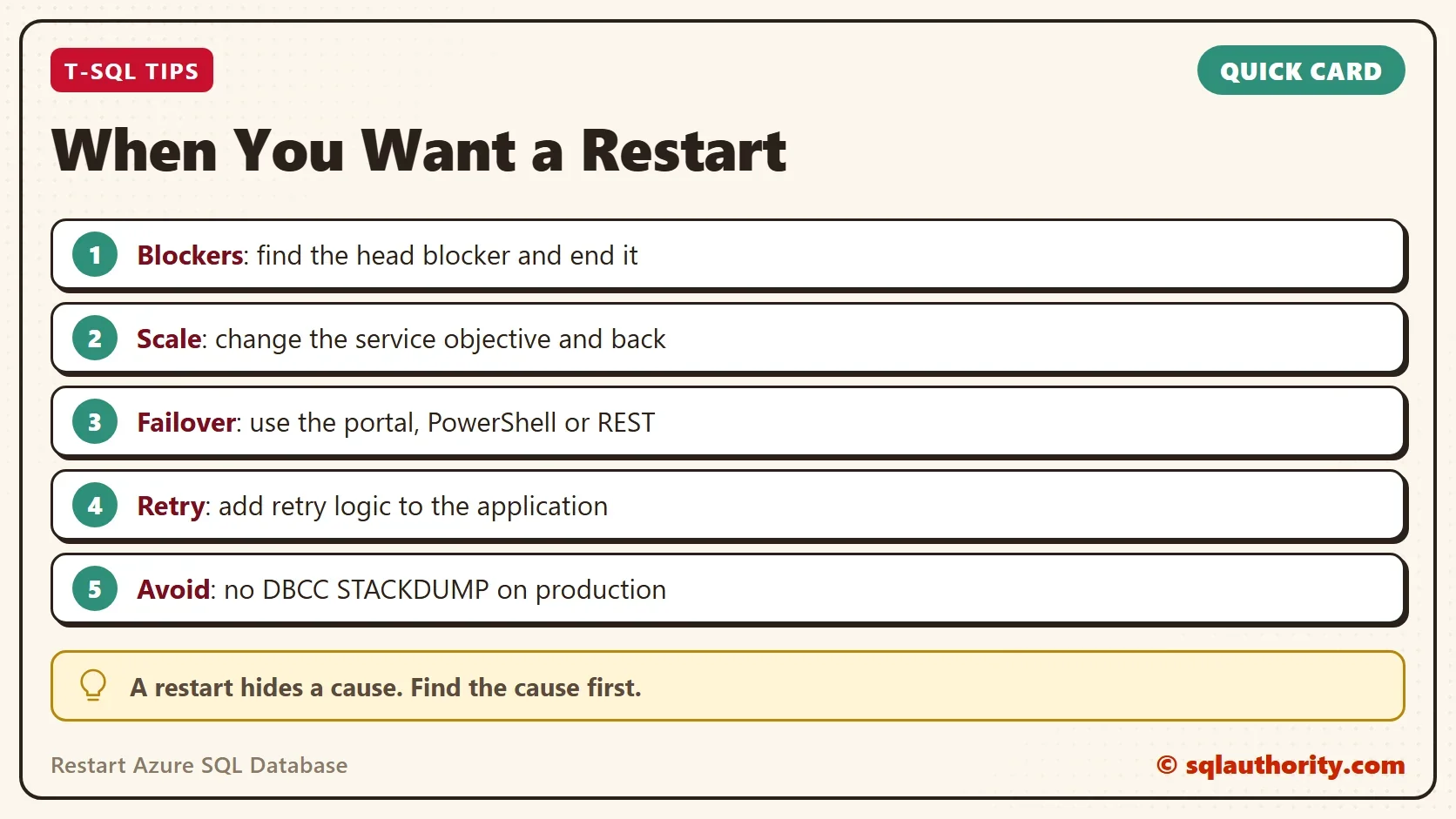
What People Call a Restart
Two documented actions come close when you want to restart Azure SQL Database. The first is a change of service objective, which means scaling the database to another tier or size. The database moves to different compute, and connections drop briefly at the end. Scale up and then back down to get that effect. In T-SQL it’s an ALTER DATABASE statement with the MODIFY option, and the Azure portal offers the same change.
The second is a manual failover. The Azure portal, PowerShell, the Azure CLI and the REST API can fail a database over to another replica. Clients reconnect to the new primary, which feels like a restart.
Both actions drop connections, so test your application’s retry logic first. An application that retries a failed connection a few times, with a short pause between tries, survives either one. Wait longer after each failure, such as one second, then two, then four. The retries then don’t pile onto a recovering service.
The Stack Dump Trick
Some posts suggest DBCC STACKDUMP with a message that mentions a manual failover. The command writes a memory dump. It’s not a documented way to restart or fail over a database, and its outcome isn’t predictable. One report describes a slow database that stayed inaccessible for an hour after the command. Don’t run it against a production database.
Should You Fix the Cause Instead?
You could argue that a restart is a fine answer when the pressure is high. That’s true for an emergency. A failover or a scale is a legitimate tool when the service is unhealthy.
Treat it as a pause, not a cure. If blocking caused the slowdown, the next slowdown comes from the same application. Fix the code that leaves transactions open, and add a command timeout so a stuck call fails by itself.
What to Remember
You can’t restart Azure SQL Database as a service. You can find the blocker, scale the database or trigger a failover. Find the head blocker first, and end it if it’s safe. If you need a fresh start, scale the database or trigger a failover, and make sure the application retries. Skip the stack dump trick.
Clean up the demo when you finish. The first line ends the open transaction in window one.
IF @@TRANCOUNT > 0 ROLLBACK TRANSACTION;
USE master;
GO
ALTER DATABASE AzureRestartDemo SET SINGLE_USER WITH ROLLBACK IMMEDIATE;
DROP DATABASE AzureRestartDemo;
A restart is not a repair, it is a pause that hides what is wrong.
Published by Pinal Dave on SQLAuthority. More of my work at pinaldave.com.
Discover more from SQL Authority with Pinal Dave
Subscribe to get the latest posts sent to your email.




6 Comments. Leave new
Happy New Year Pinal !!
Wish you the same.
Good article. I had the exact same scenario yesterday.
Thanks for this article.
We were having a ton of wait timeouts on our Azure database, and found this post—THANK YOU! I ran the DDBC STACKDUMP command you gave, and it appears that it activated a “health event” in the log (for us it appeared to be “transient login failures”), and some self-recovery actions. So while it may not have triggered a “restart”, I feel like it DID trigger some corrective actions.
Just as a warning – I tried the DBCC STACKDUMP command on an Azure SQL database that somehow was not responding properly (VERY slow but nothing really running on it), resulting in the database being inaccessible on the server for 1 hour. Might have been something very wrong in my specific case.