An UpdateHADRResource failure needs the detailed setup error, not only the final patch status. In this 2017 case, SQL Server Setup could not copy hadrres.dll because another process was using the file. The incomplete patch also left the affected instance unable to start.

The Error in This Case
The setup summary reported a failed patch on SQL Server 2012 in a clustered Windows environment. The useful clue appeared in the detailed log.
System.IO.IOException: The process cannot access the file
'C:\Windows\system32\hadrres.dll' because it is being used by another process.

at Microsoft.SqlServer.Configuration.Cluster.UpdateClusterResourceAction.VersionCopy
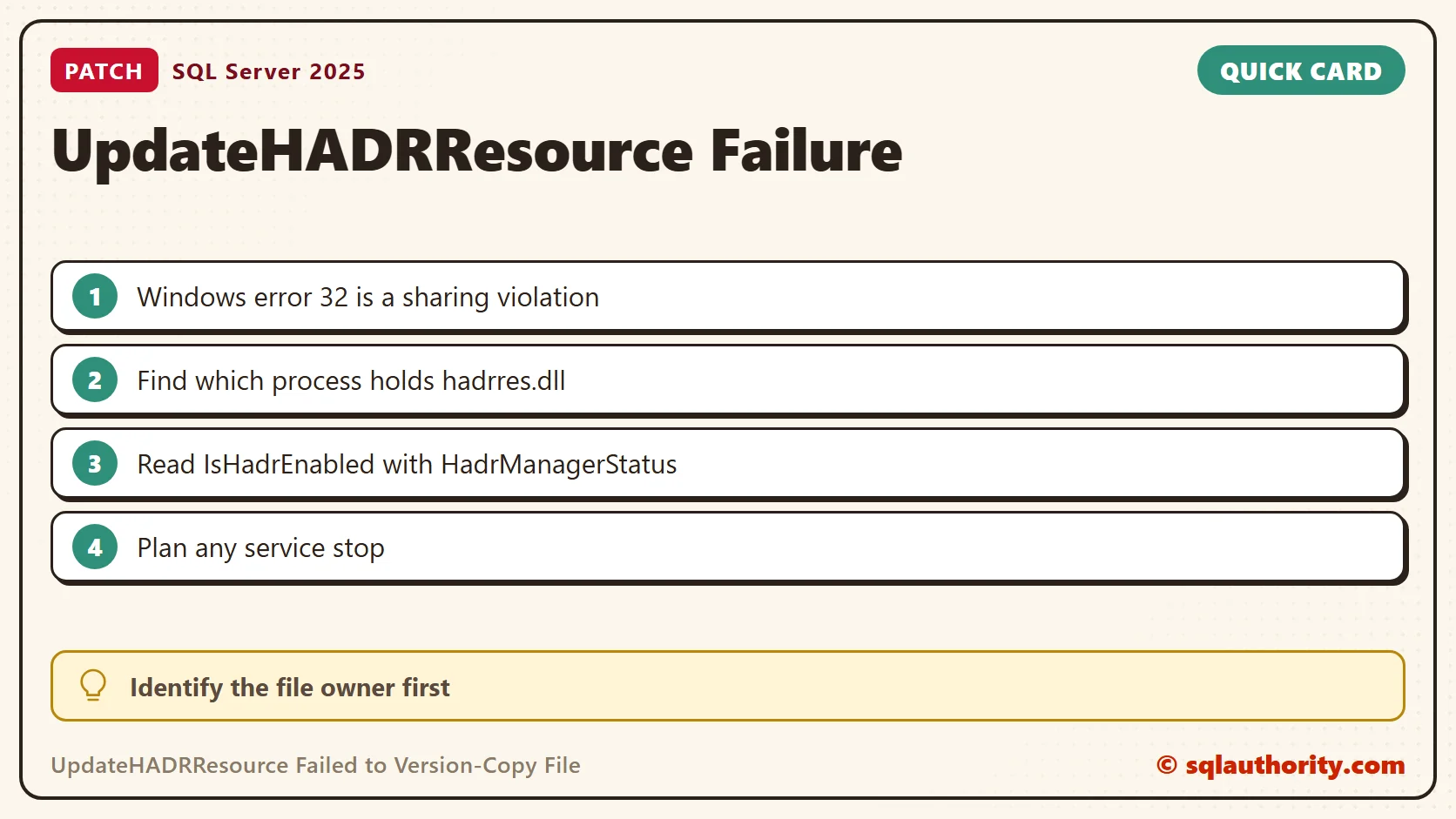
This is Windows error 32, a sharing violation. On my PC net helpmsg 32 prints the same sentence. The message says that something held the file open during the copy. It does not say which process, and it does not say that a database is damaged. The HADR name in the step does not justify an availability group failover.
Collect Evidence Before Another Attempt
- Save the failed setup logs, including Summary.txt and the detailed log from the matching timestamp folder. Record the instance, the patch package and the failed component.
- Find the first relevant failure and read the messages around it. A later summary error can report only that an earlier operation failed.
- Identify which process has the file open or the DLL loaded.
- Review the Windows and cluster events from the same time. List the resources and services that a maintenance window would affect.
Read the HADR State of the Instance
If the instance is still reachable, these queries record its build and its HADR settings. If it cannot start, use the setup logs and the installed product information instead.
SELECT SERVERPROPERTY('ProductVersion') AS ProductVersion,
       SERVERPROPERTY('ProductLevel') AS ProductLevel,
       SERVERPROPERTY('Edition') AS Edition;
SELECT SERVERPROPERTY('IsClustered') AS IsClustered,
       SERVERPROPERTY('IsHadrEnabled') AS IsHadrEnabled,
       SERVERPROPERTY('HadrManagerStatus') AS HadrManagerStatus;
My standalone instance returned 0 for IsClustered, 0 for IsHadrEnabled and 2 for HadrManagerStatus. A 2 next to a 0 for IsHadrEnabled shows that the manager value means little when the feature is off. Always read the two together.
Find the File and Its Owner
Process Explorer can search for a DLL name, and Windows has a built-in way too. This block prints the file details and a hash, then asks Windows which processes have the DLL loaded.
$dll = Join-Path $env:WINDIR 'System32\hadrres.dll'
$f = Get-Item $dll
[pscustomobject]@{ Name = $f.Name; Bytes = $f.Length; FileVersion = $f.VersionInfo.FileVersion; Modified = $f.LastWriteTime; Sha256 = (Get-FileHash -Algorithm SHA256 $dll).Hash } | Format-List
net helpmsg 32
tasklist /m hadrres.dll
On my PC the file is present with version 2025.0170.5015.04. tasklist reports that no process has it loaded, because this PC has no cluster. On a cluster node, expect the resource host process to appear. A prompt that is not elevated cannot list the modules of a service. The same command for the SQL Server process returned nothing on my PC.
The original post does not name the process that held the file. The team stopped monitoring services, and that fits a monitoring or security agent that scans files in System32. That is an assumption. Your own check with the command above gives the answer for your server.
Keep the Old Workaround in Context
In the original incident, the team renamed the affected file in the System32 folder and stopped related monitoring services. Setup then completed and installed a newer file version. That is the recorded outcome for this case, not a general instruction to rename system DLLs or stop cluster services.
For another environment, identify the file owner and use the supported patch procedure for your SQL Server and Windows setup. A required service interruption belongs in an approved maintenance plan. Do not copy a DLL from another server, and do not force a handle closed to get past the installer.
Verify the Completed Patch
Check the final setup result and the startup log of the affected instance. Confirm the build, the service status and the health of the cluster or availability group. A changed DLL timestamp alone does not show that the whole patch succeeded. Record the old and the new file version in your change notes, so you can compare them later.
If Setup still fails, keep the logs from each attempt. Investigate the remaining error before you repeat the same workaround.
A file-copy failure is not a complete diagnosis, it is a clue to investigate before changing the system.
Published by Pinal Dave on SQLAuthority. More of my work at pinaldave.com.
Discover more from SQL Authority with Pinal Dave
Subscribe to get the latest posts sent to your email.