
Question: How do you introduce a time delay between two T-SQL commands?

I usually hear this from developers. A pause between application steps may be familiar, but I rarely want a database session sitting idle on purpose. In an interview, though, the direct T-SQL answer is WAITFOR DELAY.
SELECT GETDATE() CurrentTime
WAITFOR DELAY '00:00:10' -- 10 Second Delay
SELECT GETDATE() CurrentTime
The first SELECT returns a time, the batch waits, and the second SELECT returns a later time. My original SSMS run showed these two results:
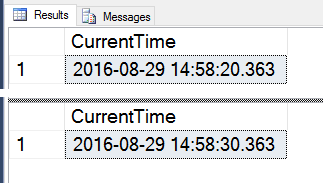
That example happened to show exactly ten seconds. On a busy server, the actual delay can be longer. WAITFOR also keeps a worker tied up while it waits, so I would not insert it into a high-volume production path simply to pace an application. First ask why the pause is needed and whether the scheduling belongs outside the query.
Have you had a real SQL Server task where the pause was the right tool? My older WAITFOR introduction, delay example, and short video show the same feature from different angles.
Published by Pinal Dave on SQLAuthority. More of my work at pinaldave.com.
Discover more from SQL Authority with Pinal Dave
Subscribe to get the latest posts sent to your email.




6 Comments. Leave new
I use several time this command, but I don’t remember why :)
Yes i have used in the SQL job step where i have bunch of step where i need to call another SQL job which migit take 30-40 sec to run so by putting wait for delay we can make sure that job is run successfully quickly, also have used in SSIS package when parallel task running on and to customize log the information into same table to avoide lock we use to put wait for delay for 1 sec to 5 sec.
Hi, Pinal,
Odd as it seems, but somtimes you deliberately want to insert a small delay. Thank you for this command.
As a programmer i would do something like this:
DECLARE @before DATETIME,
@after DATETIME;
SET @before = GETDATE();
SET @after = @before;
SELECT @before;
WHILE DATEDIFF(second, @before, @after) < 10
BEGIN
SET @after = GETDATE();
END;
SELECT @after;
GO
Needless to say that the WAITFOR-command is much easier to use…
Yes I have used the delay function, in order to allow an asynchronous process to complete..
The asynchronous process being an SQL agent job, which SSRS runs in response my code invoking the rs_addEvent proc..
My problem was that I need to modify the input parameters of the SSRS job and execute it, sometimes several times in a row, depending upon frequency of user requests from front end app..
I need to be sure that any existing running job, has completed, before I modify the SSRS job input parameters and execute the job.. So I check which jobs are running via MSDB tables, and use WAITFOR DELAY, if the SSRS job is running..
I use WAITFOR rarely, but remember it was useful when i built a custom performance monitoring data collector that reads CPU, I/O and Memory stats then waits x number of seconds then reads them again and calculates the difference and stores that in a trending table.
Hi,
I used it to check the minute value returned from the below as in SSIS the script did not return the 4 digit date if the time was under 10 minutes..
DROP TABLE IF EXISTS #info
CREATE TABLE #info (dt VARCHAR(50), nw DATETIME)
WHILE GETDATE() < '20191016 13:15'
BEGIN
INSERT INTO #info (dt, nw)
SELECT
CAST(DATEPART(YEAR,GETDATE()) AS VARCHAR)
+CAST(RIGHT('00'+DATEPART(MONTH,GETDATE()),2) AS VARCHAR)
+CAST(RIGHT('00'+DATEPART(DAY,GETDATE()),2) AS VARCHAR)+'_'
+CAST(RIGHT('00'+DATEPART(HOUR,GETDATE()),2) AS VARCHAR)
+CAST(RIGHT('00'+DATEPART(MINUTE,GETDATE()),2) AS VARCHAR)
AS dt
,GETDATE() now
WAITFOR DELAY '00:00:10'
END
SELECT * FROM #info