
Question: How do you move TempDB to a new drive when its current drive is full?

Answer: Record its logical file names, set the new paths with ALTER DATABASE … MODIFY FILE, and restart SQL Server during an agreed outage. TempDB is recreated in the new location at startup. Changing the path alone doesn’t free the current drive.
At 1 AM, a customer called me with an opening line I would rather hear during office hours: “We should have followed your advice. TempDB is full. Now help us fix it.” During their earlier database health review, I had noticed TempDB on the local C drive and warned that it was filling quickly. The reply was the familiar rule of not fixing anything that wasn’t broken. I understand the rule. A rapidly filling TempDB drive is one of the times to act before the phone rings.
First determine whether the data files, log file or other files on that drive are using up the space. Moving TempDB may provide capacity or better storage, but it won’t explain why an active query or transaction consumed it. Resolve the immediate incident and arrange the move with the application owners. A surprise restart in the middle of their work creates another problem.
Find Every Logical File Name
The default names are usually tempdev and templog, but modern installs add more data files. Inventory every file, including the additional data files:
USE master;
SELECT name, type_desc, physical_name,
       CAST(size * 8.0 / 1024 AS decimal(12,2)) AS SizeMB
FROM sys.master_files
WHERE database_id = DB_ID(N'tempdb')
ORDER BY file_id;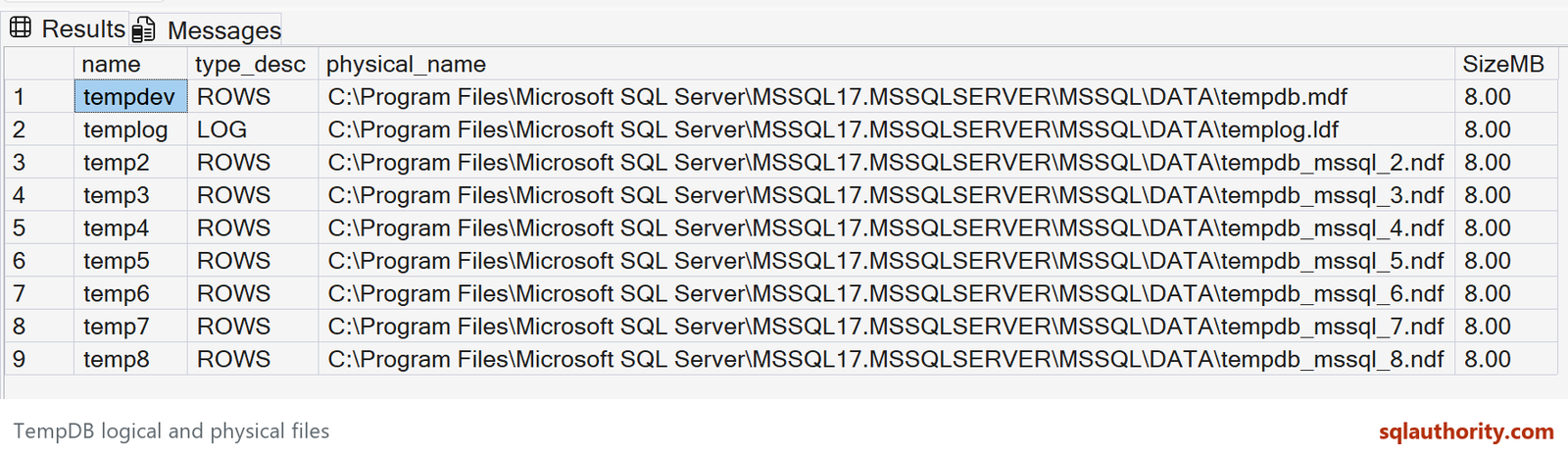
Set the Paths and Arrange the Restart
The following is a maintenance template, not a script to run unchanged. Verify the destination folders, available capacity and SQL Server service-account permissions before changing the paths. Distinct drive letters don’t by themselves establish independent storage.
-- Planned maintenance template only. Replace logical names and paths.
USE master;
ALTER DATABASE tempdb MODIFY FILE
    (NAME = N'tempdev', FILENAME = N'D:\TempDB\tempdb.mdf');
ALTER DATABASE tempdb MODIFY FILE
    (NAME = N'templog', FILENAME = N'E:\TempDB\templog.ldf');
-- Repeat MODIFY FILE for every additional tempdb data file being moved.
-- The new paths take effect when the SQL Server service restarts.
TempDB doesn’t need its old files copied to the new folders. After the restart, rerun the inventory query and confirm every intended physical_name, file size and growth setting. Only after verification should the old TempDB files be removed from their former location.
One more trap: an error message about a full log may suggest backing up the transaction log. That’s not a TempDB remedy, because TempDB can’t be backed up. If its log is full, investigate the workload and active transactions instead.
Moving a file is the easy part of this interview question. Planning the restart, verifying every file and avoiding the same space shortage next week are the parts I would discuss with a DBA.

Moving TempDB is not a file copy, it is a path change and a restart, so plan the outage first.
Published by Pinal Dave on SQLAuthority. More of my work at pinaldave.com.
Discover more from SQL Authority with Pinal Dave
Subscribe to get the latest posts sent to your email.


11 Comments. Leave new
If the TempDB is filled up, restarting the Server will help it to free the space. But, in case of production servers, where we can’t afford to restart servers, we have to move tempDb to a diiferent physical drive in order to free the space. Please correct me if I’m wrong.
Then we copy the logical file in new drive, it’s need or not
You’ll still need to restart the SQL Server service for the new location of the TempDB to be activated. So either way there’ll be a downtime.
Hence as a long term solution, just move the TempDB files to a larger disk
You can’t just move the tempdb files, as suggested in the comments. You can however, move them, as documented in the article. A restart is required. However, if that is not possible, you can, just like any database, add another file, in tempdb, placing it on another drive. A restart will not then be necessary, but tempdev and templog will still be on the old drive. If you also do the alter, as described above, then the next time the server is restarted, then tempdb will be moved. Of course the new file that you added will also still be there.
Even if you move tempDB files to a different drive, you will need to restart sql services.
If it is a prod server and your tempDB is full, you could always identify the transaction which is consuming most space in tempdb and kill it or you may add another tempDB file at a different location. That way you would not need a restart.
add new file group in temp db database and select default file group option then next time all logs written in new file group in different drive. when you have down time then you can restart the SQL sever.
You should have tested the answer before writing comment…
USE [master]
GO
ALTER DATABASE [tempdb] ADD FILEGROUP [TempDB2]
GO
Error:
Msg 1826, Level 16, State 1, Line 3
User-defined filegroups are not allowed on “tempdb”.
I need some help deleting temp DB which is default created in SQL2016, 8 of them. I need to delete temp5, 6, 7 and 8 so I will just have 4 of them. I use this query but not successful:
use tempdb
GO
DBCC DROPCLEANBUFFERS
GO
DBCC FREEPROCCACHE
GO
DBCC FREESESSIONCACHE
GO
DBCC FREESYSTEMCACHE ( ‘ALL’)
GO
DBCC SHRINKDATABASE (tempdb,8)
GO
— Step1: First empty the data file
USE tempdb
GO
DBCC SHRINKFILE (temp8, EMPTYFILE); — to empty “tempdev12” data file
GO
–Step2: Remove that extra data file from the database
ALTER DATABASE tempdb
REMOVE FILE temp8; –to delete “tempdev12” data file
GO
Result:
DBCC execution completed. If DBCC printed error messages, contact your system administrator.
DBCC execution completed. If DBCC printed error messages, contact your system administrator.
DBCC execution completed. If DBCC printed error messages, contact your system administrator.
DBCC execution completed. If DBCC printed error messages, contact your system administrator.
DBCC SHRINKDATABASE: File ID 1 of database ID 2 was skipped because the file does not have enough free space to reclaim.
DBCC SHRINKDATABASE: File ID 3 of database ID 2 was skipped because the file does not have enough free space to reclaim.
DBCC SHRINKDATABASE: File ID 4 of database ID 2 was skipped because the file does not have enough free space to reclaim.
DBCC SHRINKDATABASE: File ID 5 of database ID 2 was skipped because the file does not have enough free space to reclaim.
DBCC SHRINKDATABASE: File ID 7 of database ID 2 was skipped because the file does not have enough free space to reclaim.
DBCC SHRINKDATABASE: File ID 8 of database ID 2 was skipped because the file does not have enough free space to reclaim.
DBCC SHRINKDATABASE: File ID 9 of database ID 2 was skipped because the file does not have enough free space to reclaim.
DBCC SHRINKDATABASE: File ID 2 of database ID 2 was skipped because the file does not have enough free space to reclaim.
(1 row(s) affected)
DBCC execution completed. If DBCC printed error messages, contact your system administrator.
DBCC SHRINKFILE: Page 9:87 could not be moved because it is a work table page.
Msg 2555, Level 16, State 1, Line 21
Cannot move all contents of file “temp8” to other places to complete the emptyfile operation.
DBCC execution completed. If DBCC printed error messages, contact your system administrator.
Msg 5042, Level 16, State 1, Line 24
The file ‘temp8’ cannot be removed because it is not empty.
As always, very helpful. Thanks man!
I made a change of parades from tempdb last night, after consulting this article, on a production server, which supports more than 800 people working. There was a problem, resulting from security flaws and + COM objects in the windows registry, which prevented all files from being created. To my surprise, when restarting the database instance, only one of the tempdb files had been created. I panicked, took a deep breath, checked the commands, and nothing was wrong. So I kindly asked the infra staff to reboot the server so I could try to start the sql server. In a miracle pass the BD went up and I finally managed to log in, the datafiles all created. It was one of the most terrifying moments of my life. Do not do this in a small window, schedule for weekends beforehand, SQLServer is not an exact science. Be warned, it seems to be a simple procedure but they do not know the risk they are taking, do not put their professional life at stake, schedule for a weekend.
I totally agree. Always try things out first on a Development server and do all the checks and balances before you try any configuration change.
I am glad that it worked out for you. Your story will help and motivated everyone to take enough time to do this task.
Very happy to know all is well.