The latest backup chain is one full backup, the right differential, and every log backup after it with no gap. SQL Server already records all of it in msdb. A short script can read that history and write the restore commands for you, before the emergency.

The restore you do not want to write at 2 AM
The database is gone. Everyone is watching your screen. You open the backup folder and see forty files with similar names. Which full goes first? Is that differential from this week or last? Typing a restore sequence by hand under pressure is how people skip a log file.
msdb remembers every backup, with the log sequence numbers (LSNs) that say how they connect. So let a script walk the chain. Below, I build a small database and its backups, generate the commands, then actually run them to see the data come back.
Build a small backup history
The demo creates a database named RestoreChainDemo in FULL recovery. It writes its backup files to a folder you create first: C:\Temp\RestoreChainDemo. At the end it removes the database, its msdb history and the files. The files use the extension .demo so the cleanup cannot touch a real backup. Use a test server only.
USE master;
DROP DATABASE IF EXISTS RestoreChainDemo;
EXEC msdb.dbo.sp_delete_database_backuphistory @database_name = N'RestoreChainDemo';
GO
CREATE DATABASE RestoreChainDemo;
ALTER DATABASE RestoreChainDemo SET RECOVERY FULL;
GO
USE RestoreChainDemo;
GO
CREATE TABLE dbo.Payment (PaymentId int IDENTITY(1,1) PRIMARY KEY, Note char(50) NOT NULL);
INSERT dbo.Payment (Note) SELECT TOP (100) 'first batch' FROM sys.all_objects;
GO
BACKUP DATABASE RestoreChainDemo
TO DISK = N'C:\Temp\RestoreChainDemo\full.demo' WITH INIT;
Now add more data between backups: a differential, a copy-only full that should be ignored, and two log backups. The last row goes in after the final log backup, so it is not protected by any file.
DECLARE @File nvarchar(400);

INSERT dbo.Payment (Note) SELECT TOP (100) 'second batch' FROM sys.all_objects;
SET @File = N'C:\Temp\RestoreChainDemo\diff.demo';
BACKUP DATABASE RestoreChainDemo TO DISK = @File WITH DIFFERENTIAL, INIT;

SET @File = N'C:\Temp\RestoreChainDemo\copyonly.demo';
BACKUP DATABASE RestoreChainDemo TO DISK = @File WITH COPY_ONLY, INIT;

INSERT dbo.Payment (Note) SELECT TOP (100) 'third batch' FROM sys.all_objects;
SET @File = N'C:\Temp\RestoreChainDemo\log1.demo';
BACKUP LOG RestoreChainDemo TO DISK = @File WITH INIT;

INSERT dbo.Payment (Note) SELECT TOP (100) 'fourth batch' FROM sys.all_objects;
SET @File = N'C:\Temp\RestoreChainDemo\log2.demo';
BACKUP LOG RestoreChainDemo TO DISK = @File WITH INIT;

INSERT dbo.Payment (Note) VALUES ('after the last log backup');
SELECT COUNT(*) AS rows_before_the_loss FROM dbo.Payment;
Pick the chain from msdb
First look at what msdb holds for this database. You should see five rows: a full, a differential, a copy-only full and two logs.
SELECT backup_set_id, type, is_copy_only
FROM msdb.dbo.backupset
WHERE database_name = N'RestoreChainDemo'
ORDER BY backup_set_id;
The rules are short. Start from the newest full backup that is not copy-only. Take the newest differential whose base matches that full. Then add log backups one at a time: each must start at or before the point you have covered and reach beyond it. Stop when none does. If later logs exist anyway, there is a gap, and the script throws instead of handing you a chain with a hole.
DECLARE @Source sysname = N'RestoreChainDemo';
DECLARE @Full int, @Diff int, @Next int, @Covered numeric(25,0),
        @Base numeric(25,0), @Fork uniqueidentifier, @DbGuid uniqueidentifier;

DROP TABLE IF EXISTS #Chain;
CREATE TABLE #Chain (StepNo int IDENTITY(1,1), BackupSetId int NOT NULL);

SELECT TOP (1) @Full = backup_set_id, @Base = checkpoint_lsn, @Covered = last_lsn,
       @Fork = last_recovery_fork_guid, @DbGuid = database_guid
FROM msdb.dbo.backupset
WHERE database_name = @Source AND type = 'D' AND is_copy_only = 0
ORDER BY backup_finish_date DESC, backup_set_id DESC;
INSERT #Chain (BackupSetId) VALUES (@Full);

SELECT TOP (1) @Diff = backup_set_id, @Covered = last_lsn
FROM msdb.dbo.backupset
WHERE database_name = @Source AND type = 'I' AND differential_base_lsn = @Base
  AND database_guid = @DbGuid AND last_recovery_fork_guid = @Fork
ORDER BY backup_finish_date DESC, backup_set_id DESC;
IF @Diff IS NOT NULL INSERT #Chain (BackupSetId) VALUES (@Diff);

WHILE 1 = 1
BEGIN
    SET @Next = NULL;
    SELECT TOP (1) @Next = backup_set_id, @Covered = last_lsn
    FROM msdb.dbo.backupset
    WHERE database_name = @Source AND database_guid = @DbGuid AND type = 'L'
      AND first_recovery_fork_guid = @Fork AND last_recovery_fork_guid = @Fork
      AND first_lsn <= @Covered AND last_lsn > @Covered
    ORDER BY last_lsn, backup_set_id;
    IF @Next IS NULL BREAK;
    INSERT #Chain (BackupSetId) VALUES (@Next);
END;

IF EXISTS (SELECT 1 FROM msdb.dbo.backupset
           WHERE database_name = @Source AND database_guid = @DbGuid
             AND type = 'L' AND last_lsn > @Covered)
    THROW 50000, N'The log chain has a gap. Stop and investigate.', 1;

SELECT c.StepNo, c.BackupSetId, b.type, b.is_copy_only
FROM #Chain AS c
JOIN msdb.dbo.backupset AS b ON b.backup_set_id = c.BackupSetId
ORDER BY c.StepNo;
The result has four steps: the full, the differential, then log 1 and log 2. The copy-only full is not in it. It is a side copy and was never the base of anything.

How overlaps and gaps are handled
Logs often overlap a little, and a missing file leaves a hole. This tiny made-up history shows both without touching msdb. The log from 150 to 250 starts before the full ends at 200, so it joins. The log from 350 to 400 starts after 300, so it cannot.
DECLARE @History table
(BackupId int PRIMARY KEY, BackupType char(1), FirstLsn decimal(25,0), LastLsn decimal(25,0));
INSERT @History VALUES (1,'D',100,200), (2,'L',150,250), (3,'L',250,300), (4,'L',350,400);

DECLARE @Covered decimal(25,0) = 200, @Next int;
DECLARE @Selected table (StepNo int IDENTITY, BackupId int);
INSERT @Selected (BackupId) VALUES (1);

WHILE 1 = 1
BEGIN
    SET @Next = NULL;
    SELECT TOP (1) @Next = BackupId FROM @History
    WHERE BackupType = 'L' AND FirstLsn <= @Covered AND LastLsn > @Covered
    ORDER BY LastLsn, BackupId;
    IF @Next IS NULL BREAK;
    INSERT @Selected (BackupId) VALUES (@Next);
    SELECT @Covered = LastLsn FROM @History WHERE BackupId = @Next;
END;

SELECT s.StepNo, h.BackupId, h.BackupType, h.FirstLsn, h.LastLsn
FROM @Selected AS s JOIN @History AS h ON h.BackupId = s.BackupId
ORDER BY s.StepNo;

SELECT @Covered AS covered_through,
       CASE WHEN EXISTS (SELECT 1 FROM @History WHERE BackupType = 'L' AND LastLsn > @Covered)
            THEN 'Gap remains' ELSE 'Complete recorded range' END AS finding;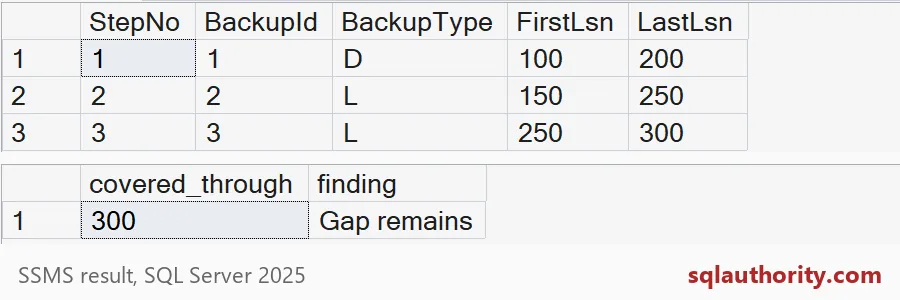
Write the restore commands
Now turn the chain into text. Each command uses NORECOVERY, which keeps the database restoring so the next file can follow. The last command uses WITH RECOVERY. The script only writes commands. It does not run them.
DECLARE @Target sysname = N'RestoreChainDemo';

DROP TABLE IF EXISTS #RestoreScript;

SELECT c.StepNo,
       N'RESTORE ' + CASE WHEN b.type = 'L' THEN N'LOG ' ELSE N'DATABASE ' END
       + QUOTENAME(@Target) + N' FROM ' + d.Devices
       + N' WITH FILE = ' + CONVERT(nvarchar(12), b.position) + N', NORECOVERY;' AS restore_command
INTO #RestoreScript
FROM #Chain AS c
JOIN msdb.dbo.backupset AS b ON b.backup_set_id = c.BackupSetId
CROSS APPLY (SELECT STRING_AGG(CONVERT(nvarchar(max),
                    N'DISK = N''' + REPLACE(m.physical_device_name, N'''', N'''''') + N''''), N', ')
                    WITHIN GROUP (ORDER BY m.family_sequence_number) AS Devices
             FROM msdb.dbo.backupmediafamily AS m
             WHERE m.media_set_id = b.media_set_id AND m.mirror = 0) AS d;

INSERT #RestoreScript (StepNo, restore_command)
VALUES (2147483647, N'RESTORE DATABASE ' + QUOTENAME(@Target) + N' WITH RECOVERY;');

SELECT StepNo, restore_command FROM #RestoreScript ORDER BY StepNo;
You get five commands: the full, the differential, log 1, log 2 and the final WITH RECOVERY. The file paths come straight from msdb. Always read the list before you run it.
Run it and count the rows
Time to prove it. Drop the database, as if it were lost, and run the generated commands. Then count the rows.
USE master;
DROP DATABASE RestoreChainDemo;
GO
DECLARE @Restore nvarchar(max) =
    (SELECT STRING_AGG(restore_command, NCHAR(10)) WITHIN GROUP (ORDER BY StepNo) FROM #RestoreScript);
EXEC sys.sp_executesql @Restore;
GO
SELECT COUNT(*) AS rows_after_restore FROM RestoreChainDemo.dbo.Payment;
The restored database holds 400 rows, but 401 existed before the drop. The missing row is the one inserted after the last log backup. No chain can bring it back. Only a tail-log backup taken before the disaster would have saved it.
DROP DATABASE IF EXISTS RestoreChainDemo;
EXEC msdb.dbo.sp_delete_database_backuphistory @database_name = N'RestoreChainDemo';

DECLARE @Cutoff datetime = DATEADD(DAY, 1, GETDATE());
EXEC master.sys.xp_delete_file 0, N'C:\Temp\RestoreChainDemo', N'demo', @Cutoff;

DROP TABLE IF EXISTS #Chain, #RestoreScript;
That last block is the cleanup. It removes the restored database, its history and the .demo files. Delete the empty folder yourself. A generated script is a plan, not proof. Restore it somewhere safe on a schedule, and note which endpoint you recovered to.
Run the generator once this week, while nothing is on fire.
A restore script is not tested recovery, it is a plan waiting for a drill.
Published by Pinal Dave on SQLAuthority. More of my work at pinaldave.com.
Discover more from SQL Authority with Pinal Dave
Subscribe to get the latest posts sent to your email.