Turning on graphical execution plan output after using SHOWPLAN_TEXT requires checking both the connection and SSMS. Turn off the SHOWPLAN settings in that query window. Then confirm that SSMS has Include Actual Execution Plan enabled before running your query.

The quick fix
Run these statements in the same query window where you enabled SHOWPLAN. Each statement has its own batch:
SET SHOWPLAN_XML OFF;
GO
SET SHOWPLAN_TEXT OFF;
GO
SET SHOWPLAN_ALL OFF;
GO
The third setting covers SHOWPLAN_ALL, another estimated-plan format. Including all three makes the reset useful when you cannot remember which mode you enabled. These settings affect the connection, not every user on the server.
- Open the Query menu in SSMS.
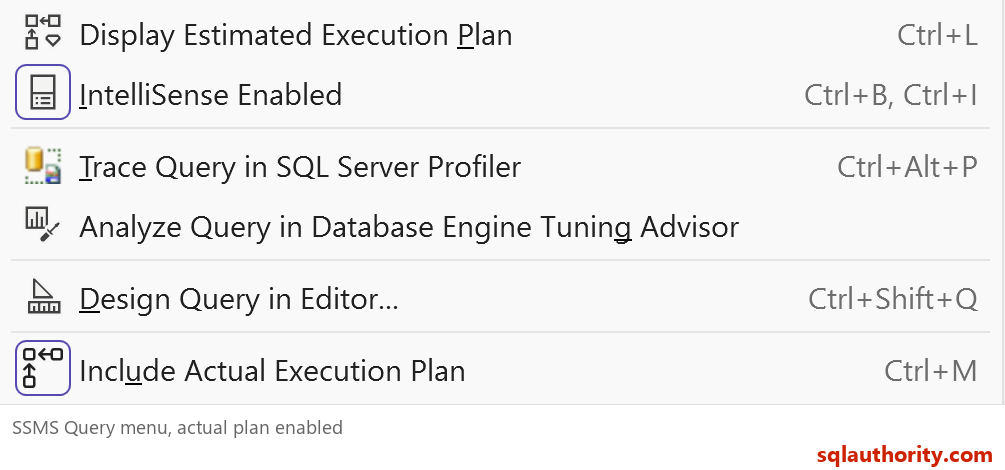
- Ensure Include Actual Execution Plan is selected. Its default shortcut is Ctrl+M.
- Run the intended query with F5.
- Select the Execution plan tab beside Results and Messages.
Ctrl+M is a toggle. Pressing it again turns the option off. Check the menu state instead of repeatedly pressing the shortcut.
My earlier explanation said turning SHOWPLAN off would automatically turn the graphical plan on. That needed a qualification. It restores normal execution, while the SSMS option controls whether the actual plan is collected and displayed.
Why GO matters here
Each SET SHOWPLAN_TEXT, SET SHOWPLAN_XML, or SET SHOWPLAN_ALL statement must be alone in its batch. A semicolon ends a statement, but it does not separate batches. Putting two of these settings together raises error 1067.
GO is a batch separator understood by SSMS and tools such as sqlcmd. It is not a T-SQL statement. Application code must send the settings as separate commands on the same open connection.
Estimated and actual plans answer different questions
SHOWPLAN_TEXT and SHOWPLAN_XML return estimated plans without executing the query. An actual plan comes from an execution and includes runtime information. Changing the output format does not change an estimate into an actual plan.
| What you need | SSMS action | Runs the query? |
|---|---|---|
| Estimated graphical plan | Query > Display Estimated Execution Plan, Ctrl+L | No |
| Actual graphical plan | Enable Include Actual Execution Plan, then execute | Yes |
| Estimated text output | SET SHOWPLAN_TEXT ON, in its own batch | No |
| Actual XML output | SET STATISTICS XML ON, then execute | Yes |
Use an estimated plan when you want to inspect a query without running it. Capture an actual plan when execution is appropriate. With an UPDATE or DELETE, requesting an actual plan still performs the modification.
Try a small, complete example
This example needs no sample database and changes no stored data. Run the reset above, enable the actual-plan option, and execute:
SELECT p.ItemID, p.ItemName
FROM (VALUES (1, 'Notebook'),
             (2, 'Pencil'),
             (3, 'Folder')) AS p(ItemID, ItemName)
WHERE p.ItemID >= 2;
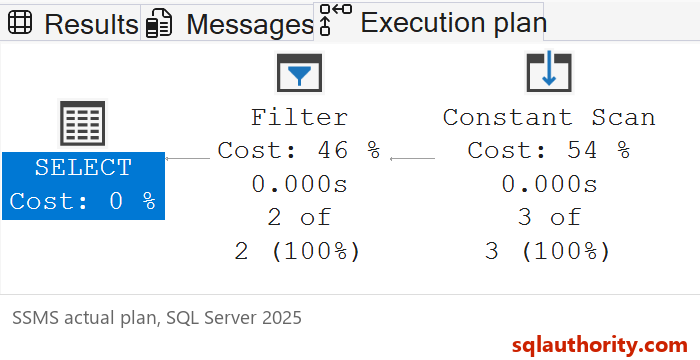
The result contains ItemID 2 with Pencil and ItemID 3 with Folder. Their display order is not guaranteed without ORDER BY. Open the Execution plan tab to see how SQL Server produced those rows.
In the SQL Server 2025 test, a Constant Scan supplied three rows and a Filter returned two. Different versions can display plans differently. The important check is that execution returned rows and the actual plan contains runtime row counts.
If you want to use T-SQL
There is no SET SHOWPLAN_GRAPHICAL ON command. SSMS draws the graphical view from plan information. However, T-SQL can request actual XML plan information that SSMS can open graphically.
After running the reset, clear Include Actual Execution Plan to use this alternative without the SSMS toggle. Then run the complete example:
SET STATISTICS XML ON;
SELECT p.ItemID, p.ItemName
FROM (VALUES (1, 'Notebook'),
             (2, 'Pencil'),
             (3, 'Folder')) AS p(ItemID, ItemName)
WHERE p.ItemID >= 2;
SET STATISTICS XML OFF;
This executes the query and returns its results plus an XML plan link in the Results pane. Open that link in SSMS to view the plan. The final statement turns this additional output off for the connection.
For an estimated XML plan, use SHOWPLAN_XML with the required batch boundaries. Clear the actual-plan toggle when using that mode. Do not mix the two workflows while diagnosing missing output.
If the plan still does not appear
- Confirm you ran the reset in the affected connection, not another query tab.
- Make sure a text selection did not cause SSMS to execute only part of your script.
- Check Messages for errors. A failed execution is not a successful actual-plan capture.
- Confirm permission to run the query and SHOWPLAN permission in every database it references.
- Use the small SELECT above first. Statements such as SET alone do not provide a useful graphical query plan.
The reset should not become a reason to run an expensive query again without checking its impact. First choose whether you need an estimate or runtime evidence. Then use the matching SSMS command.
Turn off SHOWPLAN, check the SSMS option, and run only the query you intend to measure.
Published by Pinal Dave on SQLAuthority. More of my work at pinaldave.com.
Discover more from SQL Authority with Pinal Dave
Subscribe to get the latest posts sent to your email.