
Msg 3201 with operating system error 3 means SQL Server cannot find the folder in your backup path. I ran into it while backing up a database. The folder was missing, so I created it, and the error stayed. I had created it on the wrong computer.

Read the Operating System Error
Msg 3201 says SQL Server could not open the backup device. The line after it gives the reason. This statement points at a folder that does not exist on my test instance.
BACKUP DATABASE SalesDemo TO DISK = N'D:\SQLBackups\SalesDemo.bak';
Msg 3201, Level 16, State 1, Line 1
Cannot open backup device 'D:\SQLBackups\SalesDemo.bak'. Operating system error 3(The system cannot find the path specified.).
Msg 3013, Level 16, State 1, Line 1
BACKUP DATABASE is terminating abnormally.
Error 3 is the one from the original problem. I triggered two more on SQL Server 2025, because each points at a different fix.
| Operating system error | What it said | How I caused it |
|---|---|---|
| 3 | The system cannot find the path specified | A folder that does not exist, or a drive letter that does not exist |
| 5 | Access is denied | A backup into C:\Windows\System32 |
| 67 | The network name cannot be found | A share name that does not exist |
The Path Belongs to the SQL Server Computer
My backup targeted a Backup folder on drive D. I created that folder on the computer running SQL Server Management Studio. The error continued, because the database engine was running on another computer.
SSMS only sends the command. The engine opens the file, so D: means the D drive of the server. Confirm which instance your query window uses, and which account opens the file.
SELECT @@SERVERNAME AS sql_server_name,
       SERVERPROPERTY('MachineName') AS machine_name,
       SERVERPROPERTY('InstanceName') AS instance_name;
SELECT service_account FROM sys.dm_server_services WHERE servicename LIKE N'SQL Server (%';
On my PC the first query returned focus\SQLDEV, and the service account was NT Service\MSSQL$SQLDEV. That account needs write access to the folder. Your own Windows login does not matter.
Check the Folder From the Server Side
Do not guess whether the folder exists. Ask the engine. sys.dm_os_file_exists checks from the server’s side. Its third column tells you whether the parent folder or drive is there.
SELECT SERVERPROPERTY('InstanceDefaultBackupPath') AS default_backup_path;
SELECT file_exists, file_is_a_directory, parent_directory_exists
FROM sys.dm_os_file_exists(N'D:\SQLBackups');
My folder returned 0, 0 and 1. The drive exists, the folder does not. A missing drive such as Q: returned 0, 0 and 0. The default backup path on my instance, D:\SQLDEV-Backup, did not exist either. Any job that relied on it failed the same way.
Create the Folder and Run the Backup Again
Create the folder on the SQL Server computer with Windows, or from T-SQL. The procedure below is undocumented, so I use it in labs. It runs as the service account, which means the account can write there.
EXEC master.dbo.xp_create_subdir N'D:\SQLBackups';
SELECT file_exists, file_is_a_directory FROM sys.dm_os_file_exists(N'D:\SQLBackups');
BACKUP DATABASE SalesDemo TO DISK = N'D:\SQLBackups\SalesDemo.bak' WITH INIT, CHECKSUM;
The check returned 0 and 1, which means a directory, and the backup finished with a success message. Do not stop there. Confirm that SQL Server recorded the file, and that the file reads back.
SELECT TOP (1) bs.backup_finish_date, bmf.physical_device_name
FROM msdb.dbo.backupset AS bs
JOIN msdb.dbo.backupmediafamily AS bmf ON bmf.media_set_id = bs.media_set_id
WHERE bs.database_name = N'SalesDemo'
ORDER BY bs.backup_finish_date DESC;
RESTORE VERIFYONLY FROM DISK = N'D:\SQLBackups\SalesDemo.bak' WITH CHECKSUM;
The history row named the new file, and the verification returned that the backup set is valid. A job that reports success without these two checks has only told you that a file was written.
Match the Error to the Cause
| Error | Likely cause | How to confirm |
|---|---|---|
| 3 | Folder or drive missing on the server | sys.dm_os_file_exists on the full folder path |
| 5 | The service account cannot write there | Compare the service account with the folder permissions |
| 67 | Wrong share name or server name | Open the UNC path from the SQL Server computer |
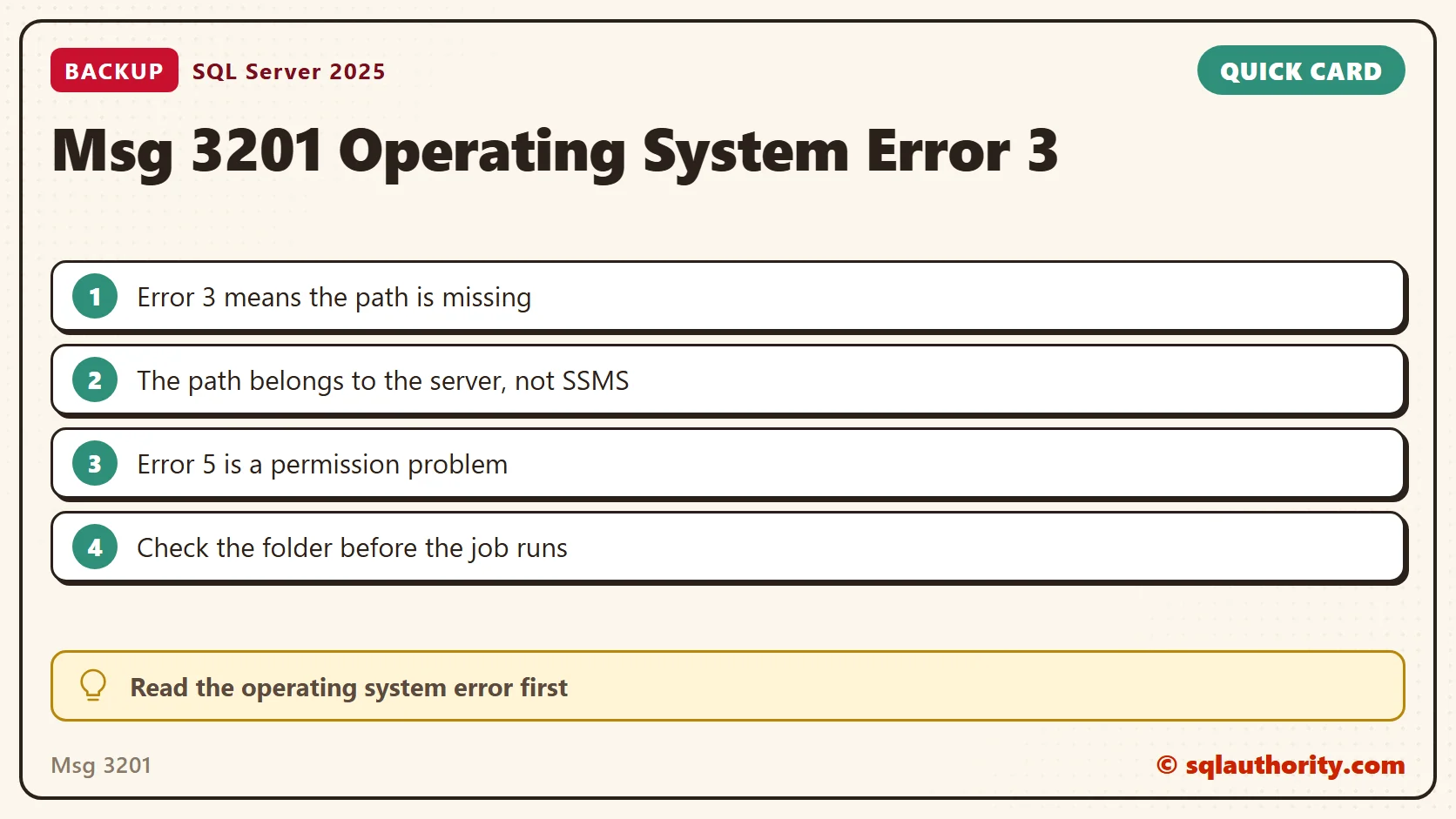
Keep the folder name in one place. A typo in a job step, a copied script and a changed drive letter all produce error 3. The check below catches them before the backup starts.
Fix Access Denied and Network Paths
Error 5 means the folder exists but the service account cannot write to it. Grant that account modify rights on the folder. Use the account name that sys.dm_server_services returned, because it differs for each instance.
For a network destination, use a UNC path that the service account can reach. A drive letter mapped in your desktop session does not exist for the service. Error 67 means the share name is wrong. Check the share and folder permissions for the intended account.
Check the Folder Before the Job Runs
I add a short check at the start of a backup job. A missing folder then fails with a clear message. The query reads the default backup path and reports whether the folder is there.
DECLARE @Path nvarchar(260) = CONVERT(nvarchar(260), SERVERPROPERTY('InstanceDefaultBackupPath'));
SELECT @Path AS BackupPath,
       CASE WHEN EXISTS (SELECT 1 FROM sys.dm_os_file_exists(@Path) WHERE file_is_a_directory = 1)
            THEN 'Folder found' ELSE 'Folder missing' END AS BackupFolderCheck;
On my instance this returned Folder missing for the default path. Do not treat every Msg 3201 as a missing folder. Follow the operating system error, and change nothing unrelated.
A backup path is not local to SSMS, it is resolved by the SQL Server computer.
Published by Pinal Dave on SQLAuthority. More of my work at pinaldave.com.
Discover more from SQL Authority with Pinal Dave
Subscribe to get the latest posts sent to your email.




28 Comments. Leave new
In our environment we are getting this error regularly…
-Jana
Not exactly the same scenario but I have faced this error when I tried to bcp out a table to a file. It was throwing bcp error again and again. Had struggled for 2 hours and then finally found out the mistake that I was just creating the folder in the client side rather than server side. Then finally put the same command in the command prompt and found out that it was searching for a folder in server side :) and it worked
I have done something similar in the past with a SQL Agent job step trying to point to an SSIS file system package… it took me a minute to realize that the error about an invalid XML file format was because SSMS was looking for the file on my local machine and not on the server where SQL and the dtsx package was located.
I would say that almost everyone who has ever restored a database from a remote Management Studio instance has encountered this error.
While we now have this in our blood, I see a lot of newcomers walking down to my desk saying they can’t restore a DB – most often it’s either that they do not have a folder or that they forget that the SSMS UI shows them the remote server’s disks.
Hi pinal,
Must say its a very inspirational site for SQL SERVER DBA’s.
Coming to my issue,getting a similar error code,while taking the backup to the network drive.
Msg 3201, Level 16, State 1, Line 1
Cannot open backup device ‘\\ IP address \abc’. Operating system error 1326(Logon failure: unknown user name or bad password.).
Msg 3013, Level 16, State 1, Line 1
BACKUP DATABASE is terminating abnormally.
Below are the few solutions applied for the error:
1. Folder has the full rights.(administartor login)
2. Using the same Login as SQL SERVER AGENT.
3.Mapped the network drive.
Still struggling for the solution.
Waiting for your reply.
Hi Vikas, have got solution now..??? if yes, can you pls let me know how you processed. Thanks in advance.
I have had these kind of issues before especially accessing drives on local folder vs folder on the server. Especially when it comes to these kind of issues i guess it would be best to work it out on the server rather than the client.
If we found this type of error then, we need to one step, we can run from required path from cmdshell.
xp_cmdshell ‘dir D:\Backup\’
So we come to is this folder is there or not.
I had very interesting and frustrating experience. Recently I was attempting to backup one of my database and I end up on following error.
Msg 3201, Level 16, State 1, Line 1
Cannot open backup device ‘D:becommon.bak’. Operating system error 2(The system cannot find the path specified.).
Msg 3013, Level 16, State 1, Line 1
BACKUP DATABASE is terminating abnormally.
please i need help sir, i hope this issues ….
You need to read this post
add Windows credential in Control Panel–>Credential Manager
solved in my case
I just can say, Thank you so much!
add Windows credential in Control Panel–>Credential Manager
solved in my case
I also get same error but i m not using any folder, i m giving just D:\ SQLAuthority.bak in plce of D:\Backup\SQLAuthority.bak then if any one have this solution Plzz give me ,,,
Thanks in advance
My query Is
BACKUP DATABASE Misaldb TO DISK = ‘D:\Misaldb.BAK’ with INIT
Try without INIT. The INIT might be the problem. Anyway, it is bad practice to overwrite back up files. Hope that helps
I was facing same error in one of my database. I am taking backup on remote location. Out of 23 database only one database backup is giving me same error. I found out that there is space in the database name at the end. I remove that space and now backup job is running without error.
Hi Pinal and all,
I would like to add comment on this OS error3 topic. I experienced this issue recently. It was driving me nut and unable to sleep as things were set up perfectly, all permission applied but still SQL agent job which was creating backup was failing. The SQL agent job was not able to create full or transaction backups for one database. All other databases were backing up as expected.
Finally, I found solution. The database name had problem. Name of the database contained space after name like (‘SQL ‘ instead ‘SQL’). Also, I was able to creating backups for this databases through script but not scheduled maintenance job. Now I will schedule to rename this database and include this database into regular backups schedule.
I was having this error because name of the databases was containing space after name like ‘SQL ‘ instead of ‘SQL’. Now will schedule to rename this database name and include this database to regular maintenance plan.
I ran into this situation today. Thanks for the blog post – saved me a lot of trouble!
C:\Program Files\Microsoft SQL Server\110\Tools\Binn
I provide above path to store remote server backup . It shows backup completed but not getting backup on that location.
whatever path you give it would be local to server.
I have a situation where i have to backup on to network shared drive (in my case this is the network shared folder : ‘ \\ \\sdhqem***** \SQL****up’ ) and this drive is password protected (it has a login and password to that drive ). How do i specify the destination while full backup to this network drive(of different server) which has a login and password?
Thanks in advance
When you connect via Windows Explorer, do you have to provide the password? You can map the shared location as drive with in SQL Server using net use command. In net use command you can provide username and password to connect. Have you read my recent blog on the same topic
http://blog.sqlauthority.com/2015/03/18/sql-server-backup-on-mapped-drive-failing-with-error-msg-3201-level-16-state-1-operating-system-error-3the-system-cannot-find-the-path-specified/
Thank you Pinal. Yes, i could login using the credentials by referring to your post on Backup on mapped drive failing with error – Msg 3201, Level 16, State 1 – Operating system error 3(The system cannot find the path specified.)
What is the command you are running? Are you sure path is correct?
I used
EXEC sp_configure ‘advanced’, 1
RECONFIGURE WITH override
GO
EXEC sp_configure ‘xp_cmdshell’, 1
RECONFIGURE WITH override
GO
and then I executed the below statement using the credentials for the network shared folder:
EXEC xp_cmdshell ‘net use Z: “\servernameshareddrivename” /user:mydomainmyusername mypassword
I actually got the idea from your blog and did a little more search for entering username and password.
Found the below link to enter the credentials:
It worked out and now my backups are directly being copied on the network drive !
Hope this helps someone in the near future :)
Thanks Pinal for such an amazing blog !
Regards,
Tanmayee
Hello Dave, please helpme, I need to make a backup from sql server to bucket s3 automatically and I use rclone-v1.58.0-windows-amd64 and winfsp-1.10.22006, It does not work.
I’m working with a IAM User and I configured in rclone
I’m mounted the windows drive as follows:
./rclone -vv –allow-other –allow-non-empty mount test:bucket3/ Y: –vfs-cache-mode off –config=”C:\rclone\rclone.conf”
I see the drive in the windows explorer but I use Managment Studio don’t see the drive and I excecute the sentence BACKUP DATABASE databasename TO DISK = ‘Y:\databasename.bak’;
return Msg 3201, Level 16, State 1, Line 3
No se puede abrir el dispositivo de copia de seguridad ‘Y:\databasename.bak’. Error de sistema operativo 3(The system cannot find the path specified.).
Msg 3013, Level 16, State 1, Line 3
Fin anómalo de BACKUP DATABASE.
I’m testing with –volumenprefix (rclone) but without any result