
Using Management Studio gets easier once you know the four places where you’ll spend most of your time. They are the connection dialog, Object Explorer, the query window and the results pane. This tour walks through each one in SSMS 22, with a small demo database you can build as you go.

Connect to Your Server
When SSMS starts, it asks you to connect. The dialog needs three answers: the server type, the server name and how you sign in. For ordinary queries, the server type is Database Engine.
For a server on your own machine, type localhost or a single period as the name. A named instance is written as the machine name, a backslash and the instance name. Choose Windows Authentication when the server accepts your Windows account. Choose SQL Server Authentication when you were given a login and a password.
Recent SSMS versions encrypt the connection by default. A local server that uses a self-signed certificate then refuses you until you tick the option named Trust server certificate. Tick it only for a machine you own, never for a server you don’t know.
SSMS remembers recent server names in the drop-down list, so the next connection takes two clicks. To add a second server to Object Explorer later, use the Connect button at the top of that pane. Each server then appears as its own tree.
Explore With Object Explorer
After you connect, Object Explorer shows the server as a tree. Under Databases you find your own databases and a folder of system databases. Security holds the logins. Expand a node with its arrow to see what sits inside.
Right-click almost anything and you get a menu of actions. Right-click a database and choose New Query. The new window opens already pointed at that database. Right-click the server and choose Properties to read its settings.
Object Explorer doesn’t refresh itself when something changes elsewhere. After you create a database in a query window, select its parent folder and press F5. If the pane disappears, press F8 to bring it back.
Once you have run the demo script below, try it on your own. Refresh the Databases folder, then expand SqlBasicsTour, Tables, dbo.SeedPacket and Columns. You see each column name with its data type, and the key icon marks the primary key. Exploring this way is how you learn an unfamiliar database in the first five minutes.
Open a Query Window and Choose the Database
Click New Query on the toolbar, or press Ctrl+N. A query window opens, connected to the server you picked. If a database is selected in Object Explorer, the window starts in that database. Otherwise it starts in your login’s default database, usually master. That’s rarely the database you want.
The status bar at the bottom of the window shows the server, your login and the current database. The toolbar also has a drop-down list of databases. Changing it works like a USE statement. I prefer USE in saved scripts. The file then states its own database, so it can’t run in the wrong place next month.
The script below creates a database named SqlBasicsTour if it is missing, used only for this example. It then drops and rebuilds one small table of seed packets inside it and runs two checks. Run it on a test instance.
IF DB_ID(N'SqlBasicsTour') IS NULL CREATE DATABASE SqlBasicsTour;
GO
USE SqlBasicsTour;
GO
DROP TABLE IF EXISTS dbo.SeedPacket;
CREATE TABLE dbo.SeedPacket
(
    SeedPacketId int IDENTITY(1,1) PRIMARY KEY,
    PlantName nvarchar(40) NOT NULL,
    Price decimal(6,2) NOT NULL
);
INSERT dbo.SeedPacket (PlantName, Price)
VALUES (N'Tomato', 2.75), (N'Basil', 2.50), (N'Okra', 3.00), (N'Coriander', 2.25);
SELECT DB_NAME() AS CurrentDatabase;
SELECT PlantName, Price FROM dbo.SeedPacket ORDER BY PlantName;
Run the Query and Read the Results
Press F5 to run everything in the window. Ctrl+E and the Execute button on the toolbar do the same. If you highlight some text first, SSMS runs only the highlighted part.
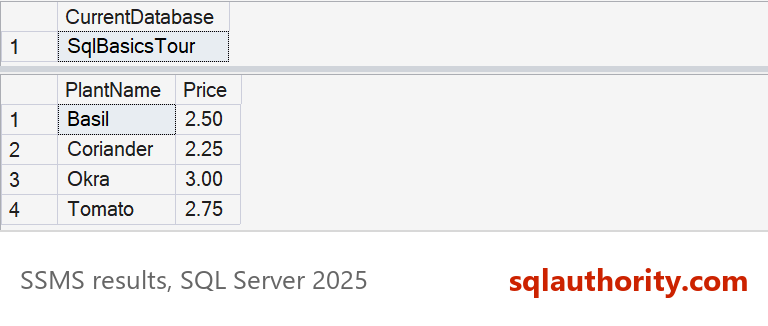
Results appear in a grid at the bottom of the window. Each SELECT gets its own grid. The first one should show SqlBasicsTour. The second lists four seed packets, with Basil first and Tomato last.
Next to the Results tab sits the Messages tab. It reports what happened, for example “(4 rows affected)” for the INSERT. Check the first grid every time you open an old script. If it says master where you expected SqlBasicsTour, you are in the wrong database. Using Management Studio well starts with that one glance at the status bar and the first grid.
Press Ctrl+R to hide the results pane when you need more room for code. Press it again and the results return.
Work With More Than One Query Window
Each query window carries its own connection and its own current database. Changing the database in one tab leaves the others alone. I keep one tab for the work and a second for checks. A quick count then never disturbs a script I’m editing.
The tab text shows the file name, and hovering over it shows the connection. Close a tab and SSMS asks whether to save it. Answer with care, because an unsaved window is the only copy of that script.
Make Using Management Studio Comfortable
Press Ctrl+S to save the query window as a .sql file. SSMS asks for a name and a folder the first time. Save scripts you want to keep in a folder you back up. Give each one a name that says what it does.
Using Management Studio all day is easier when the text is the right size. Hold Ctrl and turn the mouse wheel to zoom the editor. For a permanent change, open Tools, then Options, and look under Environment for Fonts and Colors. The color theme sits in the Environment section too.
If a pane goes missing or the layout turns into a mess, open the Window menu. Choose Reset Window Layout. Nothing you saved is touched, and the default arrangement comes back.
Related reading
SSMS Keyboard Shortcuts Worth Learning
Object Explorer Details in SSMS: Bulk Scripting and Quick Counts
Query Options in SSMS: Settings That Change Your Results
Management Studio is not the database, it is the window you use to reach it.
Published by Pinal Dave on SQLAuthority. More of my work at pinaldave.com.
Discover more from SQL Authority with Pinal Dave
Subscribe to get the latest posts sent to your email.



2 Comments. Leave new
I’ve dropped by your blog twice in the last 2 days…you have good content and you do a nice job breaking things down in order to illustrate your point.