SQL Code Generators are the parts of SSMS that write T-SQL while you click. You fill in a dialog, press a button, and a script appears. I use them every week, because a script can be reviewed, saved and run again. Generated code is still code, so I read it first.

Why I Let SSMS Write Scripts
Every dialog in SSMS ends up sending T-SQL to the server. Click OK on the New Database dialog and SSMS runs a CREATE DATABASE statement for you. The generators show you that statement first. That helps when someone else has to run the change. It helps when you want the change saved in a file. It also helps when you can’t remember the syntax.
A script also travels better than instructions. Steps like “click Tasks, then Properties, then the third tab” break the moment a screen looks different. A script does the same thing every time it meets the same starting point. That’s why I send scripts to the people who run production servers, not screenshots of dialogs.
The Script Button on Dialogs
Most SSMS dialogs have a Script button at the top. Its drop-down sends the script to a new query window, a file, the clipboard or a job. Choose one of them instead of clicking OK, and SSMS writes the statement and changes nothing on the server.
Try it on the New Database dialog. Type SqlBasicsScripts as the name, open the Script drop-down and pick Script Action to New Query Window. Then close the dialog with Cancel. The script is in the query window, and the database doesn’t exist yet.
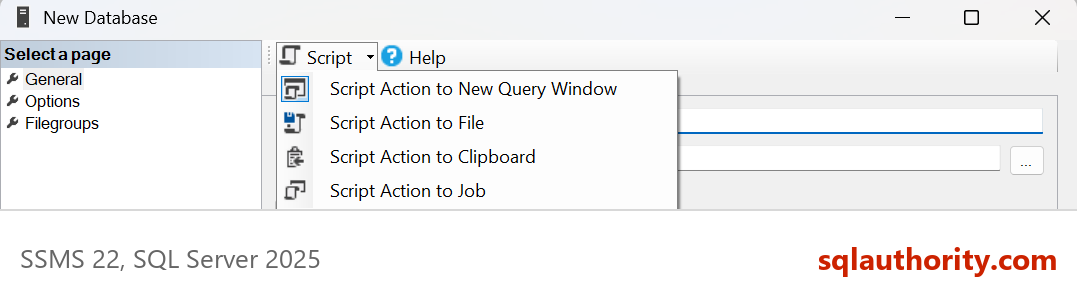
Read the file list in the generated script before anything else. The paths come from your own server’s defaults. A folder that exists on your laptop can be missing on the server that runs the script.
When the defaults suit me, I trim the script down to this version. It creates SqlBasicsScripts, a database used only for this example, when it’s missing. The next script drops and rebuilds the demo table inside that database, so run both on a test instance. Running either one twice is safe.
USE master;
GO
IF DB_ID(N'SqlBasicsScripts') IS NULL
    CREATE DATABASE SqlBasicsScripts;
GO
The same button works on the Delete Object dialog. Let’s give it something to delete. This script builds a small table in the demo database.
USE SqlBasicsScripts;
GO
DROP TABLE IF EXISTS dbo.ShoppingList;
CREATE TABLE dbo.ShoppingList (
    ItemId int NOT NULL PRIMARY KEY,
    ItemName nvarchar(50) NOT NULL,
    Quantity int NOT NULL
);
INSERT INTO dbo.ShoppingList (ItemId, ItemName, Quantity)
VALUES (1, N'Masala tea', 2), (2, N'Notebook', 3), (3, N'Mango jam', 1), (4, N'Spinach', 5);
Refresh the Tables folder, right-click ShoppingList and choose Delete. Open Script, pick Script Action to New Query Window, and cancel the dialog. SSMS writes the script below, give or take a header comment. It’s generated text for you to read, and running it would drop the table.
USE [SqlBasicsScripts]
GO
DROP TABLE [dbo].[ShoppingList]
GO
It works, but it fails with an error when the table is already gone. I add a guard and a note about why the script exists. Then I end each statement with a semicolon.
USE SqlBasicsScripts;
GO
-- Removes the demo shopping list. Safe to run twice.
DROP TABLE IF EXISTS dbo.ShoppingList;
GO
Other dialogs have the same button. The Backup dialog scripts a BACKUP DATABASE statement, and the New Login dialog scripts a CREATE LOGIN. These dialogs carry many options, and the script shows exactly which ones you picked. I save the script next to the change request. Anyone can then see what was run and repeat it on another server.
Select Top 1000 Rows
If you ran the DROP script above, the demo table is gone. Right-click a table and choose Select Top 1000 Rows. SSMS opens a query window with a SELECT that names every column, so you don’t type the list yourself. In SSMS 22 you can change the 1000 under Tools, Options, SQL Server Object Explorer, Commands.
The generated query has no ORDER BY. Without one, SQL Server doesn’t promise which rows come back, so “top” only means “some”. I add an ORDER BY and keep the rest. If you dropped the table, run the ShoppingList setup block again right before this query, because it reads that table.
SELECT TOP (1000) ItemId, ItemName, Quantity
FROM SqlBasicsScripts.dbo.ShoppingList
ORDER BY ItemId;
The Generate Scripts Wizard
When you need more than one object, use the wizard. Right-click a database, choose Tasks, then Generate Scripts. Pick the objects on the first pages: one table, all tables or the whole database. Then choose where the script goes. The choices are a file, the clipboard and a new query window.
The Advanced button on the options page decides most of what you get. Types of data to script is the setting to watch. Schema only writes the CREATE statements. Schema and data adds an INSERT for every row, so a large table becomes a huge file. Script DROP and CREATE adds a DROP before each CREATE. That’s fine on a scratch server and dangerous anywhere else.
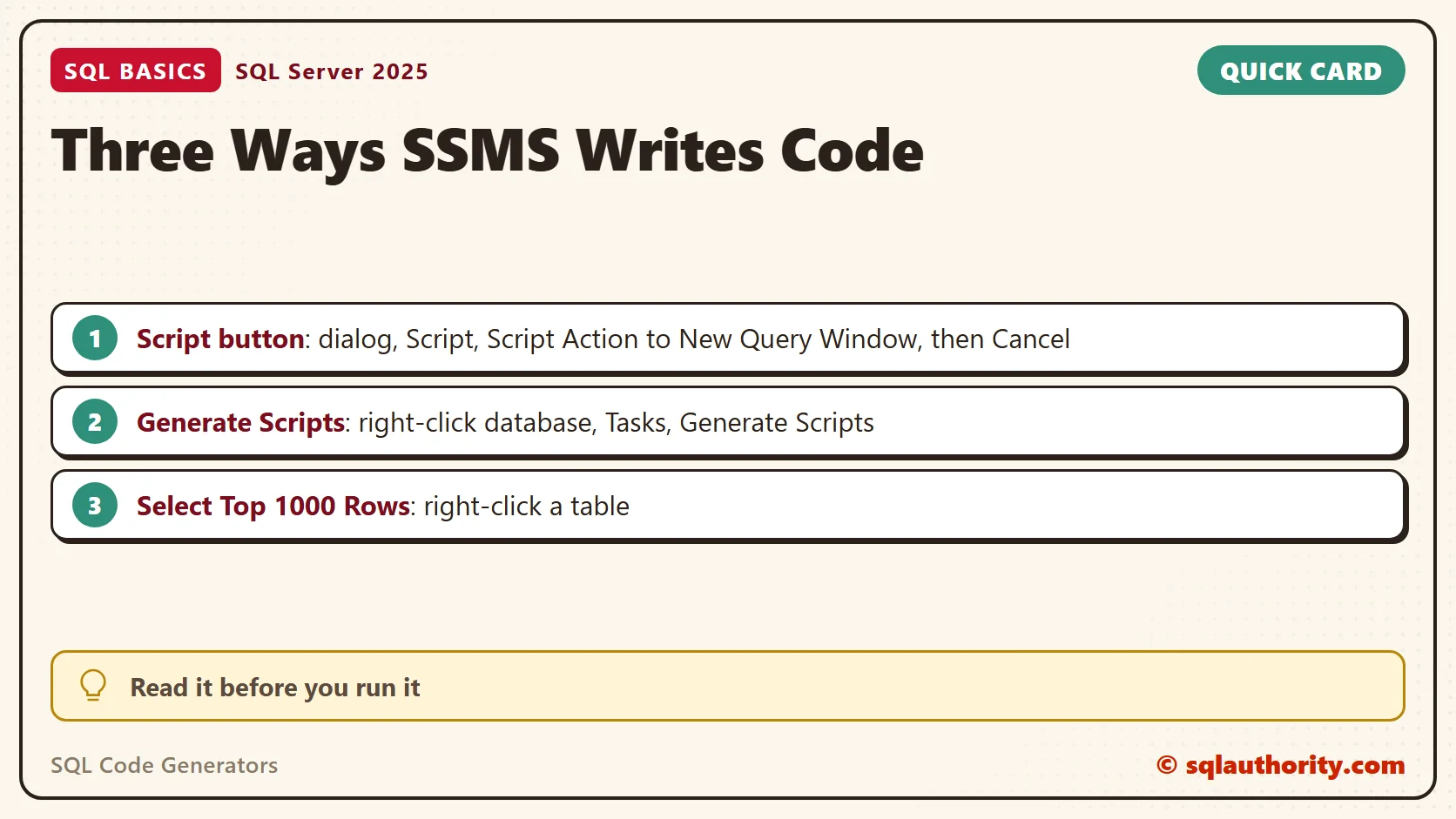
There’s also a setting for the version of SQL Server that will run the script. Set it to the version of the target server, so the script doesn’t use syntax that server lacks. Decide what the script will touch before you save it, not after.
Using SQL Code Generators Safely
SQL Code Generators write what they see, not what you meant. They don’t know which server you’re on or whether a table holds real data. A script that looks right can still be wrong for the place where it runs.
So I read every generated script from top to bottom. I check the USE line first, because the script runs in whatever database it names. Then I look for DROP, DELETE and ALTER, and I stop if I didn’t expect them. Then I check file paths, sizes and names. A script that has been read and tested on a scratch database is ready for a teammate’s review. They should still read it before they run it.
The date comment that SSMS adds is harmless. I replace it with a note about why the script exists, since that’s what the next reader needs. Once you edit a generated script, it’s yours, and you answer for it.
Generated names look noisy at first. Square brackets surround every object, and each schema name is spelled out. That’s correct and harmless. The brackets let a generated script work for a table named Order Items, with a space. You can type the brackets yourself, but the generator never forgets them.
Related Reading
Script Table As in SSMS: CREATE, INSERT and SELECT in One Click
Object Explorer Details in SSMS: Bulk Scripting and Quick Counts
Templates and Snippets in SSMS
A generated script is not a finished script, it is a first draft you still own.
Published by Pinal Dave on SQLAuthority. More of my work at pinaldave.com.
Discover more from SQL Authority with Pinal Dave
Subscribe to get the latest posts sent to your email.