
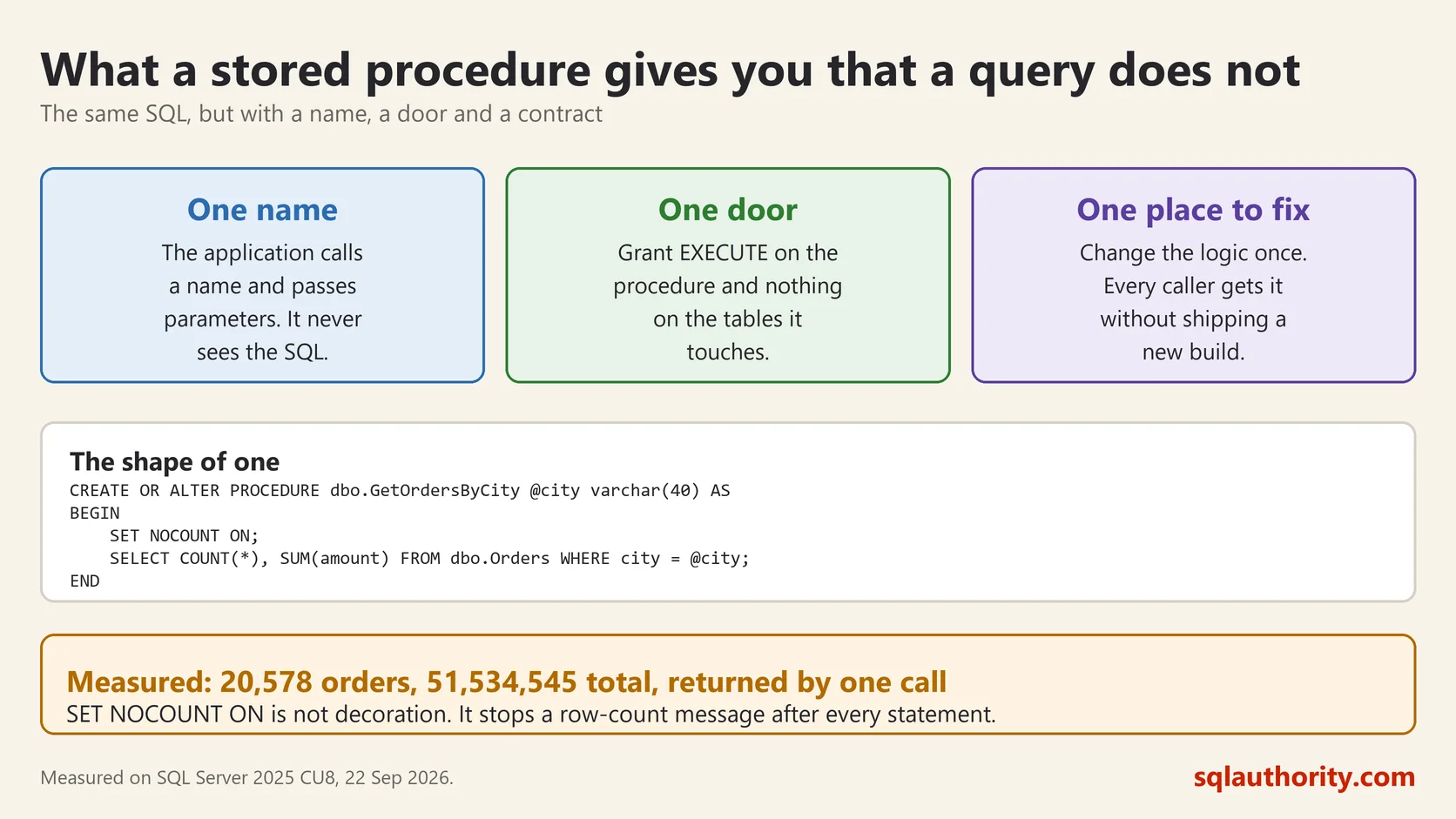
A stored procedure is SQL that lives inside the database, has a name, takes parameters, and is run by calling that name. It is the difference between sending a page of instructions every time and saying “do the usual”.
One Small Example
Here is a procedure over a table of 200,000 orders, written and run on SQL Server 2025:
CREATE PROCEDURE dbo.OrdersByCity
    @city varchar(60)
AS
SET NOCOUNT ON;
SELECT COUNT(*) AS orders, SUM(amount) AS total
FROM dbo.Orders
WHERE city = @city;
EXEC dbo.OrdersByCity @city = 'Dublin';orders total
20578 51534545.0000SET NOCOUNT ON is worth copying into every procedure you write. Without it SQL Server sends a “rows affected” message after each statement, which is noise the application has to read and throw away.
What It Buys You
One place to change it. When the rule changes, you change the procedure. Nothing gets redeployed and no application needs a new build. This is the reason that matters most in practice.
A permission boundary. You can let somebody run the procedure without letting them read the tables underneath. They can ask the question and cannot go rummaging.
Protection from SQL injection, if you use parameters. A parameter is a value, never code. There is a catch below.
Less back and forth. A procedure that does five steps does them all on the server. Five separate queries from an application means five round trips, and on a slow network that is what you feel.
The Injection Catch
People believe a stored procedure is automatically safe. It is not. This one is wide open:
CREATE PROCEDURE dbo.BadSearch @city varchar(60)
AS
EXEC('SELECT * FROM dbo.Orders WHERE city = ''' + @city + '''');
That glues the parameter into a string and runs the string. Whatever somebody types becomes part of the command. It is inside a stored procedure and it is still injection.
The safety comes from the parameter staying a parameter. When you genuinely need dynamic SQL, use sp_executesql and pass the values as parameters rather than building them into the text.
The Trap Worth Knowing
SQL Server compiles a plan for a procedure the first time it runs, using whatever parameter was supplied that time, and then reuses it.
That is usually good. It goes wrong when your data is lopsided. Say the first call asks for a city with three orders. SQL Server builds a plan for three rows. The next call asks for a city with twenty thousand, and gets the plan built for three.
This is parameter sniffing, and it is the reason a procedure can be fast for weeks and slow one Monday after a restart, with nobody having changed a line. The fix depends on the case: OPTION (RECOMPILE) on the statement, OPTIMIZE FOR, or splitting the procedure. The first step is recognising it.
When Not to Use One
A stored procedure is not free. It is code in a place your version control probably does not reach and your test suite probably does not run.
A one-off query does not need to be a procedure. Business rules that belong in the application belong in the application, where they can be tested and reviewed. A procedure of two thousand lines with a dozen branches is a program hiding in a database, and it is the hardest kind of code to debug.
My rule of thumb: use procedures for data work that several callers share, for anything that needs the permission boundary, and for anything where round trips hurt. Do not use them as a place to put the whole application.
A stored procedure is not safer SQL, it is the same SQL with one place to fix it.
This post was rewritten from scratch in September 2026. The original, published on 2013-06-14, was a short announcement about something that no longer exists. The address is the same, the subject is now a basic idea worth keeping.
Published by Pinal Dave on SQLAuthority. More of my work at pinaldave.com.
Discover more from SQL Authority with Pinal Dave
Subscribe to get the latest posts sent to your email.




5 Comments. Leave new
Links to previous posts missing?
Above before the screen “Database Login” you show another screen which already shows the Database name “test” then why does it again challenges me for “Database Login” when I already know which Databases I have.
Either your steps are incorrect OR one of the screen needs update
Please let us know
on the main tab (Console -> Home) just click “start quickstart”. there you can find create database. database name test is a default name, you can change it there
excellent pinal sir thanks for sharing this type of posts to all
Hello Jack,
This is Elisabete and I'm a Tech Support Engineer over at NuoDB.
In the first login screen, we are being prompted to log into the domain, using the default domain username/password of domain/bird. A domain begins with a single host running a "Broker" service (begins running immediately upon installation) and grows to include any host running either a Broker/Agent service, that has peered itself to another Broker within the domain.
Once inside the domain, we can view a list of all NuoDB databases (grouped Transaction Engines and Storage Managers) running within that domain. To access the content contained in each database, we must next provide the associated DBA username/password. In the case of the "Test" database created by running the Quickstart script, this DBA username/password is dba/goalie. This is what you are seeing with the second login screen.
Upon creating a new NuoDB database, you would designate the DBA upon starting up the first NuoDB Transaction Engine. Please see my example of how this is done via the NuoDB Manager tool, below:
$ java -jar jar/nuodbmanager.jar ––broker localhost ––password bird
nuodb [domain] > show domain summary
Hosts:
[broker] localhost/<Host_IP>:<Broker_Port>
Database: test
[SM] <Host_DNS>/<Host_IP>:<SM_Port> [ pid = 4007 ] RUNNING
[TE] <Host_DNS>/<Host_IP>:<TE_Port> [ pid = 4014 ] RUNNING
nuodb [domain] > start process sm
Database: <my_new_db>
Host: <localhost>
Process command-line options:
Archive directory: </Path/to/Archive/Directory>
Initialize archive: true
Started: [SM] <Host_DNS>/<Host_IP>:<SM_Port> [ pid = 4052 ] ACTIVE
nuodb [domain/my_new_db] > start process te
Host: localhost
Process command-line options: ––dba-user new_dba ––dba-password new_password
Started: [TE] <Host_DNS>/<Host_IP>:<TE_Port> [ pid = 4053 ] ACTIVE
nuodb [domain/my_new_db] > show domain summary
Hosts:
[broker] localhost/<Host_IP>:<Broker_Port>
Database: my_new_db
[SM] <Host_DNS>/<Host_IP>:<SM_Port> [ pid = 4052 ] RUNNING
[TE] <Host_DNS>/<Host_IP>:<TE_Port> [ pid = 4053 ] RUNNING
Database: test
[SM] <Host_DNS>/<Host_IP>:<SM_Port> [ pid = 4007 ] RUNNING
[TE] <Host_DNS>/<Host_IP>:<TE_Port> [ pid = 4014 ] RUNNING
I hope this is helpful. If you have additional questions, please check out the resources available in our newly created Developer Center or feel free to send us an email at support@nuodb.com.
Thank you,
Elisabete