
The Debug button in older SSMS versions could be mistaken for Execute.
This SQL in Sixty Seconds #020 recording from 2012 shows how to hide that button. Microsoft removed the SQL debugger in SSMS 18.0 in 2019, so the video describes an older interface. This page keeps the video and adds four ways to debug T-SQL without a debugger. I tested them on SQL Server 2025.
Why the Older Toolbar Caused Confusion
In the interface shown in the video, Execute and Debug sat beside each other. The Debug icon looked like a play button. That made it easy to click when you only meant to run the query. Developers used to Visual Studio were most at risk.
Starting a debugging session is a different action from executing a query. If you rarely debug, hiding the toolbar button lowers the chance of a wrong click.
Watch the Original Toolbar Demonstration
On an older installation that still has the button, the recording shows the toolbar customization under Tools, Customize. Removing a toolbar command changes the interface. It does not change the SQL in the query window. If your SSMS has no Debug command, skip this step and do not hunt for a missing button.
Use Execute Deliberately
I use F5 to execute. With the default shortcuts, F5 runs the selected text, or the whole query window when nothing is selected. Check the selection before you press it, particularly when a window holds several examples. Confirm the connected server and the selected database too.
Check the Syntax Without Running It
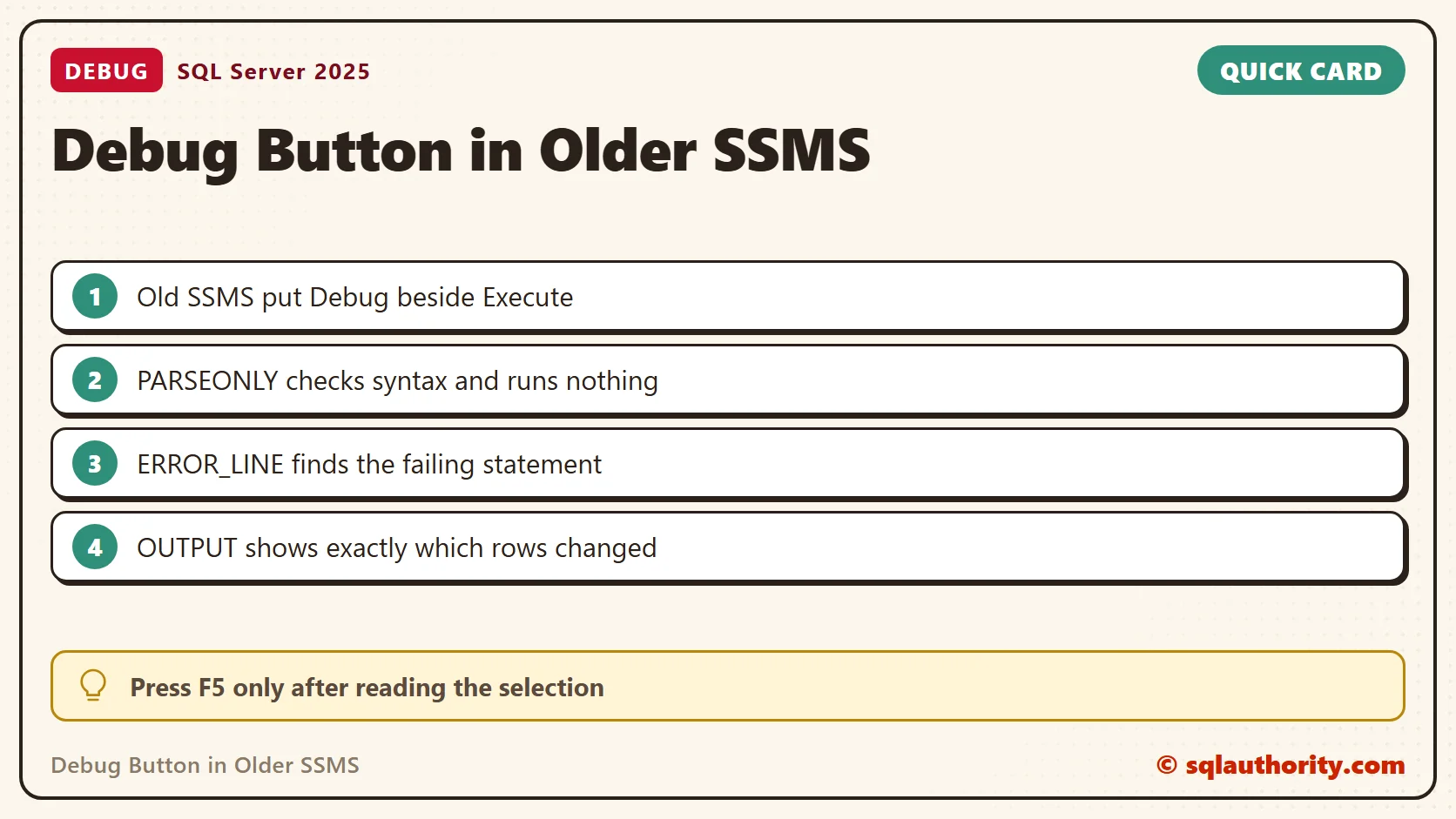
SSMS has a Parse button for this, and T-SQL has the same switch. With SET PARSEONLY ON, SQL Server checks the syntax and runs nothing. I put each statement in its own batch. A statement in the same batch as the switch still ran in my test.
SET PARSEONLY ON;
GO
SELECT 1 / 0 AS NeverRuns;
GO
SELECT FROM dbo.Orders;
GO
SET PARSEONLY OFF;
GO
SELECT 'Back to normal' AS Status;
The divide by zero returned nothing and raised no error, so it never ran. The broken SELECT raised Msg 156. After PARSEONLY OFF, queries ran normally. The related SET NOEXEC ON compiles a batch and runs none of it. A missing table raised no error there, because SQL Server resolves object names later.
Find the Failing Line
Without a debugger, the error functions tell you where a procedure failed. This procedure divides by its input. I called it with 0 and then with 4.
CREATE PROCEDURE dbo.CheckStock @Needed int
AS
BEGIN
    BEGIN TRY
        DECLARE @Ratio int = 100 / @Needed;
        SELECT @Ratio AS Ratio;
    END TRY
    BEGIN CATCH
        SELECT ERROR_PROCEDURE() AS ProcedureName, ERROR_LINE() AS LineNumber,
               ERROR_NUMBER() AS ErrorNumber, ERROR_MESSAGE() AS Msg;
    END CATCH;
END;
GO
EXEC dbo.CheckStock 0;
EXEC dbo.CheckStock 4;
The first call returned dbo.CheckStock, line 5, error 8134 and the divide by zero message. The second returned a ratio of 25. The line number counts from the start of the procedure, so line 5 is the DECLARE.
Show Progress as It Happens
A loop that prints nothing feels like a hang. RAISERROR with severity 0 and WITH NOWAIT sends a message to the Messages tab right away. PRINT can wait in a buffer. I use the first to mark each step of a long script.
DECLARE @Step int = 1;
WHILE @Step <= 3
BEGIN
    RAISERROR (N'Step %d of 3 done', 0, 1, @Step) WITH NOWAIT;
    SET @Step += 1;
END;
It printed the three step messages. I did not time the delay, so rely on the documentation for the buffering difference.
See Which Rows Changed
The OUTPUT clause shows what an UPDATE did, row by row, with the old and new values. It replaces a debugger watch window for data changes.
CREATE TABLE dbo.Stock (ItemId int PRIMARY KEY, Quantity int NOT NULL);
INSERT INTO dbo.Stock VALUES (1, 10), (2, 20), (3, 30);
UPDATE dbo.Stock SET Quantity = Quantity - 1
OUTPUT inserted.ItemId, deleted.Quantity AS OldQuantity, inserted.Quantity AS NewQuantity
WHERE ItemId <= 2;
The result listed items 1 and 2, from 10 to 9 and from 20 to 19. Item 3 stayed out of it. If the list holds rows you did not expect, the filter is wrong. You found out before anyone else did.

More SSMS Tips
- Read Only Files and SQL Server Management Studio (SSMS)
- Standard Reports from SQL Server Management Studio: SQL in Sixty Seconds #016
- Discard Results After Query Execution in SSMS
- Comment T-SQL in SSMS: SQL in Sixty Seconds #019
- Right Aligning Numerics in SQL Server Management Studio (SSMS)
Toolbar customization is not query validation, it is a way to make useful commands easier to find.
Published by Pinal Dave on SQLAuthority. More of my work at pinaldave.com.
Discover more from SQL Authority with Pinal Dave
Subscribe to get the latest posts sent to your email.




4 Comments. Leave new
Ugh, I click that damn debug button every once and a while and then there goes 30+ seconds and I’ve lost my flow… doh! the thought never crossed my mind to just remove it..
Great tip, thanks for sharing!! :-)
Great tip. That was annoying the hell out of me. Thanks!
Can you show “how to use Debug button” (i.e. how to debug in SSMS) in next SQL in Sixty Seconds video?
I would also see how this is used. I have a developer who wants to use this on a remote server but can’t seem to get it working despite being in local sysadmin groups for SQL and Windows.