
Regular readers of my blog are aware of the fact that I have written about this subject umpteen times earlier, and every time I have spoken about a new issue related to it. Few days ago, I had redone my local home network. I have LAN setup with wireless router connected with my four computers, two mobile devices, one printer and one VOIP solution. I had also formatted my primary computer and clean installed SQL Server 2008 into it. Yesterday, incidentally, I was sitting in my yard trying to connect SQL Server located in home office and suddenly I stumbled upon the following error. Finding the solution was the most infuriating part as it consumed my precious 10 minutes.
Let us look at few of the common errors received:
An error has occurred while establishing a connection to the server.
(provider: Named Pipes Provider, error: 40 – Could not open a connection to SQL Server) (Microsoft SQL Server, Error: 5)
An error has occurred while establishing a connection to the server. When connecting to SQL Server 2005, this failure may be caused by the fact that under the default settings SQL Server does not allow remote connections. (provider: Named Pipes Provider, error: 40 – Could not open a connection to SQL Server) (Microsoft SQL Server, Error: 1326)
I eventually found the resolution to this error on this blog itself; so I was saved from hunting for the solution. I am sure there are a number of developers who had previously fixed this error while installing SQL Server 2008 or SQL Server 2005 but in due course forgot the right solution to this error. This is just a quick refresher. Make sure to bookmark this as you never know when you would need this solution.
Let us check into the steps to resolve this error.
1) SQL Server should be up and running.
Go to All Programs >> Microsoft SQL Server 2008 >> Configuration Tools >> SQL Server Configuration Manager >> SQL Server Services, and check if SQL Server service status is “Running”.
In addition, ensure that your remote server is in the same network. Run “sqlcmd -L” in your command prompt to ascertain if your server is included in your network list. You can even find tutorial for the same here SQL SERVER – Find All Servers From Local Network – Using sqlcmd – Detect Installed SQL Server on Network.
I have confronted numerous situations when these nerve-wracking errors crop up, and most of the time when I try to troubleshoot I notice that SQL Server services are neither running nor installed. If SQL Server is not installed as default instance SQL Server Browser should be running together with it; we will explore this further in Topic 5.

2) Enable TCP/IP in SQL Server Configuration
When two or more SQL Servers are connected across network they do all communication using TCP/IP. The default port of SQL Server installation is 1433. This port can be changed through SQL Server Configuration Manager. TCP/IP should be enabled for SQL Server to be connected.
Go to All Programs >> Microsoft SQL Server 2008 >> Configuration Tools >> SQL Server Configuration Manager >> Select TCP/IP

Right Click on TCP/IP >> Click on Enable
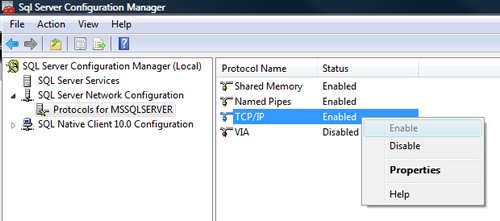
You must restart SQL Server Services for all the changes to take effect. Right click and go to menu properties to select location where default port of SQL Server can be changed.
3) Open Port in Windows Firewall
Windows Firewall is very efficacious in protecting the Operating system from all sorts of malicious attacks. By default, many of the ports and services are refrained from running by firewall. Time and again, SQL Server ports are not open in firewall as well. All the ports on which SQL Server is running should be added to exception and firewall should filter all the traffic from those ports. As described, by default SQL Server runs on port 1433, but if default port is changed then the new port should be added to exception. If SQL Server has named instance (another instance besides default instance) is installed, SQL Server browser should also be added to the exception, as described in Step 7.
Go to Control Panel >> Windows Firewall >> Change Settings >> Exceptions >> Add Port


Make the following entries in popup “Add a Port” and click OK.
Name : SQL
Port Number: 1433
Protocol: Select TCP


4) Enable Remote Connection
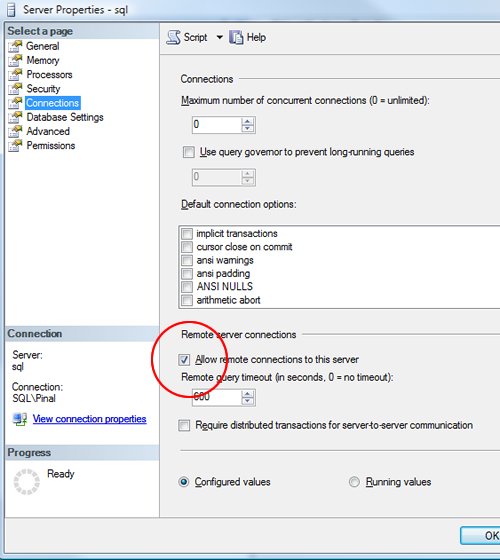
Enabling remote connection is another important, yet oft-neglected step that is frequently missed by database administrators while setting up SQL Server. If this feature is turned off SQL Server will function smoothly on local machine, but it will let another server connect to it remotely. By default this feature is ON in SQL Server 2008.
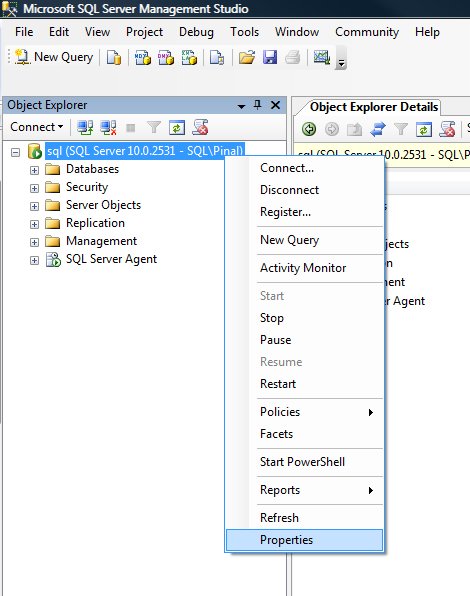
Right click on the server node and select Properties.
Go to Left Tab of Connections and check “Allow remote connections to this server”
5) Enable SQL Server Browser Service
If SQL Server is not installed as default instance but instead installed as named instance and also if there is no specific TCP/IP port configured, it will give rise to the error that is being discussed in this article. If SQL Server Browser service is enabled, it will allow the server to be connected through dynamic TCP/IP port. Enabling this service is a one-time process, as on enabling it once it will apply to all the instances installed on the same server.
Go to All Programs >> Microsoft SQL Server 2008 >> Configuration Tools >> SQL Server Configuration Manager >> SQL Server Browser

Right Click on SQL Server Browser >> Click on Enable
6) Create exception of sqlbrowser.exe in Firewall
As elucidated in Step 6, sqlbrowser service needs to be enabled for named instance. Windows Firewall may prevent sqlbrowser.exe to execute. So, it is imperative to add exception for the same in windows firewall.
Search for sqlbrowser.exe on your local drive where SQL Server is installed. Copy the path of the sqlbrowser.exe like C:\Program Files\Microsoft SQL Server\90\Shared\sqlbrowser.exe and create the exception of the file in Firewall, as delineated in Step 3.
7) Recreate Alias
It is getting quite common to create alias of SQL Server and use it in application. This will ensure that in future if any physical SQL Server has to be moved, it will not be required to change any code or connection string. You can simply create alias with the same name pointing to different SQL Server and it will start working instantaneously. I have observed that a couple of times due to internal error while recreating alias this error was fixed.
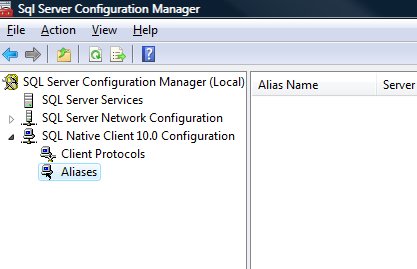
Go to All Programs >> Microsoft SQL Server 2008 >> Configuration Tools >> SQL Native Client 10.0 Configuration >> Aliases
Delete the alias that is giving problem and recreate it with identical parameters.
I have tried my best to include all the methods of fixing this error and if I have missed any, please leave a comment and I will be very glad to include them here. I have put in my effort to encompass this issue in one article that needs to be refereed when any connection error comes up.
Watch SQL in Sixty Seconds video to Resolve Connection Error:
[youtube=http://www.youtube.com/watch?v=1k00z82u4OI]
Reference : Pinal Dave (https://blog.sqlauthority.com)




658 Comments. Leave new
could not open connection to the host on port 23 connect failed
If you’re running in 64 bits don’t forget to define the SQL Server Alias in Sql Server Configuration Manager for both 32 bit and 64 bit (default) Client Configurations.
I didn’t have the aliases configured for 32 bits and I was finding it strange that some applications just didn’t use the aliases.
Maybe Dave would like to add this one to his post… :)
Hi
Many thanks for the tip.. I tried everything without seeing that there’s two different configurations for 32 and 64 bits..
Thanks !!
Patrick
Hi all,
Thanks for a detailed tutorial. I am an undergrad student. Last year in my web project i had created website successfully, in Web dev express edition and sql server 2005.
Now i want to connect Vc++ and Visual studio 2008 and sql server 2005. I have followed all above steps.
I am doing nothing different but there is no effect what ever i do.
The same above mentioned error 40 always appear.
A network-related or instance-specific error occurred while establishing a connection to SQL Server. The server was not found or was not accessible. Verify that the instance name is correct and that SQL Server is configured to allow remote connections. (provider: Named Pipes Provider, error: 40 – Could not open a connection to SQL Server)
I am initiating a sql connection on a button click in windows form application(project type).
My connection string is
Data Source=USER\SQLEXPRESS2;Initial Catalog=ourImage;Persist Security Info=True;User ID=sa;Password=1″
This connection string works fine in server explorer. Can any one help me how to communicate with sql server 2005 in vc++ VS 2008.
Thanks
Hi
I’m new to this blog and found this blog to be useful.
I’m experiencing a problem with the installation of SQL Native Client 10.0. Hope someone could help me by providing a solution. Please find below the context and problem.
—–
My machine is running on Windows XP Professional SP3.
I am trying install a CA product, for which SQL server is a pre-requisite. I’ve installed SQL server and the services are all up and running. Furthermore, the CA installation tool is also able to successfully connect to SQL server.
At the penultimate step of the installation process, the CA installation tool is throwing up an error saying– “SQL Native Client seems to be not installed”.
—–
How do I ensure that SQL Native Client is installed? I understand that there are 3 different SQL Server Native Client files (sqlncli10.dll, sqlnclir10.rll, and s10ch_sqlncli.chm) to be found in the ./system32 folder. However, I can only find sqlncli.10.dll there. Does this indicate any potential issues.
Any suggestions and/or help are positively welcomed.
Many thanks.
Satya,
Microsoft SQL Server 2008 Feature Pack, April 2009
This is basically the “redistributable” for sql files. There is a native client and “command line tools” area.
I’m not a lawyer, so read the EULA’s and do not rely on my “word”.
But instead of hand copying files, use the deployment packages that MS provides.
There are 2005 versions. And there are alternate date versions (I think April 2009 was the latest / greatest when I made this post, but search around, there may be an update).
I ran into this problem this evening, and my fix was not one that is listed here.
The SQL Server Service was running with the “LocalSystem” credentials, which does NOT permit the proper network access for all remote clients to access the SQL Server. Make sure that the proper credentials are set to run this service for network access, as “LocalSystem” is the most restrictive.
I would add to this GREAT how-to-article.
Firewall and Dynamic Ports (especially on NamedInstances which default to Dynamic Ports I believe).
Here is a tidbit I found which finally got me over the hump:
https://docs.microsoft.com/en-us/sql/sql-server/install/configure-the-windows-firewall-to-allow-sql-server-access?view=sql-server-2017#BKMK_dynamic_ports
I’m gonna paste the information in case the URL changes (which MS has been known to do)
Dynamic Ports
By default, named instances (including SQL Server Express) use dynamic ports. That means that every time that the Database Engine starts, it identifies an available port and uses that port number. If the named instance is the only instance of the Database Engine installed, it will probably use TCP port 1433. If other instances of the Database Engine are installed, it will probably use a different TCP port. Because the port selected might change every time that the Database Engine is started, it is difficult to configure the firewall to enable access to the correct port number. Therefore, if a firewall is used, we recommend reconfiguring the Database Engine to use the same port number every time. This is called a fixed port or a static port. For more information, see Configuring a Fixed Port.
An alternative to configuring a named instance to listen on a fixed port is to create an exception in the firewall for a SQL Server program such as sqlservr.exe (for the Database Engine). This can be convenient, but the port number will not appear in the Local Port column of the Inbound Rules page when you are using the Windows Firewall with Advanced Security MMC snap-in. This can make it more difficult to audit which ports are open. Another consideration is that a service pack or cumulative update can change the path to the SQL Server executable which will invalidate the firewall rule.
hi,
I have the same problem…. I can access to database via:
<add key="ConnString" value="Data Source=…
but for extra connections I have to add:
<add name="ConnectionString" connectionString="….
I have this error. I used all your solutions! no luck!
please help me. I did not have this error on xp. I have it on VISTA..!!!!
My problem is Protocols for MSSQLSERVER is missing in configuration manager after instaling Sql Server 2005 on windows 2003 server.
I can see sqlexpress and sql server browser.
How can I get MSSQLSERVER under Configuration Manager? Do I have to reinstall?
Thx for the information but I am still having a problem. I am unable to connect to my local instance. when I followed the steps as mention above, I dont c my SQL Server service running…how can I start it manually ? I even turned off my firewall. please help
Hello,
Thank you, Panal for a great solution.
However, in my case, it is a little bit more compliated and I just solve it. So I would like to share this infomration too.
Firs of all, if having two projects in a single solution make sure to change the connection string in both places. in my case web.config and app. config.
Moreover, anyone using LINQ to SQL make sure that after changing app.config trying to open the setting.setting so that the change takes affect. I was struckled for a while until figure it out that the connection string in setting did not get changed.
hope this my be a value to someone.
Cheers,
Peng
My problem was web.config as well. I needed to make sure the connection string was correct, and it slipped my mind until someone reminded me.
This also happened to me when creating a Asp.net website. I forgot that I had changed my computer name, and did not make the proper changes to my web.config file.
Hello
This is a potential fix for the various people who are receiving the following error:
“A network-related or instance-specific error occurred while establishing a connection to SQL Server. The server was not found or was not accessible. Verify that the instance name is correct and that SQL Server is configured to allow remote connections. (provider: Named Pipes Provider, error: 40 – Could not open a connection to SQL Server)”
I was receiving this error from SQL Server Management Studio after installing SQL Server 2008 Standard taking all defaults and having set the sa password as part of the install.
The fix was to browse out to the server where I found that the database server had a different name than the one SQL Server was attempting to log into… once I changed it I could login with no problem.
NOTE: The computer name had been changed for this server and therefore SQL Server Management Studio was looking for MSSQL 2008 on the wrong server name.
Hi, I had the same error, I specified the TCP Port to 1433 in
SQL Server Configuration Manager->SQL Server Network Configuration-> TCP-IP -> Properties ->Ip Addresses ->TCP Port and this Connection String:
Regards!!
Hi,
Is there a way to disable SQL Server to listen on 127.0.0.1?
I don’t want to allow connections from local host.
I’m looking for a solution for SQL Server 2000, 2005 and 2008.
Thanks a lot,
Uri
SQL server Manager -> Client Protocols (32bit)
or
SQL server Manager ->Protocols for MSSQLSERVER if its (64bit)
Double click tcp/Ip and click “IP Address” Tab
You should see adapters from IP1 to ALL
If you have IPv6 Enable on your Network adapter you will see a bunch of IPs in that version also, but typicaly you can see the local host loop back in there.
IP3
127.0.0.1
etc..
etc…
hi,
i m working with replication in sql server 2005.
i need to create local subcriber having publisher created on my webserver. But using the wizard i cann’t set the IP address or alias name to access the publisher.But with name instance i.e. remote sql server name, it gives the same error. On network database tab, it only displays the database in LAN. I followed all the stages u told. But the problem remains same. Please help me out.. Same problem i m getting when i m trying to log on to remote sql server (on webserver) by name instance.
is there any hope to get solution on my problem..
Thanks Pinal.Very usefull.
Hi, please understand my english grammar. By the way I used to read and checked online our local news without problems, i guess i deleted something or whatever that caused me the error. To be honest i dont know about computers i have no knowledge at all, and i dont understand any of this…now when i open our local news online and check whats in there, it says
500 Internal Server Error, Apache/1.3.41 Server at [Removed server address] Port 80
Can i still fix it? Please help me.
Anyone find a fix for the Issue where SQL can NOT accept connections on a private Network?
Server 2008 RC 2 – SQL 2008
TCP/IP is Enables
VIA = Off
Pipes = Off
Shared Memory = Off/On (not connecting from same server)
Dynamic Port is off
Static Port 1433 is set for 127.0.x.x. and 192.168.100.x
Remote is enabled
Web server CAN telnet to my FTP (FTP is on Database Server)
Web server CAN NOT Telnet to 1433, in under 2 min, it does connect but its SLOW.
Anyone come across this?
Thanks for the wonderful tutorial! I am wondering, I have windows server 2003 on my VM. However when I type “sqlcmd -L” it gives me an empty server list. It doesn’t even list itself as a server that’s running and I know it should.
This is a problem b/c on my local machine, I am trying to use Visual Studio 2008 to connect to my VM server, but Visual Studio 2008 doesn’t even see it. I suspect that it has to do with the fact that the server itself isn’t even listed in the cmd prompt on the virtual machine when I type “sqlcmd -L”.
Any tips?
Thanks so much,
Morgan
I’ve figured it out. My internet was working in the first place so be sure to go to Settings on your VPC and change it to the appropriate network adapter.
ping your VPC to make sure your local machine can see it.
Also, I was using windows authentication instead of sql authentication which was a mistake. :P
Thanks for the article, much appreciated. I learned a lot.
Cheers,
Morgan