
Regular readers of my blog are aware of the fact that I have written about this subject umpteen times earlier, and every time I have spoken about a new issue related to it. Few days ago, I had redone my local home network. I have LAN setup with wireless router connected with my four computers, two mobile devices, one printer and one VOIP solution. I had also formatted my primary computer and clean installed SQL Server 2008 into it. Yesterday, incidentally, I was sitting in my yard trying to connect SQL Server located in home office and suddenly I stumbled upon the following error. Finding the solution was the most infuriating part as it consumed my precious 10 minutes.
Let us look at few of the common errors received:
An error has occurred while establishing a connection to the server.
(provider: Named Pipes Provider, error: 40 – Could not open a connection to SQL Server) (Microsoft SQL Server, Error: 5)
An error has occurred while establishing a connection to the server. When connecting to SQL Server 2005, this failure may be caused by the fact that under the default settings SQL Server does not allow remote connections. (provider: Named Pipes Provider, error: 40 – Could not open a connection to SQL Server) (Microsoft SQL Server, Error: 1326)
I eventually found the resolution to this error on this blog itself; so I was saved from hunting for the solution. I am sure there are a number of developers who had previously fixed this error while installing SQL Server 2008 or SQL Server 2005 but in due course forgot the right solution to this error. This is just a quick refresher. Make sure to bookmark this as you never know when you would need this solution.
Let us check into the steps to resolve this error.
1) SQL Server should be up and running.
Go to All Programs >> Microsoft SQL Server 2008 >> Configuration Tools >> SQL Server Configuration Manager >> SQL Server Services, and check if SQL Server service status is “Running”.
In addition, ensure that your remote server is in the same network. Run “sqlcmd -L” in your command prompt to ascertain if your server is included in your network list. You can even find tutorial for the same here SQL SERVER – Find All Servers From Local Network – Using sqlcmd – Detect Installed SQL Server on Network.
I have confronted numerous situations when these nerve-wracking errors crop up, and most of the time when I try to troubleshoot I notice that SQL Server services are neither running nor installed. If SQL Server is not installed as default instance SQL Server Browser should be running together with it; we will explore this further in Topic 5.

2) Enable TCP/IP in SQL Server Configuration
When two or more SQL Servers are connected across network they do all communication using TCP/IP. The default port of SQL Server installation is 1433. This port can be changed through SQL Server Configuration Manager. TCP/IP should be enabled for SQL Server to be connected.
Go to All Programs >> Microsoft SQL Server 2008 >> Configuration Tools >> SQL Server Configuration Manager >> Select TCP/IP

Right Click on TCP/IP >> Click on Enable
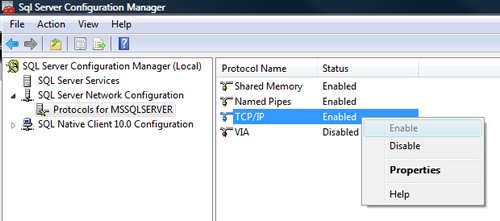
You must restart SQL Server Services for all the changes to take effect. Right click and go to menu properties to select location where default port of SQL Server can be changed.
3) Open Port in Windows Firewall
Windows Firewall is very efficacious in protecting the Operating system from all sorts of malicious attacks. By default, many of the ports and services are refrained from running by firewall. Time and again, SQL Server ports are not open in firewall as well. All the ports on which SQL Server is running should be added to exception and firewall should filter all the traffic from those ports. As described, by default SQL Server runs on port 1433, but if default port is changed then the new port should be added to exception. If SQL Server has named instance (another instance besides default instance) is installed, SQL Server browser should also be added to the exception, as described in Step 7.
Go to Control Panel >> Windows Firewall >> Change Settings >> Exceptions >> Add Port


Make the following entries in popup “Add a Port” and click OK.
Name : SQL
Port Number: 1433
Protocol: Select TCP


4) Enable Remote Connection
Enabling remote connection is another important, yet oft-neglected step that is frequently missed by database administrators while setting up SQL Server. If this feature is turned off SQL Server will function smoothly on local machine, but it will let another server connect to it remotely. By default this feature is ON in SQL Server 2008.
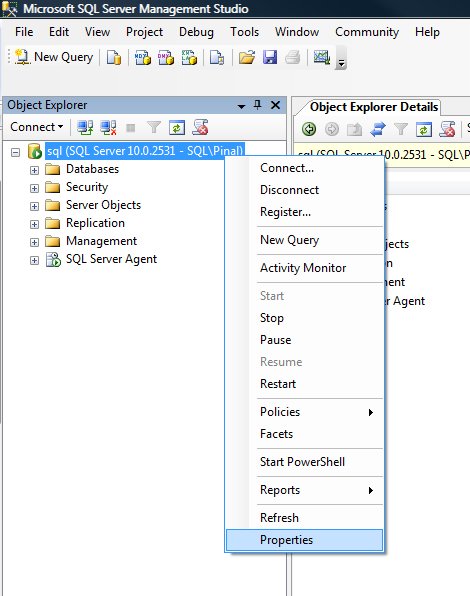
Right click on the server node and select Properties.
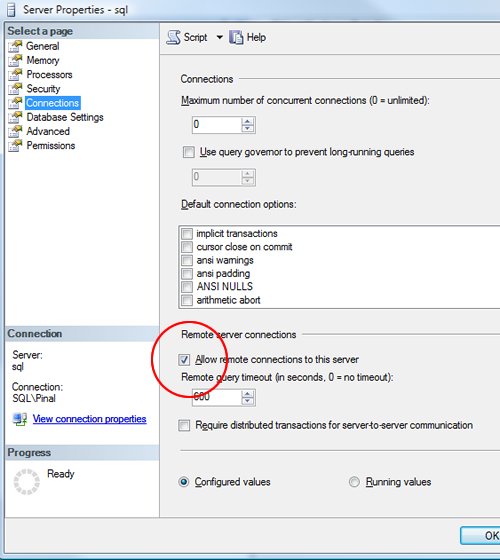
Go to Left Tab of Connections and check “Allow remote connections to this server”
5) Enable SQL Server Browser Service
If SQL Server is not installed as default instance but instead installed as named instance and also if there is no specific TCP/IP port configured, it will give rise to the error that is being discussed in this article. If SQL Server Browser service is enabled, it will allow the server to be connected through dynamic TCP/IP port. Enabling this service is a one-time process, as on enabling it once it will apply to all the instances installed on the same server.
Go to All Programs >> Microsoft SQL Server 2008 >> Configuration Tools >> SQL Server Configuration Manager >> SQL Server Browser

Right Click on SQL Server Browser >> Click on Enable
6) Create exception of sqlbrowser.exe in Firewall
As elucidated in Step 6, sqlbrowser service needs to be enabled for named instance. Windows Firewall may prevent sqlbrowser.exe to execute. So, it is imperative to add exception for the same in windows firewall.
Search for sqlbrowser.exe on your local drive where SQL Server is installed. Copy the path of the sqlbrowser.exe like C:\Program Files\Microsoft SQL Server\90\Shared\sqlbrowser.exe and create the exception of the file in Firewall, as delineated in Step 3.
7) Recreate Alias
It is getting quite common to create alias of SQL Server and use it in application. This will ensure that in future if any physical SQL Server has to be moved, it will not be required to change any code or connection string. You can simply create alias with the same name pointing to different SQL Server and it will start working instantaneously. I have observed that a couple of times due to internal error while recreating alias this error was fixed.
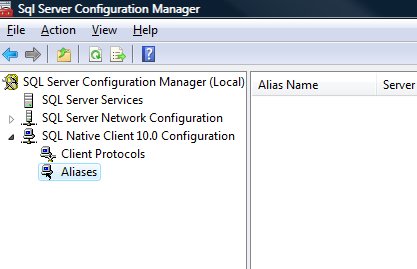
Go to All Programs >> Microsoft SQL Server 2008 >> Configuration Tools >> SQL Native Client 10.0 Configuration >> Aliases
Delete the alias that is giving problem and recreate it with identical parameters.
I have tried my best to include all the methods of fixing this error and if I have missed any, please leave a comment and I will be very glad to include them here. I have put in my effort to encompass this issue in one article that needs to be refereed when any connection error comes up.
Watch SQL in Sixty Seconds video to Resolve Connection Error:
[youtube=http://www.youtube.com/watch?v=1k00z82u4OI]
Reference : Pinal Dave (https://blog.sqlauthority.com)




658 Comments. Leave new
Holy Moly.
Can Microsoft make this any more complicated? Maybe I’m a dreamer, but this configuration-rats-nest is just asking for trouble.
Oh wait. Oracle makes it harder. Nevermind. I love it.
Ignore my earlier comment.
-)
that’s why don’t use both of them
Yes, that’s genius advice. Except I build applications for both SQL 2005 and 2008, as well as VS 2005 / 2008, .NET 2.0, 3.5, etc.. bottom line; professionals have sophisticated needs and this is classic ‘fail’.
indeed! MySQL is the way to go! :D
Yes, i think SQL Server 2008 is the most complicated installation ever.
I’m a programmer who’s usually admin-challenged especially when it comes to networks, protocols, ports, and yet I really didn’t have any trouble getting all my SQL servers set up and all accessible from a workstation-hosted copy of Management Studio.
Now, making sure they are using the strongest security best practices, that’s a topic for another day…
hello dave……
the connection which i am trying works well with other application.. but when i try to store an excel file in to database i get such error…….
can u please help me…..
i am using asp.net c#….
What I see here is the need to configure the Windows OS on the server, the SQL Server software and the database. Why the complaints about how complicated it is? There is no such thing as a one-size-fits-all implementation, and all these configurations allow admins the flexibility they need to deliver what the client wants. You may want a publicly available database, or an internal network application, or something available only locally on the machine itself. We need software flexible enough to handle all these scenarios and more.
If deploying databases and building information systems was easy, then the world would not need programmers and systems admins.
Thanks, this finally worked for me after many hours of troubleshooting. In the end I had a bunch of aliases to the local machine running SQLEXPRESS, deleted them all and verified that the port in the TCP/IP setting was the same as the one alias: MACHINE\SQLEXPRESS port 1433
Another possible problem I found was to make sure the port listend to was the one expected mine for example had dynamic ports and the IPALL was set to 1066 instead of 1433. From msdn:
SQL Server 2008 Books Online (April 2009)
How to: Configure a Server to Listen on a Specific TCP Port (SQL Server Configuration Manager)
If enabled, the default instance of the SQL Server Database Engine listens on TCP port 1433. Named instances of the Database Engine and SQL Server Compact 3.5 SP1 are configured for dynamic ports. This means they select an available port when the SQL Server service is started. When you are connecting to a named instance through a firewall, configure the Database Engine to listen on a specific port, so that the appropriate port can be opened in the firewall.
For more information about the default Windows firewall settings, and a description of the TCP ports that affect the Database Engine, Analysis Services, Reporting Services, and Integration Services, see Configuring the Windows Firewall to Allow SQL Server Access.
To assign a TCP/IP port number to the SQL Server Database Engine
In SQL Server Configuration Manager, in the console pane, expand SQL Server Network Configuration, expand Protocols for , and then double-click TCP/IP.
In the TCP/IP Properties dialog box, on the IP Addresses tab, several IP addresses appear in the format IP1, IP2, up to IPAll. One of these is for the IP address of the loopback adapter, 127.0.0.1. Additional IP addresses appear for each IP Address on the computer. Right-click each address, and then click Properties to identify the IP address that you want to configure.
If the TCP Dynamic Ports dialog box contains 0, indicating the Database Engine is listening on dynamic ports, delete the 0.
In the IPn Properties area box, in the TCP Port box, type the port number you want this IP address to listen on, and then click OK.
In the console pane, click SQL Server Services.
In the details pane, right-click SQL Server () and then click Restart, to stop and restart SQL Server.
After you have configured SQL Server to listen on a specific port, there are three ways to connect to a specific port with a client application:
Run the SQL Server Browser service on the server to connect to the Database Engine instance by name.
Create an alias on the client, specifying the port number.
Program the client to connect using a custom connection string.
See Also
Thank you vince.Ur post was helpful.
Thanks Vince, you solved the problem, this extra step solved the problem.
Quite useful…
Thanks for the post. It saved our time.
Thanks Vince, that extra step was needed for us as well.
u da man
Finally!!!!!! Thanks!!!!
You are a life saver. Thanks!
thanks Vince! enabling inbound port 1433 and forcing sql server to listen to that port instead of dynamic solved it! thanks again.
Bravo :) worked for me also
Well let me tell you… I get the error on the local machine trying to attach a database using osql.
So I don’t know what to do.
Hello,
Thank you for your article, your blog is a very good source of information for sql server professionals. It is a rather good practice to create alias for servers.
In my company, we have upgraded a customer application from sql server 2000 to sql server 2008, we created an alias with the same name of the server in order to keep the applications running. One day it just vanished from the alias section in mmc configuration manager.
Then when I tried to add it again, it exhibits me a screen displaying “WMI Error: The file exists”, with an error code 0x80070050. I can create other alias, but this with the same name I created before, I can’t. I am stuck on this problem.
I wonder if you have ever faced a similar problem, if you can help me out.
Thank you!
Oh My God!! your’re the best… you have solve this big problem to me. You’re my new Saint.. Thanks you so much.. I didn’t realise the meaning to sheard solutions… God
bless you!!
hi,
my problem is that i have done everything but the error still persists
error is
A network-related or instance-specific error occurred while establishing a connection to SQL Server. The server was not found or was not accessible. Verify that the instance name is correct and that SQL Server is configured to allow remote connections. (provider: Named Pipes Provider, error: 40 – Could not open a connection to SQL Server)
but when i connect my database through wizard in datalist it works .my connection works properly but with sqlcommand it creates problem. i work on sql2005 and visual studio 2008
I have the EXACT same problem…. followed the instructions but still can’t connect yet the import / export wizard will allow me to see the tables from my local machine.
Have you solved this problem yet?
See the link
https://support.microsoft.com/en-us/help/888228/you-receive-a-sql-server-does-not-exist-or-access-denied-error-message
If your SQL server instance is named and on a cluster the Windows Vista and 7 firewall is blocking the connection because the response from the SQL server is from the host IP address not the SQL server.
Hope this helps,
Jack
hi ,
when i create connection string in web config file everything is working fine.
dont understand why there is a problem when i create the connection string on .aspx page.
never mind things r working now.
Thank you, Vince!!!
I tried everything I could find on this subject with no luck until I read this:
“To assign a TCP/IP port number to the SQL Server Database Engine
In SQL Server Configuration Manager, in the console pane, expand SQL Server Network Configuration, expand Protocols for , and then double-click TCP/IP.
In the TCP/IP Properties dialog box, on the IP Addresses tab, several IP addresses appear in the format IP1, IP2, up to IPAll. One of these is for the IP address of the loopback adapter, 127.0.0.1. Additional IP addresses appear for each IP Address on the computer. Right-click each address, and then click Properties to identify the IP address that you want to configure.
If the TCP Dynamic Ports dialog box contains 0, indicating the Database Engine is listening on dynamic ports, delete the 0.”
Once I deleted those zeros and put in 1433 for TCP ports on each IP address, voila!
Boy what a pain in the arse!
A connection was successfully established with the server, but then an error occurred during the pre-login handshake. When connecting to SQL Server 2005, this failure may be caused by the fact that under the default settings SQL Server does not allow remote connections. (provider: Named Pipes Provider, error: 0 – No process is on the other end of the pipe.) (Microsoft SQL Server, Error: 233)
I had this issue when my connection string was wrong.
Thanks for the obvious! Your comment jogged my meneory and made me realize I was running the release version instead of the debug version of my app. The connection string was only correct in the debug one!
Back to basics! Think before you click…
Cheers,
Paul
I follow ur tutorial. problem solved. Thanks for ur step-by-step guide. You are great man….
I hope you could give me some advise as well regarding my problem. Currently I am working with a Windows Mobile project that will communicate with SQL Server 2005. To connect to my SQL Server my connection is “Data Source=myIPaddress,1433;Initial Catalog=databasename;User ID=sa;Password=sa;”. When I’ve tried to open it in SQL Management Express it is working fine. But when I’ve tried to that setting in my Visual Studio 2008 code, I always get the error “SQLException”. Is there anything that I need to adjust in my Windows Mobile Emulator? I hope you could help me. Thanks and kind regards.
followed everything else but this was the last item that fixed my issue, added “,1433” in the web.config file connection string and problem solved.
Gracias amigo, no tenia idea del error que me estaba dando y con tu explicacion me ayudo a solucionar mi coneccion con el servidor. espero poder contar contigo para cualquier consulta mas adelante, muchas gracias.
Thanks a lot! You did my day! I have tried to solve this problem for all day…but no luck.. but now it`s working again..:)
So, I installed a clean default setup of SQL 2008 x64 on Windows 7 Ultimate x64, before even opening SQL MC I updated it to SP1.
Yet, I cannot connect to my Server using SQL MC.
I get the following error:
A network-related or instance-specific error…
Veryfy the instance name and that SQL is allowed remote connections (provider: Named Pipes Provider, Error: 40 – Could not open a connection to SQL Server) (Microsoft SQL Server, Error: 3)
Things I’ve done:
Protocols are Enabled (Named Pipes, TCP/IP, etc)
Disabled Firewall (To get it out of the equation) yet, I added port 1433 TCP just in case
Rule out Client:
Tried client Toad freeware version and IT CONNECTS!!!! without a problem, leaving firewall, TCP/IP Named Pipes issues aside.
Theory:
SQL Management Console has problems with Windows 7 Ultimate x64 bits.
I couldn’t find anything on the web that relates to this problems other than the fact that SQL has known compatibility issues with Windows 7, but I thought they were solved after SP1
Any help would be greatly appreciated
HI Ezequiel,
Your solutions is of immense help to me. I have your suggestions of removing dynamic values of zeros and putting up 1433 in the TCP port and it worked.
Thanks a lot.
Hats off to you.
Regards,
Sudeep Kar
I followed all the steps, my problem is still in there. Mine may be different in that I have two servers: One application server that has asp.net application pointed to the database server.
When I run my application from IIS server, I got the following error:
A network-related or instance-specific error occurred while establishing a connection to SQL Server. The server was not found or was not accessible. Verify that the instance name is correct and that SQL Server is configured to allow remote connections. (provider: Named Pipes Provider, error: 40 – Could not open a connection to SQL Server)
Please help me
hi Yoseph….
I am facing the same problem as mentioned above
Asp.net application is on one server
Database is on another server.While trying to make a connection from asp.net application to the database the error is being displayed.
Is your error resolved?
If yes, can you help me out.
i am also having the same problem.
if u solved this problem means help me out
Mee too.
Hi Pinal,
There are greate articles in this site.
I just had a feed back on your Article. where you mentioned
“You can simply create alias with the same name pointing to different SQL Server and it will start working instantaneously”
I am not sure if that is correct. I will get error if I want to creat alias with same name.
In general, seems to me sql alias is kind of “useless” . It
is tightly coupled with specific server. and if the server
changes then alias needs an “update” too.
Thank you so much, your post help me a lot configuring sql to allow remote connections. I was having a hard time trying to figure out what was wrong (sql browser wasn’t running).
Thank you and keep working hard with your blog :D
One more minor issue encountered is when people use sqlexpress.They connect to the server as machine\sqlexpress. So, in the connection string in the code, a “.” or “local” or “machinename” won’t work. it has to be server = “machinename\sqlexpress” otherwise we will get the same error.
Punit’s response on November 5, 2009 at 5:31 am resolved my problem guys.
Í’m using Windows 7, SQL 2005 Express, Visual Studio 2008 and could not get ASP.NET SQL Server Setup Wizard to see the SQL Server instance.
Please note that i also followed the toher steps in the initial article.
Enjoy
I’ve been trying to install the Sharepoint Designer Training Module on Sharepoint 2007 on various flavors of Windows 2008 server, using the SQL Express setup that falls out of the SharePoint install, and I kept hitting this same Named Pipes 040 error. I finally have gotten past the hurdle after trying all the additional steps suggested in this blog. The key ingredients seem to be:
1. Make sure the TCP/IP and Named Pipes are enabled in the Protocols section.
2. Make sure the Server Browser service is enabled; it is set to “Start Mode – disabled” by default.
3. Use the fully qualified SQL Server name in the “Server Field,” “[SERVER]\OFFICESERVERS” (OFFICESERVERS is the default name for the SQL Express server that automatically comes out of the Sharepoint install).
Thanks Forrest!
Using Visual Studio 2008 with SQL Express 2005.
Trying to add data connection and getting this error. After reading your third point noticed server name doesn’t include SQL instance, added that and works perfectly.
Thanks again :)
Thanks Punit!
“machinename\sqlexpress” instead of “machinename” fixed my problem.
And thanks to Pinal Dave for this great blog.
Mike
This worked for me too. EXCELLENT!!!!!
I had the same error msg…and intellisence kept complaining about the syntax (invalid escape sequence)…so i used “machinename\\sqlinstance” and it worked…hope this helps someone else…
Well, of course. This is basic programming stuff :)
“foobar”
Here the compiler (or parser to be precise) thinks starts an escape sequence. It this case it would interpret b as backspace. So you need to tell the compiler that what you meant was actually backslash.
“foo\bar”
In C# there’s another way to do it.
@”foobar”
@ before quatation mark tells that what ever is inside the quatation marks must not be escaped.
Thanks for publishing – blogs and other published information has really helped!