Who changed a server setting is one of the first questions after a server starts behaving differently. Yesterday the reports were fast. Today the same queries go parallel, or stop going parallel, and nobody remembers touching anything. SQL Server remembers. Two built-in trails record every change made with sp_configure, and one of them even records the login.
Start With the Current Value
The view sys.configurations shows every setting. The column value is what was set, and value_in_use is what the server runs with right now. When they differ, someone changed the setting but the change has not taken effect yet.
SELECT name, value, value_in_use, is_advanced
FROM sys.configurations
WHERE name = N'cost threshold for parallelism';
On the test server, both values are 50. The setting is an advanced one, so changing it needs show advanced options first.
Make One Harmless Change
To see the trails, make a change and undo it at once. Run this on a test server only. The script saves both old values first. It moves cost threshold for parallelism by 5, puts it straight back and restores show advanced options too.
DECLARE @adv int = (SELECT CAST(value AS int) FROM sys.configurations WHERE name = N'show advanced options');
DECLARE @old int = (SELECT CAST(value AS int) FROM sys.configurations WHERE name = N'cost threshold for parallelism');
DECLARE @new int = CASE WHEN @old = 50 THEN 45 ELSE 50 END;
EXEC sp_configure 'show advanced options', 1; RECONFIGURE;
EXEC sp_configure 'cost threshold for parallelism', @new; RECONFIGURE;
EXEC sp_configure 'cost threshold for parallelism', @old; RECONFIGURE;  -- the undo, right away
EXEC sp_configure 'show advanced options', @adv; RECONFIGURE;           -- back as it was
SELECT @old AS OriginalValue, @new AS TemporaryValue;
The Error Log: What Changed and When
Every sp_configure change writes a line to the SQL Server error log. The procedure sp_readerrorlog reads the current log (0) and can filter it by two search words.
EXEC sys.sp_readerrorlog 0, 1, N'Configuration option', N'cost threshold';
Each run of the test adds two lines, one for each change, both from the same session:
Configuration option 'cost threshold for parallelism' changed from 50 to 45. Run the RECONFIGURE statement to install.
Configuration option 'cost threshold for parallelism' changed from 45 to 50. Run the RECONFIGURE statement to install.
Notice the second sentence. The message always asks for RECONFIGURE, even when RECONFIGURE ran a moment later. Don’t read it as proof that the change is still waiting; check value_in_use instead. The error log gives you the old value, the new value, the time and the session ID. It doesn’t tell you who. One more surprise: sp_configure logs a line even when nothing changes. Setting show advanced options from 1 to 1 still writes “changed from 1 to 1”.
The Default Trace: Who Did It
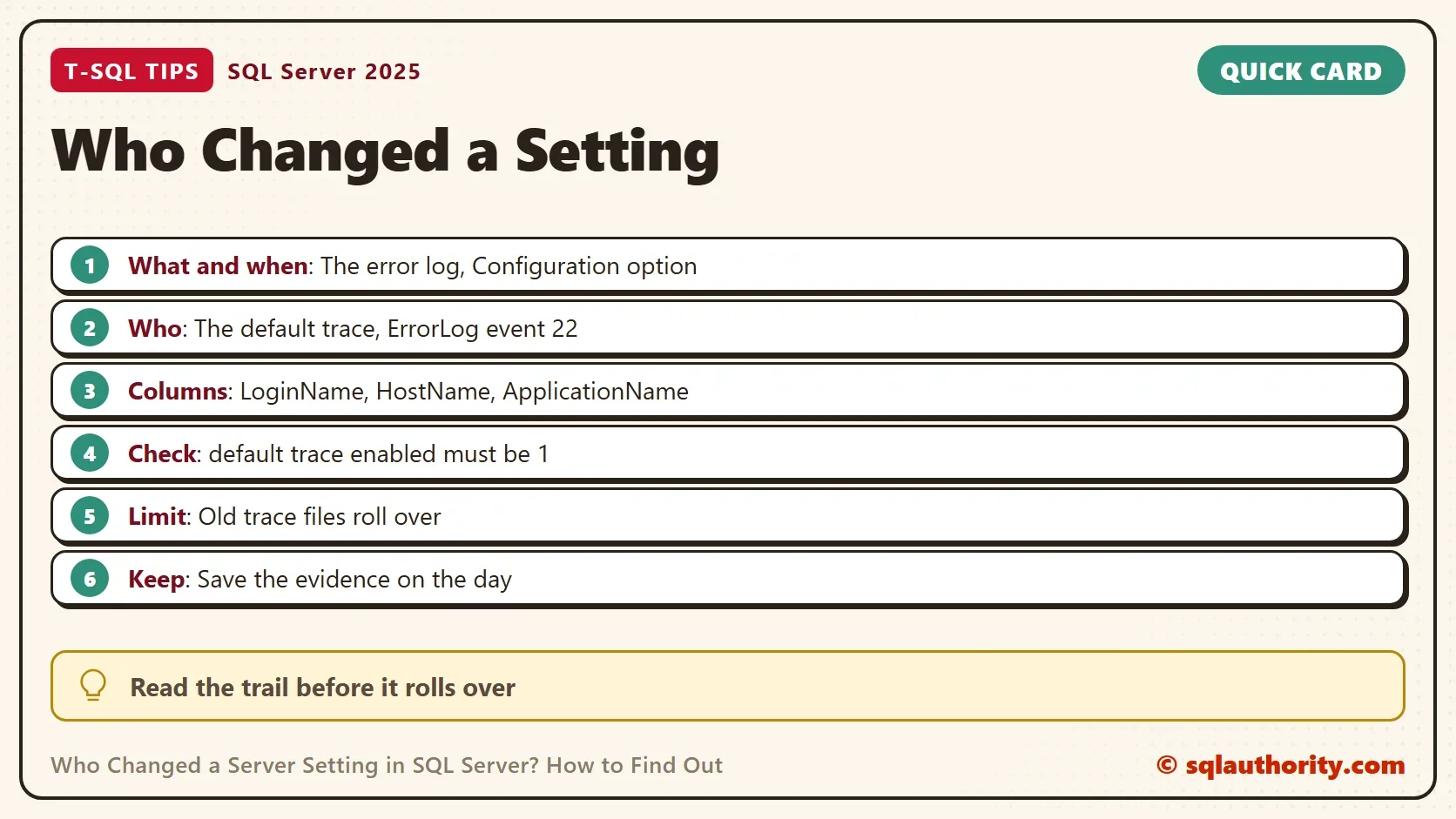
SQL Server runs a small trace in the background, called the default trace. It copies each error log message as an ErrorLog event, number 22. With it come the login, the computer and the program of the session. That’s the answer to who changed a server setting.
DECLARE @path nvarchar(260) = (SELECT path FROM sys.traces WHERE is_default = 1);
SELECT t.StartTime, t.LoginName, t.HostName, t.ApplicationName, t.SPID,
       CAST(t.TextData AS nvarchar(300)) AS Change
FROM sys.fn_trace_gettable(@path, DEFAULT) AS t
WHERE t.EventClass = 22
  AND CAST(t.TextData AS nvarchar(max)) LIKE N'%Configuration option%'
ORDER BY t.StartTime DESC;| Column | What the test showed |
|---|---|
| StartTime | The moment of each change, a few milliseconds apart |
| LoginName | The Windows login that ran the script |
| HostName | The computer it ran from |
| ApplicationName | SQLCMD, the program used for the test |
| Change | The same “changed from 50 to 45” text as the error log |
Keep the EventClass filter. Reading the trace is itself an event. A filter on the text alone also returns your own SELECT, as an “Audit Server Alter Trace Event” row.
Limits You Should Know
The default trace is small on purpose. It keeps up to five files of 20 MB each and then overwrites the oldest one. On a busy server, that can be only a few days of history. Someone can also switch the trace off with the option default trace enabled. Check that its value_in_use is 1.
The error log rolls over too, when the service restarts or when someone cycles it. Use sp_readerrorlog 1, 2 and so on to read the older files. And neither trail sees a change made by editing the registry or the startup options of the service.
You could argue that this is a job for a proper audit, and you’d be right. SQL Server Audit or an Extended Events session keeps a longer, safer history. But on the day something breaks, these two trails are already there, and they cost nothing to read.
What to Remember
To find who changed a server setting, read the error log for what and when. Then read the default trace for who. Filter the trace on EventClass 22, and check value_in_use before you trust the message text. Save what you find on the same day, before the files roll over.
A setting that changed by itself is not a mystery, it is a trail nobody read yet.
Published by Pinal Dave on SQLAuthority. More of my work at pinaldave.com.
Discover more from SQL Authority with Pinal Dave
Subscribe to get the latest posts sent to your email.