
I have mentioned the history of NorthWind, Pubs and AdventureWorks in my previous post SQL SERVER – 2005 NorthWind Database or AdventureWorks Database – Samples Databases. I have been receiving very frequent request for NorthWind Database for SQL Server 2005 and installation method.
Follow the steps carefully and it will install Northwind and Pubs database in SQL Server without any issue. I have tested all the three methods on my home computer and attached the screen shots as well.
Common Step for all the 3 methods
First, go to Microsoft Download Center and download SQL2000SampleDb.msi.
Run SQL2000SampleDb.msi it will create “C:\SQL Server 2000 Sample Databases” folder.
Now follow any of the following three methods to install this database. I have listed methods in order of my preference.
Method 1: Running SQLCMD
Navigate to this folder using command prompt. Start >> Run >> C:\SQL Server 2000 Sample Databases.
If you have installed SQL Server as named instance run following command.
c:\>sqlcmd -S .\InstanceName -i instpubs.sql
c:\>sqlcmd -S .\InstanceName -i instnwnd.sql

If you have installed SQL Server as default instance run following command.
c:\>sqlcmd -i instpubs.sql
c:\>sqlcmd -i instnwnd.sql

Verify that NorthWind and Pubs database are installed correctly.
Method 2: Running SQL Script
Open SQL Server Management Studio. Go to File >> Open >> Navigate to “C:\SQL Server 2000 Sample Databases\instpubs.sql” and “C:\SQL Server 2000 Sample Databases\instnwnd.sql” and run those SQL files in order. This will install the database.

Method3: Attaching the Database
Move Northwind and Pubs database files (MDF and LDF files) to your default database file location (usually – C:\Program Files\Microsoft SQL Server\MSSQL\Data).
Open SQL Server Management Studio. Expand the database node >> Right click on Databases >> Click on Attach >> Select NorthWind Database. It will automatically find MDF and LDF file. Click OK.
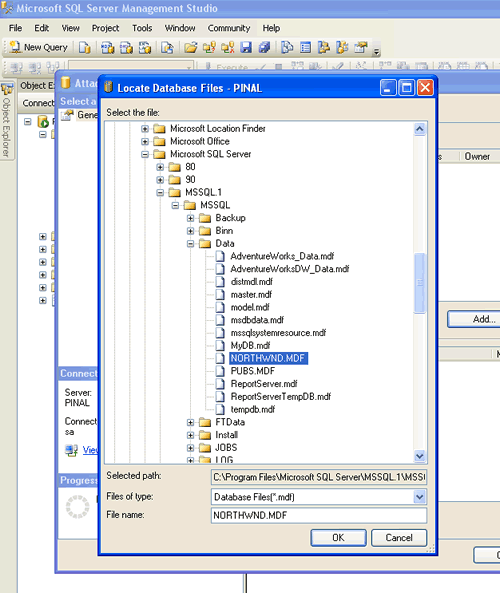
Repeat the process for Pubs and verify that databases are installed correctly.
Reference: Pinal Dave (https://blog.sqlauthority.com), Read-Me file in the installation folder, BOL





191 Comments. Leave new
For all those who are using Vista – you should start cmd with administrator privileges.
Go to C:\windows\system32\cmd.exe right clik and click “Run as Administrator”. Than firs option for installation threw command prompt will work just fine.
great post. I successfully installed Northwind.
thanks,
gaurav
Thanks man. Good help
I have developed an application in Visual C#.net 2005 it is connected to a Sql Server database at back end.Now i want to create a setup project which should first install my application as well as Sql server. i.e when i install my application it also installs Sql Server if it is not already installed.
How can i do this?
I will be very thankful.
Thanks!
phew .. finally
many thanx
Yay…
Thanks..
You rocks…!
thnx a bunch for this man.. very helpful, db sample install made simple ;-)
hi can an bod tell me how to set database on server when creating setup in .net .
Thanks, I have succesffully instaled Northwind.
I am not able to download “SQL2000SampleDb.msi” from Microsoft url becuase of some security issues is there any other place where i can download it from
Thanks
I am a newbie to sql server….
i found this information v v v v useful to install these databses…
thank you…
It really works. Thank U!
Cheers!
This is an excellent stuff.
I’m learning SQL Server 2005 and ASP .NET, please help me to find any site which explains in such a simple English to learn, I’ll be glad.
Thanks in advance
Sri Hari A
Hi Pinal Dave,
I followed your instructions to install the northwind database, it worked! Thank you very much.
You are the man!
Greetings from the Netherlands,
KdV
Dear Bro,
Is there any impact if i delete Northwind and AdventureWorks db? I am not suppose to install it at my production db.
If yes, do i just right click on the db name and choose ‘delete’?
Thanks
Regards
Thanks a lot for making this easy –
My only wish would be that Microsoft would ship northwind as part of the SQL Server install!
Best regards,
Lee
I am someone who is entirely new in this field. Your article really did help me to install the two database. Thanks a lot.
Many thanks. Method 1 even worked! Just ensure you have closed down Visual Studio before you do it(Sounds obvious but I thought Id mention it.)
Thanks for this good tutorial, it is cool!