
Let me start today’s blog post with a direction question. How many of you have ever used Template Browser? Template Browser is a very important and useful feature of SQL Server Management Studio (SSMS). Every time when I am talking about SQL Server there is always someone comes up with the question, why there is no step by step procedure included in SSMS for features. Honestly every time I get this question, the question I ask back is How many of you have ever used Template Browser?
I think the answer to this question is most of the time either no or we have not heard of the feature. One of the people asked me back – have you ever written about it on your blog? I have not yet written about it. Basically there is nothing much to write about it. It is pretty straight forward feature, like any other feature and it is indeed difficult to elaborate. However, I will try to give a quick introduction to this feature.
Templates are like a quick cheat sheet or quick reference. Templates are available to create objects like databases, tables, views, indexes, stored procedures, triggers, statistics, and functions. Templates are also available for Analysis Services as well. The template scripts contain parameters to help you customize the code. You can Replace Template Parameters dialog box to insert values into the script. Additionally users can create new custom templates as well with folder structure.
To open a template from Template Explorer Go to View menu >> Template Explorer or type CTRL+ALT+T.
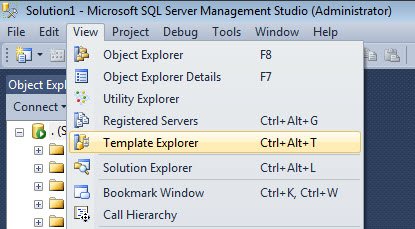
You will find a list of categories click on any category and expand the folder structure.

For our sample example let us expand Index Folder. In this folder you will notice the various T-SQL Scripts. These scripts can be opened by double click or can be dragged to editor area and modified as needed.

Sample template is now available in the query editor area with all the necessary parameter place folder. You can replace the same parameter by typing either CTRL+SHIFT+M or by going to Query Menu >> Specify Values for Template Parameters.

In this screen it will show Specify Values for Template Parameters dialog box, accept the value or replace it with a new value. This will now get your script ready to go. Check it one more time and change the script to fit your requirement.
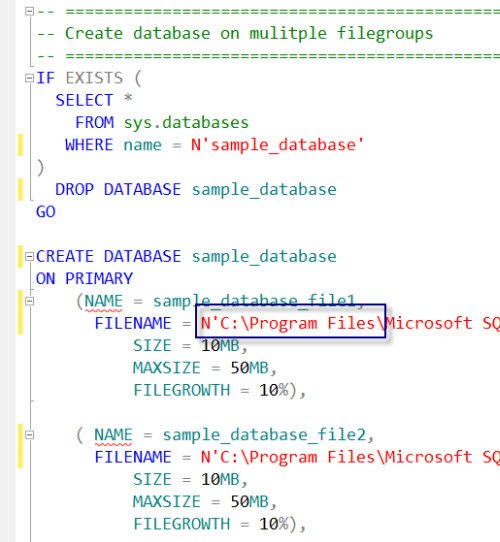
I personally use template explorer for two things. First one is obviously for templates but the hidden one and an important one is for learning new features and T-SQL commands. There is so much to learn and so little time.
Reference: Pinal Dave (https://blog.sqlauthority.com)





17 Comments. Leave new
Hi Pinal,
Thanks for this post.
I regularly use this feature.In your post, you haven’t specified how to add new template and how to modify existed one.
Right Click on SQL Server Templates folder –>New–>
There we can create new folder or Template.
if we want to use the template middle of our query window, we can drag and drop in the template in to our query window.
Example: I ll save the syntax those are, i wont use regularly,When i need those syntax middle of my query, i just open template explorer and drag and drop into middle of my query window.
Nice ..i am aware of this but never used this even i did not know from where i can open.
Thanks.
short cut key for Template Explorer is CTRL+ALT+T not CTRL+ALT+L.
nice
I use the template explorer, but what is missing is the ability to change the location of the folder to a Network Share. We have many templates and it would be nice if we could share them in our group.
when I do ctrl+N then I get auto comment that I save as templete in Templete Explore, is it possible
Thanks Pinal !
Till now I dont know that we have such an X’cellent feature in SSMS.
Template Browser – A Very Important and Useful Feature of SSMS
YES – Template Browser – A Very Important and Useful Feature of SSMS
THANK’S SIR.
Thanks for the post. How can I share the custom templates with other employees?
Hello sir
am trying this its working fine, but when i change in existing template i edit Create Stored Procedure (New Menu)
and in its comment part i set my name and save it. after that i go Object Explorer, particular database,programmability,and in store procedure right click and create new store procedure and its open with it’s default template but i didn’t found author name as my name it is default which is previous in template.please help me in that to set this name default
thanks in advance :-)
I am not able to understand. Are you modifying template or creating the procedure and its not saved.
If i create a new template where does it get stored after i have saved and restarted ssms. I cant see it in the default location for ssms templates –
C:\Program Files (x86)\Microsoft SQL Server\140\Tools\Binn\ManagementStudio\SqlWorkbenchProjectItems\Sql
Found it – ive changed “username” for privacy
C:\Users\username\AppData\Roaming\Microsoft\SQL Server Management Studio\14.0\Templates\Sql
Okay, I’m trying to do something that I just can’t seem to get accomplished and I haven’t found anything online to address this request.
In the “Template Browser” I want to add another category of templates to keep the various templates separate. Looking at the template browser, there are two icons in the “header”. One icon is for the “SQL Server Templates” and the other is for the “Analysis Services Templates”.
I want to add a third icon (or more) to the header along with the “SQL Server Templates” and “Analysis Services Templates”.
Does anybody know if this is possible, and if so, how do you do it?
I have SQL Server 2012 with an instance of SSMS 2012 and an instance of SSMS 2018.
Thanks.